
Microsoft has recently introduced Project Opal in Copilot, an AI-powered tool that can automate multi-step tasks across business applications. In this guide, we will see what Project Opal is and how to use Opal to automate Office tasks on a Windows 11 PC.
What is Project Opal?
Opal is an AI-powered task operator in Microsoft Copilot. It leverages a secure Windows 365 Cloud PC to work across an organization’s browser-based applications, sites, and data. You can describe a task in natural language, let Opal plan the steps, and monitor its progress while it works on your behalf. If you need to change the instructions, you can pause the task, take control, and provide updated commands.
Microsoft previously introduced Copilot Tasks, an AI-powered feature designed to help personal users automate everyday activities. Project Opal takes a similar approach to task automation but is designed for organizations. It can execute multi-step workflows, such as collecting audit evidence and compiling Excel data into presentations, within a managed environment.
Opal is currently available to eligible users through Microsoft’s Frontier early-access program. It requires a Microsoft Copilot subscription and administrator setup.

How to use Opal in Copilot for Automation of Office tasks
Opal can automate various tasks across business applications. However, you must meet the following prerequisites before you can use it:
- An eligible Microsoft Copilot subscription and access to Microsoft’s Frontier program.
- Opal enabled by your organization’s Microsoft 365 administrator.
- A configured Windows 365 Cloud PC environment.
- Access permissions for the websites and business applications required for the task.
Here are the steps you need to follow to get started:
- Open Microsoft Copilot and select Opal from the app launcher.
- Click + New and describe the Office-related task you want to automate.
- Click Start and let Opal plan the task and initialize its cloud PC environment.
- Complete any required sign-in prompts and monitor Opal as it executes the task.
- Review the results and verify the generated files or changes.
Let’s take a detailed look at the above steps.
Open the Microsoft 365 Copilot app on your Windows 11 PC or access it through the web, and sign in with your work account. Select Frontier from the left navigation pane and select Opal.
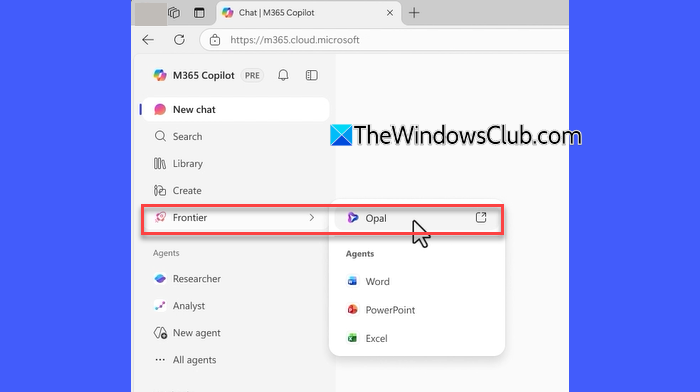
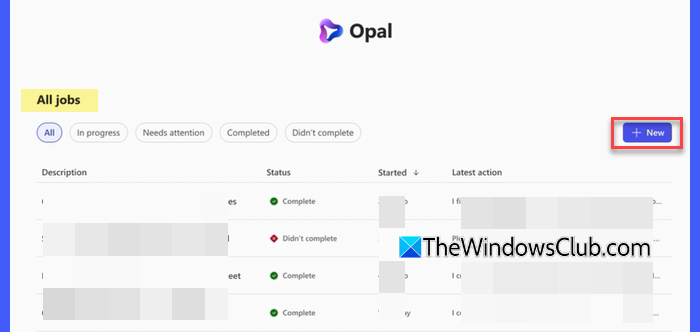
Project Opal opens in a new browser tab, where you can start a new job or view previously completed jobs. Click +New to start a job. Describe the task you want Opal to perform in the conversation box. Be specific about the information it should use and the expected output.
For example, you can ask Opal to collect financial figures from an approved business application and compile them into a PowerPoint presentation. Include instructions to flag missing or conflicting data instead of making assumptions.
Click Start to let Opal process your instructions and create a plan. It then launches a Windows 365 Cloud PC and prompts you to sign in, so it can work on your behalf. Opal uses an advanced reasoning model and computer-use capabilities to carry out the task.
Depending on the workflow, it may interact with supported browser-based applications to gather information and prepare the requested output. You may also need to allow browser pop-ups for authentication purposes.
You can view Opal’s actions in the activity view while it works. If you want to change the instructions or correct its approach, enter a new command in the conversation box. Opal processes the updated instructions and adjusts its plan accordingly.
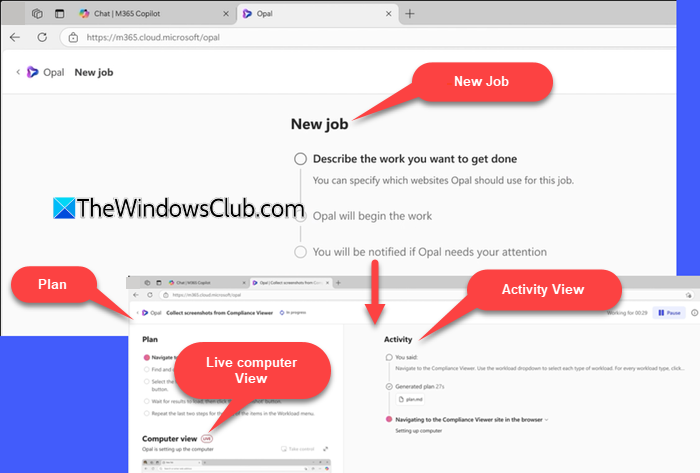
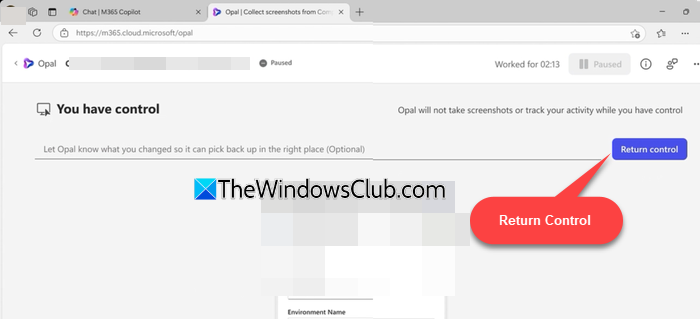
If you need to interact directly with the Cloud PC while a job is running, you can temporarily take control from Opal. Select Take Control above the Windows Cloud PC. Opal pauses its actions and opens a Remote Desktop interface, allowing you to interact with the Cloud PC directly.
After making the required changes, select Return control. You can also describe the changes you made in the conversation box so Opal can understand the current state and continue from the appropriate point.
Opal may also pause a job if it needs additional information, login credentials, or clarification about your instructions. It displays a message explaining why the job has paused. Read Opal’s message and provide the requested information in the conversation box. Once you respond, Opal can continue working on the task.
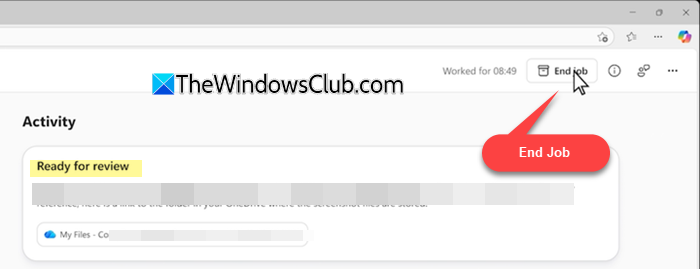
Once Opal completes the task, review the generated files and any changes it made. Make sure the output meets your requirements before sharing or using it.
Manage jobs in Project Opal
Project Opal lets you pause, resume, repeat, and delete jobs. You can also view the status of your current and previous jobs from the All jobs section on its homepage.
- Pause or resume a job: Select Pause at the top of the interface to temporarily stop a running job. Select Resume when you want Opal to continue.
- Repeat a job: Open the job you want to repeat, click the three-dot menu in the upper-right corner, and select Repeat initial request. Opal creates a new job using the original prompt.
- Delete a job: Open the three-dot menu for the relevant job and select Delete job.
- View previous jobs: Open All jobs on the Project Opal homepage to check the status of current and previous jobs, repeat a request, or delete a job you no longer need.
You can run up to three jobs simultaneously. If you start a fourth job, the oldest job will close out. Therefore, check the status of your existing jobs before starting another one.
Create and use Skills in Opal
If you frequently perform the same workflow, you can create a reusable skill in Opal to avoid entering the same instructions repeatedly.
- Open Settings in the upper-right corner.
- Select Skills > Add skill.
- Create a skill by importing a Markdown (.md) file, writing the instructions from scratch, or describing the workflow to Opal.
- Run the skill in a conversation to verify that it performs the task as expected.
- Reuse the skill in future conversations whenever you need to perform the same workflow.
For example, you could create a skill that collects monthly financial data, flags missing figures, and prepares a report using a consistent format.
I hope you find this useful.
Read: How to build AI-powered desktop automation workflows in Windows.
How to use Copilot to automate work tasks?
Microsoft Copilot offers several AI-powered features to automate work tasks, including Copilot Cowork, Copilot Code, and Autopilot. Cowork helps delegate multi-step tasks across Microsoft 365 apps, Code helps create applications and scripts using natural-language instructions, and Autopilot can proactively handle tasks based on your goals. Microsoft has also introduced Project Opal, an AI-powered task operator that uses a Windows 365 Cloud PC to interact with business applications and execute multi-step workflows.
How to use Copilot for work productivity?
You can improve work productivity with Microsoft Copilot by using its AI agents to automate specific workflows or the Cowork interface to delegate multi-step tasks. You can also use Copilot’s integrated Word, Excel, and PowerPoint features to create and edit documents. Enterprises can further explore Project Opal, an experimental Frontier feature that uses a Windows 365 Cloud PC to automate tasks across organizational applications.
Read Next: I encountered an error doing what you asked Gemini.
