
Artificial Intelligence has changed the way we surf the internet. Now, it is changing the way we interact with our computers. AI agents can now perform actions on your system by understanding instructions in natural language. You can use them to automate manual tasks, such as opening applications, moving files, browsing the internet for research and other requirements, and many repetitive tasks. This is called automating desktop workflows. This article shows how to build AI-powered desktop automation workflows in Windows 11.
How to build AI-powered desktop automation workflows in Windows 11
This article explores how to build AI-powered desktop automation workflows in Windows 11 using AI agents, such as Hermes Agent, OpenClaw, and Copilot Agent.
Hermes is a powerful AI agent developed by Nous Research. It is free and open-source, and comes with 40+ built-in tools for different tasks, including web search, task automation, and more. Persistent Memory is a powerful feature of Hermes Agent that transforms it into a real personal assistant. Hermes Agent can remember your preferences across different sessions. This is an additional advantage of Hermes over many other popular AI agents, where you may need to provide context again when starting a new chat or session.
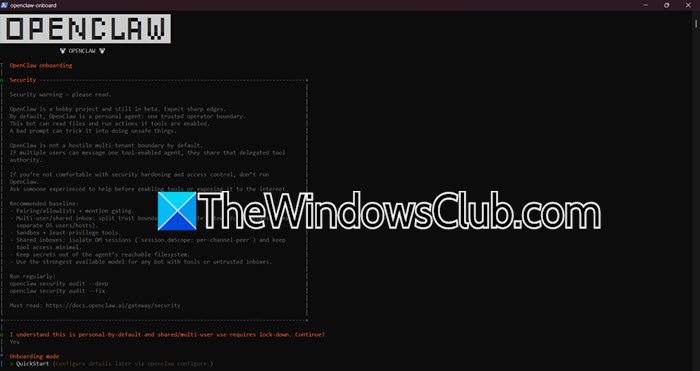
OpenClaw is also a powerful AI agent that can automate your tasks on your Windows computer. Like Hermes Agent, you can also use it to perform several actions, like executing commands, managing files, and interacting with other applications. It supports 29 chat channels, 64 AI models and media providers, and over 142 official plugins.
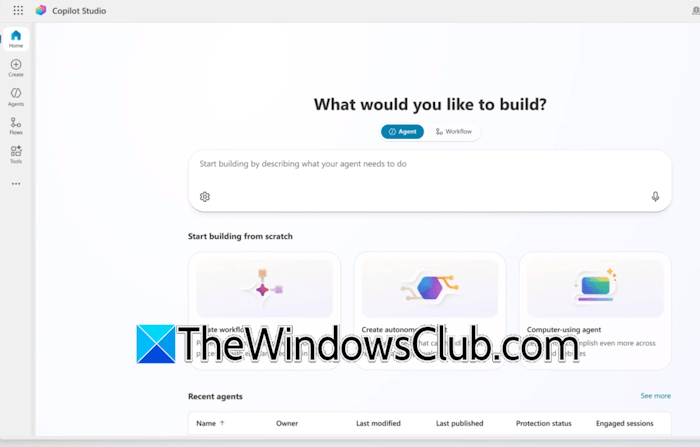
Copilot Agent is a part of Microsoft 365 Copilot Studio. Copilot Studio allows you to create multiple AI agents to automate different tasks in the Microsoft 365 environment. You can connect the agents you create with different Microsoft 365 apps, including Outlook, Teams, and more.
The following use cases will help you understand how you can use Hermes Agent, OpenClaw, and Copilot Agent to build AI-powered desktop automation workflows in Windows 11:
- Morning briefing
- Browser automation
- Automate email management
- Automate Microsoft Teams tasks
- Daily work folder cleanup
Let’s start.
1] Morning briefing
You can automate every morning task through Hermes Agent or OpenClaw. For example, suppose you like to stay updated with the latest news every morning but don’t have enough time to read it yourself. In this case, you can automate this task through these agents. Just give a prompt in simple language, like:
Every morning at 8:00 AM, check the latest news from reliable sources, focus on the most important technology, Windows, AI, and world news, and create a concise summary of the top stories. Save the summary as a text file named with the current date in the “Documents” folder.
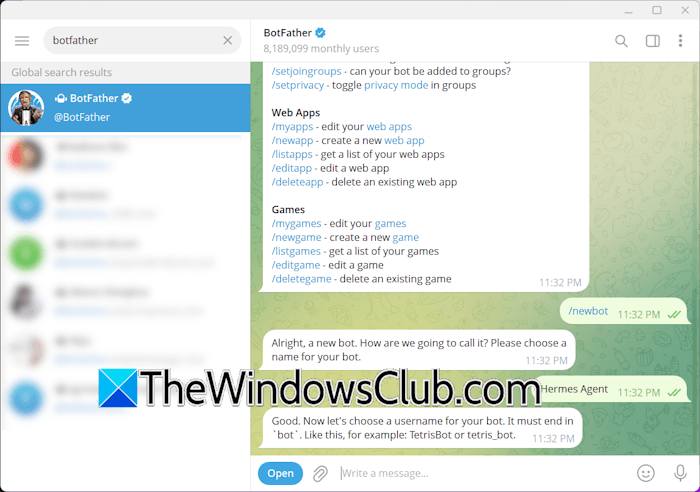
In the above prompt, you can replace the news categories as per your interest. If you do not want the agents to save a text file on your system, you can connect Telegram or WhatsApp to the platform and ask them to send you updates every morning on WhatsApp or Telegram.
2] Browser automation
There are several repetitive tasks that you perform every day in your web browser. For example, if you are a content creator, you need to search for trending topics daily to make a video. This is a time-consuming process. Now, you can leave this work to the Hermes Agent or OpenClaw. You can give it a prompt like the following:
Open my web browser and research the latest trending topics in AI, Windows, and technology from multiple reliable websites. Identify the topics that are gaining the most attention, collect the relevant information, and create a list of potential article and video ideas. Save the results in a text file named “Content Ideas” in my Documents folder along with the date.
3] Automate email management
With Hermes and OpenClaw, you can also automate your emails. If you use Microsoft 365 Outlook, Copilot Studio will be the best option for you. You can create a dedicated Copilot Agent in Copilot Studio for managing your Outlook emails. If you use Gmail or another email client, you can connect it with Hermes or OpenClaw. Opening and organizing each email becomes hectic, especially when you receive many emails daily. Now, you can leave this work to your AI agent.
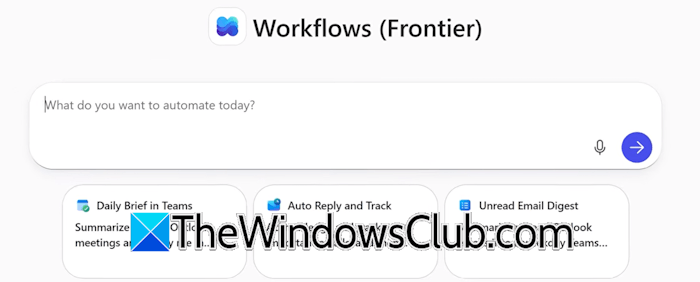
Have a look at the following prompt:
Every morning at 7:00 AM, check my inbox for unread work-related emails. Identify the emails that require my response, summarize their key points, and create a draft reply for each one. Complete this task before 9:00 AM so everything is ready before I arrive at the office. Do not send any emails without my approval.
Now, the agent will review your inbox, identify important emails that require a response, and prepare draft replies for them before 9 AM. This way, you can start working on the high-priority emails immediately after arriving at the office.
4] Automate Microsoft Teams tasks
You can build a dedicated Copilot agent to automate and manage your Teams tasks. For example, instead of going through your Teams chats and mentions, you can instruct the Copilot agent to review them and prepare a summary of all the important updates and pending action items. This will save time and help you stay up to date on your work without reading all the messages.
Have a look at the following prompt:
Review my latest Microsoft Teams messages and mentions. Identify the most important updates, conversations that require my attention, and pending action items. Create a concise summary organized by priority.
5] Daily work folder cleanup
Suppose you download several files throughout the day while working in the office. These files may be PDFs, images, Word documents, and spreadsheets, and you keep them all in one folder. You can use an AI agent to organize all these files automatically based on their file types every day after your work hours. The agent will create subfolders based on the file types and move all the files in their respective folders.
The following is an example prompt:
At the end of each workday, organize the files in my designated “Work Downloads” folder. Identify the files based on their types, such as images, PDFs, documents, spreadsheets, and videos. Create a separate folder for each file type and move the corresponding files into the appropriate folders. Do not delete or modify any files.
That’s it. In this way, you can automate your desktop workflow with AI agents.
How to create automation in Windows 11?
You can automate tasks in Windows 11 using the Task Scheduler. For example, you can make applications you use every day launch automatically on system startup. If you want an easy way to automate tasks in Windows 11, you can use AI agents, like Hermes or OpenClaw. However, using them for task automation requires an API key, and you need to pay for it.
How to integrate an AI agent in Windows 11?
You cannot integrate an AI agent in the Windows 11 operating system. However, you can deploy an AI agent to automate tasks in Windows 11 through Hermes Agent or OpenClaw. Install them and give them limited access to your PC to automate tasks.
Read next: 20 Real-World Use Cases of Microsoft MAI Models.
