
Microsoft Copilot can sometimes show the error The app was unable to create a trusted connection even when the Internet connection is working normally. If you are facing the same issue, there is no need to worry. In this guide, we will look at the possible causes and walk through practical steps to fix it.
Why is my Copilot not connecting?
Copilot may fail to connect for several common reasons, including proxy or firewall restrictions, TLS/SSL inspection, or certificate trust issues. VPN interference or issues with the Copilot app or authentication session can also cause it. In some cases, other Windows apps may also be affected while browser access continues to work.
In the browser, it may display Sorry, I didn’t catch that, whereas in the app it may display Something went wrong. Unable to create a trusted connection.
Copilot unable to create a trusted connection
If you encounter the Unable to create a trusted connection error, try the solutions given below.
- Run the Copilot Connectivity Troubleshooter
- Test Copilot on another network
- Investigate TLS inspection and the Windows certificate trust chain
- Inspect the Windows/WinHTTP proxy configuration
- Repair Copilot
- Refresh the authentication/session state
Let’s get started with the troubleshooting guide.
1] Run the Copilot Connectivity Troubleshooter
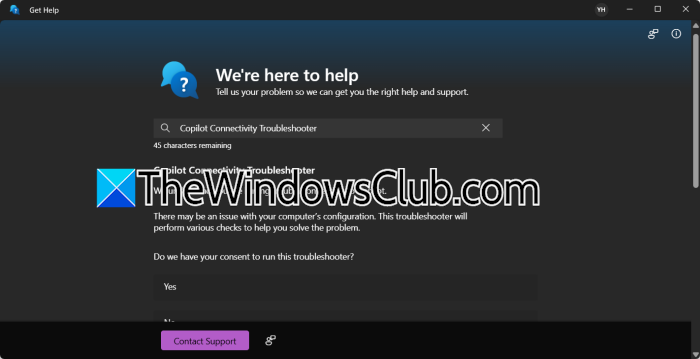
The Copilot Connectivity Troubleshooter is designed for situations where Copilot cannot establish a connection. It runs checks for common problems that may be preventing Copilot from communicating with its services.
- Open the Start menu, and search for Get Help.
- Open the Get Help app, and in the search box, type Copilot Connectivity Troubleshooter.
- Select the Copilot Connectivity Troubleshooter from the results, select Start, and allow Get Help to run its checks.
- Follow any steps the troubleshooter suggests. Once the checks are complete, reopen Copilot and check whether the trusted connection error has disappeared.
If Copilot still refuses to establish a trusted connection after the troubleshooter completes, move on to the next step.
2] Test Copilot on another network
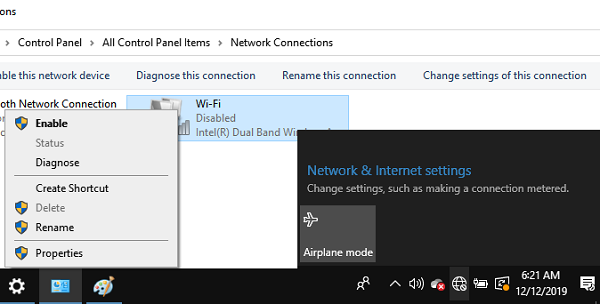
The current network may be causing the error rather than Windows or Copilot. A corporate network, VPN, proxy, firewall, or TLS-inspection system can interfere with the connection between Copilot and Microsoft’s services even when normal websites continue to work. Therefore, try another network to rule out VPN, proxy, and firewall filtering.
Disconnect the Windows PC from its current Wi-Fi or Ethernet connection, then connect it to a mobile hotspot or another trusted network. If you normally use a corporate VPN, leave it disconnected for this test unless you need it to access the service; then open the Copilot app.
Sign in normally if prompted and send a test message to check whether Copilot connects successfully. If Copilot works on the other network, the original network configuration is likely involved. If the problem remains, proceed to the next solution.
3] Investigate TLS inspection and the Windows certificate trust chain
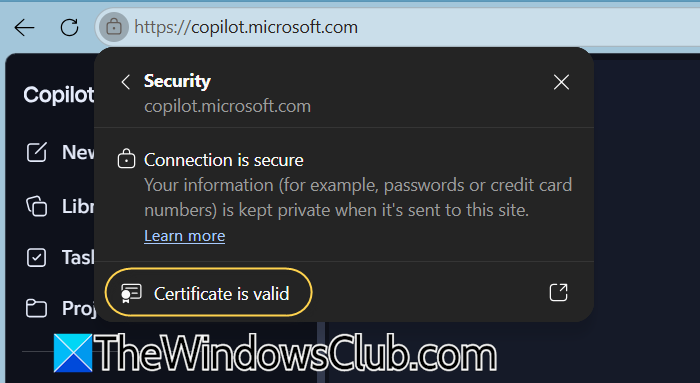
In this solution, we will verify the certificate chain and check whether Windows trusts the certificates presented by the connection. This matters because TLS inspection by a corporate proxy or security tool can cause Copilot’s secure connection to fail when Windows doesn’t trust the inspection certificate.
- Open Microsoft Edge on the affected Windows machine, and navigate to https://copilot.microsoft.com.
- Click the padlock icon in the address bar, select the Connection is secure option, and then click Certificate is valid.
- In the Certificate dialogue, go to the Certificate Path tab, expand the certificate chain, and check which certificate authority issued the certificate. If it belongs to your organisation or security software, TLS inspection may be taking place.
- If the organisation uses TLS inspection, contact the IT department and confirm that the required root CA certificate is correctly installed and trusted by Windows. If IT provides the appropriate root CA certificate, they can deploy it using the organisation’s approved method.
- For administrators who need to verify the local machine certificate store, open the Run dialogue box, type certlm.msc, and press Enter to open the Certificate Manager for the local machine.
- Navigate to Trusted Root Certification Authorities > Certificates, and check whether the organisation’s approved root CA certificate is present. Do not install an unfamiliar root certificate simply to fix Copilot.
On a corporate device, the correct certificate and deployment method should come from the IT or security team.
Read: Copilot We are experiencing an issue, Please try submitting a new message
4] Inspect the Windows/WinHTTP proxy configuration
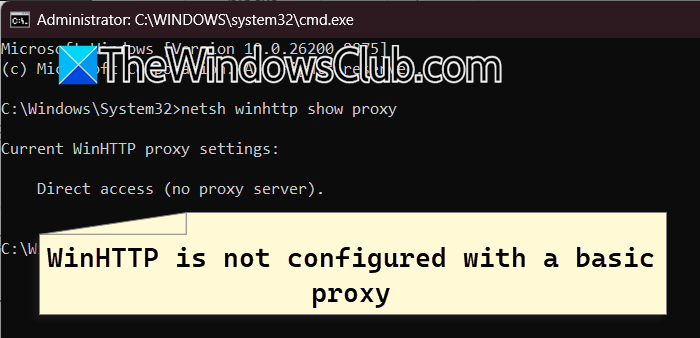
A misconfigured WinHTTP proxy can prevent Windows apps from reaching their required services, even when general Internet access appears to be working. In that case, check the WinHTTP configuration to see whether Windows is using a proxy and to identify an unexpected or outdated proxy. This also helps determine whether the configuration matches what the computer is supposed to use.
Open Command Prompt as an administrator and run the following command to view the current WinHTTP configuration.
netsh winhttp show proxy
If it shows Direct access (no proxy server), WinHTTP is not configured with a basic proxy. However, if it shows a proxy server and port, note the address and compare the result with the organization’s intended proxy configuration. If this is a corporate device, check with the IT or network administrator before changing the setting. If the machine should use a proxy but the displayed proxy is incorrect or outdated, apply the correct configuration. For a basic proxy configuration, the command is netsh winhttp set proxy <proxy-server>:<port>.
However, if the environment uses automatic proxy detection, a PAC file, or specific bypass rules, use the organisation’s approved configuration rather than replacing it with a basic proxy entry.
If the machine does not require a WinHTTP proxy and the existing proxy is known to be obsolete, reset it to DIRECT with the following command.
netsh winhttp reset proxy
Once done, restart Copilot and check whether it can now establish the trusted connection. If not, proceed to the next solution.
Read: Copilot unable to connect to the service at this time
5] Repair Copilot
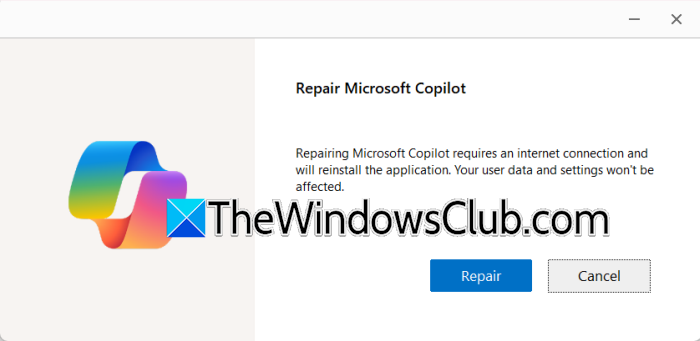
Next, repair the application before making more invasive system changes. Windows provides a Repair option that can fix certain app problems without removing its data. Follow the steps mentioned below to do the same.
- Click Win + I to open Settings, go to Apps, and select Installed apps.
- Find Copilot in the list, select the three-dot menu, and click on Modify.
- Click on Repair.
Launch Copilot again, sign in if required, and check whether the issue is resolved. If it continues, see the next solution.
Read: Copilot not working in Windows 11
6] Refresh the authentication/session state
Last but not least, if rebuilding the Copilot app didn’t work, the next step is to check the account and authentication session. A trusted-connection error can sometimes occur when Copilot’s local sign-in state or cached Microsoft account credentials become stale or inconsistent. Refreshing the Copilot session forces the application to establish a new authentication session.
Refresh the Copilot app, then sign out of the account currently connected to it, and close the app.
Launch it again, sign back in with your personal Microsoft account, and if sign-in fails or loops repeatedly, open a browser and sign in to Copilot on the web using the same account.
If the account works successfully in the browser but the Windows app still fails, restart Windows and try signing in to Copilot again. If the issue continues, avoid deleting unrelated Microsoft, Office, Outlook, or corporate credentials from Credential Manager unless you know exactly which credentials belong to Copilot or Microsoft Support or your IT administrator has instructed you to remove them.
Restart Windows, launch Copilot, and sign in again. The trusted connection should hopefully be restored.
Read: How to use COPILOT in Excel
Is there a Copilot issue today?
If you are experiencing Copilot issues, check whether Microsoft is experiencing a wider Copilot outage before troubleshooting the device. If you have access, check the Microsoft 365 Service Health dashboard, or use a reputable outage tracker to see whether other users are reporting similar problems. If Copilot is experiencing a service-wide issue, nothing may be wrong with the PC, and you may need to wait for Microsoft to resolve it.
Also Read: Use Copilot Tasks to turn the AI Chatbot into a Personal Assistant.
