
In this post, we will show you how to use Copilot License and Copilot Connectivity Troubleshooters to fix Copilot problems in Windows 11. Windows 11 comes with a built-in app named Get Help (formerly Contact Support) that includes troubleshooters for common scenarios. It features troubleshooters for Copilot that you can use to resolve issues without needing to contact support.
If you can’t access Copilot in Microsoft 365 applications, you can use the Copilot License Troubleshooter. If you face trouble connecting to Copilot, you can run the Copilot Connectivity Troubleshooter. Let us take a look at them.
Run Copilot Connectivity Troubleshooter if you cannot connect to Copilot
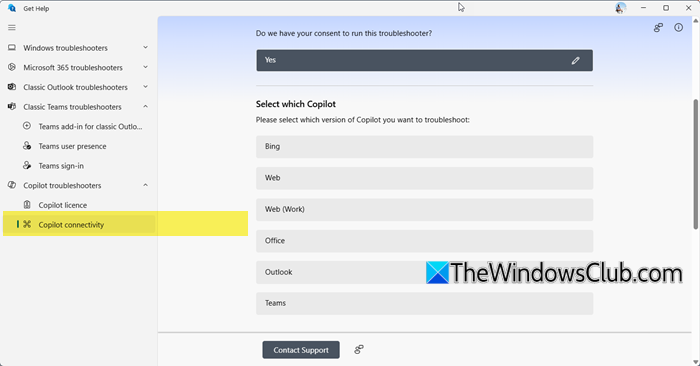
If you encounter a problem connecting to Copilot, the Copilot Connectivity Troubleshooter can be helpful. It will perform various checks (firewall rules, your computer’s configuration, and other potential blockers) to resolve the issue. To run this troubleshooter:
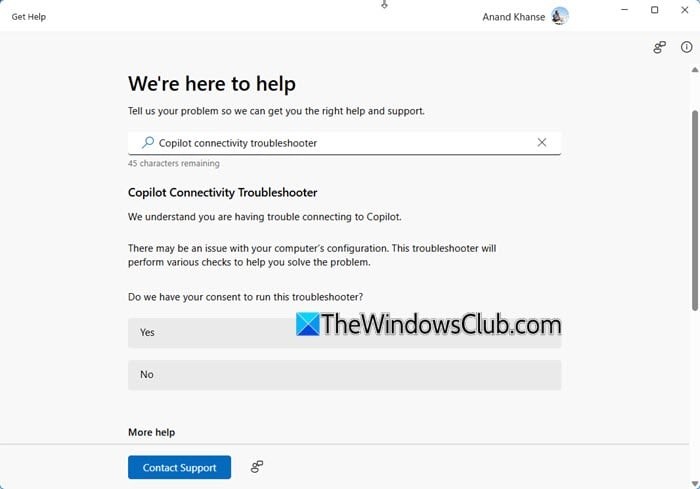
- Open the Get help app on your Windows 11 PC
- Type Copilot Connectivity Troubleshooter in the Search box of the app
- Press the Enter key
- Select Yes to provide your consent to run this troubleshooter
- Select the Copilot version for troubleshooting- Bing, Office, Outlook, Web (Work), Web, and Teams
- Now the troubleshooter will start and run the connectivity test based on your selection.
If there is an issue, it will provide suggestions. If there are no connectivity issues, it will display a Success message.
Run Copilot License Troubleshooter to fix Microsoft 365 licensing issues
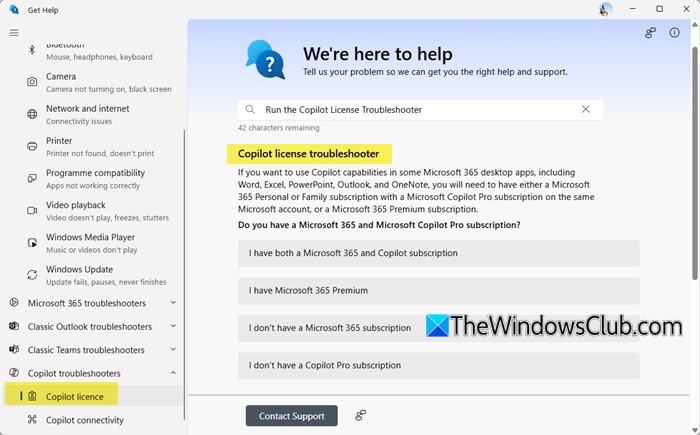
Microsoft Copilot and advanced AI features are available in Microsoft 365 Family or Personal subscription with a Microsoft Copilot Pro subscription in Word, PowerPoint, Excel, Notepad, and Outlook desktop apps, or a Microsoft 365 Premium subscription. If you have a Microsoft 365 Basic plan, it includes only mobile and web versions of these apps without Copilot. Now, if you believe you have a Copilot license but the Copilot icon is not visible in the eligible Microsoft 365 applications (say Word, PowerPoint, Outlook, etc.), you can run the Copilot License Troubleshooter to get assistance and solve issues. Here are the steps:
- Type get help in the Search box
- Press the Enter key to open and use the Get Help app
- Type Run the Copilot License Troubleshooter in the Search box and hit Enter.
After running the Copilot License Troubleshooter, you will get the following scenarios to assist you in a better way:
- I have both a Microsoft 365 and Copilot subscription
- I have Microsoft 365 Premium
- I don’t have a Microsoft 365 subscription, and
- I don’t have a Copilot Pro subscription.
Let us see each of these options.
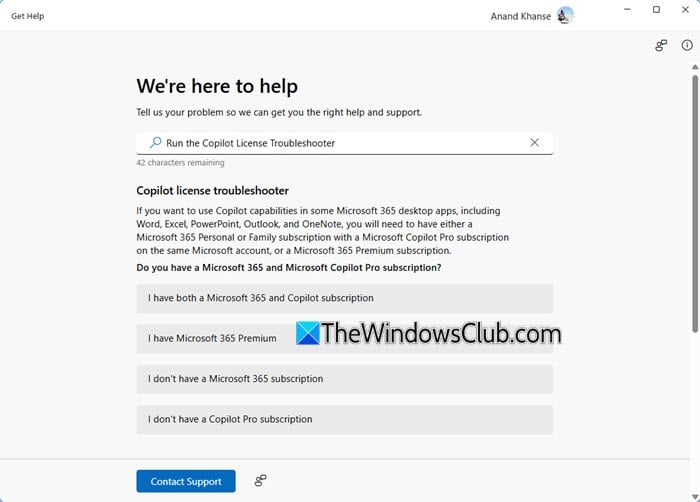
I have both a Microsoft 365 and Copilot subscription
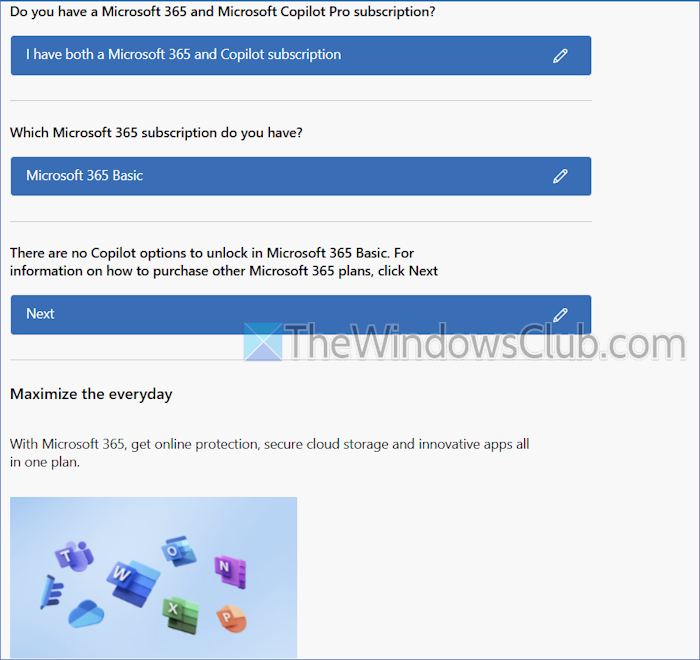
In this scenario, select your Microsoft 365 subscription (Microsoft 365 Basic, Microsoft 365 Personal, Microsoft 365 Family, and Microsoft 365 Premium). Now, as we already mentioned above, if you have a Microsoft 365 Basic plan, you can’t unlock Copilot and AI-powered features. In that case, the Copilot License Troubleshooter will assist you in purchasing other Microsoft 365 plans. You can press Next, and it will provide a Buy now link that directs you to the Microsoft 365 plans comparison page.
If you find the information useful, you can press the Yes option in the app interface. Pressing the No option will provide a Contact Support link.
Likewise, if you have another Microsoft 365 subscription, select that option, and then select if Copilot is missing from all of my apps or Copilot is missing in Outlook.
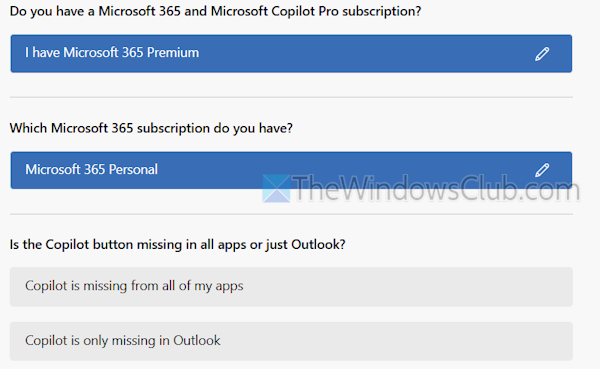
After that, select if you are using Copilot with your apps on Web, Windows, or Mac. Press Yes to provide your consent to run the Copilot License Troubleshooter. The troubleshooter will run the update channel and build check and assist you further.
I have Microsoft 365 Premium
After selecting this scenario, the Copilot License Troubleshooter will provide the same options as scenario #1 covered above.
I don’t have a Microsoft 365 subscription
If you don’t have a Microsoft 365 subscription, but you own a Copilot Pro subscription, you should see a Copilot option or icon in the Home tab of Office web apps (Word for the web, Outlook on the web, etc.).
On the other hand, if you want to use Copilot in Microsoft 365 apps on Windows or Mac, a Microsoft 365 Family or Personal subscription is required. Pressing the Next button will provide a Buy now link in the app.
I don’t have a Copilot Pro subscription
In this case, the troubleshooter will prompt you to visit copilot.microsoft.com to subscribe to Copilot Pro (available in select locales).
I hope these Troubleshooters help you fix Copilot problems.
Read: How to cancel Copilot Pro Subscription and get a Refund
Can Copilot help me troubleshoot my PC?
You can use the Copilot app on your Windows 11 PC to get step-by-step guidance for a query. For example, you can ask to adjust my screen brightness, and it will provide a Display settings link and steps to adjust the brightness. Even better, you can use Copilot Vision on your PC and share your screen or an open app to ask questions and get assistance.
Read: Fix Something went wrong error in Copilot
How to troubleshoot Copilot?
If Copilot is not working in Windows 11, first, check your internet connection, and check for updates. Also, make sure there is no TurnOffWindowsCopilot DWORD (32-bit) Value in the Windows Registry, or it is set to 0. If this doesn’t help, repair and reset the Copilot app.
Related Posts:
