
For any PC to start and show you a working environment or operating system to let you work, it must have a bootable device. The bootable device holds the operating system, Windows 11. If a PC fails to detect a bootable device, it shows you a “No bootable devices found” error. We cannot use the PC until we fix it. If you are looking for ways to fix the error, follow this guide.
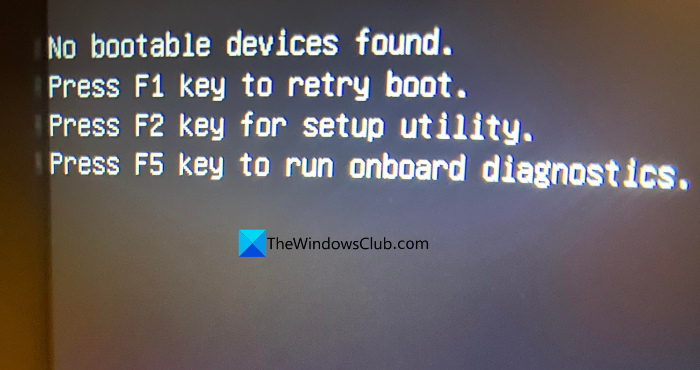
The ” No bootable devices found” error on Windows 11 can appear in any of the following ways.
No bootable devices found. Press F1 key to retry boot. Press F2 key for setup utility. Press F5 key to run onboard diagnostics.
No boot device is available
No boot device – insert boot disk and press any key
No bootable devices found in Windows 11
When you see the ” No bootable devices found error on your Windows 11/10 PC, you can use the following methods to fix the issue and boot into the PC normally.
- Check physical connections
- Check the Boot Order in the BIOS
- Run CHKDSK for errors on the boot drive
- Mark your Primary Partition active
- Rebuild Boot Configuration Data
Let’s get into the details of each method and fix the issue.
1] Check physical connections
If you use a PC that is assembled as per your needs and have multiple storage devices, you need to check if the physical connections of the drives are intact. Make sure the primary storage device on which Windows 11 is installed is connected securely, without any loose or faulty connections. Ensure the connection is secure so your PC recognizes the storage device and boots into it automatically.
If you have connected an external storage device, temporarily unplug it and reconnect it when you boot into your Windows 11 PC without any issues.
2] Check the Boot Order in the BIOS
The boot order in the BIOS of our PC decides everything. Whichever is set to boot first, the PC recognizes it first and boots into it. If you have connected any external storage device like a USB drive, it might be recognized first and show you a “no boot devices found” error. To fix that, you need to enter the BIOS/UEFI settings and change the boot order.
Enter BIOS/UEFI mode on your PC by pressing F2/F12/Del/Esc or any button that your manufacturer supports, while you are on the manufacturer’s logo screen during the boot-up. In the BIOS/UEFI mode, go to Boot settings using the arrow keys. You will see Boot Priority, Boot Order, or Boot Sequence options, based on your manufacturer. Enter the options for boot order.
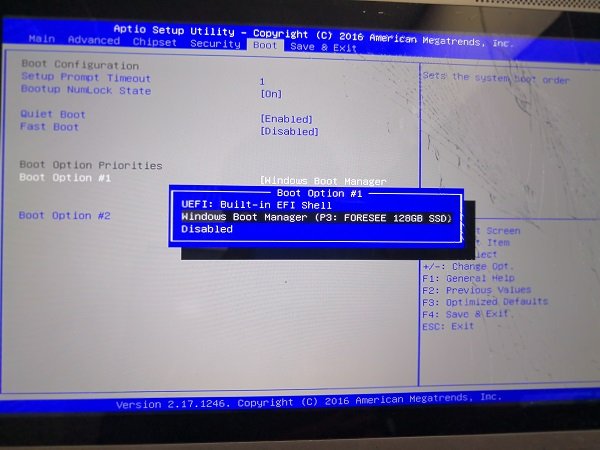
Keep the drive with Windows 11 installed at the top of other storage devices in the Boot order settings. It will force the BIOS/UEFI to recognize that drive as a bootable device and let you use your PC with Windows 11.
3] Run CHKDSK for errors on the boot drive
If you are seeing the “no bootable devices found” error even after changing boot order, there might be an issue with the drive itself. To eliminate the possibility, you need to run the CHKDSK function on the boot drive.
Since we cannot boot into Windows to run the CHKDSK commands, we need a bootable USB drive. You can create it on another PC.
After successfully creating a bootable USB drive, connect it to your PC and boot into it. Select Repair your computer in the installation options. Then, navigate to Troubleshoot > Advanced options > Command Prompt. Then, type the following command and press Enter.
chkdsk C: /r /x
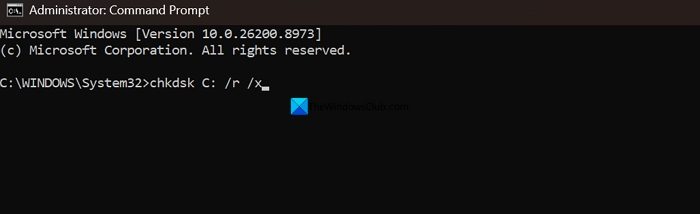
The command finds the bad sectors on your primary drive and fixes them automatically. After the successful run, exit the installation wizard and unplug the bootable USB drive. Then, boot your PC with the primary drive.
4] Mark your Primary Partition active
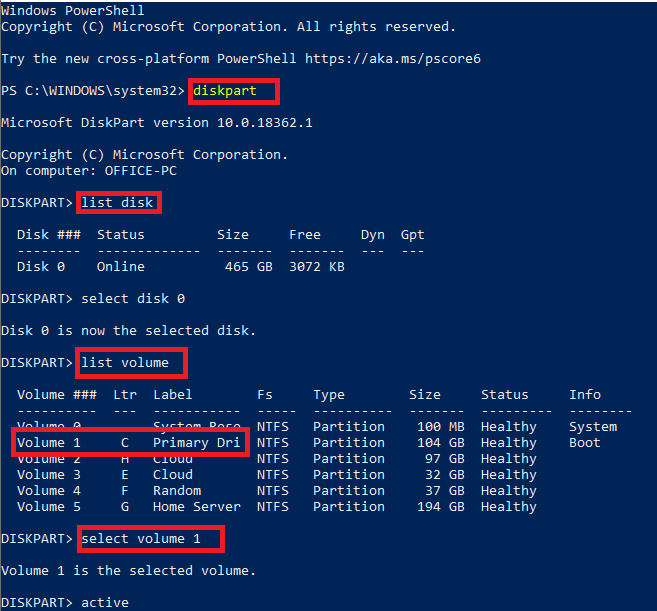
If you are still unable to boot and are seeing the error, connect the bootable USB drive again and enter repair mode. Then, open the Command Prompt and use the following commands to make your primary drive active. If it’s inactive, you will see the “No bootable devices found” error. Making it active fixes the issue and lets you boot into it easily.
DiskPart list disk

select disk 0

list volume

select volume X (where x is the volume where Windows is installed)

active

exit
Then, exit the setup, unplug the bootable USB drive, and restart your PC.
5] Rebuild Boot Configuration Data
You have tried everything from checking the health of your drive, making it active, and changing the boot order. The reason why you are seeing the “no bootable devices found” error might be corrupted boot configuration data. To fix that, you need to rebuild the boot configuration data.
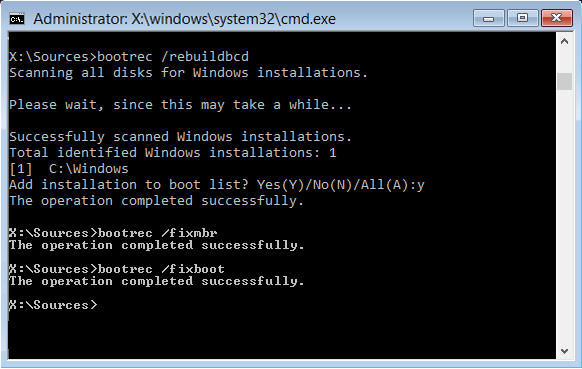
To rebuild BCD, you need to access Command Prompt again using the bootable USB drive and the “Repair my computer” option. Once you are in the Command Prompt window, type the following commands and press Enter. Use one command at a time in the following order.
bootrec /fixmbr
bootrec /fixboot
bootrec /scanos
bootrec /rebuildbcd
After running the commands successfully, unplug the bootable USB drive and restart your PC.
Related: Boot Device Not Found in Windows 11
No bootable devices found after Windows update
If you see the “no bootable devices found” error after a Windows update, disconnect all the external drives, check the physical connections, change boot order, make your primary partition active, check the disk health, and then rebuild the boot configuration data (BCD). You will need a bootable USB drive to fix the issue after trying basic fixes.
Read: Default Boot Device Missing or Boot Failed
How do I fix the “No bootable devices found” error in UEFI mode
After entering the BIOS or UEFI mode on your PC, go to Boot settings, Boot options, or similar settings. Then, look for Boot order, Boot sequence, or similar words, and change the boot order by moving the drive with Windows to the top. Put the drive on top and all other drives below it. It forces the UEFI to detect the drive as the primary drive to boot into. This post will help you if it occurs on your Surface device.
Read: Fix BOOTMGR is Missing error in Windows 11.
