
Some Samsung laptop users cannot boot into Windows due to the All boot options are tried.
Press F4 key to recover with factory image using Recovery or any other keys for next boot loop iteration error. This error screen appears at startup and keeps reappearing every time users turn on their computers. If you encounter this error and cannot use your system, this article will help you troubleshoot and fix this problem.
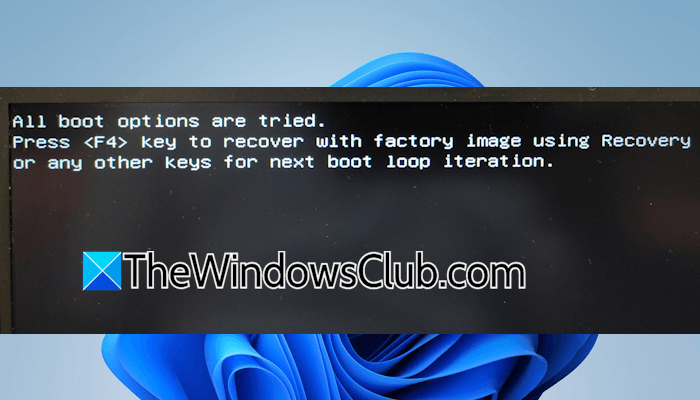
Samsung All boot options are tried error in Windows 11
Use these fixes if you are stuck on the “All boot options are tried” error screen on your Samsung laptop:
- Perform a hard reset
- Uninstall a Windows Update (if applicable)
- Check your hard drive connections
- Check the boot order
- Run Startup Repair
- Disable Secure Boot
- Check for unsigned driver(s)
- Reset BIOS
- Restore or reset your PC
- Perform a clean installation of Windows
- Hardware fault
All these fixes are explained in detail below:
1] Perform a hard reset
A hard reset usually fixes these types of issues. Try this and see if it works for you.
Follow these steps:
- Force shut down your system by pressing and holding the power button. After that, release the power button.
- If your laptop has a removable battery, disconnect it. Disconnect the charger and other peripherals.
- When your laptop is turned off, press and hold the power button for up to 30 seconds.
- Install the battery (if applicable).
Now, turn on your laptop and see if the error persists.
2] Uninstall a Windows Update (if applicable)
Some users reported that this error started occurring after installing a recent Windows update. Sometimes, a Windows Update causes issues. To address these types of Windows Update problems, Microsoft provides a built-in feature to uninstall a problematic update. Since you cannot boot into Windows, you have to enter the Windows Recovery Environment to uninstall the recent Windows Update.
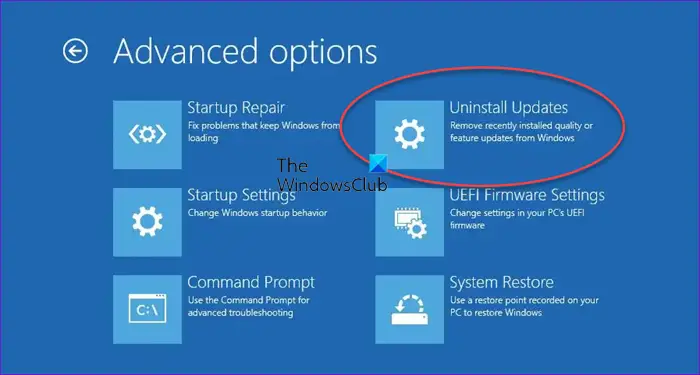
To enter the Windows Recovery Environment when your system does not boot, you have to interrupt the normal boot process. Here are the steps for that:
- Press and hold the power button to force shut down your laptop.
- When your laptop is turned off, press the power button to turn it on.
- When the Samsung or Windows logo appears on the screen, immediately press and hold the power button to force shut down your laptop.
Repeat the above steps until you see the Preparing Automatic Repair screen. Now, you are in the Windows Recovery Environment. Navigate to Advanced Options > Troubleshoot > Advanced Options > Uninstall Updates. Select the most recent Windows Update and follow the on-screen prompts to uninstall it.
3] Check your hard drive connections
Such an issue also occurs when the hard drive connections are loose. This may happen if you have recently cleaned your laptop. Open your laptop and check all the hard drive connections. Make sure they are not loose. If you are not good at this, get professional help.
4] Check the boot order
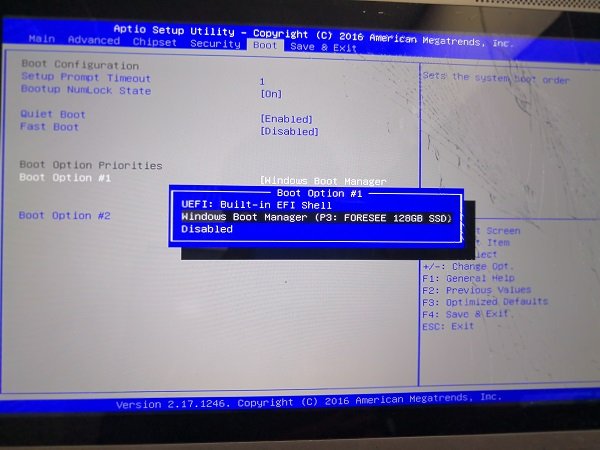
If the wrong drive is selected as the boot drive, you may encounter this error. To confirm this, check the boot order. Use the right BIOS key to enter your system’s BIOS and check which SSD/HDD is selected as the boot drive. If the wrong drive is selected, change the boot order and select the right drive.
5] Run Startup Repair
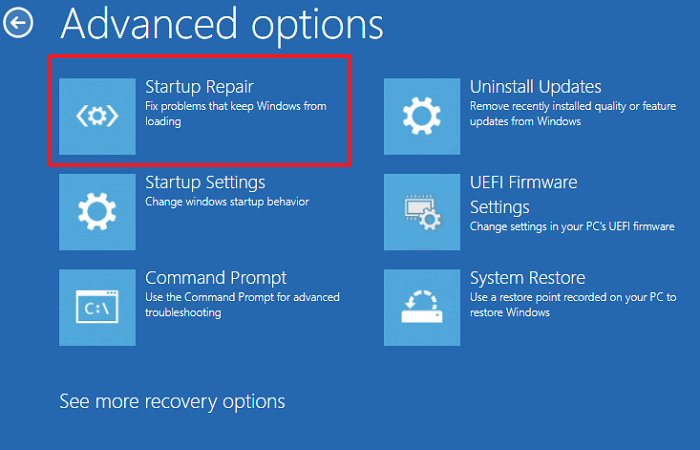
Startup Repair is a built-in tool in Windows that helps fix boot issues. You can try using it and see if it helps. To launch it, enter the Windows Recovery Environment using the method explained earlier in this article. Once you are in WinRE, navigate to Advanced Options > Troubleshoot > Advanced Options > Startup Repair. When the repair is completed, see if you can boot into Windows.
6] Disable Secure Boot
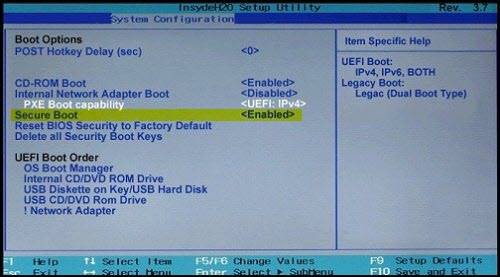
If the error persists, disable Secure Boot temporarily to see if you can boot into Windows. Enter your BIOS and find the option to disable Secure Boot. Once you disable it, switch the OS Mode Selection to UEFI and CSM OS. This is an additional OS mode in Samsung laptops. Usually, when you switch the OS mode from UEFI to CSM (or vice versa), you need to adjust the hard drive partition table; otherwise, the system won’t boot. UEFI and CSM will let you boot into Windows regardless of the hard drive partition style.
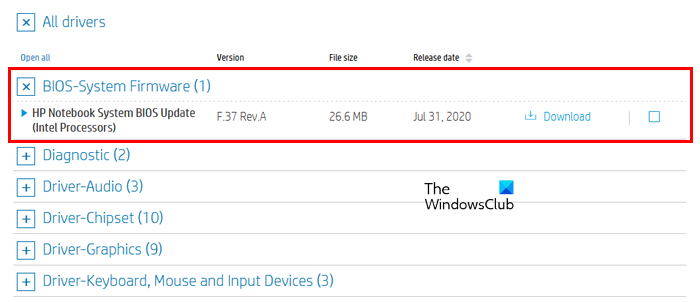
If this step fixes the error, you can try updating your BIOS to the latest version. First, open System Information and check the BIOS version installed on your system. Now, visit your computer manufacturer’s official website and check if the latest BIOS version is available. If yes, download and install it. During a BIOS update, make sure your laptop is connected to a charger. If power supply is interrupted during a BIOS update, your motherboard may be bricked.
7] Check for unsigned driver(s)
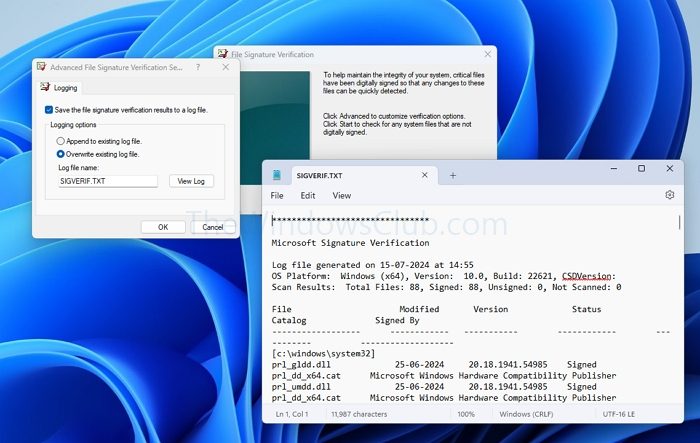
Secure Boot is a security feature in Windows. Therefore, you should not disable it permanently. However, if the “All boot options are tried” error starts occurring again after enabling Secure Boot, there might be an unsigned driver on your system. You need to identify it. Once you identify the unsigned driver, uninstall it.
8] Reset BIOS
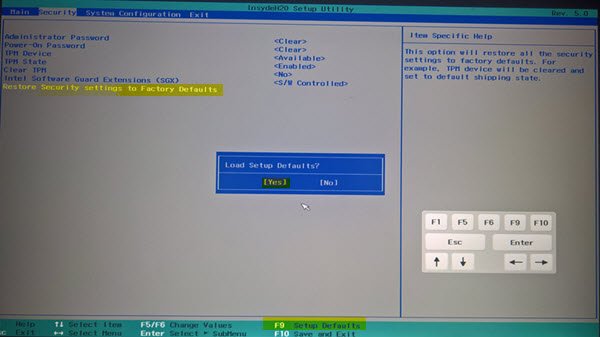
If the issue persists, you can try resetting the BIOS to the default. Before proceeding, it is suggested to write down all the current BIOS settings, so you can restore them again if resetting the BIOS does not fix the issue.
9] Restore or reset your PC
You can restore your system to the previous working state. Enter the Windows Recovery Environment by interrupting the normal boot process. Now, navigate to Advanced Options > Troubleshoot > Advanced Options > System Restore. Select the right restore point and follow the on-screen instructions to restore your system.
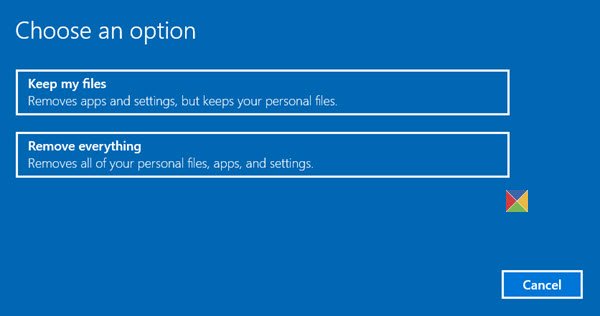
If the restore point does not exist or System Restore does not work, reset your PC. While performing this action, select the Keep my FIles option to prevent Windows from deleting your personal files. Use the Cloud Download feature, as it will download Windows from Microsoft servers and install it.
10] Perform a clean installation of Windows
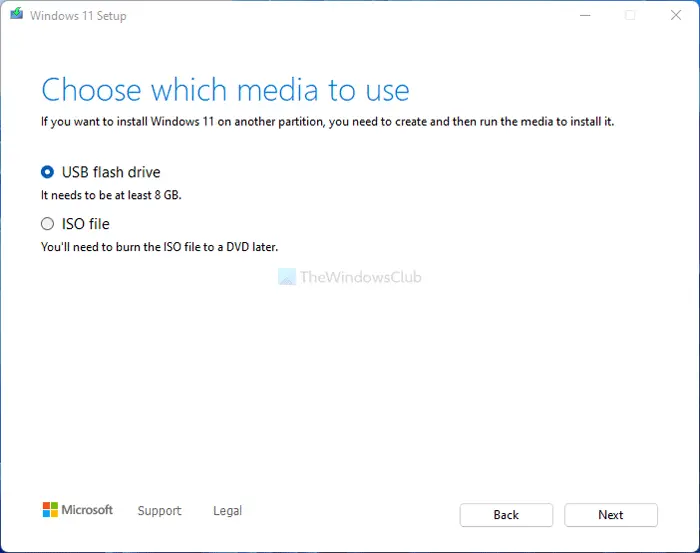
If nothing helps, perform a clean installation of Windows. For this, you will need a working computer to create a bootable USB flash drive with Windows installation media. You can use Microsoft’s official Media Creation Tool or a third-party tool, Rufus, to create a bootable USB with a Windows ISO.
11] Hardware fault
If the error persists, your hard drive might be faulty. Take your system to a professional computer repair shop for further assistance.
I hope this helps.
How to fix a boot loop issue?
If your system is stuck in an endless reboot loop, disconnect all the peripherals and see if it helps. If this does not help, perform a hard reset. You can also run a Startup Repair to fix boot issues on your system. If nothing works, restore your system or reset your PC.
Can a factory reset fix a boot loop?
Yes, a factory reset can help fix a boot loop and other boot issues. When you reset your system, Windows is reinstalled. While performing this action, it is recommended to select the Cloud Download option. This feature downloads a fresh copy of Windows from the Microsoft Server and installs it on your system.
Read next: PC won’t boot after installing a second SSD.
