
If you have encountered “The system failed to boot several times before” error when you turn on your computer, then this post will help you resolve the issue. Some report the error appears after waking the system from sleep. This error occurs if your ASRock or Gigabyte motherboard detects an unstable startup, a failed POST (Power-On Self-Test), or bad BIOS/UEFI settings.
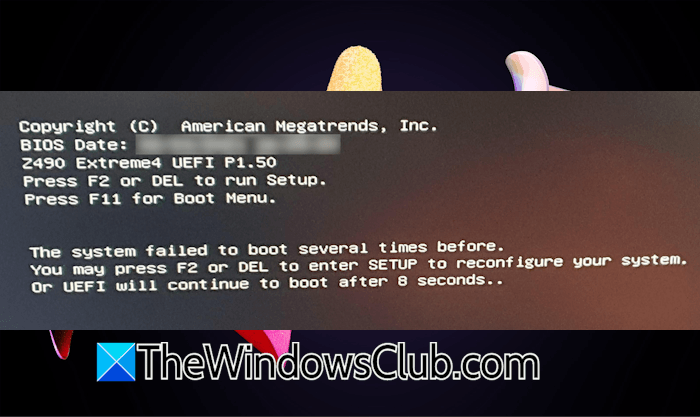
The system failed to boot several times before
Use the following fixes if you cannot boot into Windows due to the “The system failed to boot several times before” error on system startup:
- Test your RAM
- Use the correct RAM slot combination
- Disable overclocking
- Disable or Adjust XMP or Memory Profiles
- Run Startup Repair
- Reset and update BIOS
- Clear CMOS
- Reset your PC
- Perform a clean installation of Windows
- Hardware fault
After you receive this error, wait for a few seconds and your computer will automatically boot to the desktop.
1] Test your RAM
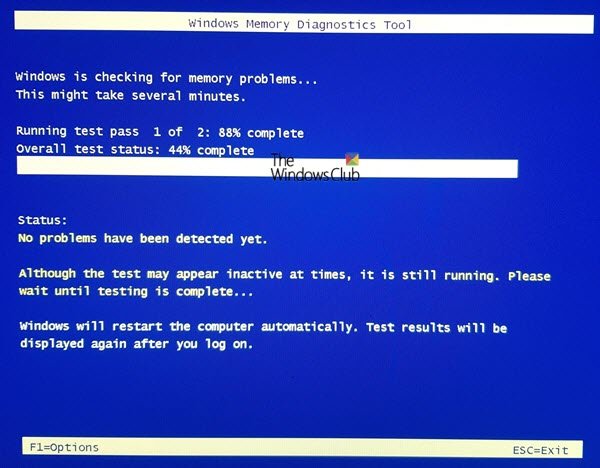
A faulty RAM can cause boot issues. To confirm whether this is the case, test your RAM. If your system boots into Windows on the second or third attempt, you can use the Windows Memory Diagnostic tool to test your RAM health. After the test completes, read the result. If you find the RAM faulty, replace it.
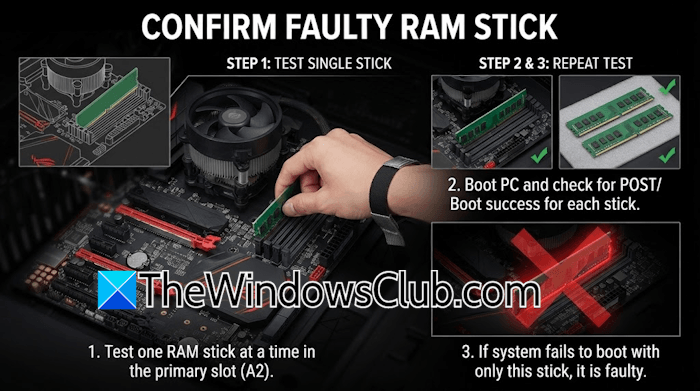
If you cannot boot into Windows, you can test your RAM sticks manually. To do this, remove all RAM sticks and boot with only one RAM stick at a time. This will help you find the faulty RAM stick.
2] Use the correct RAM slot combination
If you installed new RAM, you may have used the wrong slot combination. Some motherboards use a particular slot combination for installing multiple RAM sticks. Refer to your motherboard user manual to know the correct RAM slot combination for your RAM sticks.
3] Disable overclocking
If you have overclocked your PC, disable it.
4] Disable or Adjust XMP or Memory Profiles
If you enabled an XMP/DOCP profile for your RAM, turn it off or lower the frequency in the BIOS and see if it helps.
5] Run Startup Repair
Startup Repair is a built-in Windows Recovery Tool that helps fix startup issues. Since you encounter startup issues, you can use this tool to scan your system for issues and fix them. To launch this tool, you have to enter the Windows Recovery Environment. If you can boot into Windows, press and hold the Shift key and restart your system to boot into the Windows Recovery Environment. But if you are locked out of your computer due to the “The system failed to boot several times before” error, you have to interrupt the normal boot process.
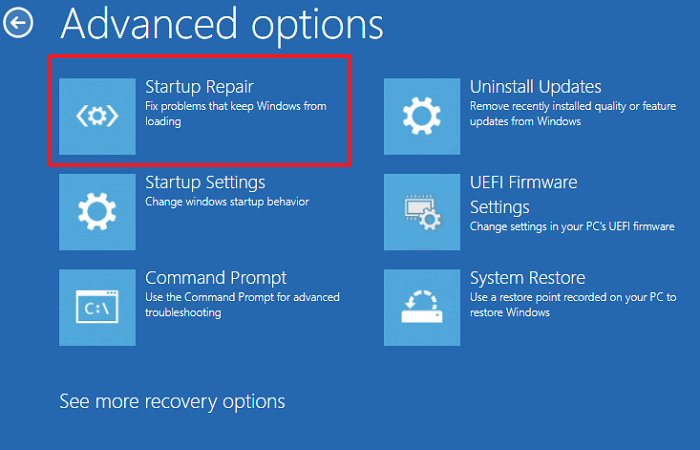
Follow these steps:
- Turn on your system.
- When you see the manufacturer’s or Windows logo, immediately press and hold the power button to force shut down your system.
Repeat the above steps until you see the Preparing Automatic Repair message. Now, you are in the Windows Recovery Environment. Navigate to Advanced Options > Troubleshoot > Advanced Options > Startup Repair. When the process is complete, check if the issue persists.
6] Reset and update BIOS
If the issue persists, try resetting your BIOS to default settings. If you do not know the right BIOS key, refer to your system’s user manual. If you have made many changes to your BIOS settings, note down the current settings before proceeding. This will help you restore all the settings if resetting the BIOS does not work.
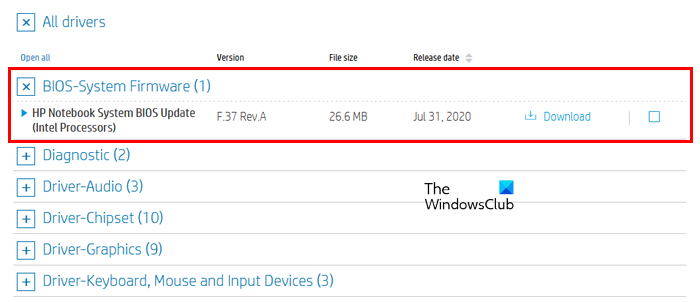
Another possible cause of this issue is the outdated BIOS version. Download the latest BIOS version from your computer manufacturer’s official website and install it. During the BIOS update, do not turn off your computer, as it may brick your motherboard. Therefore, make sure your PC has continuous power during the BIOS update. If you have a laptop, connect its charger.
7] Clear CMOS
Clear CMOS and see if it helps.
8] Reset your PC
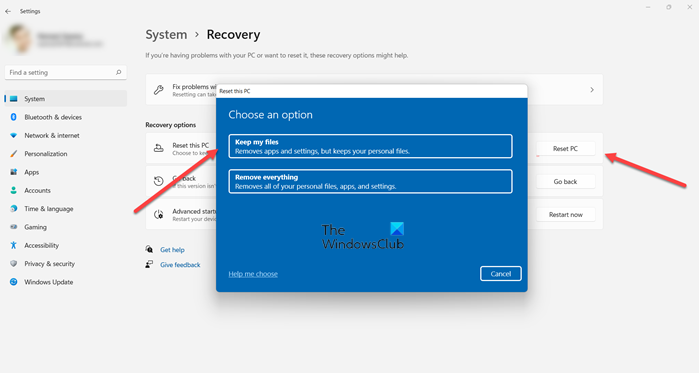
If the problem persists, reset your PC to the factory defaults. While resetting your PC, select the Keep my files option to prevent Windows from wiping out all your personal files. Although this option prevents Windows from deleting your personal files, we recommend backing up all important files before proceeding. Also, note that resetting your PC removes installed applications, so you will need to reinstall them afterward.
9] Perform a clean installation of Windows
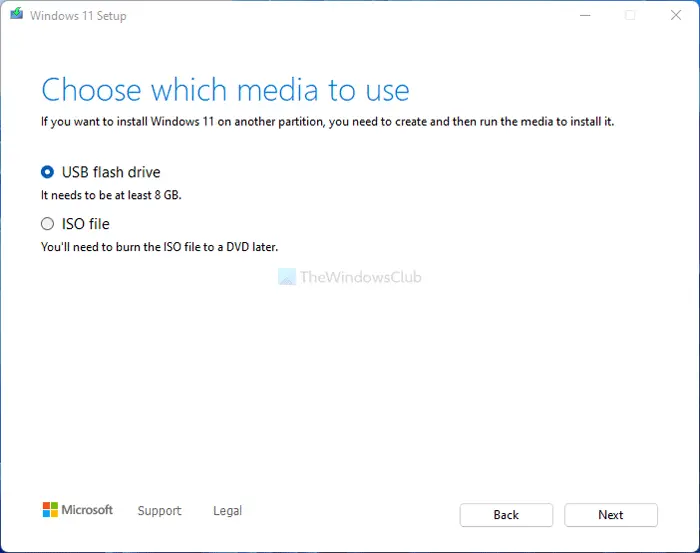
If the problem persists, the last resort is to perform a clean installation of Windows. This step will delete all your files and installed applications. Therefore, before proceeding, back up all your files to an external storage device. You can create a bootable USB flash drive with Windows 11 installation media using the Media Creation Tool or a third-party tool such as Rufus.
10] Hardware fault
If the issue persists after trying the fixes above, you may have a hardware fault. Take your computer to a professional computer repair technician for further assistance.
I hope this helps.
What to do if PC is stuck in a boot loop?
If your PC is stuck in an endless boot loop and keeps restarting, you can try running Startup Repair. You can run it in the Windows Recovery Environment. Sometimes, this issue occurs due to a faulty peripheral device. Disconnect all the peripherals to verify this. Listen carefully for a beep sound to see if there is a hardware fault.
Can a bad RAM cause a PC to not boot?
Yes, bad RAM can cause boot issues on a PC. Bad RAM also shows several signs or symptoms on a computer. If you notice any of these signs, you should test your RAM health using the built-in Windows Memory Diagnostic tool. Some motherboards also have QLED indicators to indicate problems with specific hardware components like RAM and CPU.
Read next: No bootable devices found in Windows.
