
If Copilot is not working in Word and Word Online, here is how you can get the problem fixed. Whether it is the desktop version or the Web version of Word, you can find a separate set of solutions to troubleshoot the issue.
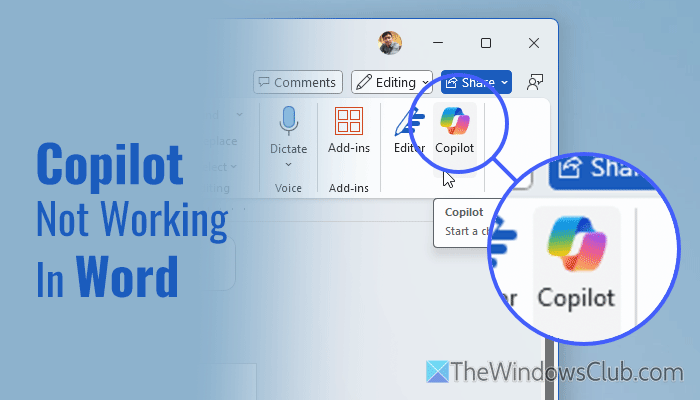
Primary reasons why Copilot is not working
- Subscription issue.
- Internet connection interruption.
- An outdated version of Microsoft Word.
- Conflict between add-ins.
- Microsoft account-related issue.
- Administrative restriction.
- Browser-related problems.
Fix Copilot not working in Word
If Copilot is not working in Word, follow these solutions:
- Check Microsoft 365 subscription status
- Update Microsoft 365/Word
- Ensure a valid internet connection
- Repair and reset Copilot app
- Run Word in Safe mode and check
- Check Registry value
- Resolve common browser-related problems
To learn more about these solutions, continue reading.
1] Check Microsoft 365 subscription status

Copilot works when you have a valid Microsoft 365 subscription, as it is included as part of the Microsoft 365 package. Therefore, if you do not have a valid subscription to Microsoft 365, you may not be able to use it entirely or partially. You can have any of the following subscriptions:
- Microsoft 365 Personal
- Microsoft 365 Family
- Microsoft 365 Premium
On the other hand, Word Online users can utilize Copilot without a subscription, albeit with limited features.
Read: How to use Microsoft Copilot in Word
2] Update Microsoft 365/Word
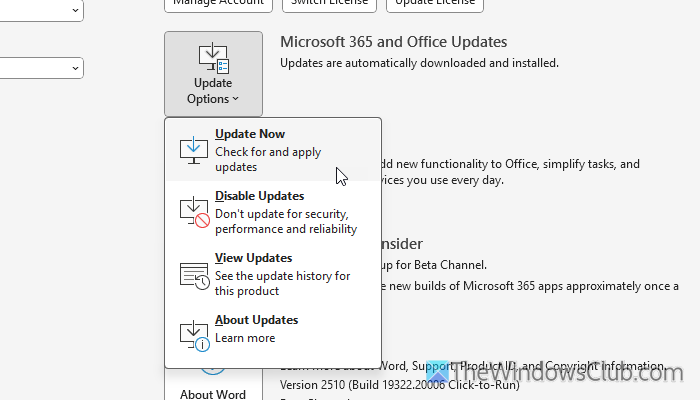
To update Microsoft Word, follow these steps:
- Open Microsoft Word on your computer.
- Go to File > Account > Update Options > Update Now.
Following that, it checks for updates and allows you to download and install them accordingly.
Read: How to update Microsoft Office manually in Windows 11
3] Ensure a valid internet connection
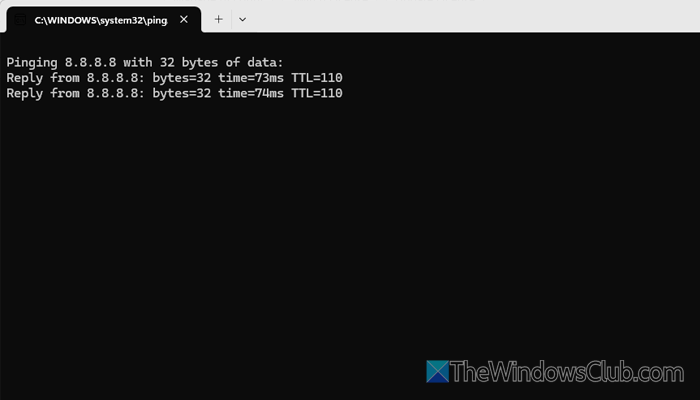
As Copilot fetches data from the web, you must have a valid internet connection. The easiest way to check for a valid internet connection is to use the ping tool.
For that, press Win+R to open the Run prompt, type ping 8.8.8.8 -t, and hit the Enter button.
If it shows positive results, you will need to explore other solutions. However, if it shows any problem, you need to get your internet connection first.
Read: Can’t connect to this network error on Windows 11
4] Repair and reset Copilot app
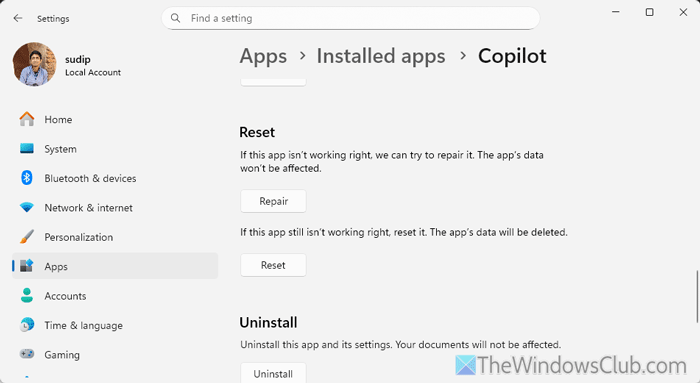
To repair and reset the Copilot app, follow these steps:
- Press Win+I to open the Windows Settings.
- Go to Apps > Installed apps.
- Click on the three-dotted icon of Copilot and select Advanced options.
- Click on the Repair button to repair the app.
- If it doesn’t work, click on the Reset button twice to reset the app.
After that, you may need to sign in to your Microsoft account again.
Read: Copilot not working in Windows 11
5] Run Word in Safe mode and check
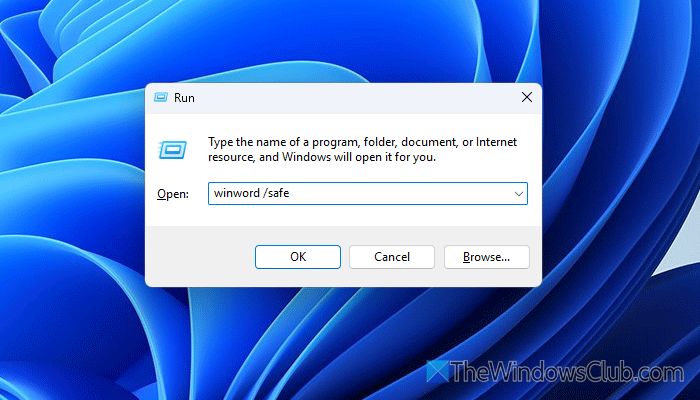
Like Windows Safe Mode, you can check for problems and troubleshoot them after opening Word in Safe Mode. In Safe Mode, most of the options are disabled, and you can find a factory-default version of Microsoft Word.
To run Word in Safe mode, follow these steps:
- Close Word if it is already running.
- Press Win+R to open the Run prompt.
- Type winword /safe and hit the Enter button.
Once Word is opened in Safe Mode, check if Copilot is running. If Copilot is not working because of add-ins, you can verify that claim in Safe Mode.
To get out of Safe Mode, you can simply close Word and re-open it normally.
6] Check Registry value
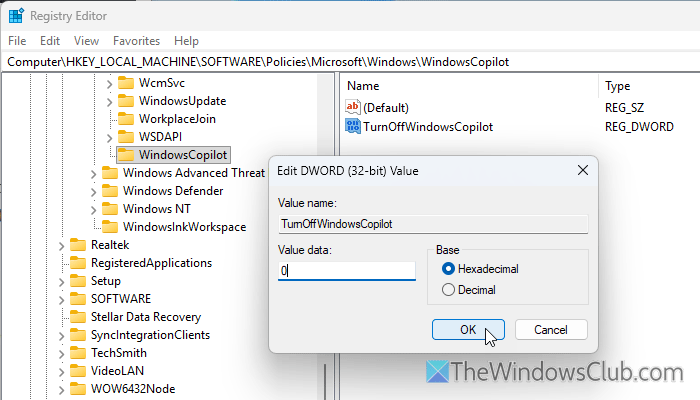
There is a Registry value named TurnOffWindowsCopilot, which may cause this issue if it is wrongly set. You can verify that by doing these:
- Open the Registry Editor on your computer.
- Go to this path:
HKEY_LOCAL_MACHINE\SOFTWARE\Policies\Microsoft\Windows\WindowsCopilot - Double-click on the TurnOffWindowsCopilot REG_DWORD value and set the value data to 0.
- Click the OK button and close all windows.
- Restart your computer and check Copilot in Word.
However, if you cannot find the path above or the REG_DWORD value, there is nothing to do since it is not enabled on your computer.
7] Resolve common browser-related problems
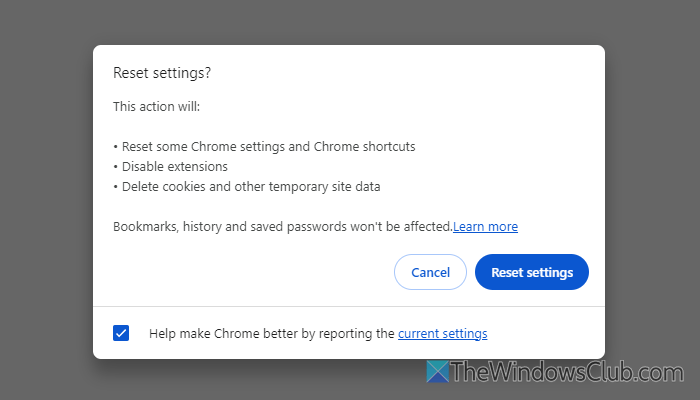
If you are facing this problem in Word Online, you can go through these common solutions to fix browser-related problems:
- Hard reload.
- Clear cookies and cache.
- Update the browser.
- Restart the browser with no extensions.
- Reset the browser.
Read: Copilot Vision not connecting or working
Why does my Copilot not work in Word?
The main reason why Copilot doesn’t work properly in Word is that you do not have a valid subscription. Additionally, if you have an outdated version of Microsoft Word, you may encounter this issue.
How do I enable Copilot in MS Word?
There is nothing to do to enable Copilot in Microsoft Word since it is already enabled in this application. You need to have a valid Microsoft 365 subscription, and the app must be up to date.
Read: Copilot not working in Edge; Attempting to reconnect
