
If you cannot enable disabled add-ins in Excel, Word, and PowerPoint, here is how you can fix the problem in Windows 11. Although these solutions are mainly for Microsoft 365 users, you can try them on other versions of Microsoft Office as well.
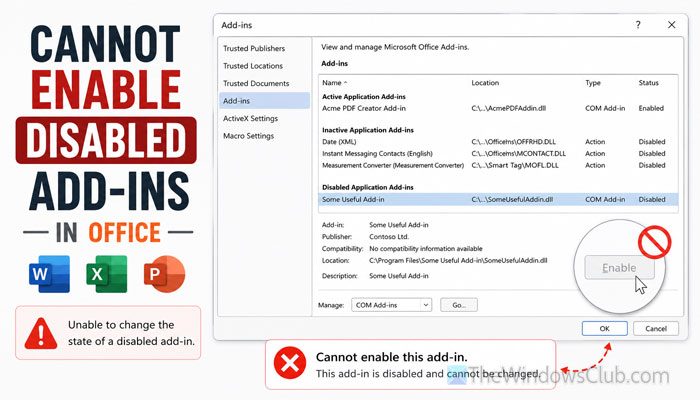
Why can’t you enable disabled Office add-ins?
Some Office add-ins can’t be re-enabled because they’ve been hard-disabled or blocked by policy. Some other reasons could be:
- You have a corrupt add-in.
- The add-in created some internal issues, and Office refused to enable it. This mainly happens when the add-in does something that crashes the program.
- Your system administrator has blocked you from installing or enabling new add-ins with permission.
- You have enabled incorrect Trust Center settings, which might have blocked you from enabling the add-in.
- The add-in has not been updated for a long time, and it is not compatible with the latest version of Office.
Cannot enable disabled add-ins in Excel, Word, PowerPoint
If you cannot enable disabled add-ins in Excel, Word, and PowerPoint, follow these solutions:
- Enable add-ins from Disabled Items
- Remove other unnecessary add-ins
- Remove the desired add-in and reinstall it
- Check Trust Center settings
- Download Microsoft Edge WebView2
- Remove add-in cache
- Ask for installation permission from admin
To learn more about these solutions, continue reading.
1] Enable add-ins from Disabled Items
At times, Office programs may disable add-ins if they find those add-ins problematic. They do that to save your work and the app from crashing. According to Microsoft’s official statement, they do that to protect Microsoft 365 apps.
If you think Microsoft has done it wrongfully and you want to re-enable those add-ins, you may not find them in the standard list. As a result, you won’t be able to re-enable them. However, there is a bypass to activate those add-ins.
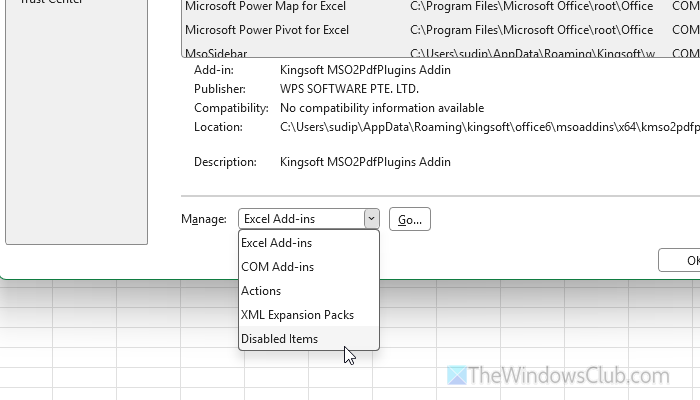
Having said that, open the Office app and go to File > Options > Add-ins. Expand the drop-down menu, choose the Disabled Items, and click the Go button.
Here you can find all the add-ins that Microsoft has flagged on your computer so far. Select one add-in at a time and click the Enable button.
Read: We can’t start this add-in because it isn’t set up properly in Office
2] Remove other unnecessary add-ins
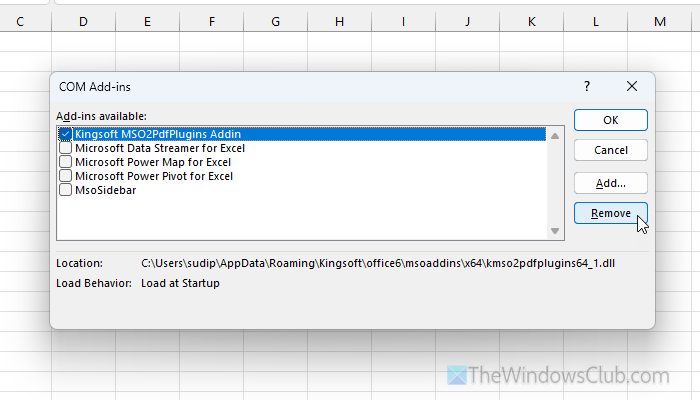
There could be times when multiple add-ins could be in conflict. This may happen when one add-in overrides the permission needed to enable another. In that case, even if you are able to enable those add-ins, it will be temporary.
Therefore, you must disable those add-ins as soon as possible. While doing so, it is very important to find the problematic add-in first. You can disable all add-ins at once. If you can enable the desired add-in after doing so, enable one add-in at a time to find the culprit.
Read: Add-in error, This add-in could not be started in Excel
3] Remove the desired add-in and reinstall it
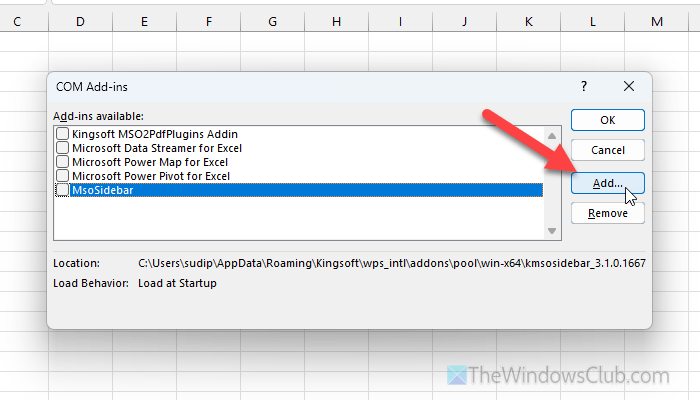
At times, this problem may arise when the installation files of the desired add-in are corrupt. This may happen after a malware or adware attack, since they often target various random files. If so, it is suggested to remove that add-in entirely and reinstall it.
To remove the add-in, open the Options wizard, go to the Add-ins section, and click the Go button after selecting the COM Add-ins. Select the add-in and click the Remove button.
Once done, you can re-download the add-in and install it.
Read: How to add or remove Add-ins from Office programs
4] Check Trust Center settings
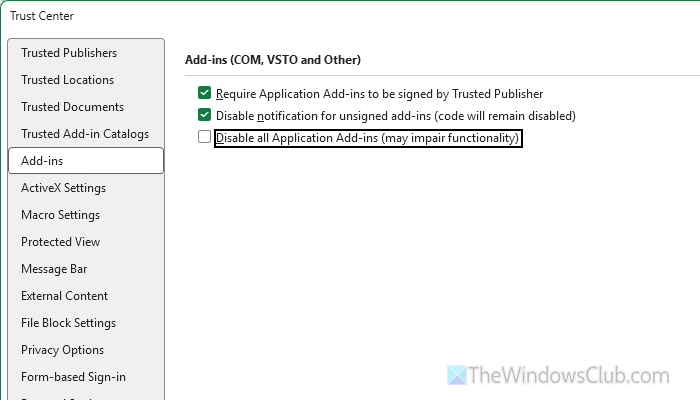
To check the Trust Center settings, open the Options panel of the respective Office app and go to Trust Center > Trust Center Settings > Add-ins.
Here you can find three options called:
- Require Application Add-ins to signed by Trusted Publisher
- Disable notification for unsigned add-ins
- Disable all Application Add-ins
If any of these settings are enabled, remove the tick from the corresponding checkbox and click the OK button.
If you have installed the Office template for Group Policy, you can find these settings here:
User Configuration > Administrative Templates > Microsoft Excel/Word/PowerPoint 2016 > Excel/Word/PowerPoint Options > Security > Trust Center
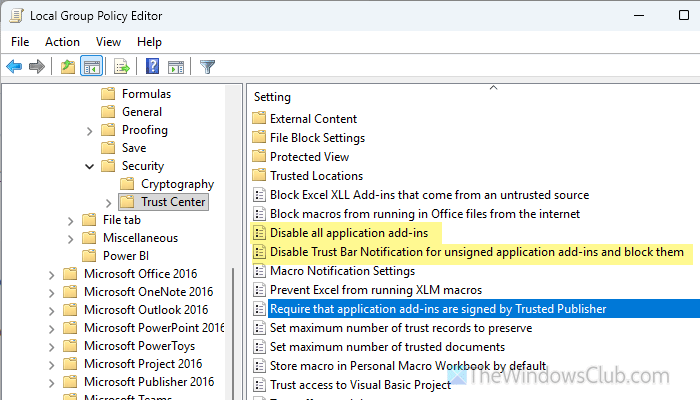
Double-click on each setting and set it to Not Configured.
Read: How to use Trust Center, Protected View and File Block in Office
5] Download Microsoft Edge WebView2

Microsoft Edge WebView2 helps you run the web-based features of various programs, including Microsoft 365. If you haven’t downloaded it yet, you might find this problem while enabling or using various add-ins. You can go through this detailed guide to find out more about Microsoft Edge WebView2.
6] Remove add-in cache
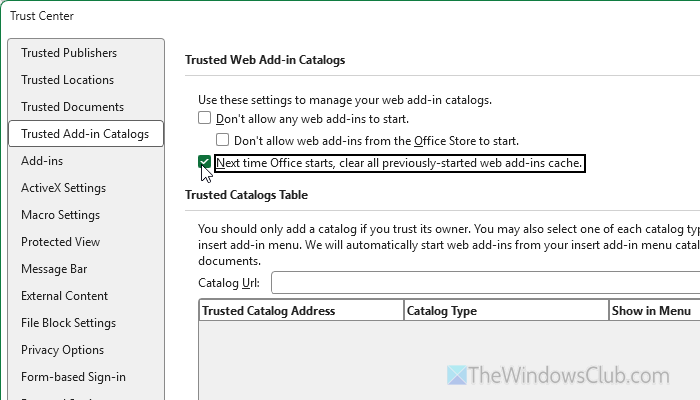
You can remove the add-in cache by following these steps:
- Open the Trust Center Settings and go to Trusted Add-in Catalogs.
- Tick the Next time Office starts, clear all previously-started web add-ins cache
- Click the OK button.
Then, you must restart the Office program.
However, if you want to clear Office cache entirely, you can open the Options wizard and go to the Save section. Then, click the Delete cached files button.
Finally, click the OK button to save the change. Once done, try re-enabling the add-ins.
7] Ask for installation permission from admin
For your information, it is a very common problem among students and Office account holders. In order to keep you in line, some Offices and Schools often prevent you from doing numerous things, including this one. That is why it is suggested to check this with your system administrator. If there is a policy from the system administrator, you cannot do much.
Read: Microsoft 365 has been configured to prevent individual acquisition of Office Store Add-ins
How to enable disabled Excel add-ins?
To enable disabled Excel add-ins, open the Excel Options wizard and go to the Add-ins tab. Next, select Disabled Items from the drop-down menu and click the Go button. Select the add-in you want to enable and click the Enable button.
Why are add-ins greyed out in Word?
If you have an incompatible add-in or file format, you may find the grayed-out add-in in the corresponding menu. However, you can go to File > Info and click the Convert button to convert the file into newer formats to get rid of this problem.
