
If Microsoft Word doesn’t show custom templates when you open the app or in File Explorer, and you can’t open them in Windows 11, here is what you can do to fix it. Whether this problem arises on Microsoft 365 or other Office versions, you can go through these same steps as above.
Why is Word not showing custom templates?
If Word is not showing custom templates, these could be the reasons:
- Files could be hidden in File Explorer.
- You have opened the incorrect folder.
- You have used a different file extension that doesn’t match .dotm.
- Your templates aren’t synchronized with your cloud account.
- The template file is removed or flagged by antivirus software.
- You have opened Microsoft Word in Safe Mode.
Where are Word templates stored in Windows 11?
By default, Microsoft Word saves all the templates in this location: %appdata%\Microsoft\Templates
You can access it if you press Win+R and entering that location. However, you can save any custom template anywhere. For example, you can save it on the Desktop or any other specific folder.
Word not showing custom templates
If Word is not showing custom templates, follow these solutions:
- Verify the path of the template folder
- Directly open the template
- Check the file extension
- Ensure that the sync is done
- Reset the default template
- Make an exclusion in antivirus
- Get out of Safe Mode
Custom templates missing in Word
1] Verify the path of the template folder
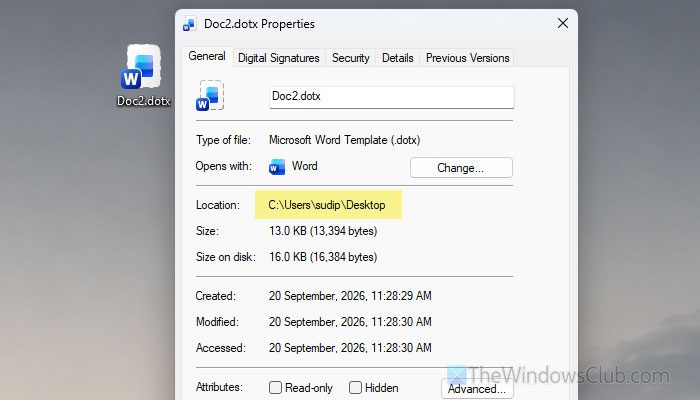
This is the first thing you must do, because if the template folder path is incorrect, you cannot find the file anywhere. If it is the default location, the path is fixed. You can navigate to this folder in File Explorer: %appdata%\Microsoft\Templates. However, if you created a template, you must go to the path where you saved the file.
Read: Create Custom Templates Installation Location for Office
2] Directly open the template
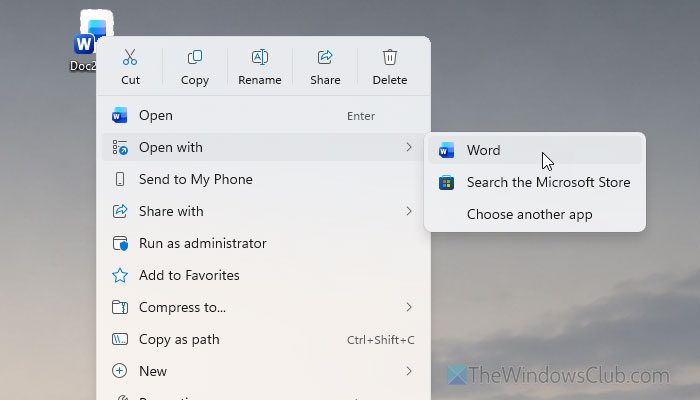
Instead of opening Word and then opening the template, try opening it directly. To do that, go to the folder where you saved the template, find the .dotm file, and double-click it. If the file is correct, you won’t have any issues opening it.
3] Check the file extension
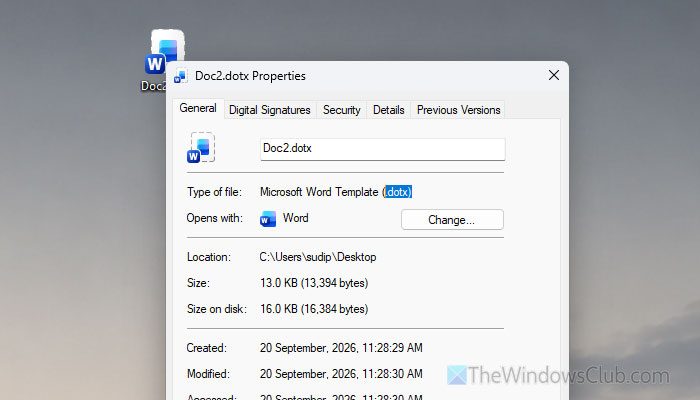
As mentioned earlier, your custom Word template file must have the .dotm extension. If it has a different extension, it is not a template file. However, if you find a .dot file, it means that the template was created via Word 2003 or earlier. In that case, you must convert it to comply with the latest version of Word.
4] Ensure that the sync is done
If you are using a template fetched directly from OneDrive, it is highly recommended to check whether the synchronization has been completed properly. If you install OneDrive and try accessing those templates quickly, OneDrive might not be able to provide all the data at once.
In such cases, you have two options. You can either download the desired template manually and open it in Word, or wait until it finishes syncing.
Read: How to Stop, Resume or Pause OneDrive Syncing in Windows 11
5] Reset default template
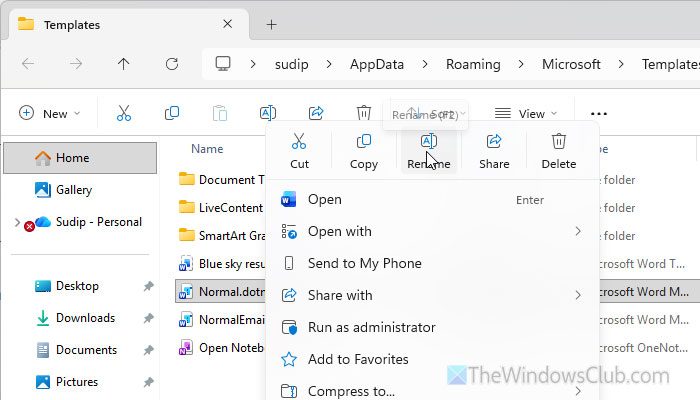
If the default template has issues, it may affect other features and options as well. That is why we suggest resetting the default template once.
To reset Word’s default template, close Word first. Then, press Win+R to open the Run prompt, and enter this location:
%appdata%\Microsoft\Templates
Here you can find a file named Normal.dotm. Rename it to something else but retain the file extension. Then, open Microsoft Word on your computer. A new Normal.dotm file will be created automatically.
Read: How to reset Word to default settings in Windows 11
6] Make an exclusion in antivirus
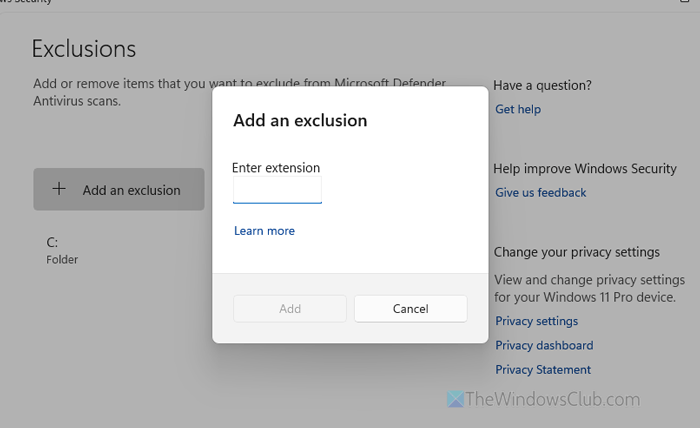
There is a chance that your antivirus has blocked you from accessing the template file, as it has made a suspicion about your file. In such cases, you have two options. First, check whether the template file is safe to use. Second, if it is safe to use, make an exclusion to override the security tool’s decision.
To make an exclusion in Windows Security, open Windows Security on your computer first. Then, go to Virus & threat protection > Manage settings > Add or remove exclusions.
Click on the Yes button on the UAC prompt. Next, click the Add an exclusion button, choose the File option, and select the template file.
However, if you often get the same issue with all the template files, choose the File type option, enter .dotm in the empty box, and click the Add button.
The main difference between the first and second method is that the former excludes only one specific file, whereas the latter excludes all files with the .dotm extension.
Once done, you can find your custom template file.
Read: How to change Normal Template (Normal.dotm) in Word.
7] Get out of Safe Mode
If you are using Word in Safe Mode, there is a chance of getting this problem since the Safe Mode version doesn’t offer all the regular options. That is why itis recommended to turn off Safe Mode and try opening the template in normal mode.
Other solutions:
- You can reset Word to default settings in Windows 11.
- You can manually repair the Word installation. First, use the Quick Repair option. If it doesn’t work, use the Online Repair option.
- Get out of the Beta channel. If you have opted for the Insider Preview of Word, it is suggested to get out of it.
Read: How to save Table Templates in Microsoft Word
Why are my Word templates not working?
If your custom template has an extension other than .dotm, it won’t work. Also, if the template file is corrupt, you cannot work with that file.
How to set a custom template in Word?
To set a custom template in Word, you must remove or disable the Notmal.dotm template first. Then go to File > Open and open the desired template.
