
Some of you may not be aware that you can stop or pause syncing of files and folders on OneDrive while an upload or download is in progress. In this post, we will see how to stop, pause, and resume OneDrive syncing on Windows 11 or Windows 10.
How to Pause OneDrive Syncing
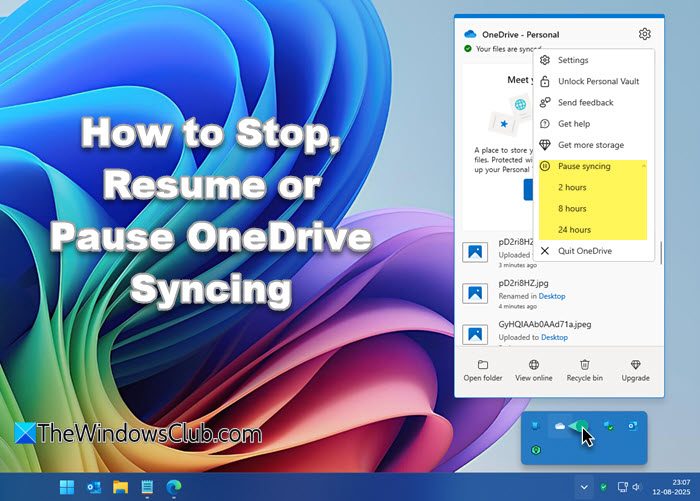
Once you have opened your OneDrive app, it will commence syncing of files and folders on your computer with your OneDrive cloud account. If there is not much work to be done, the process should go through quickly.
But if you want to pause the syncing temporarily for some reason, OneDrive allows you to do it. You can pause OneDrive syncing for 2, 8 or 24 hours.
To pause OneDrive syncing, right-click on the OneDrive icon in the notification area and click on the Settings gear icon. You will see the option Pause syncing. Click on it and the flyout will extend to show the following options:
- 2 hours
- 8 hours
- 24 hours.
Select the time you want to pause synchronization and OneDrive will stop the process and the icon will change to as follows:

How to Resume OneDrive Syncing
If you wish to resume synchronization, again right-click on the icon and select Resume syncing.
The icon will show the synching overlay.

Things have become so simple now!
Stop OneDrive from syncing desktop, documents, pictures, etc.
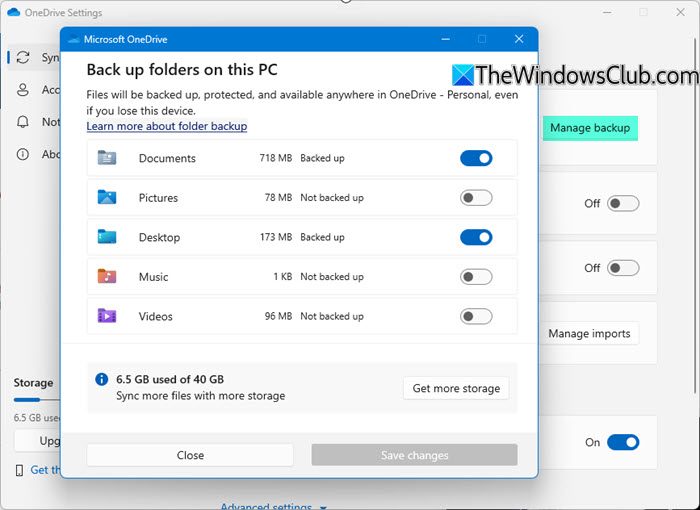
- Right-click the OneDrive system tray icon
- Open OneDrive Settings
- Select Sync & backup section
- A new window will open
- In the Back up your folders on this PC dialog box, turn the toggle Off for any folders you don’t want to sync to your computer and select OK.
- If you uncheck a folder you are syncing to your computer, the folder placeholder will be removed from your computer. The folder and its contents will still be available.
If you don’t want to sync all your OneDrive folders, you can select which folders to sync or not.
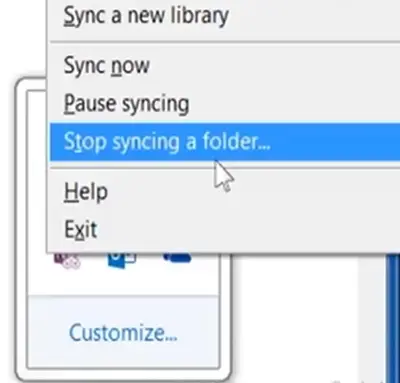
Right-click the OneDrive icon and select Stop syncing a folder. Next, select the folder you want to stop syncing and then click the Stop syncing button.
This post will help you if you want to disable OneDrive integration in Windows 11.
Reads that may interest you:
- How to Sync files from OneNote to OneDrive?
- How to ix OneDrive sync problems & issues.
