
In this post, we will show you how to change the Normal Template (Normal.dotm) in Word on a Windows 11/10 PC. Normal.dotm (or Normal.dot in older versions) is the default Microsoft Word Macro-Enabled Template. It includes default styles and customizations such as page margins, heading styles, tables, font styles, lists, Auto Text entries, font size, page size, etc. The default Normal template (or global template) opens whenever you start Word or open a document. If you change or customize the Normal.dotm file, all those changes are applied to new documents based on the customized template.
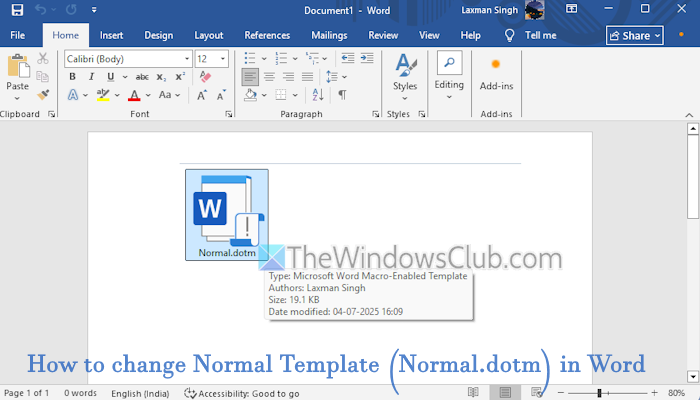
So, let’s say you want to open Microsoft Word with Heading 1 style, Arial Black font style, font style 16 with Bold formatting, etc., you can do so by modifying the Normal.dotm template. After that, when you create a new document or open a blank document in Word, the new Normal template will open.
How to change Normal Template (Normal.dotm) in Word

Before you make any changes to the default Normal template, it would be good to keep a backup of the original Normal.dotm template, just in case. Once done, use the following steps to change the Normal Template (Normal.dotm) in Word:
- Open File Explorer on your Windows 11/10 PC
- Enable the Show hidden files and folders setting (if not already)
- Access the Templates folder using the following path:
C:\Users\username\AppData\Roaming\Microsoft\Templates
- Replace the username with the actual username of your PC
- You will see a Normal.dotm Microsoft Word Macro-Enabled Template. Double-click on it to open it in Microsoft Word
- If the Normal template is not opened, and you see a Document1 file instead, then use the alternate method to open it
- Open Microsoft Word > press Alt+F11 It will open the Microsoft Visual Basic for Applications (VBA) window. Press the Ctrl+G hotkey in that window to open an Immediate box within that window. Finally, type NormalTemplate.OpenAsDocument command in that box, and hit Enter. This will open the Normal template
- The Normal.dotm template looks like any other new document in Word. Now, you can start making the changes like you do to change a document. For example, you can adjust spacing and margins, change font and font size, and use other features or commands
- Alternatively, you can make changes to a particular Style only. For example, you can right-click on the Normal style (in the Styles gallery), and select the Modify… option if you want to make changes to the Normal style. A Modify Style window will open, as visible in the image above. There, you can add a custom name to the style, select a style for the paragraph (say Heading 1, Heading 2, Title, Quote, etc.), adjust formatting (Font, Font Size, Font Color, etc.), set alignment, Indent, and Line and Paragraph Spacing
- After modifying, you can select the option to add the modified style to the Styles gallery. You can also select whether you want to make changes in the current document or new documents based on this template
- Select an option and press OK
- Do the customizations as per your needs. Finally, select File menu > Save. This will overwrite the default Normal.dotm template and add the custom changes.
The next time you open a blank document or any other document, the Normal.dotm template with applied changes will open.
That’s all.
Related: How to reset Word to default settings on a Windows PC
How to restore or reset the default Normal template in Word
Microsoft Word automatically creates a new version of the Normal.dotm template if it is damaged, moved, or renamed. If you overwrite or make changes to the Normal template, you can restore or reset the default Normal template in Word in multiple ways. You can either rename the existing Normal.dotm template or delete it. If you have already backed up the original Normal template, you can copy and paste it to the Templates folder.
Read: Word cannot open the existing file Normal.dotm
How do I get my Word document back to normal Format?
If you are looking for a way to clear or remove all formatting in a Word document, you can do it in three easy steps. Open the Word document, and select the text that you want to return to the default formatting. In the Home tab, click on the Clear All Formatting icon (an eraser-like icon) present in the Font group.
Read next: Word cannot save or create this file Normal.dotm Error.
