
If the Read Mode option is grayed out or not working in Word on Windows 11/10, here is how to fix it. Whether you are trying to open an old or a new document, if you encounter this issue, you can try these solutions to fix it.
Why is Read Mode option grayed out or not working in Word?
If the Read Mode option is grayed out or not working, these could be the reasons:
- Your document might be in Read-only mode.
- You haven’t activated MS Office/Microsoft 365, or there are some issues with your activation.
- You have opened the document in OneDrive Preview mode, which doesn’t support the Read Mode feature.
- You have opened the document in Protected View mode.
Read Mode option grayed out or not working in Word
If the Read Mode option is grayed out or not working in Word, follow these solutions:
- Disable Protected View
- Disable editing protection
- Unblock file if downloaded from internet
- Check activation status
- Convert file to Word document
- Get out of Safe Mode
- Check Registry keys
To learn more about these solutions, continue reading.
1] Disable Protected View
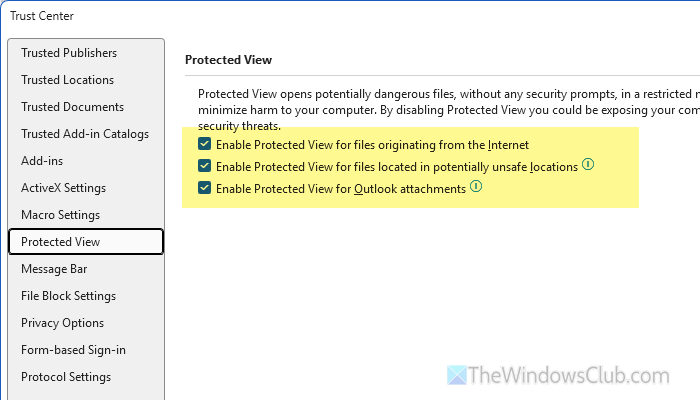
Although the Protected View option helps protect your computer from malicious injections by preventing you from clicking or opening anything in Word, it may also block you from opening the document in Read Mode. That is why it is suggested to turn off the Protected View.
To disable Protected View in Word, open Word and go to File > Options > Trust Center.
Click on the Trust Center Settings button and go to the Protected View tab. Then, untick all the checkboxes and click the OK button to save the change.
2] Disable editing protection
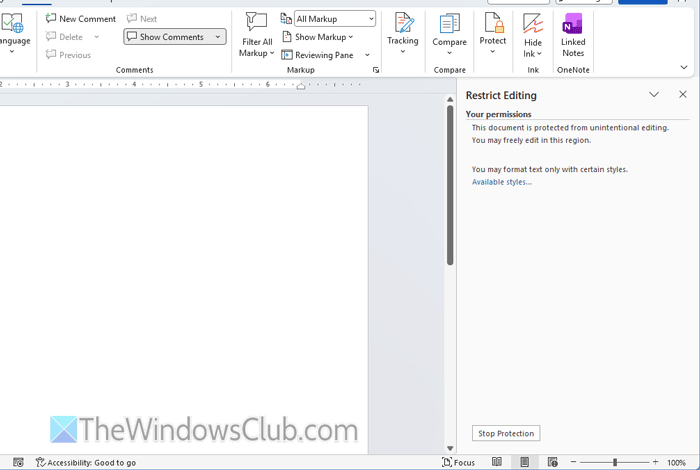
There are mainly two things you need to check:
- Whether the file is password-protected or not.
- Whether Editing mode is enabled or not.
To check whether your file is password-protected or not, go to the Review tab and click on the Restrict Editing option.
If you can find the Stop Protection option, it implies that the editing restriction is turned ON. However, if you cannot find such an option, there is nothing to do.
On the other hand, if you can find the Stop Protection option, click it, enter your password and then click OK. Once done, click on the Read Mode button to check whether it works or not.
Next, if the Editing mode is not enabled, click the option shown in the image and select the Editing option.
Read: How to Password protect Office files: Word, Excel, PowerPoint
3] Unblock file if downloaded from internet
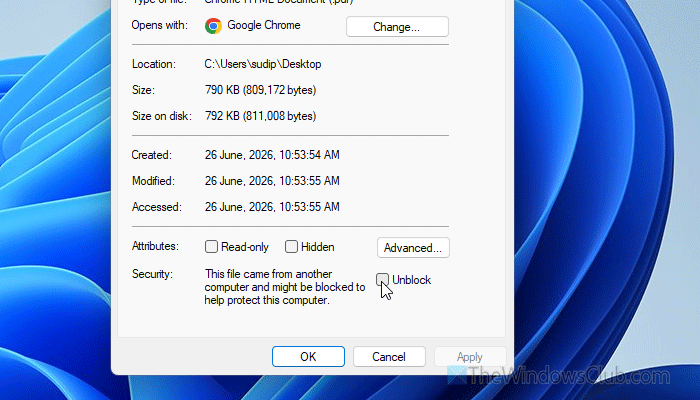
If you have downloaded a file from the internet, you may encounter this problem when switching to the Read Mode. Therefore, you can unblock the file first before opening it in Microsoft Word.
To unblock the file, right-click on the downloaded file and tick the Unblock checkbox. Then, click the OK button to save the change.
Once done, double-click on the file to open it in Word.
Read: How to Bulk Unblock multiple files downloaded from the Internet
4] Check activation status
If you use Microsoft 365 or any other subscription and it has expired, you won’t be able to use all options and features. At that point, you must activate Office. Also, if your computer was infected with malware or adware, you may encounter this problem.
In such moments, you must activate Office or Microsoft 365. You can either enter the original product key or sign in to the Microsoft account you used to purchase the license.
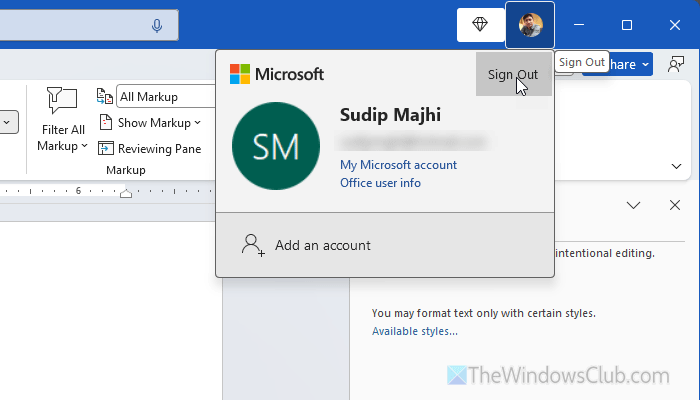
However, if your Office is activated, you can log out of your account and re-log in. For that, click on the profile picture and select the Sign Out option. Then, enter your credentials to sign in to your account.
Read: How to check License Type and Activation Status of Microsoft Office
5] Convert file to Word document
If you try to open a TXT or PDF file in Word, you may encounter this problem in Windows 11. As Word can’t always convert those files automatically, it won’t be able to show them in Read Mode. That is why it is highly recommended to convert a PDF or TXT file to a Word document/DOCX first.
For that, you can use these PDF to Word converters.
6] Get out of Safe Mode
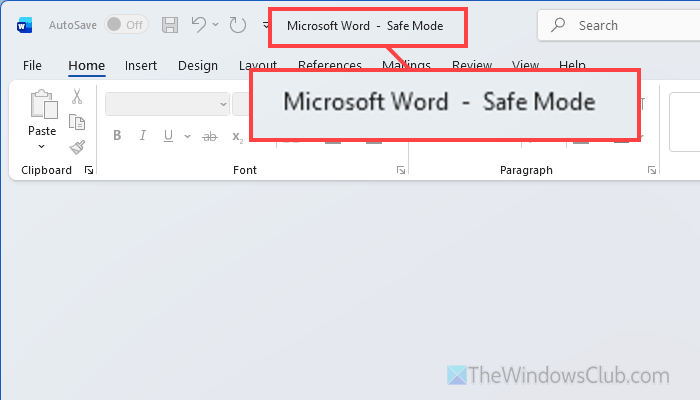
In case you don’t know, you can open Word in Safe Mode, which helps you check and troubleshoot various problems within moments. However, if you use a document in Safe Mode and try to switch to Read Mode, you cannot always do that, as it depends on the elements of the particular file. That is why it is suggested to turn off the Safe Mode first.
For that, simply close the program and reopen it.
7] Check Registry keys
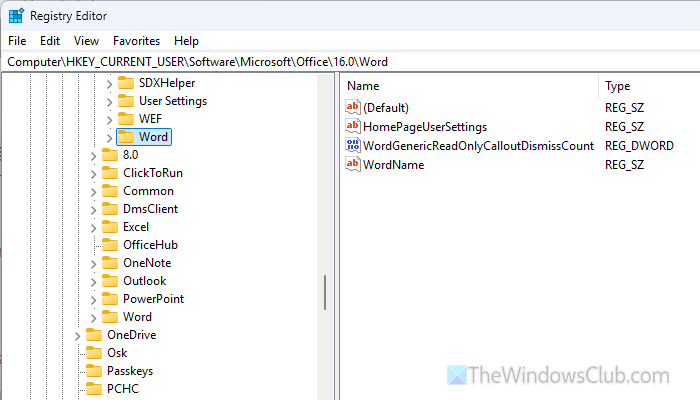
If you often change settings via Registry Editor, it is suggested to take a look at those settings. For that, open the Registry Editor and navigate to this path:
HKEY_CURRENT_USER\Software\Microsoft\Office\16.0\Word
If you find any unknown settings, remove them. However, it is highly recommended to backup Registry files before deleting.
Other solutions:
- Disable compatibility mode.
- You can reset Word via Registry Editor. For that, you must remove the entire Word key from here: HKEY_CURRENT_USER\Software\Microsoft\Office\16.0
- Remove section breaks as much as possible.
- Repair Office installation.
- Disable recently installed add-ins.
- Remove the read-only status. For that, right-click on the file, remove the tick from the Read-only checkbox, and click the OK button.
- Remove the password that is required to open the file and try again.
Read: Fix Bookmark Not defined error in Word
How do I enable read mode in Word?
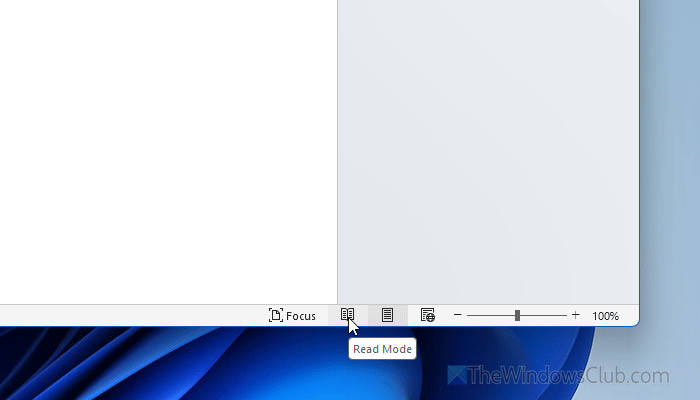
To enable Read Mode in Word, open a document first. Then, head to the bottom-right corner and click on the Book sign. To get out of the Read Mode, press the Esc button.
How to enable read-only mode in MS Word?
To enable read-only mode in Word, go to File > Info > Protect Document. From there, select the Always open Read-Only option.
