
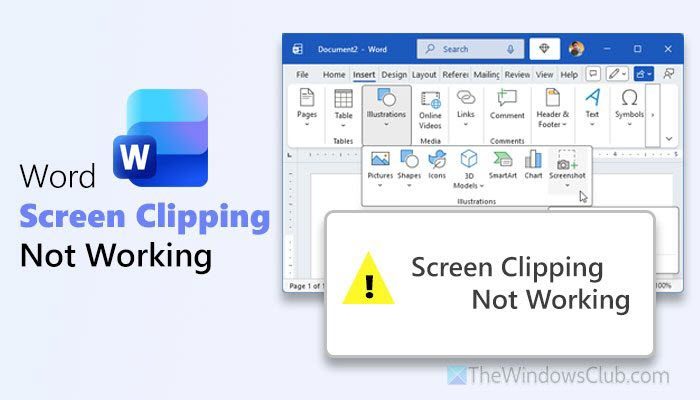
If the Screen Clipping option is not working or is grayed out in Word, here is how you can fix the issue. Whether this problem appears due to a corrupt Word file or another reason, here you can find all the possible causes along with solutions to get rid of it in Windows 11.
Why is Word Screen Clipping not working in Windows 11?
If Word Screen Clipping is not working in Windows 11, these could be the reasons:
- Microsoft Word doesn’t have permission to capture your screen.
- You are using Microsoft Word in Safe Mode, which doesn’t support the Screen Clipping feature.
- Some other add-ins are blocking Word from capturing your screen.
- There might be some glitches or bugs in the Beta/Insider version of Word.
Word Screen Clipping not working or grayed out
If Word Screen Clipping is not working or is grayed out, follow these solutions:
- Check screen capture permission
- Don’t use Print Screen button to capture screenshots
- Opt out of Insider version
- Disable recently installed add-ins
- Remove third-party app integrations
- Ensure your mouse is working
- Temporarily disable third-party screen capture apps
- Repair Office installation
- Use Snipping Tool to capture screenshots
To learn more about these solutions, continue reading.
1] Check screen capture permission
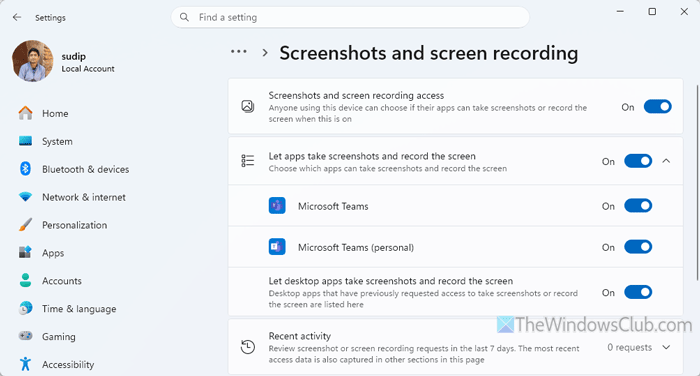
This is the very first thing you must check since this option allows or blocks you from capturing screenshots on a Windows 11 computer. Whether you use Snipping Tool or a third-party desktop app to capture a screenshot or record the screen, if you have disabled this option, you won’t be able to do so.
To verify the screen capture permission settings, follow these steps:
- Press Win+I to open the Windows Settings panel.
- Go to Privacy & security > Screenshots and screen recording.
- Make sure these two options are turned ON: Screenshots and screen recording access, and Let desktop apps take screenshots and record the screen.
- If not, toggle the respective buttons to turn them ON.
Read: How to stop Apps from taking screenshots in Windows 11
2] Don’t use Print Screen button to capture screenshots

If you use the Screen Clipping feature, you do not need to use the Print Screen button to capture screenshots. Word includes a function that lets you capture screenshots automatically. All you need to do is use your mouse to select the area of your screen you want to capture.
If you press the Print Screen button and this button is assigned to some other third-party screen capture tool, it will cause a conflict. As a result, you won’t be able to capture your screen.
Read: How to print screen without PrintScreen button
3] Opt out of Insider version
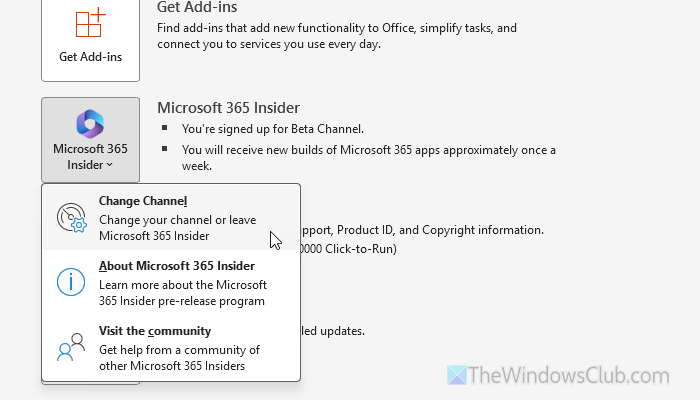
If you use the Insider version, there is a chance of a glitch, which can result in this problem. That is why it is suggested to opt out of the Insider version. For that, go to File > Account. Then, click on the Microsoft 365 Insider and choose the Change Channel option.
Next, remove the tick from the Sign me up for early to new releases of Microsoft 365 apps checkbox and click the OK button to save the change.
4] Disable recently installed add-ins
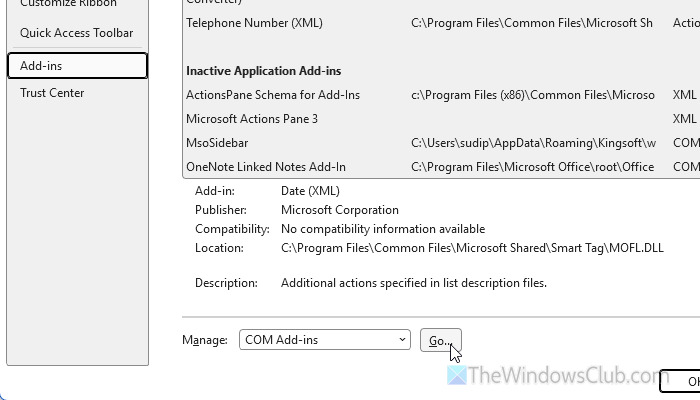
If you have installed multiple add-ins to enhance the photo editing or screen-capturing experience, you might encounter the aforementioned problem.
To disable recently installed add-ins, go to File > Options > Add-ins. Click the Go button to find the add-ins you have installed recently. Then, remove the tick from the corresponding checkboxes and click the OK button.
Once done, restart Word and check whether the same problem persists.
Read: How to add or remove Add-ins from Office programs
5] Remove third-party app integrations
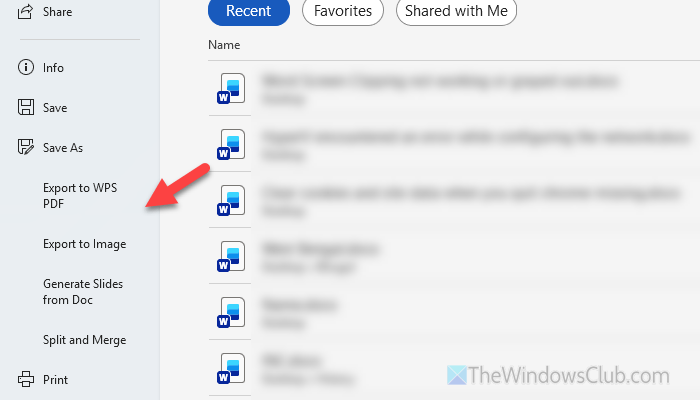
If you have integrated multiple third-party apps into Microsoft Word, you may encounter this problem when capturing screenshots. That is why we suggest removing third-party app integrations from Microsoft Word and trying again.
However, if you don’t know how to do that, simply find the app integrated into Word and uninstall it.
6] Ensure your mouse is working
At times, this problem may lie in physical hardware. In other words, if you want to use the Screen Clipping feature, your mouse must be in working condition. Therefore, it is recommended that you check your mouse and try again. These posts will help you:
7] Temporarily disable third-party screen capture apps
If you have third-party screen capture software installed on your computer, it is suggested to disable it temporarily. Although Word works independently, it might create problems at times if there is a bug or glitch in your system. You can close the additional screen capture program from the system tray or Task Manager.
Read: Unable to take screenshots on Windows 11
8] Repair Office installation
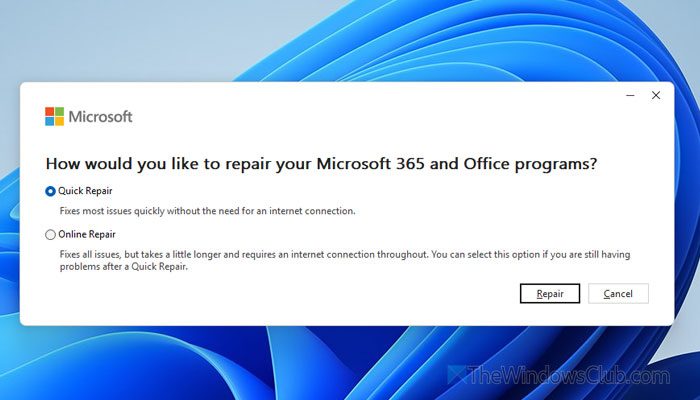
To repair Microsoft 365, open the Windows Settings panel and go to Apps > Installed apps. Click the three-dot icon in Microsoft 365 and select Modify. Then, choose the Quick Repair and click the Repair button. However, if it doesn’t work, choose the Online Repair option and click the Repair button.
9] Use Snipping Tool to capture screenshots
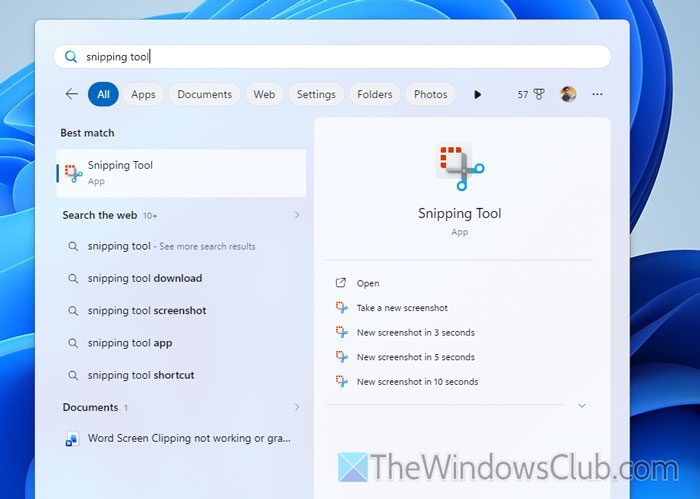
If none of the aforementioned solutions worked for you, it is suggested to use the Snipping Tool to capture screenshots and import them into Word. Also, you can use third-party screen capture software to get the job done.
Read: The Snipping Tool is not working on your computer right now
Why is editing grayed out in Word?
If you are not the owner of the document, you might encounter this problem at times. Additionally, you can use the Microsoft Office repair tool to fix this issue.
Why is my screen capture not working?
If the Print Screen button is occupied by another app, you cannot use it to capture your screen. Also, if you use a third-party app along with the Snipping Tool, it is recommended to disable the other and use only one.
