
The Office Insider Program is now called Microsoft 365 Insider Program. This program lets you access early builds of new features and updates in the Office software and share your feedback with Microsoft. This can shape as a great feature for folks who want to try out new features, but fast updates are really not something they can keep pace with.
How to join Microsoft 365 Insider Program
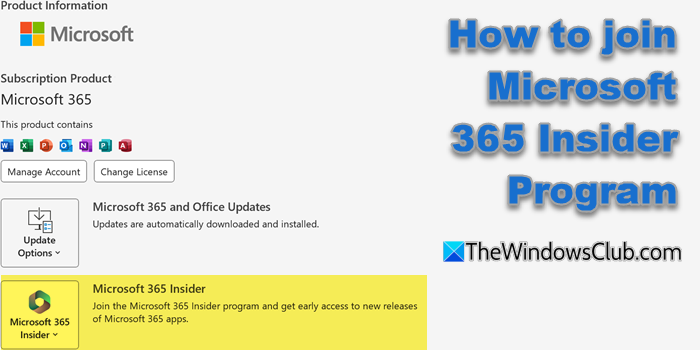
To join the Microsoft 365 Insider Program on a Windows PC, follow these steps:
- Open a Microsoft 365 app, like Word.
- Go to Account Settings and click on File > Account.
- Check Your Subscription Type. Under Product Information, confirm you have a Microsoft 365 Personal or Family subscription.
- Click “Microsoft 365 Insider”
- If you are eligible, you’ll see a button labeled ‘Microsoft 365 Insider’.
- Click on it to join the Program
- Next, choose your level against – Sign me up for early access to new releases:
- Beta Channel – More regular updates, latest features, less stable
- Current Channel (Preview) – Monthly updates, more stable
- Agree to the terms and confirm Changes and exit.
Microsoft 365 will make changes to your device, and you’ll now receive Insider builds.
That’s it.
How to enroll for Office Insider Program – Fast Level for Office
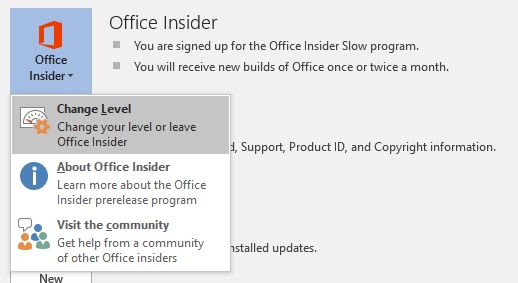
Earlier, you had to follow these steps.
The Office Insider Fast program will allow Office Insiders to access new features more frequently and is a great fit for individuals who love to be among the first to test out new features. Also, the users should be comfortable with unsupported builds and also the fact that they will be getting a new build every week (weekly build). In case you have already subscribed for the Office Insider program but want to opt for the fast level, follow the steps outlined below,
- First, update the Office software
- Open any Office app and click File > Account > Office Insider > Change Level.
- After selecting Insider Fast as your level, agree to the terms of use and click OK.
- You can then check the version by heading over to File > Account and then view the version number under the Office Updates heading.
How to join the Office Insider Program
In case you are not already an Office Insider and are interested in joining the program, follow the steps outlined below,
- Join the program here.
- Open My Account page, and in the version, the list choose either Office Insider-32-bit/Office Insider-64-bit and then install the same.
- After the install, you will be running the Slow build and via this version, you can repeat the steps outlined in the first section to move on to Fast level.
Additionally, Microsoft recommends checking out the shared features once you are on the Fast build. This feature allows you to find documents, spreadsheets, and presentations shared by others through OneDrive, OneDrive for Business, or SharePoint Online.
Read next:
