
When you download a file from the Internet like images, documents, etc. to your Windows computer, they are treated as untrusted files. So if malware is downloaded in the form of JPEG, it will be able to execute anything on the computer. I am sure you have seen errors where you cannot rename the files or if it’s a document, it remains in read-only mode, and so on. However, it can be unpleasant when downloading a lot of files, especially if they all need to be unlocked. We have seen how to Unblock a file and how to add an Unblock file item to the context menu using PowerShell or Registry. In this post, we will share how you can bulk unblock files downloaded from the Internet.

How to find if the file is blocked?
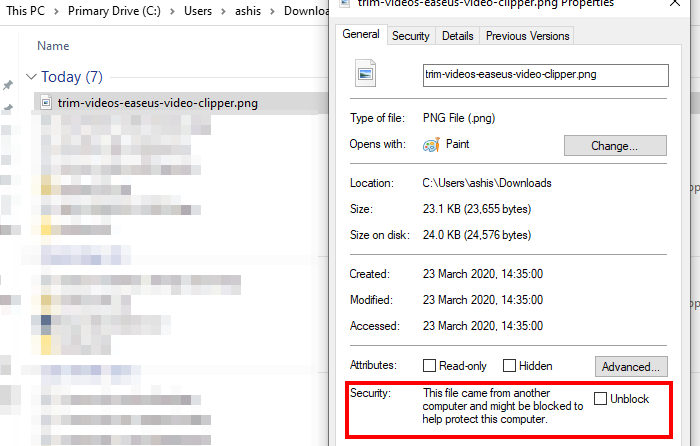
Right-click any file and select Properties from the context menu. If the file is blocked, you will see a security warning under the General tab. It should say
The file came from another computer and might be blocked to help protect this computer and might be blocked to help protect this computer.
Check the Unblock box, then save the changes to unblock the file. This option is unavailable when you select multiple files and open Properties.
How does the Unblock-File command work?
PowerShell offers a built-in command — Unblock-File — to change the unblock status of PowerShell script files that were downloaded from the Internet, but it works on all kinds of files. Internally, the Unblock-File cmdlet removes the “Zone.Identifier alternate data stream“. It has a value of “3” to indicate that it was downloaded from the Internet.
If you apply this to PowerShell scripts, it can unblock PowerShell script files that were downloaded from the Internet so you can run them, even when the PowerShell execution policy is RemoteSigned. The syntax for the command is as follows:
Unblock-File
[-Path]/-LiteralPath <String[]>
[-WhatIf]
[-Confirm]
[<CommonParameters>]
Bulk Unblock multiple files downloaded from the Internet on a Windows computer
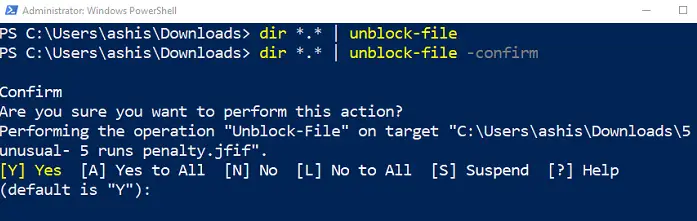
The command requires either a single file or multiple files. Any output that can accept a list of files will work. Here is an example:
- Copy the path where the blocked files are available. To do so, go to the directory where the blocked files are located, then click on the address bar of the File Explorer and press the Ctrl + C keys.
- Open PowerShell with admin privileges.
- Type the following and execute
dir <path> | Unblock-File
- The command above uses the DIR command to generate a list of files, which is then sent to the
Unblock-Filecommand. - You will not receive any confirmation, but all the files will be unblocked.
Enter the entire path under quotations; otherwise, you will get an error. For example, if you have placed all the blocked files in the “D:\The Windows Club\Images\Blocked Files” path, the command will be:
dir "D:\The Windows Club\Images\Blocked Files" | Unblock-File
If you want only to unblock files whose names include, e.g., TWC, then the command will be like this:
dir <path>\*TWC* | Unblock-File
Those who need to confirm unblocking files one by one can add -Confirm option along with the command. It will then prompt you for each file. If you choose yes, then it will unblock the file, else it will move to the next.
It comes in very handy when you download a file from the Internet and then share it with somebody else. The data remains locked, and they can only rename the file if it is unlocked. You can use this command to unlock all the files and then send them.
I hope the post was easy to follow and that you were able to unblock multiple or bulk files downloaded from the Internet.
How can I get all DLL files?
If the DLL files are missing, there are some ways by which you can recover them. If you think about downloading the missing DLL files from third-party websites, we do not recommend this. This is because such files can contain viruses or malware. You use built-in System File Checker and DISM tools to fix the missing DLL files. If the DLL file associated with a particular software is missing, reinstalling that software fixes this problem.
Why are downloaded files blocked?
Today, popular browsers like Edge, Chrome, and Firefox have built-in features to detect suspicious files and block them from downloading to your system. The most common reason why your downloads are being blocked is that they are infected.
Read next: How to block EXE files from running using Group Policy in Windows.
