
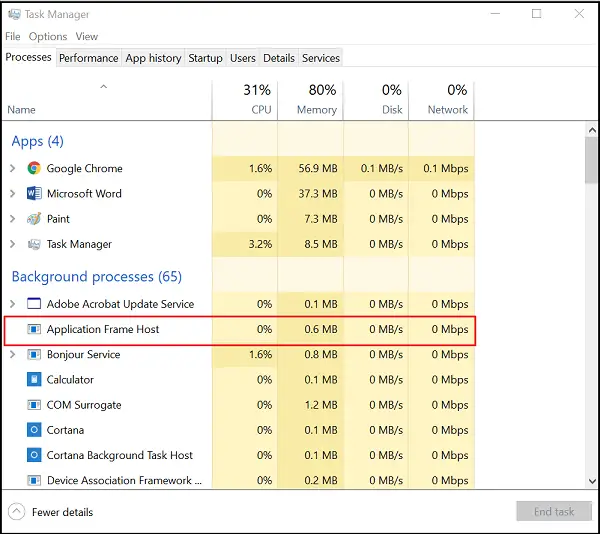
Microsoft Store apps differ from desktop apps in that they cannot investigate or collect information from other apps. Moreover, these apps rely on an additional process to display their content in a separate window on the Windows computer using Application Frame Host. The Application Frame Host uses a small fraction of CPU memory to run comfortably in the background but shows a sharp rise as soon as some Universal Windows Platform apps are launched.
What is Application Frame Host process in Windows 11
In function, this 62KB odd file is responsible for displaying traditional Windows applications in frames, irrespective of the device mode you are using (Desktop mode or Tablet mode). If at times you find that this process is consuming excessive CPU or memory, you can end this process by right-clicking it in the Task Manager and selecting the “End Task” option. The process will be closed. However, when you try to forcibly end this process, all your open UWP apps close. You may see several Application Frame Host processes in Task Manager, each tied to a different UWP app. It is found in SystemApps\Microsoft.Windows.ApplicationFrameHost.
ApplicationFrameHost.exe consuming excessive CPU
If your ApplicationFrameHost.exe is consuming excessive CPU, memory or resources, we recommend that you run Windows Update first and the System File Checker as well. Ending the ApplicationFrameHost.exe process as shown above via Task Manager and then restarting the Windows apps may offer temporary relief.
Is ApplicationFrameHost.exe a virus?
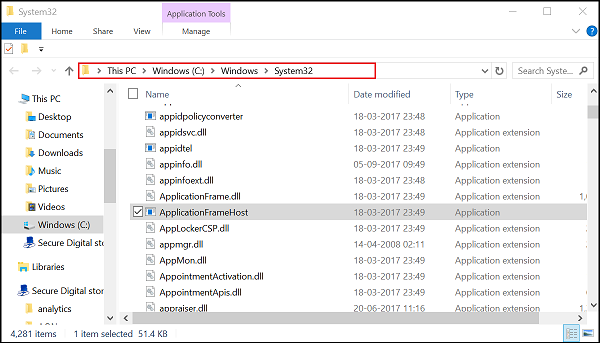
ApplicationFrameHost.exe is located in the C:\Windows\System32 folder. If it is located in any other folder, right-click it and check whether it is a legitimate Microsoft operating system file. If your Task Manager is open, you may right-click the option under the ‘Processes’ tab and select ‘Open file location’.
You may also get this suspicious file scanned with your antivirus software as well online using, multiple antivirus scanners.
That said, Application Frame Host is a Windows OS process, and its file ApplicationFrameHost.exe is a Windows system file. However, it is always a good practice to confirm safety.
Can I end Application Frame Host?
Yes, you can end or stop Application Frame Host in Windows 11 and Windows 10 computers. To do that, you can use Task Manager. Press Ctrl+Shift+Esc to open the Task Manager and find the Application Frame Host process in the Processes tab. Then, click on the End task button.
How do I enable the Application Frame Host process?
There is nothing you can do to enable or turn on the Application Frame Host process on your computer. However, if you have ended the respective process using the Task Manager, you can simply restart your computer. It starts automatically when you open a Microsoft Store app on your PC after restarting the computer.
Want to know about these processes, files or file types?
Windows.edb files | Thumbs.db files | NFO and DIZ files | Index.dat file | Swapfile.sys, Hiberfil.sys & Pagefile.sys | Nvxdsync.exe | DLL or OCX files. | StorDiag.exe | MOM.exe | Host Process for Windows Tasks | ShellExperienceHost.exe.
