
Jack (Port) Information gives details about the physical audio connector associated with a sound device. This helps you identify the correct port for your audio device or check connection status while troubleshooting sound issues. In this guide, we will show you how to find Jack Information for Sound Devices in Windows 11.

Jack Information can apply to both input and output sound devices. It provides details about the physical audio jack associated with a supported sound device. It can display:
- Connection type: Identifies the connector, such as a 3.5 mm audio jack, optical connector, or RCA jack.
- Jack location: Indicates whether the connector is on the front, rear, or another part of the computer.
- Jack color: Shows the reported color of the physical connector, when available.
- Connection status: Indicates whether a device is connected, provided the hardware supports jack detection.
How to find Jack Information for Sound Devices in Windows 11
To find Jack Information for input and output Sound Devices on your Windows 11 PC, use these methods:
- Use Windows Settings
- Use Control Panel
Let’s have a look at these methods in detail.
1] Use Windows Settings
Microsoft has introduced Jack Information in the Settings app for supported audio devices. The feature lets you view details about the physical audio connectors for input and output devices.
Option 1: Find Jack Information in Sound settings
Press Win + I to open Settings. Click System on the left pane, then select Sound on the right pane.
Under Output or Input, select the sound device for which you want to view jack information.
The device’s Properties page will open. Under Advanced settings, click Jack Information. The section will expand to display available details for the selected sound device.
Repeat the above steps for another input or output device if you want to inspect its associated jack.
Option 2: Find Jack Information through All sound devices
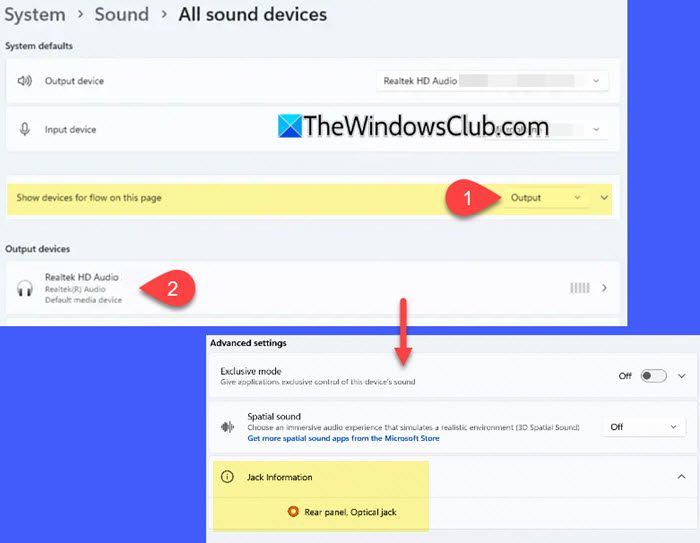
You can also access the same information from the All sound devices page, which lists your configured audio devices in one place.
Open Settings and navigate to System > Sound.
Scroll down to the Advanced section. Click All sound devices.
Under System defaults, select Output or Input (depending on the device you want to inspect) using the dropdown available in the Show devices for flow on this page section.
Select the relevant sound device from the list. On the device’s Properties page, click Jack Information under Advanced settings. The section will expand to show available jack information for the selected sound device.
If you expand the Show devices for flow on this page section (by clicking on it), you will also be able to hide disabled, unplugged, or disconnected devices. This helps you focus on working devices only.
Note:
- Microsoft uses Controlled Feature Rollout for many experimental features, so Jack Information may not be available to all users running the same build. If you do not see this section in Settings, check for the latest Windows Insider build and wait for the feature to roll out to your device.
- Since it is an experimental feature, Microsoft may modify or remove it in future builds.
2] Use Control Panel
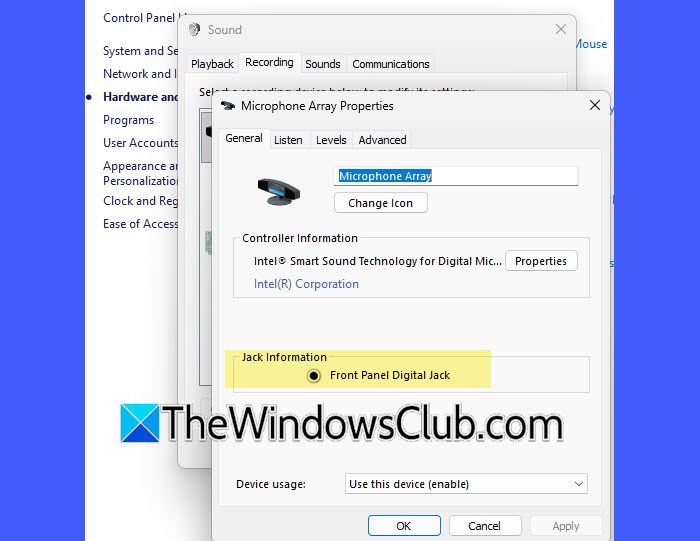
If you prefer the classic Sound dialog, you can use Control Panel to inspect your audio devices.
Press Win + I to open Settings. Navigate to System > Sound.
Under Advanced, click More sound settings. This opens the classic Sound dialog.
Alternatively, you can open Control Panel using the Windows Search bar, then select Hardware and Sound > Sound to open the classic Sound dialog.
Select the Playback tab to inspect output devices, such as speakers, or the Recording tab to inspect input devices, such as microphones.
Select the sound device you want to inspect and click Properties. Under the General tab of the device’s Properties dialog, you will find which jack is being used by the device under the Jack Information section.
I hope you find this useful.
Read: Which device did you plug in message in Windows.
How to enable audio jack in Windows 11?
Audio jacks in Windows 11 usually work automatically when you connect a compatible device. If your audio jack is not working, it may be disabled in sound settings or affected by an audio driver issue. Open Settings > System > Sound. Check whether Windows detects the device and has selected it for input or output. If you cannot find the device, check the available audio devices and update your audio driver if necessary.
Why isn’t Windows 11 recognizing my headphone jack?
Windows 11 may not recognize your headphone jack if you have connected the headphones to the wrong port, the connection is loose, or the audio driver has an issue. Many PCs have separate ports for audio output and microphone input, so it is easy to connect headphones to the wrong port by mistake. Connect the headphones to the correct audio output port and see if Windows detects them. You can also check the available Jack Information in Windows 11 Settings to identify the audio connector and its location.
Read Next: Sound only works when headphones are plugged in.
