
Some PC users report that the sound only works when headphones are plugged in. There are multiple causes of this issue, such as a corrupt audio driver, a conflicting third-party program, or a corrupt user profile. If you encounter this issue, the solutions provided in this article will help.
Sound only works when headphones are plugged in
Use the following solutions if sound only works when headphones are plugged in on your Windows 11/10 PC
- Run Audio Troubleshooter
- Check the default playback device
- Reinstall the audio driver
- Check the audio jack
- Check the Realtek Audio Console settings
- Troubleshoot in a Clean Boot state
- Create another user profile
- Restore your system
All these fixes are explained in detail below. Before proceeding, check for Windows Update and connect another speaker. If another speaker works fine, the issue may be with your speaker.
1] Run Audio Troubleshooter
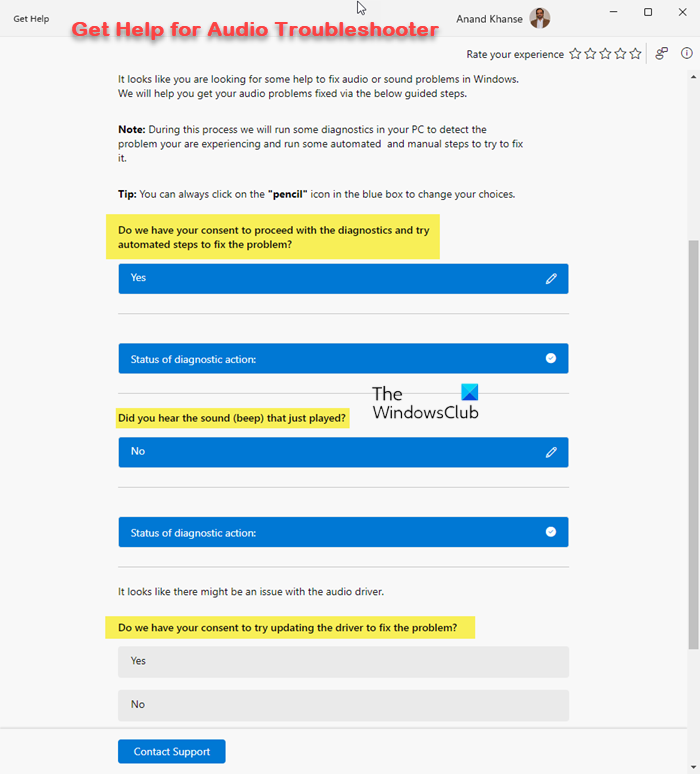
The Audio Troubleshooter helps users fix audio issues on a Windows computer. Launch the Get Help app or Windows 11 Settings to run Audio Troubleshooter and see if it fixes the issue.
2] Check the default playback device
Check the default playback device. It might have been set to the headphones. Follow these steps:
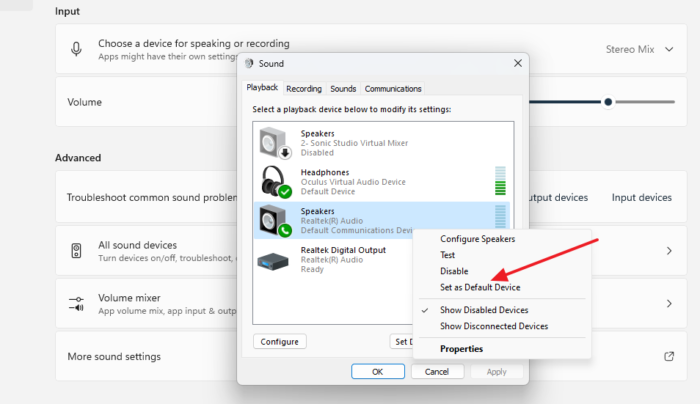
- Launch the Control Panel.
- Type sound in the Control Panel search box.
- Click Sound from the search results.
- Select the Playback tab. The default playback device shows a green tick mark.
- If your speaker is not set as the default playback device, right-click on it and select Set as Default Device.
- Click Apply and then OK.
3] Reinstall the audio driver
Your audio driver might have been corrupted, causing this issue. Reinstalling the audio driver can help. First, visit the official website of your computer manufacturer and download the latest version of your Audio driver.
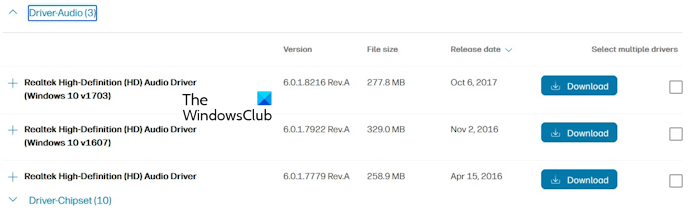
Now, follow these steps:
- Open the Device Manager.
- Expand the Sound, video and game controllers branch.
- Right-click on it and select Uninstall device.
- Now, run the installer file to install the audio driver. Restart your computer and see if the issue persists.
4] Check the audio jack
The audio jack of some laptops has a small mechanical switch that tells the computer when a plug is inserted. If the switch is stuck or there is debris inside the headphone jack, the computer remains in the Headphone State. Inspect the headphone jack physically and clean it.
5] Check the Realtek Audio Console settings
Realtek Audio Console is software used to manage and customize audio settings for Realtek-powered sound systems on Windows computers. Its settings might be misconfigured, which is causing this problem.
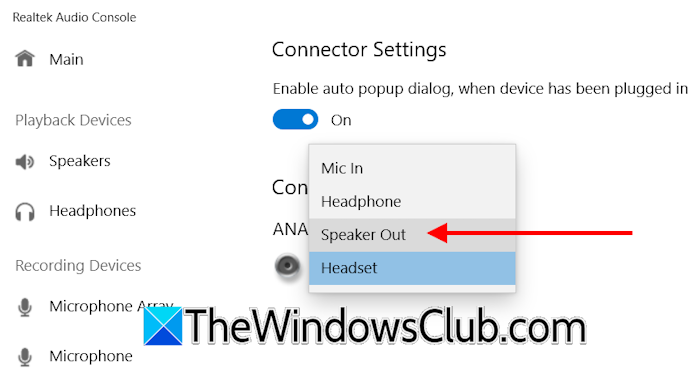
Launch the Realtek Audio Console application and navigate to Device advanced settings. Select Speaker Out in the Analog drop-down.
6] Troubleshot in a Clean Boot state
A third-party software or service might be causing this problem. To check this, you need to troubleshoot in a clean boot state.
Use MSConfig to enter the Clean Boot state. Be careful while using MSConfig to disable the third-party services, as disabling all the services by mistake will put you in trouble.
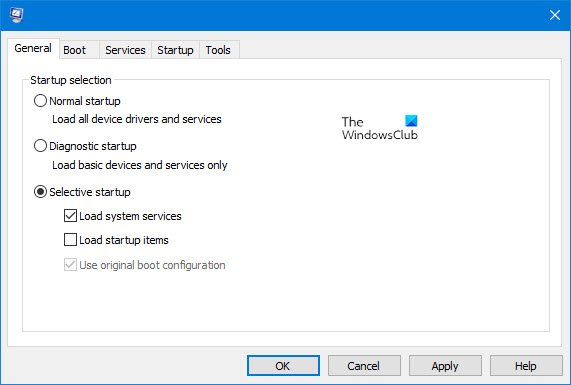
Once you are in the Clean Boot state, check if the issue persists. If not, you need to find the conflicting third-party service. For this, enable some of the disabled services and restart your computer. Check if the issue persists. If not, enable some more disabled services and restart your computer. When the problem appears, one of the services you have just enabled is the culprit. Once you find the problematic service, uninstall its respective application.
7] Create another user profile
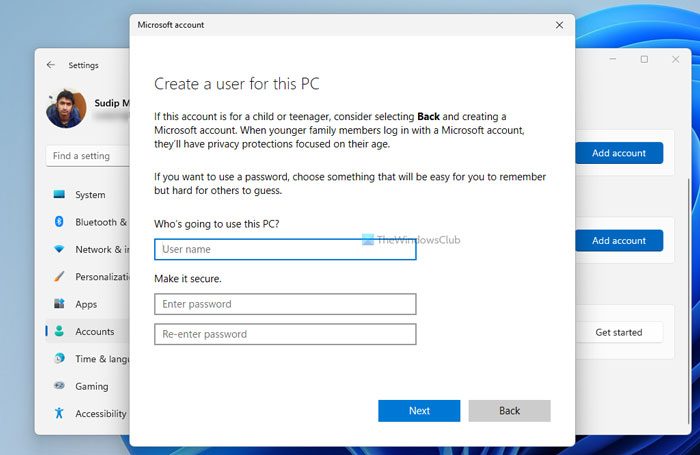
Sometimes, problems are associated with a particular user profile on a Windows computer. Create a new user profile and check if the issue occurs there. If the problem does not occur in the new user profile, the problem is with your main user profile. Now, log in to the main user profile and run System File Checker and DISM tools to scan and repair the corrupted system image files. If this does not help, you can transfer all your profile data to the new user profile using a third-party tool, such as Transwiz.
8] Restore your system
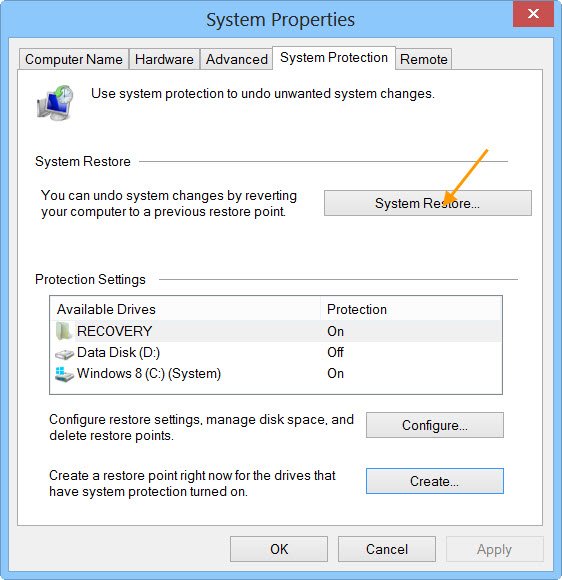
If the issue persists, you can restore your system to the previous point in time. System Restore helps restore a Windows computer to the previous working state, based on the selected restore point.
That’s it.
Why do my headphones not work when I plug them into Windows 11?
If your headphones are not working when you plug them into your Windows 11 computer, check that the default device is set correctly. Windows might not switch the default device automatically. You can also try running the Audio Troubleshooter. The corrupt audio driver can also cause this problem.
Why can’t I hear anything on my PC without headphones?
Check the default output. Your speakers should be selected as the default audio device. This issue can also be due to a corrupt audio driver. Reinstalling the driver can help. Some laptops have a small switch inside the audio jack. If that switch is stuck, your computer thinks that a headphone is still plugged in.
Read next: Audio lags when playing games on Windows.
