
Some users report that their voice sounds robotic on their Windows computers. According to the reports, the issue can occur with both headsets and speakers, such as during a Teams call or while playing video games. Some users reported discovering this issue after playing back a screen recording. The recorded video contained the robotic sound, confirming that the problem had occurred during the recording process. If you encounter the same issue, this article will help you fix the robotic sound on your computer.
How to fix Robotic sound on computer
Use the following suggestions to fix the robotic sound on your Windows computer. Before proceeding, I suggest you use another Bluetooth device to confirm whether the issue is with your Bluetooth device.
- Reinstall the Bluetooth driver
- Disable and re-enable the audio device
- Check for Bluetooth interference
- Run Audio troubleshooter
- Roll back or reinstall the audio driver
- Run the Hardware diagnostics test (for HP computers)
- Change your microphone or speaker audio format
- Reinstall the affected application
- Monitor your CPU and GPU temperature
- Update BIOS
- Restore your system
All these fixes are explained in detail below. Before proceeding, I recommend you create a system restore point.
1] Reinstall the Bluetooth driver
Reinstall the Bluetooth driver and see if it helps. First, visit your computer manufacturer’s official website and download the latest version of the Bluetooth driver. Now, open the Device Manager and follow these steps:
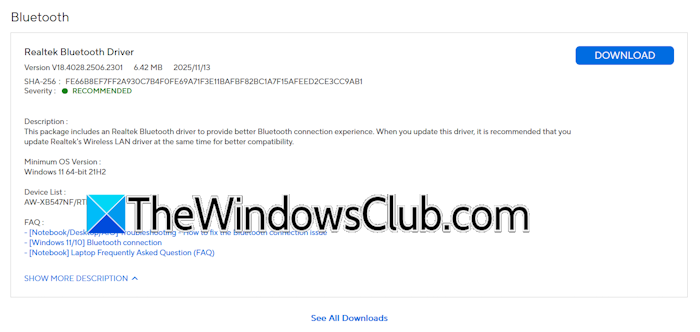
- Expand the Bluetooth branch.
- Right-click on your Bluetooth driver and select Uninstall device.
- Run the driver installer file to reinstall the Bluetooth driver.
After performing the above steps, check if the issue persists.
2] Disable and re-enable the audio device
You can also try disabling and re-enabling the audio device. The following steps will guide you on this:
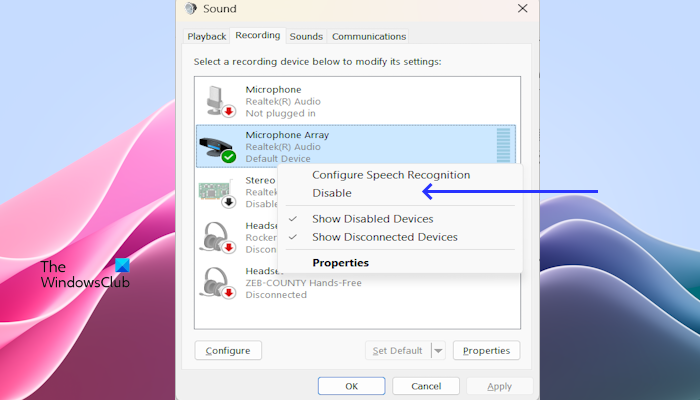
- Open the Control Panel.
- Search for sound, and click Sound in the Control Panel search results.
- Navigate to the Playback tab (for speakers) or Recording tab (for microphone).
- Right-click on your speakers or microphone and select Disable.
- Wait for a few seconds, and re-enable the device.
3] Check for Bluetooth interference
Bluetooth interference is the major cause of such issues. To verify this, follow these steps:
- Disconnect unused Bluetooth devices.
- Replace the wireless keyboard and mouse with the wired ones.
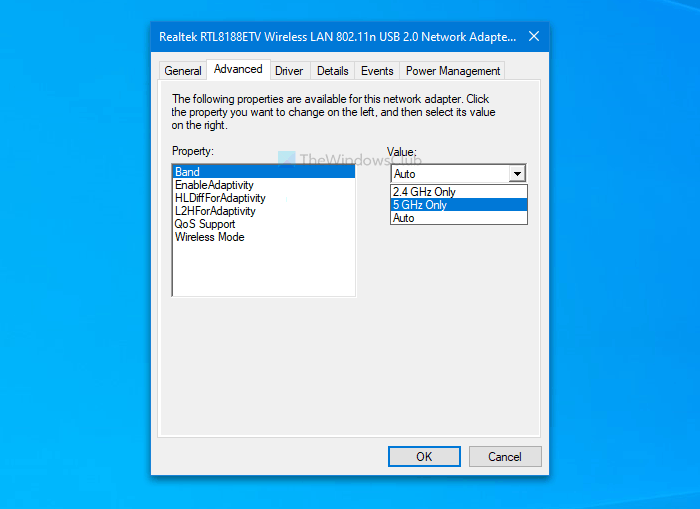
- Bluetooth operates in the 2.4 GHz band. If your computer is connected to a 2.4 GHz WiFi band, wireless interference can sometimes affect Bluetooth audio. If possible, switch to the 5 GHz WiFi band and check whether the robotic sound disappears.
- USB 3.0 devices also operate on the same frequency band. Therefore, if you use USB 3.0 devices, move them away from the Bluetooth adapter.
4] Run Audio troubleshooter
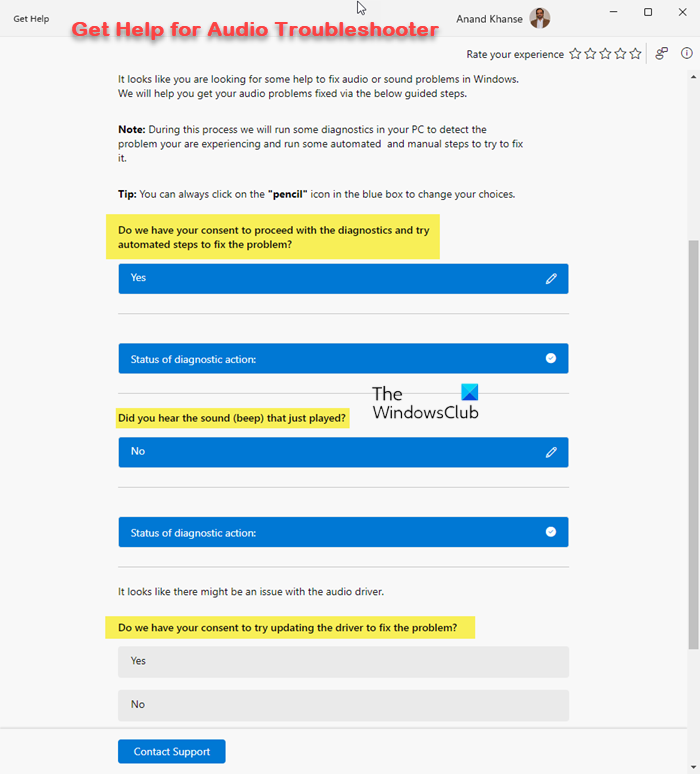
Windows 11 has an Audio Troubleshooter that helps fix audio-related issues. Run the Audio Troubleshooter and see if it brings any changes. You can launch it through Windows 11 Settings or the Get help app.
5] Roll back or reinstall the audio driver
If the issue persists, the problem may be with the audio driver. To confirm, uninstall and reinstall the sound card driver.
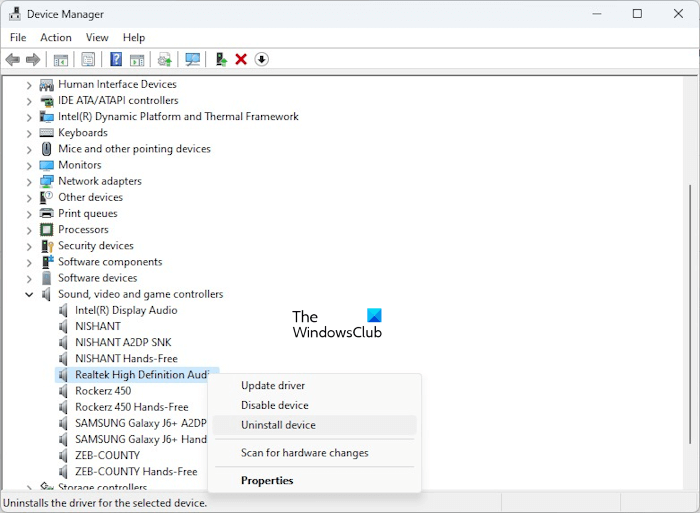
The following steps will guide you on this:
- Open the Device Manager.
- Expand the Sound, video and game controllers branch.
- Right-click on your sound card driver and select Uninstall device.
- Now, scan for hardware changes or restart your system.
Windows will automatically reinstall the missing driver.
6] Run the Hardware diagnostics test (for HP computers)
If you have an HP computer and it supports the Hardware diagnostics test, run it. Refer to the user manual to confirm.
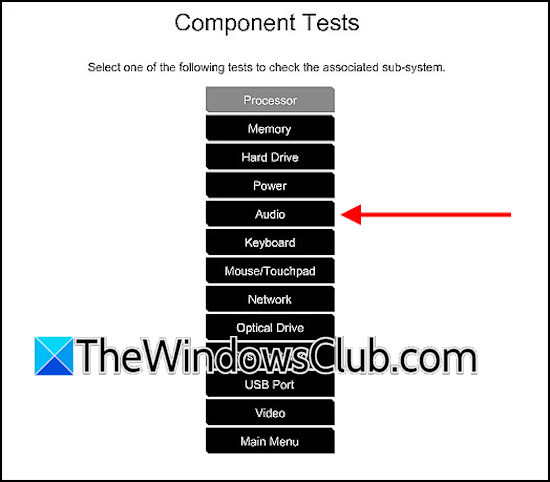
Follow these steps to run the hardware diagnostics test on your HP PC. These steps are for Pavilion AB029T. They can be different in your case, depending on the HP model you have.
- Shut down your PC.
- Turn on the PC and immediately start pressing the Esc key repeatedly. When the menu appears, press the F2 key.
- On the main menu, select Component Tests.
- On the next screen, select Audio.
- Follow the on-screen instructions to complete the test.
7] Change your microphone or speaker audio format
Change your microphone or speaker audio format and see if it helps. To do this, follow these steps:
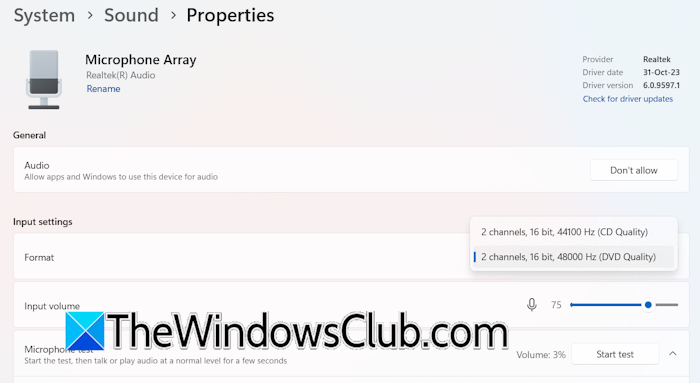
- Open Windows 11 Settings.
- Select System > Sound.
- Select your audio device.
- Under the Input settings section, select another format.
8] Reinstall the affected application
If the robotic sound occurs only in a particular application, such as Microsoft Teams, test the audio in another application, such as Zoom, to determine whether the issue is app-specific. If the issue does not occur with another application, uninstall and reinstall the affected application. I suggest you completely remove the affected application using the Revo Uninstaller or another similar tool.
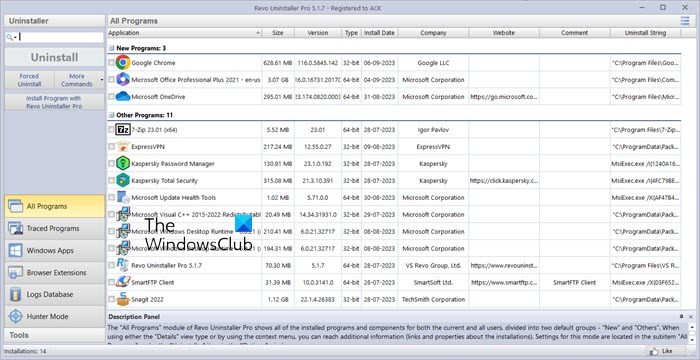
After uninstalling the application, restart your system. Now, download its latest version and install it again.
9] Monitor your CPU and GPU temperature
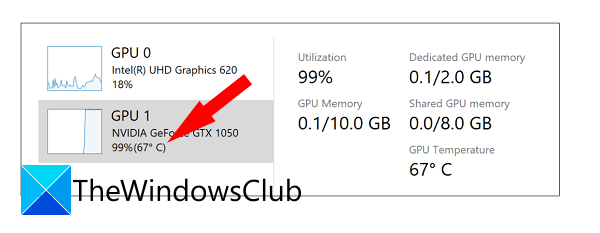
If the issue occurs while playing video games, monitor your GPU and CPU temperature. High temperatures can cause such types of problems. You can use the built-in Task Manager to monitor the GPU temperature. To monitor the CPU temperature, you can use free CPU Temperature Monitor and Checker software.
If the temperature goes beyond the safe operating range, improve your system’s cooling. Clean the cooling vents and fans, ensure proper airflow, and check that all cooling fans are functioning correctly.
10] Update BIOS
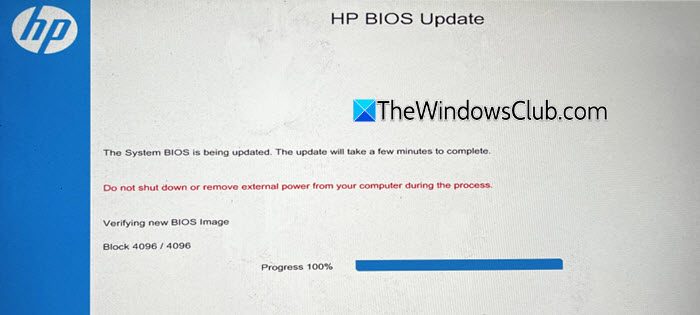
Open System Information to know the currently installed BIOS version. Now, visit your computer manufacturer’s official website and check if a newer BIOS version is available. If so, download and install it to update your system’s BIOS.
11] Restore your system
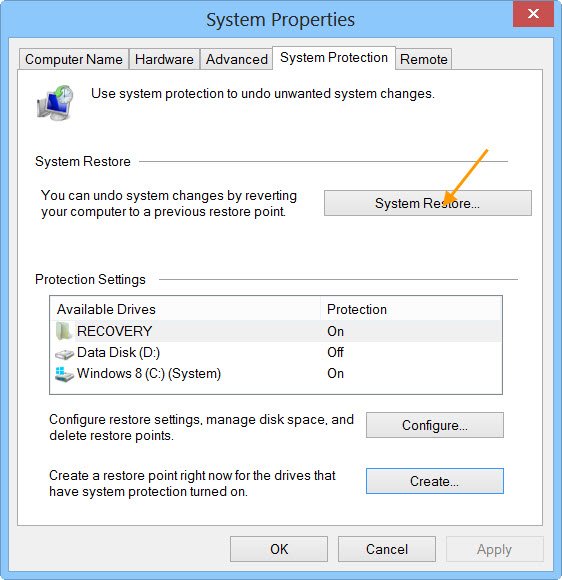
If the issue persists, restore your system to a previous working state using System Restore. While restoring your system, select a restore point that was created before the robotic sound issue first appeared. Do note that this action will also remove all the programs or applications installed after the selected Restore Point.
That’s it. I hope this helps.
Related posts that may help you:
- Fix Audio crackling or popping sounds
- Audio sounds funny and distorted like chipmunks on Windows PC
- Fix Sound Distortion issues.
Why does my sound robotic on my PC?
This issue usually occurs with Bluetooth speakers or headsets due to Bluetooth interference. In that case, follow these steps to reduce the interference. Other causes include a corrupted audio driver or an incorrect audio format. The issue may also be with your audio device.
How to fix laggy audio?
If audio lags when playing games, you can run the audio troubleshooter, roll back, or reinstall the audio driver. If the issue occurs while gaming, check the GPU and CPU temperature. High PC temperatures cause performance issues. If the audio is not syncing with the video, the problem may be with the graphics card driver.
Read next: Sound only works when headphones are plugged in.
