
Some users report that sound is not working on their Windows 11 computer. They say the sound icon on the Taskbar shows a red cross. When they click on it, Windows 11/10 shows a message: No speakers or headphones are plugged in. If you encounter this issue on your Windows computer, the solutions provided in this article will help.
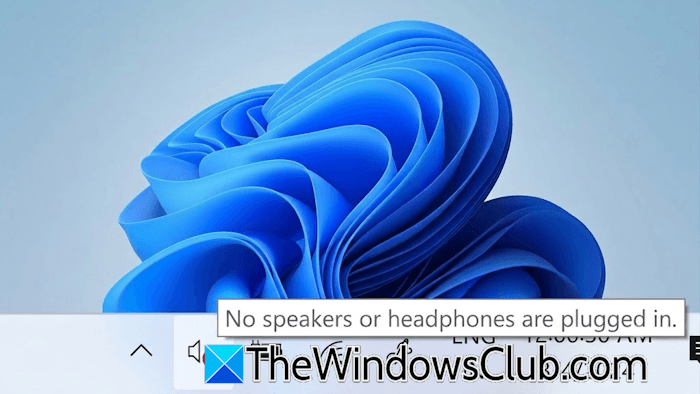
No speakers or headphones are plugged in on Windows computer
Use the following fixes if the sound is not working on your Windows system due to the “No speakers or headphones are plugged in” error. Before proceeding, restart your system, as sometimes the issue occurs due to a minor problem. We also suggest you check for Windows Update manually before trying any troubleshooting fixes.
- Run the Audio troubleshooter
- Reinstall the Audio driver
- Check your playback device
- Check the status of the required services
- Uninstall the problematic Windows Update (if applicable)
- Create a new user profile
- Restore your system or reset your PC
All these fixes are explained in detail below:
1] Run Audio troubleshooter
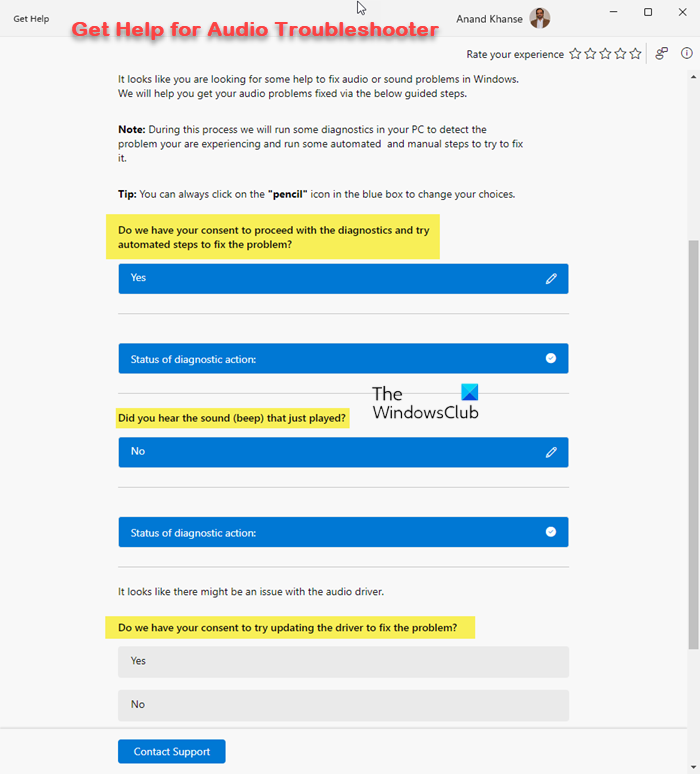
Audio troubleshooter is an automated tool in Windows 11 that helps fix audio issues. You can run it via Windows 11 Settings or the Get Help app. If the Audio troubleshooter doesn’t help, try other troubleshooting steps.
2] Reinstall the Audio driver
A corrupt audio driver causes audio issues on a Windows PC. This can be the case with you. Reinstall the Audio driver and see if it works. Follow these steps:
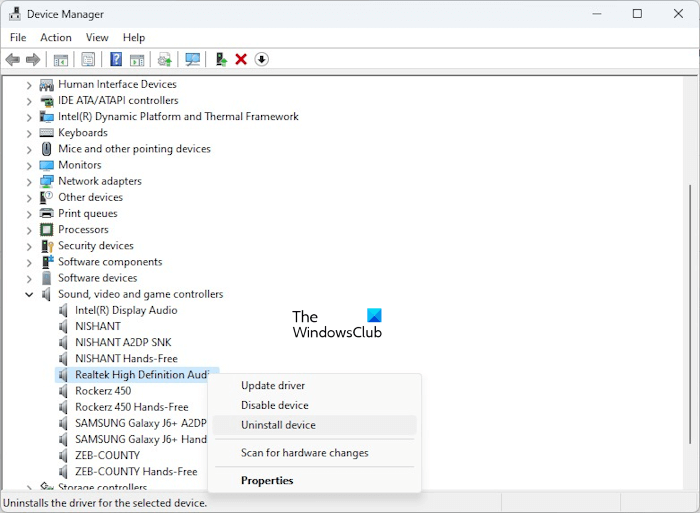
- Open the Device Manager.
- Expand the Sound, video and game controllers branch.
- Right-click on the audio driver and select Uninstall device.
- Scan for hardware changes or restart your system. Windows will automatically install the missing driver.
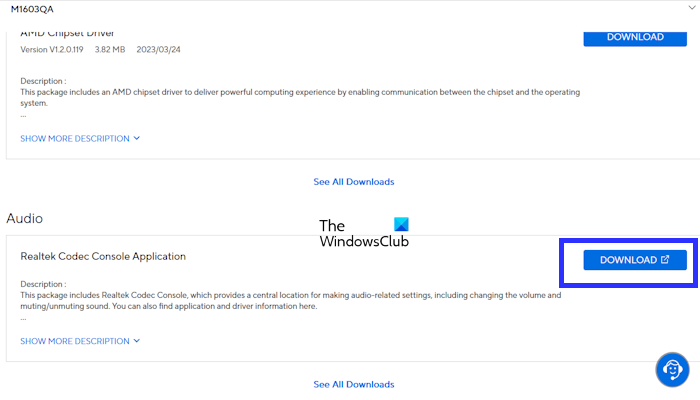
If this does not work, download the latest version of the Audio driver from your computer manufacturer’s official website and install it.
Read: How to reset Audio Settings in Windows 11
3] Check your playback device
If the issue persists, check your audio device. This issue also occurs if the audio device is disabled.
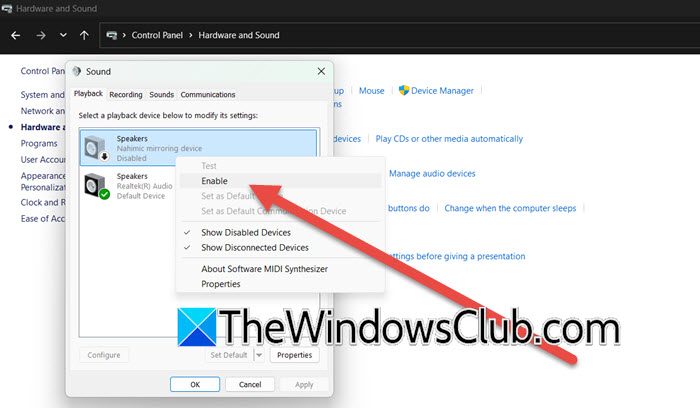
Follow the instructions provided below:
- Open the Control Panel.
- Type sound in the Control Panel search bar and click Sound from the search results.
- Locate your audio device under the Playback tab. It should show a green tick.
- If the audio device does not show a green tick, it is disabled. Now, right-click on it and select Enable.
The issue should be resolved after enabling the audio device.
4] Check the status of the required services
If the issue persists, the next step is to check the status of the required services. Go through the following instructions:
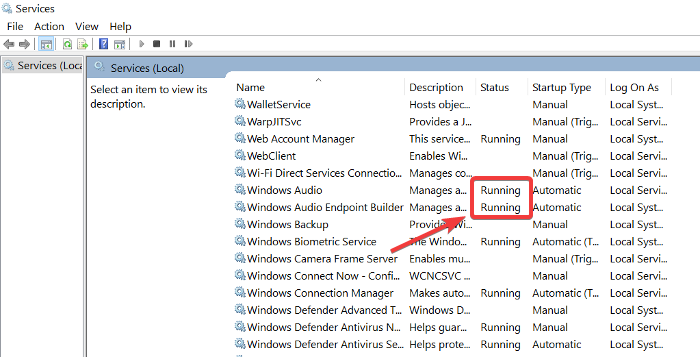
- Open Windows Services Manager.
- Locate Windows Audio and Windows Audio Endpoint Builder services.
- The status of both these services should be Running.
- If you find any of them stopped or disabled, right-click on it and select Properties.
- Under the General tab, set Startup type to Automatic.
- Click Start.
- Now, click Apply and OK.
5] Uninstall the problematic Windows Update (if applicable)
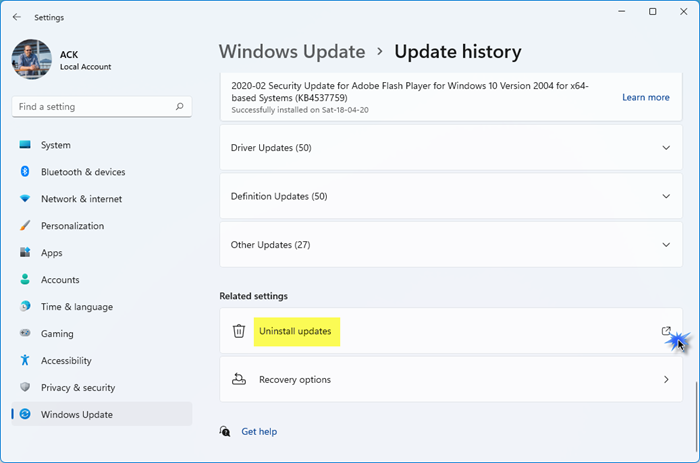
Windows 11 allows users to uninstall an update. This feature is useful when a recent update has caused issues on a user’s system. If this issue occurred after installing a Windows Update, uninstalling that update can help.
6] Create a new user profile
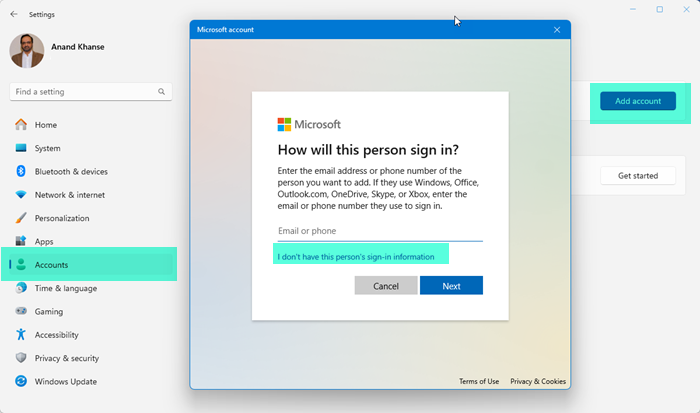
Sometimes issues are associated with a particular user profile on Windows. To confirm this, create a new user profile. If another user profile already exists on your system, log in to that user profile. If the issue does not occur in another user account, you can move all your user profile data from the original profile to the new user profile by using a third-party tool, such as Transwiz. After doing that, you can delete the old user profile.
7] Restore your system or reset your PC
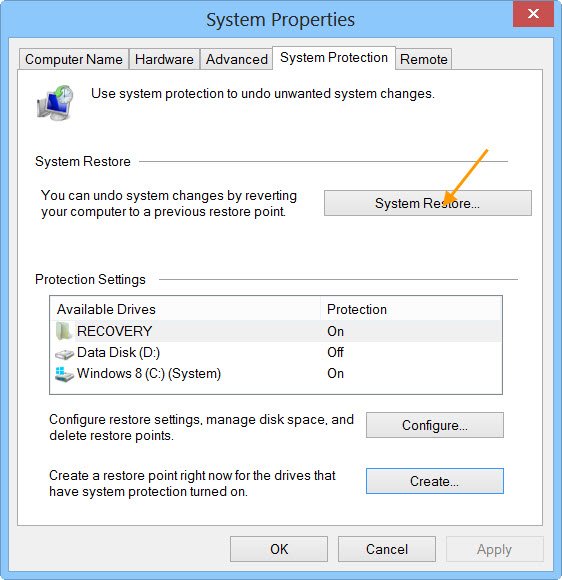
If the issue persists, you can restore your system to a previous working state by using System Restore. While restoring your system, select the restore point created before which your system was working fine. This action will also uninstall all programs you installed after the selected restore point was created.
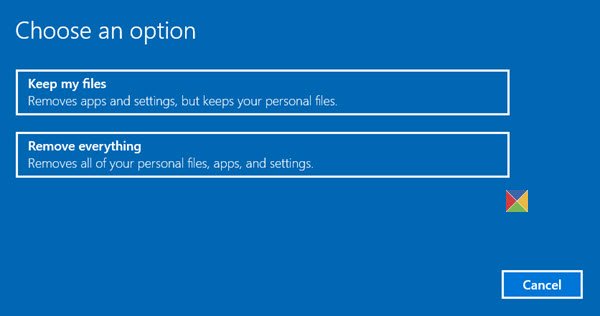
If restore points do not exist, you can reset your system to the factory default settings. This action reinstalls Windows. When you reset your PC, you will get two options: Keep my files and Remove everything. If you select the Keep my files option, all your files will not be deleted but all your installed applications will be removed. You’ll need to reinstall them after resetting your PC.
That’s it. I hope this helps.
Related: Fix Sound and Audio problems and issues in Windows 11.
Why are my speakers not showing in Windows 11?
If your speakers are not showing in Windows 11, they might be disabled. Check this in Sound settings in the Control Panel. If your speakers are disabled, enable them. Another cause is a corrupted sound card driver. Check this in the Device Manager. If the driver is faulty, the Device Manager shows an error code and message, so you can troubleshoot accordingly. If you have a USB speaker, connect it to another USB port.
Why are my wired headphones not working when I plug them into Windows 11?
There are many causes of this issue. The headphone cable or USB port might be faulty. Connect the headphones to another USB port. Another cause is a corrupted driver. Open the Device Manager and check if there is any issue with the USB Controller or audio drivers.
Read next: How to fix Robotic sound on computer.
