
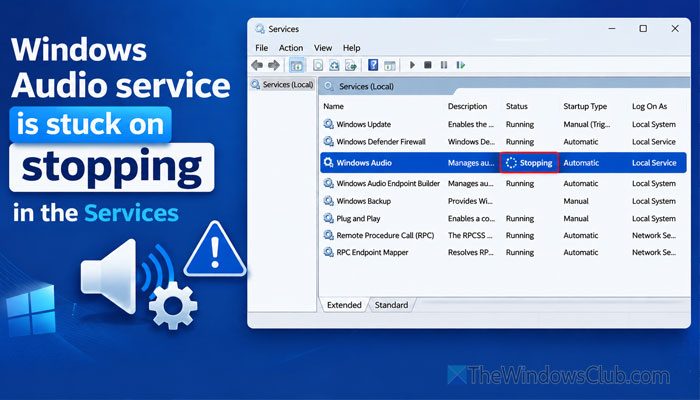
If the Windows Audio service is stuck on Stopping in the Services Manager, here is what you can do to troubleshoot it. Whether you use an external sound system or the built-in speakers/microphone of your computer, you may face this problem on Windows 11.
Why is the Windows Audio service stuck on Stopping?
If the Windows Audio service is stuck on stopping, these could be the reasons:
- Your audio driver is causing this issue. You may have more than one audio driver for multiple devices.
- The audio driver you have installed is not compatible with Windows 11.
- Service dependencies are not running.
- Internal Audio enhancements may cause this problem.
- Your external audio enhancement hardware conflicts with the audio driver.
- There may be some issues with your Bluetooth.
Windows Audio Service stuck on Stopping
If the Windows Audio service is stuck on stopping in Services on Windows 11, follow these solutions:
- Do not select Delayed start
- Verify service dependencies
- Check audio driver compatibility
- Reinstall your audio device
- Unplug external audio enhancement device
- Disable Audio enhancements
- Verify Bluetooth speakers
- Use Get Help to troubleshoot.
Before trying any of the following instructions, restart your computer once. If it is due to a bug or glitch, restarting the PC may solve it.
1] Do not select Delayed start
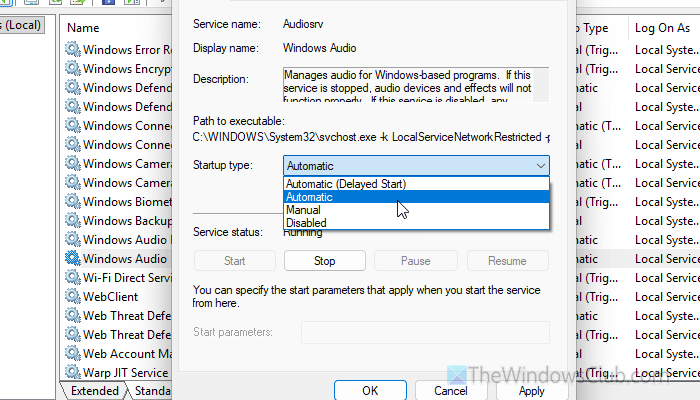
Every Windows service offers four options for how you want to start it. Those options are:
- Automatic (Delayed Start)
- Automatic
- Manual
- Disabled
It is highly recommended to avoid the Automatic (Delayed Start), Manual, and Disabled options. In other words, do not select anything except Automatic.
You can find these options when you open the Windows Audio service and expand the Startup type drop-down menu.
Read: The Audio Service is not running on Windows 11
2] Verify service dependencies
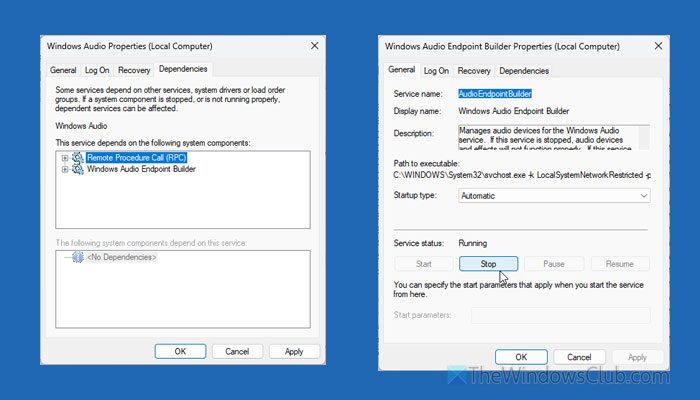
Almost all the services depend on some other services. It may depend on one, two, or even more than two services. For example, the Windows Audio service depends on two of the following services:
- Remote Procedure Call (RPC)
- Windows Audio Endpoint Builder
Along with the primary service, those two dependencies must also run all the time. Otherwise, the original service will get stuck on Stopping or show another error.
You can restart those dependencies once. To do that, double-click each service, click Stop, choose Automatic from the Startup type menu, and click Start. Finally, click the OK button to save the change.
Although restarting your computer isn’t required, we suggest restarting it after restarting those services.
3] Check audio driver compatibility
If you have an older speaker or microphone, check whether your current driver is compatible with Windows 11. In most cases, you might not need to install any driver to use your speakers. However, if you do need one, check compatibility first.
You can visit the official website and read the manual. If you find a compatibility error, uninstall the existing audio driver from Device Manager and install the new one you downloaded from the official website.
Read: How to download and reinstall Realtek HD Audio Manager in Windows 11
4] Reinstall your audio device
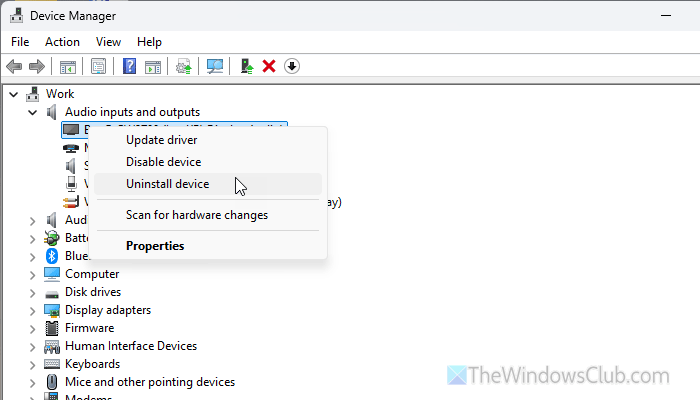
If you find the No Audio Output Device is Installed error, you will also find the aforementioned Windows Audio service error on your PC. That said, you must fix that error first, as it generally occurs when Windows 11 fails to recognize your audio device or speakers. You can use the built-in troubleshooter, update the audio driver, install a compatible version of your audio driver, etc.
After you complete those steps, hover over the speaker icon in the system tray. If there is no problem, restart the Windows Audio service once.
5] Unplug external audio enhancement device
If you use external audio enhancement hardware, it may cause this issue. These tools can cause the above problem when you restart the Windows Audio service. That is why you are advised to do the following:
- Unplug the external audio enhancement device.
- Try restarting the Windows Audio service while that device is not in use.
- Restart Windows Audio dependencies.
- Plug in your device.
6] Disable Audio enhancements
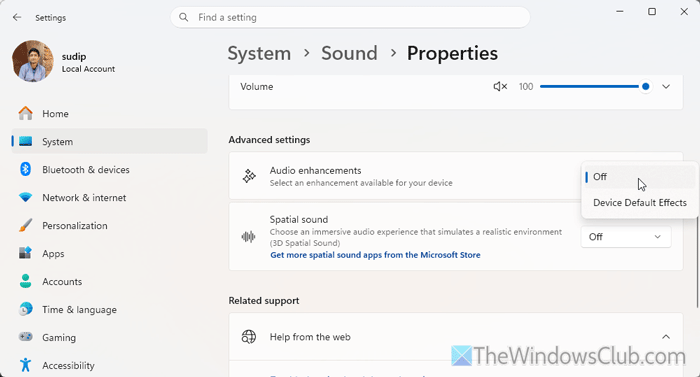
If you use audio enhancements for your speakers, we suggest disabling them. Sometimes, Audio enhancements may not be compatible with your speakers and can cause problems with various services, including the Windows Audio service.
To disable Audio enhancements, open the Windows Settings panel first. Then, go to System > Sound > Speakers.
Go to Advanced settings, expand the drop-down menu of Audio enhancements, and choose the Off option.
7] Verify Bluetooth speakers
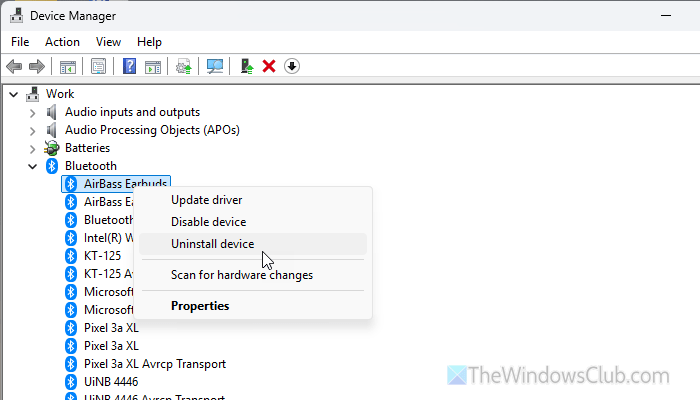
If you are using Bluetooth speakers, do the following:
- Verify whether your computer’s Bluetooth is working properly.
- Disconnect other devices except the speakers.
- Reinstall the Bluetooth driver.
- Update and repair the Bluetooth driver.
Read: Bluetooth driver missing in Windows 11
8] Use Get Help to troubleshoot
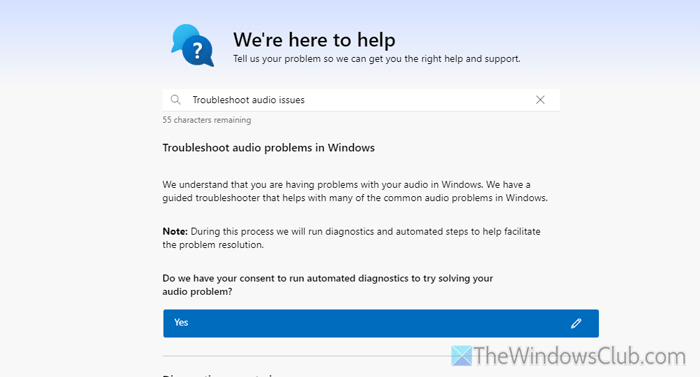
It is probably the last option you can use to troubleshoot this problem on your PC. First, open the Get Help app from the Start Menu. Search for Troubleshoot audio issues and hit the Enter button.
It shows a few things on the screen. Click Permit to run an automated diagnostic on your PC. Click Yes.
Then it may take a few moments to run checks and ask you a couple of questions. For example, whether it can mute/unmute your speakers or not. You must give permission to do those tasks to run the troubleshooter.
What can I do if the Windows audio service is stopping?
You must restart these three services: Windows Audio, Remote Procedure Call or RPC, and Windows Audio Endpoint Builder. All your audio services run through these three services.
Why does my Windows audio keep stopping?
It may happen for various reasons, including your audio driver, audio device (speakers), Bluetooth, etc. Also, if you use an external speaker, the connection, port, cable, etc., could be responsible.
