
If your Bluetooth driver is missing, you may be unable to connect to wireless headphones, mice, keyboards, and other essential peripherals. This frustrating issue often manifests as a complete absence of the Bluetooth toggle in Settings, a grayed-out icon in the system tray, or the Bluetooth category missing entirely from Device Manager. In this post, we will show you how to resolve this issue and restore your Bluetooth driver. We will also consider a scenario where the driver goes missing after a Windows Update.
Why is my Bluetooth missing in Windows 11?
The loss of Bluetooth functionality in Windows 11 is often due to software or driver conflicts, but it can also be a physical hardware issue. Common causes include outdated or incompatible drivers, especially after a major Windows update, or problematic drivers installed automatically by Windows Update. In cases involving internal Wi-Fi/Bluetooth combo cards, a loose or disconnected internal USB cable can prevent Windows from detecting the Bluetooth radio. Additionally, the Code 45 error in Device Manager indicates that a previously connected device is no longer present, often requiring a clean driver reinstall.
Bluetooth driver missing in Windows 11
If the Bluetooth driver is missing or gets removed after a Windows Update, follow these suggestions:
- Run the automated Bluetooth Troubleshooter and toggle Airplane Mode
- Add the legacy driver from the Device Manager
- Install the correct driver from your manufacturer
- Restart the Bluetooth Service
- Check the physical hardware
Let us talk about them in detail.
1] Run the automated Bluetooth Troubleshooter and toggle Airplane Mode
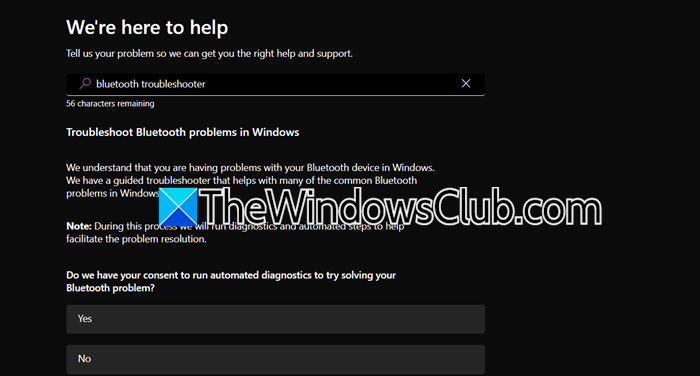
The automated troubleshooter scans for and repairs configuration errors, service stoppages, or driver corruption, while toggling Airplane Mode off and on acts as a soft reset for the Bluetooth radio hardware. This combined action can clear temporary glitches that cause Windows to incorrectly report the driver as missing.
To run the troubleshooter, open the Get Help app, search for Bluetooth Troubleshooter, and follow the on-screen instructions to run the troubleshooter.
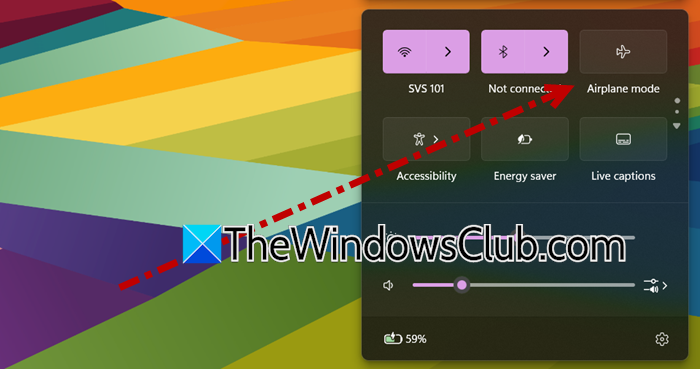
Now, open Quick Settings (Win + A), and click on Airplane Mode. Now, disable Airplane mode and see if that helps.
2] Add the legacy driver from the Device Manager
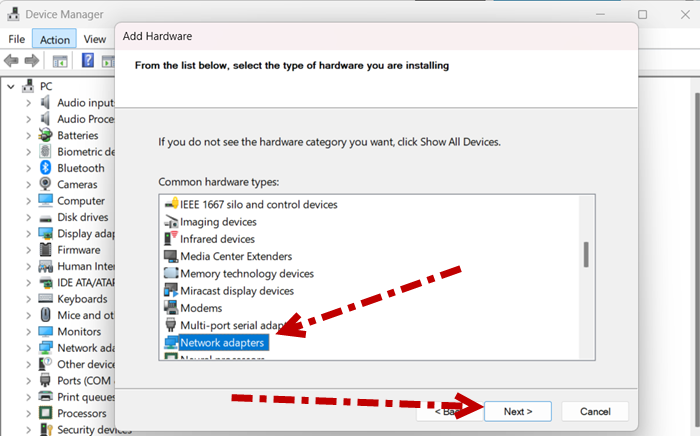
We need to bypass Windows’ automatic detection process, which might be malfunctioning. The Add Legacy Hardware wizard prompts the system to scan its built-in driver repository for standard Bluetooth hardware. This allows you to manually select and install a generic driver. Once this basic connection is established, you can update it with the correct manufacturer driver to ensure full functionality.
Follow the steps below to do the same.
- Open the Device Manager.
- Now, go to the Action tab and click on Add legacy hardware.
- Click on Next
- Select Search for and install the hardware automatically (Recommended) and click Next.
- Click on Next.
- Go to Common hardware types, and select Bluetooth. If it’s absent, click on Network Adapter > Next.
- Now, from the Intel tab, select a Bluetooth adapter, and confirm it.
Finally, reboot your computer.
3] Install the correct driver from your manufacturer
We need to install a custom driver for your hardware’s firmware and chipset. This driver is provided by the manufacturer and ensures that components work together correctly. Installing this driver will repair any missing or damaged system files using the correct software. By doing this, we can solve the problem of Windows not recognizing the Bluetooth adapter.
For PC/Laptop Owners: Visit your computer manufacturer’s (e.g., Dell, HP, Lenovo) official support website. Enter your exact model number to find and download the latest Bluetooth driver package for Windows 11.
For Custom Builds/Motherboard Owners: Identify your motherboard or Wi-Fi/Bluetooth card model. Visit the manufacturer’s website (e.g., Gigabyte, Intel) to download the driver. The Intel support page is a common source for many internal cards.
Run the downloaded .exe file. For other file types, use Device Manager’s Update driver > Browse my computer for drivers to navigate to the downloaded folder.
4] Restart Bluetooth Support Service
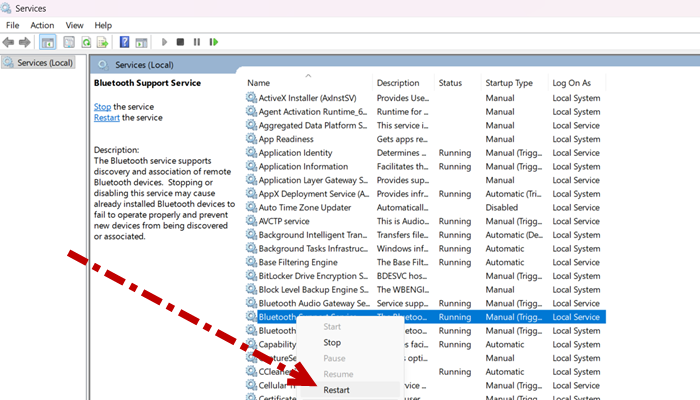
Restarting this service forces the system to reinitialize the critical software layer that allows Windows to communicate with the Bluetooth driver. If the service has stalled or encountered an error, the driver may be present but functionally invisible to the operating system. A restart clears this state and reloads the processes required to detect and activate the installed hardware driver.
Open Services.msc from Run, look for Bluetooth Support Service, right-click on it, and select Restart.
Finally, check if your issue is resolved.
5] Check the physical hardware
If your desktop PC has an internal Wi-Fi and Bluetooth card and the driver is missing, it may be due to a hardware connection issue. This card connects to the motherboard with a small USB cable. If this cable is loose or not connected, Windows will not recognize the Bluetooth radio. To fix this, turn off your PC, open the case, and make sure the cable is securely connected at both ends.
Hopefully, this will do the job for you.
Read: Bluetooth is missing or not showing in Device Manager
Bluetooth driver missing after Windows 11 update
A Windows 11 update, while intended to improve security and performance, can sometimes disrupt your system’s existing drivers. This often happens because a new update may include a driver version incompatible with your specific Bluetooth hardware, or the installation process may accidentally corrupt the current driver files. Consequently, your computer can no longer communicate properly with its Bluetooth adapter, causing it to disappear from Device Manager and your settings.
You can resolve this by running the built-in Bluetooth troubleshooter, performing a clean reinstallation of the driver via Device Manager, downloading and installing the latest driver directly from your PC or component manufacturer’s website, and ensuring the essential Bluetooth Support Service is running.
Also Read: Bluetooth option disappeared Windows 11.
