
Microsoft and third-party vendors have shipped audio enhancement packages designed to make your system’s specific hardware sound absolutely perfect. These are referred to as Audio Enhancements in Windows 11/10. But sometimes, these very ‘enhancements’ can cause problems with audio and sound.
If you’re experiencing audio issues in Windows 11 or 10, you may want to disable Audio Enhancements and see if that helps. If you see a message Windows has detected that audio enhancements for the following device are causing problems and you’re sure that your audio driver is up to date and you still experience the problem, and no audio works on your machine or you can’t play music, hear system sounds, or play any audio from the internet, try disabling the audio enhancement.
Turn Off Audio Enhancements in Windows 11
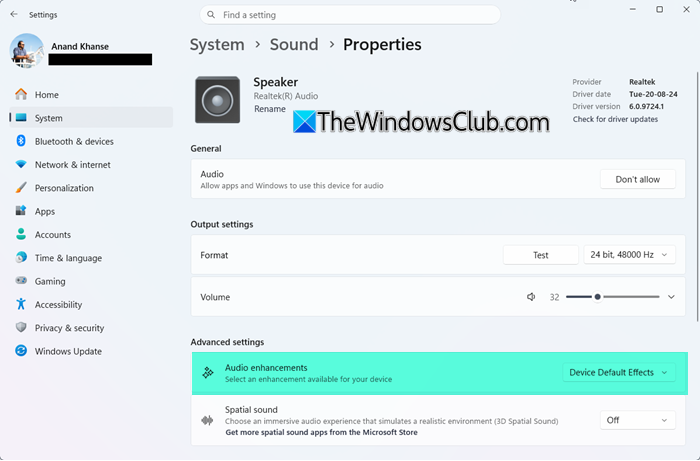
To disable or turn off Audio Enhancements in Windows 11:
- Press Win+I to open Windows Settings
- Go to System > Sound settings
- Locate your Output device or Speaker and click on the arrow to open its Properties
- From the available dropdown options, set it to Off.
You can also access the same setting via Windows Settings > System > Sound > Scroll down > Click on All sound devices > Select your active audio output (or input) device, and under the Output section, look for Audio enhancements and select Off from the drop-down options available.
Turn Off Audio Enhancements in Windows 11/10 via Control Panel
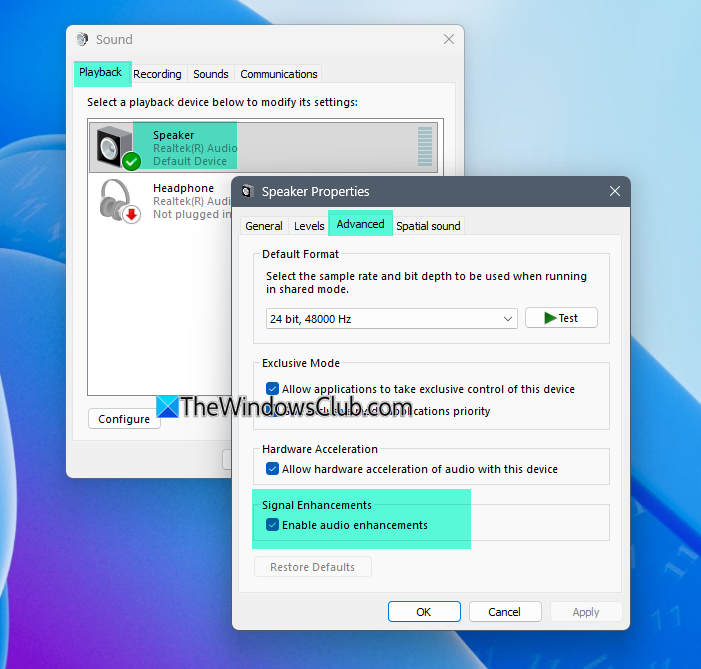
You can also use the Control Panel in Windows 11/10 to disable Audio enhancements:
- Press Win+R to open the Run dialog, type
mmsys.cpland hit Enter to open Sound Properties box. - Under the Playback tab, right-click your device and select Properties.
- Switch to the Enhancements tab.
- Here, locate the Disable all enhancements setting and select it.
- Click Apply and OK.
Now try to play your audio device. Does it work? If so, great!
If the method fails, select Cancel to return to the Sound Properties box. Now, on the Playback tab, select another default device (if you have one), select the Disable all enhancements check box, and try playing audio again.
Do this for each default device.
This is how to completely disable Audio Enhancements in Windows 11/10.
Read:
- How to use Enhance audio feature on Windows 11
- How to disable or enable Loudness Equalization in Windows
Remember, you can always enable any enhancements disabled earlier if you feel the sound quality is not up to the mark. The enhancements enabled under the “Enhancements” tab are artificial software enhancements. If you prefer to use enhancements, you should select those included with your sound card software instead, as they offer more settings to adjust sound quality.
Related reads that you may like to see:
- Repair audio problems on Windows PC
- No sound on Windows computer
- Windows sound not working properly.
