
If audio lags when playing games on Windows 11/10 PC it can significantly affect the gaming experience. Instead of a smooth gaming experience, users encounter stuttering audio, delayed, or mismatched sound effects. This issue can occur for multiple reasons, including outdated audio drivers and conflicting background applications. This article will help you discover possible causes and effective solutions to fix this problem.
Audio lags when playing games on Windows PC
Use the following suggestions if audio lags when playing games on your Windows 11/10 computer:
- Run Audio Troubleshooter
- Repair your system image files
- Try a wired headset
- Install a previous version of the audio driver
- Reinstall your audio driver
- Disable Audio Enhancements
- Check your CPU and GPU temperature
- Troubleshoot in a Clean Boot state
- Update or reinstall your graphics card driver
- Test your RAM
All these fixes are explained in detail below. Before proceeding, check for Windows Update manually.
1] Run Audio Troubleshooter
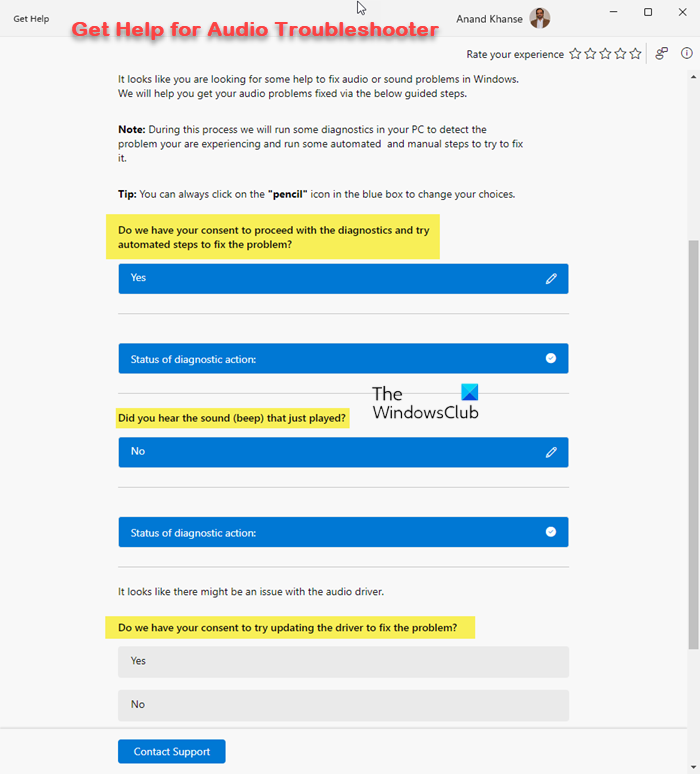
The Audio Troubleshooter helps you fix audio issues. Hence, the first step is to run this troubleshooter to see if it resolves the issue. You can use the Get Help app to use Audio Troubleshooter or launch it directly from Windows 11 Settings.
2] Repair your system image files

Your system may have corrupt files, causing this problem. Use the built-in tools, System File Checker and DISM, to repair the corrupted system files. Do not interrupt the scan. It will take time. You can do your work while the system scan is running.
3] Try a wired headset
Using a wired headset over a wireless one often fixes audio lag issues. This is because the wired headset sends audio signals directly over a physical cable rather than wirelessly, where data is sent and received in packets. Additionally, interference is one of the most common issues with wireless headsets.
Therefore, if you are using a wireless headset, first, replace its battery. If this does not fix the problem, consider replacing it with a wired headset.
4] Install a previous version of the audio driver
Windows automatically updates the required drivers. Sometimes, an update causes issues. This might be the case with you. We suggest you install a previous version of your audio driver. Follow these steps:
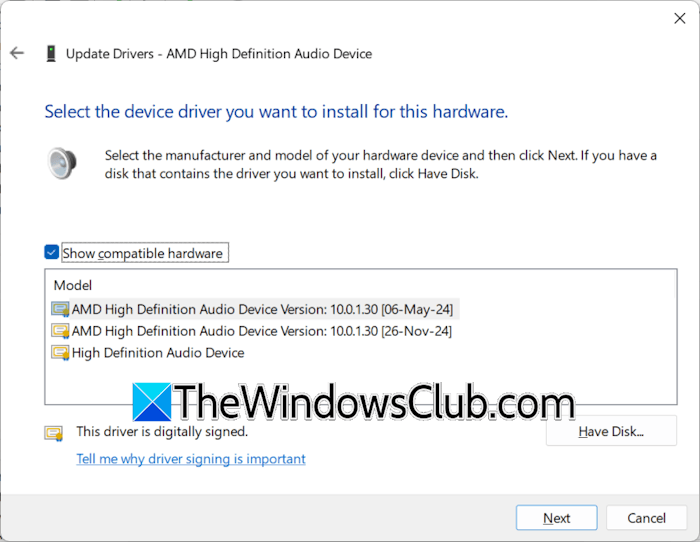
- Open the Device Manager.
- Expand the Sound, video, and game controllers branch.
- Right-click on your audio driver and select Update driver.
- Click Browse my computer for drivers.
- Now, click Let me pick from a list of available drivers on my computer.
- Enable the Show compatible hardware checkbox.
- Now, select the audio driver with an earlier date.
- Click Next and follow the on-screen instructions to install the earlier version of the driver.
Restart your system and check if the issue persists.
5] Reinstall your audio driver
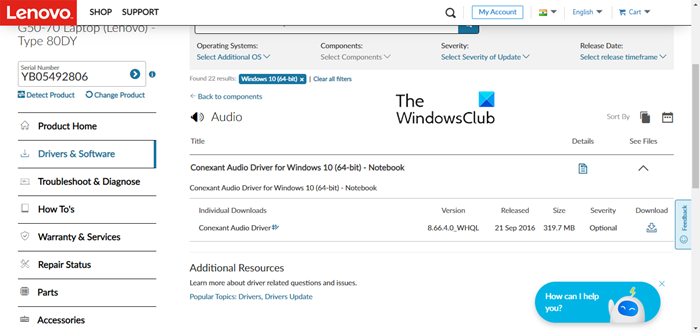
If the issue persists, you can try reinstalling the audio driver. For this, download the latest version of your audio driver from the manufacturer’s official website and reinstall it.
6] Disable Audio Enhancements
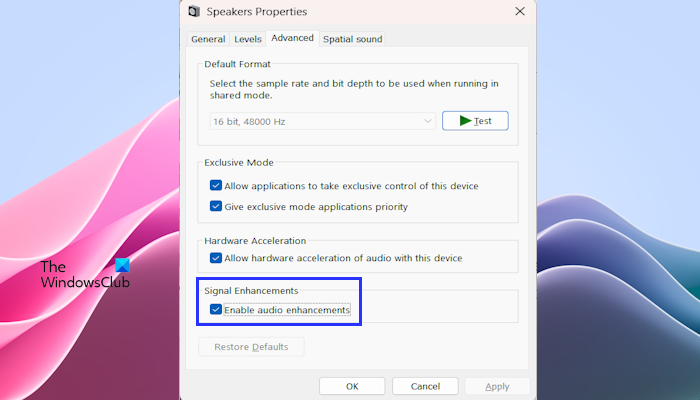
The Audio Enhancements feature in Windows is designed to improve the sound quality. Sometimes, users encounter issues when this feature is enabled. This might be the case with you. Check this. If it is enabled, disable it.
7] Check your CPU and GPU temperature
Playing high-definition games on a Windows computer consumes high system resources, resulting in increased CPU and GPU temperatures. High CPU and GPU temperatures reduce system performance, leading to several issues. Check your CPU and GPU temperature. You can use a third-party tool like Core Temp to monitor the CPU temperature.
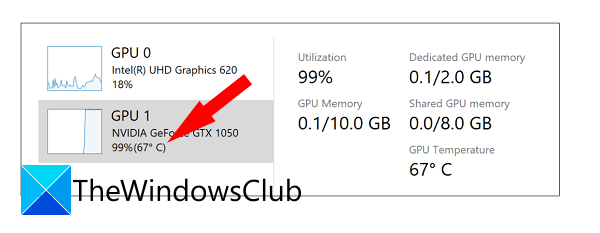
If the temperatures are very high, you have to fix it. Dust accumulation is a common cause of high PC temperatures. Open your computer case and clean your PC carefully. If you are not good at cleaning a computer, it is better to get professional help. Another cause of the high CPU temperature is worn-out thermal paste.
8] Troubleshoot in a Clean Boot state
The issue might be due to a conflicting third-party application or service. To confirm this, disable all startup apps through the Task Manager and restart your system. Now, check if the issue persists. If so, the next step is to troubleshoot in a Clean Boot state.
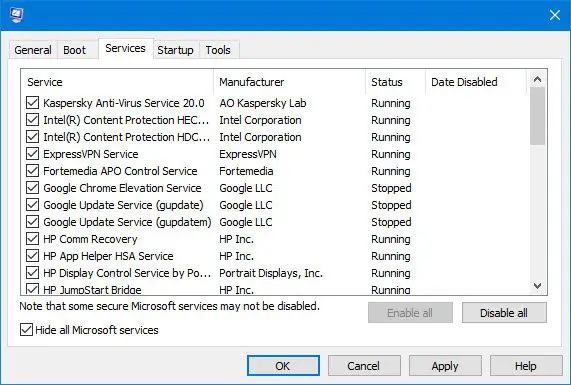
Use MSConfig to enter the Clean Boot state. While performing this action, do not disable all the services. Doing so by mistake will put you in trouble. When you are in the Clean Boot state, launch the game and see if audio still lags. If the issue disappears in the Clean Boot state, this means a third-party service was causing this problem.
To identify that service, enable some of the disabled services, and restart your system. Check if the issue reappears. If not, enable some of the remaining services and restart your system. Launch the game and check for the issue. When the issue reappears, one of the services you have just enabled is the culprit. Once you find the problematic service, uninstall its respective application. This will also delete that service from your system.
9] Update or reinstall your graphics card driver
As audio lags only when playing games, the issue might be with your graphics card driver. Audio lag in games can also occur due to a corrupt GPU driver. In such a case, performing a clean installation of the GPU driver helps. First, download the latest version of your GPU driver from the official website of your computer manufacturer. Now, download and install DDU (Display Driver Uninstaller).
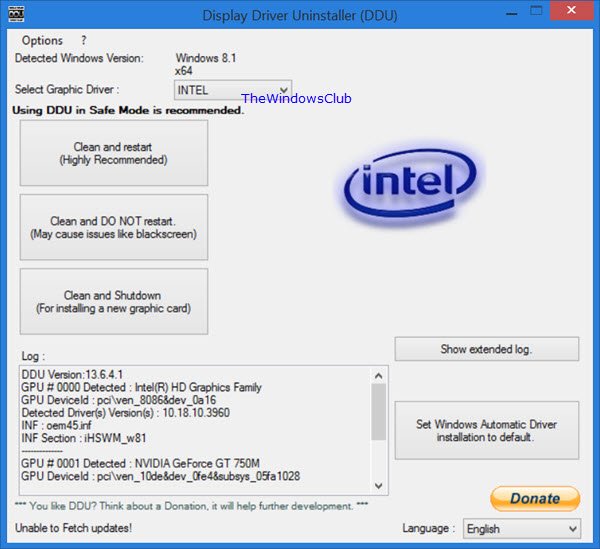
Run the DDU tool to completely remove the GPU driver from your system. Now, run the installer file to install the GPU driver from scratch.
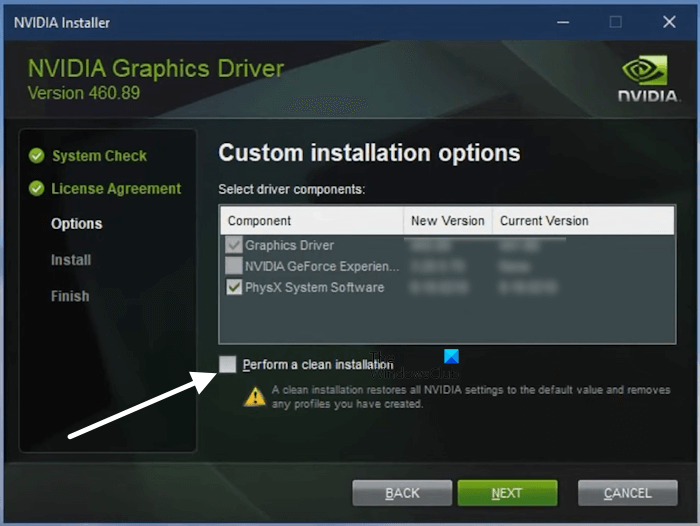 If you have NVIDIA graphics, you do not need to use DDU, as the installer file has the option to clean install the NVIDIA driver. AMD users can use the AMD cleanup utility in place of DDU.
10] Test your RAM
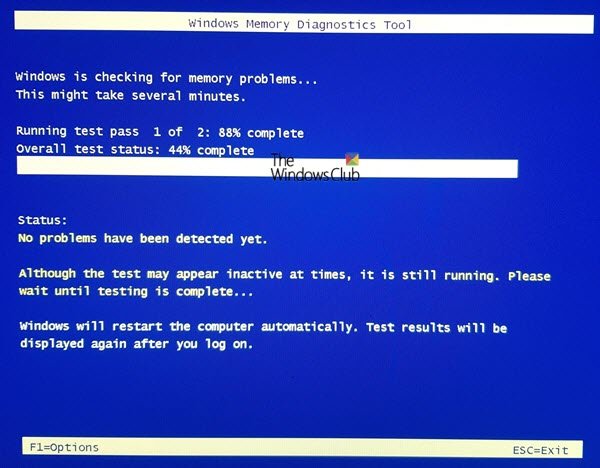
A faulty RAM might be another possible cause of this problem. Test the health of your RAM using the built-in Windows Memory Diagnostic Tool. If the results of the test show your RAM is faulty, consider replacing it.
That’s it. I hope this helps.
Related: Sound delays, lags and audio latency in Windows 11
Why does my sound lag in games?
Sound latency in games depends on many different factors, including hardware and software issues. If your PC is overheating, you will encounter performance issues, including sound latency. Additionally, the corrupt audio driver can also cause this problem.
Does more RAM reduce audio latency?
It depends on the situation. For example, if your system has an SSD but low RAM, say 4 GB. In that case, adding more RAM can fix the audio latency problem. However, if your CPU is slow, increasing RAM will not solve the problem.
Read next: No Sound on Lost Ark.
