
Almost every action in Windows 11/10 is followed by a sound, especially on laptops. Now, what if you are experiencing a noticeable delay in that sound? I am not talking about a minute-long delay, but a noticeable one, which could be 1-2 seconds. If that’s the case, in this post, we will offer a solution to fix sound delays, lags and audio latency on a Windows PC.
Sound Delay and Windows 11/10
Before we go ahead, let’s understand the reason behind the delay. According to Microsoft, Low Latency is a routine in Windows 11/10, but it should not be noticeable. Before Windows 11/10, the Audio Engine latency was ~6ms- ~12ms, which has now been reduced to 1.3ms for all applications.
Before Windows 11/10, this buffer was always set to ~10ms. Starting with Windows 11/10, the buffer size is defined by the audio driver. Bingo! So it’s not just Windows that’s responsible, but it is also the driver.
The good news is that Microsoft also says that if an application needs to use small buffers, it must use the new AudioGraph settings or the WASAPI IAudioClient3 interface. However, if one application changes it, the change will apply to all apps. More on the official page.
Fix Audio latency in Windows 11/10
To fix sound delays, lags, and audio latency in Windows 11, try the following suggestions:
1] Update Audio Drivers
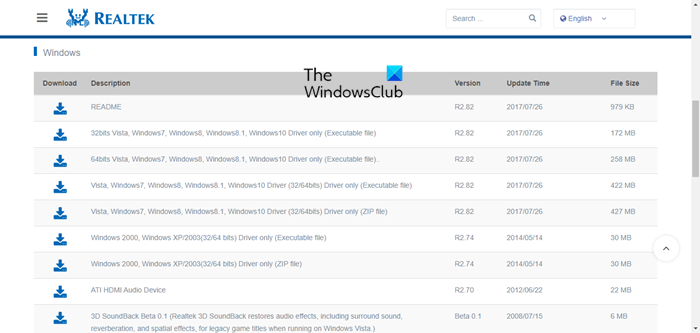
Outdated drivers are the most common cause of latency. So update the Sound, video, and game controller drivers and see if it helps.
You could also install HDAudio driver and run it
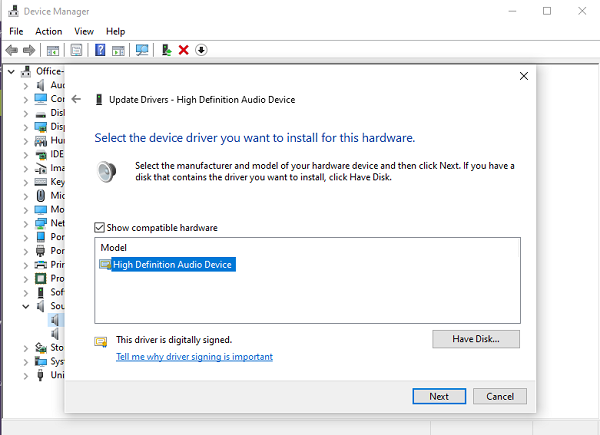
- Use Win+X and then click on the Device Manager.
- Under Sound, video and game controllers, right-click and select Update Driver.
- Next, browse my computer for driver software -> Let me pick from a list of available drivers on my computer.
- Select High Definition Audio Device and click Next.
- If a window titled “Update Driver warning” appears, click Yes.
- Select Close.
- If asked to reboot the system, select Yes to reboot.
You should know that the new driver might reset your volume to uncomfortably high levels.
2] Disable Audio Enhancements
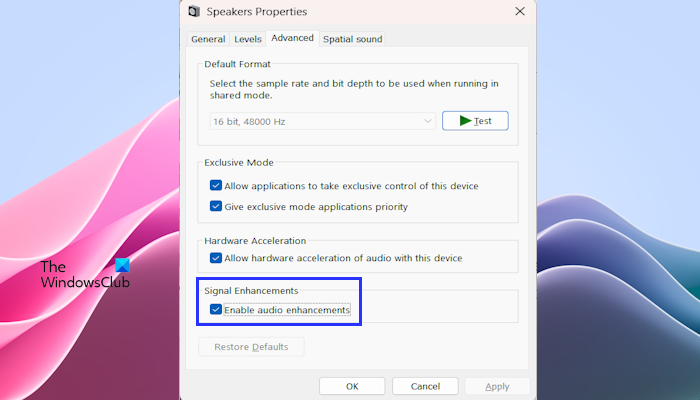
To disable Audio Enhancements, open Sound settings > Device properties > Additional device properties > Enhancements tab and select Disable all enhancements.
3] Adjust Sound Format
In Sound settings, set the default format to a lower sample rate (e.g., 16-bit, 44100 Hz). This reduces processing load and latency.
4] Close Background Apps
Close unnecessary programs to free system resources.
Read: Audio lags when playing games on Windows PC
5] Check Hardware & Connections
Test with wired headphones or speakers instead of Bluetooth, as wireless devices often introduce extra delay.
6] Run REal or REduce Audio Latency from the command prompt
REal or REduce Audio Latency is available on GitHub – but needs some skill to install it. It will work well with the high-definition audio device offered by Microsoft. To use it, you will have to:
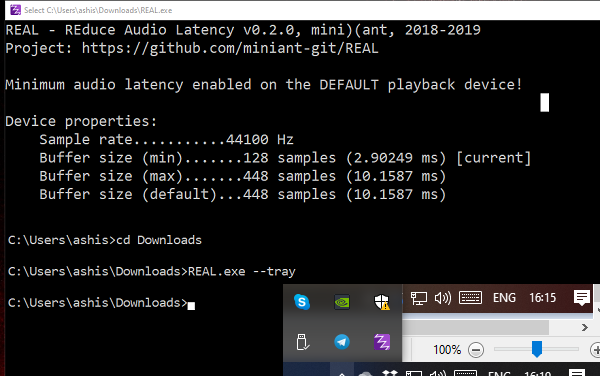
Once you download the application, open the location in the Command prompt. Type Real.exe --tray. This will keep the application running in the background. It will enable minimum auto latency enabled on the default playback device.
You can download this tool from the GitHub page. The project has not been updated since the last few years.
Related read: Troubleshoot Windows Sound and Audio problems.
