
If you open Lenovo Vantage and find the Game Settings section missing, this post will help you resolve the issue. This is quite common after a Windows update, driver change, or app update. The good news is that it can be fixed in a few steps and does not require advanced technical skills. In this article, we will see what you can do if Lenovo Vantage is not showing Game settings on your Windows PC.
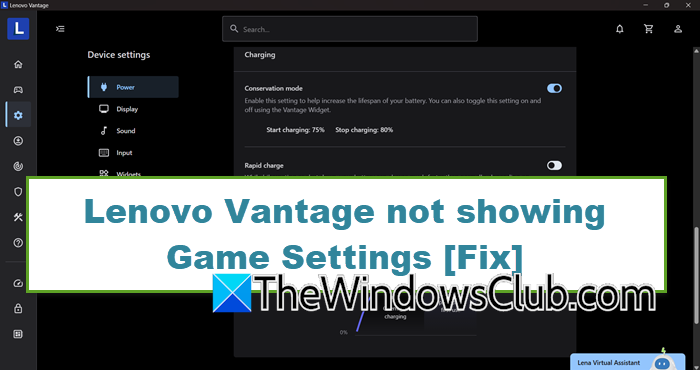
Lenovo Vantage not showing Game Settings on Windows PC
If you encounter a greyed-out or missing Game Settings section in Lenovo Vantage, execute the solutions given.
- Switch BIOS Graphics Mode
- Enable Lenovo Vantage Service, ImController, and Lenovo Game Service
- Install Lenovo Hotkeys and Lenovo Utility
- Reinstall Lenovo Vantage Gaming Feature Driver
- Enable Hardware-Accelerated GPU Scheduling
- Switch to the correct power plan
Let’s get started.
1] Switch BIOS Graphics Mode
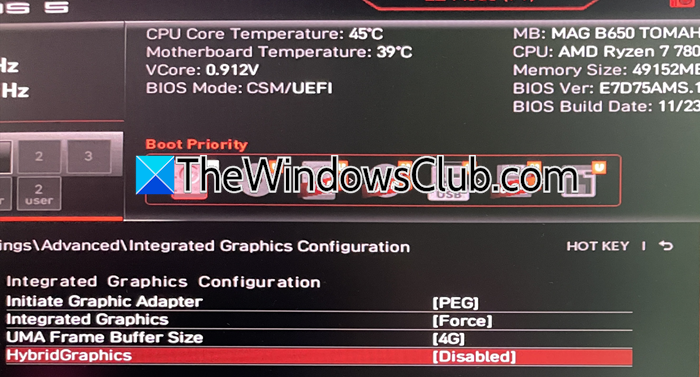
Lenovo Vantage hides the Game Settings tab on many Lenovo Legion laptops if the GPU is mismatched with the PS or driver expectations. To fix this, it is recommended to change the graphics mode from Hybrid to Discrete GPU only or vice versa to force Windows and Lenovo drivers to reload the graphics stacks.
- Reboot the device, and press the respective button, like F2 or Fn + F2, during boot to enter BIOS.
- Navigate to the Configuration or Advanced tab, and look for Graphics Mode, Hybrid Mode, or Dynamic Graphics.
- If it is currently set to Hybrid mode, switch to Discrete GPU Mode, and if already on Discrete, try Hybrid Mode.
- Once done, press F10 to save and exit.
See if the Game Settings tab is visible. If not, see the next solution.
2] Enable Lenovo Vantage Service, ImController, and Lenovo Game Service
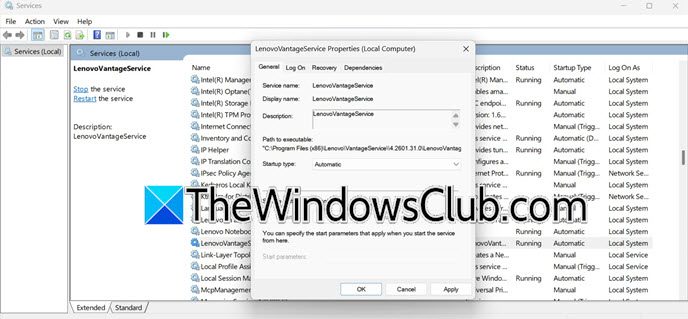
Lenovo Vantage requires several Windows background services to communicate with hardware sensors, gaming features, and the system controller. So one of the reasons for the Game Settings tab’s disappearance could be the disabling or stopping of any of these services. We are going to restore the communication pipeline by manually setting the Lenovo Vantage Service, ImController Service, and Lenovo Game Service. This will ensure that Vantage can query the system for available game settings. To do the same, follow the steps given below.
- Click Win + R to open the Run dialogue box, type services.msc and hit Enter to open the Windows Service Management console.
- Locate Lenovo Vantage Service, and double-click on it. Now, set the Startup type to Automatic, click Start, and OK if the service is stopped.
- Locate ImController and Lenovo Game Service and repeat the same process.
Once done, reboot the device and open Lenovo Vantage to check for Game Settings. Proceed to the next solution if it’s still missing or greyed out.
3] Install Lenovo Hotkeys and Lenovo Utility
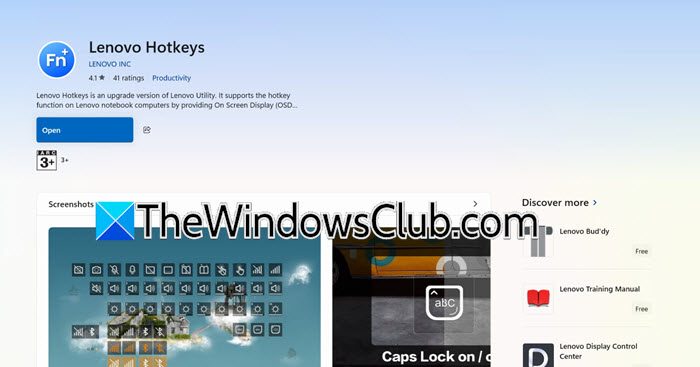
Lenovo Hotkeys and Lenovo Utility are the underlying driver interface for the Fn key combination and performance toggles. Vantage, without them, cannot detect that the laptop supports gaming optimization. Therefore, it is necessary to check whether it is installed; if it is, reinstall it to restore the gaming capability flag. To do the same, open Microsoft Store, search for Lenovo Hotkeys and Lenovo Utility, and click on the Install button. If they are already installed, reinstall them and then reboot the device. After it reboots, check for Game Settings in Lenovo Vantage. If it is visible, good; if not, go to the next solution.
4] Reinstall Lenovo Vantage Gaming Feature Driver
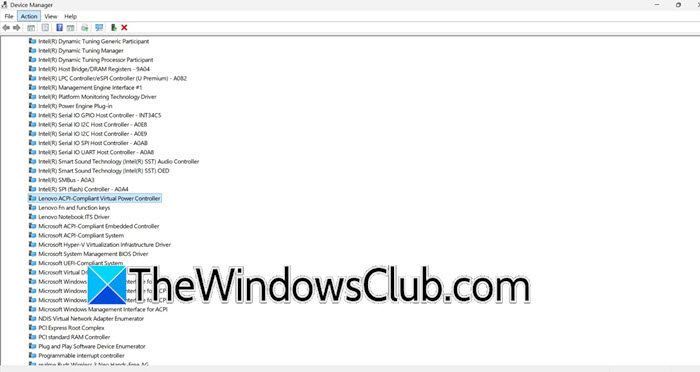
The Gaming Feature Driver is a Lenovo driver package that tells Vantage that this system has gaming hardware and should display game settings. If this is missing, our outdated users will see the greyed-out or experience a missing tab. We will install the latest official driver to ensure a clean detection of GPU controls, overclocking, and thermal management. Windows will rebuild the driver stack with the correct Lenovo gaming components, which prompts Vantage to inquire about the driver and re-enable the Game Settings section.
- Right-click the Start button, or click Win + X to open the Power User Menu and select Device Manager.
- Expand System Devices, right-click and uninstall the following entries.
Lenovo System Interface Foundation
Lenovo ACPI-Compliant Virtual Power Controller
Any driver with Lenovo Gaming or Legion in the name - Do not check Delete driver software unless prompted, and reboot the device.
- Now, go to the Lenovo Support Website, enter the laptop’s serial number, and download the latest Lenovo Vantage Gaming Feature Driver, or Lenovo Gaming Utility or Legion Gaming Driver. Run the installer, follow the prompts, then restart the device.
Open Lenovo Vantage to verify the issue. If it persists, see the next solution.
5] Enable Hardware-Accelerated GPU Scheduling
Lenovo gaming laptops rely on Hardware Accelerated GPU Scheduling (HAGS), which allows Vantage to directly control GPU memory and clock speeds. In this solution, we will verify whether it is enabled in Windows graphics settings. Doing so satisfies a hidden prerequisite and causes the Game Settings sections to reappear.
- Click Win + I to open Settings, click on System, and then navigate to Display.
- Select Graphics and look for the Hardware-accelerated GPU scheduling toggle key.
- Toggle it on, click Yes to confirm, and then restart the device.
After it reboots, slide to the next solution if there are no changes.
6] Switch to the correct power plan
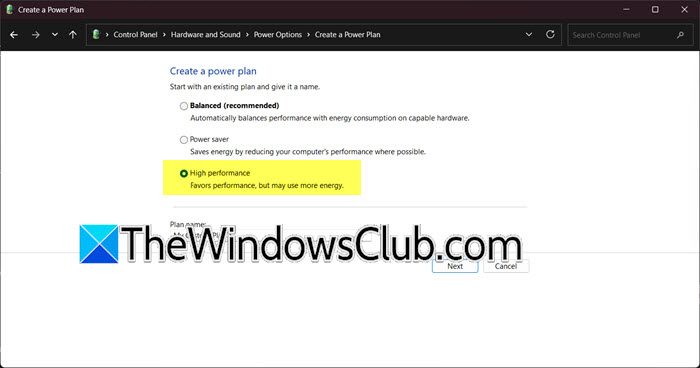
Lenovo Vantage will hide gaming features if Windows is running in a power plan that restricts CPU/GPU performance. Changing the active power plan to a high-performance profile removes artificial limits on the processor and graphics card. Vantage, once it detects that the power plan allows maximum hardware utilization, restores the Game Settings tab. For that, open Control Panel, and go to Hardware and Sound. There, select Power Options, and select Create a Power plan. Then, click on High Performance, click on Next, and then select Create. and choose Lenovo Power Optimised or Legion Power plan if visible. Close the Control Panel, reopen Lenovo Vantage, and check for Game Settings. See the next solution if it is still not visible.
That’s it!
Read: Lenovo Vantage download: Use it to update drivers and firmware
How to access Lenovo Vantage Settings?
To access Lenovo Vantage’s settings, launch the app and click the profile or gear icon in the top-right corner. From there, users can adjust notification preferences, update schedules, scan frequency, and control other app behaviors.
Read: LenovoBatteryGaugePackage.dll access is denied, missing, not found
How to enable gaming mode in Lenovo?
To enable the gaming mode on Lenovo, open Lenovo Vantage and select Device Settings. Next, go to the Modes section and click on the Gaming options. Users can also press F8 for some models and choose the mode directly or navigate to the Gaming Features tab to configure performance-related settings.
Also Read: Lenovo Vantage not working or opening in Windows 11.
