
Your Lenovo laptop needs regular updates to stay secure, fast, and stable. While Windows Update handles some system patches, it often misses model-specific drivers, BIOS, and firmware. Lenovo Vantage is Lenovo’s official tool designed to fill this exact gap, downloading and installing the latest updates tailored specifically for your machine.
Download and use Lenovo Vantage
Lenovo Vantage is a free app that helps you optimize your computer’s performance and enable device security protection. It allows you to easily check device status, customize settings, and download and install UEFI BIOS, firmware, and driver updates to keep your computer up-to-date. The app also monitors your computer’s health and helps secure it against outside threats.
Download and Install Lenovo Vantage
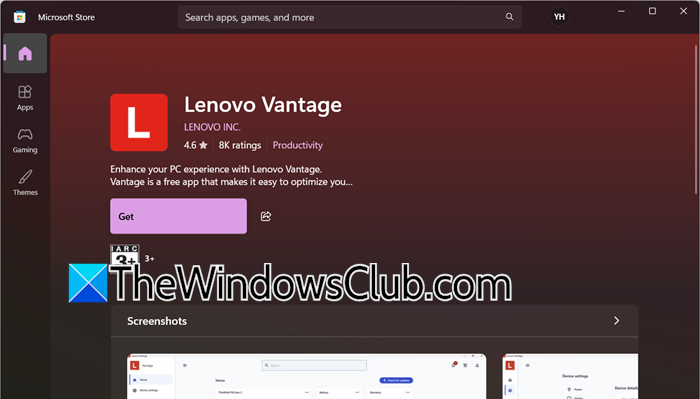
There are two methods for downloading and installing Lenovo Vantage on your computer.
- From Microsoft Store: The easiest way to get Lenovo Vantage is through the Microsoft Store. Open the Microsoft Store app, search for “Lenovo Vantage”,and click on Get. If you prefer a direct link, you can also access the official store page at apps.microsoft.com.
- From Lenovo’s website: For users who cannot access the Microsoft Store, Lenovo also provides Vantage through its official support website. Visit Lenovo and search for your specific model’s download page.
After installing Lenovo Vantage, let us learn how to update drivers.
Update Drivers and BIOS using Lenovo Vantage
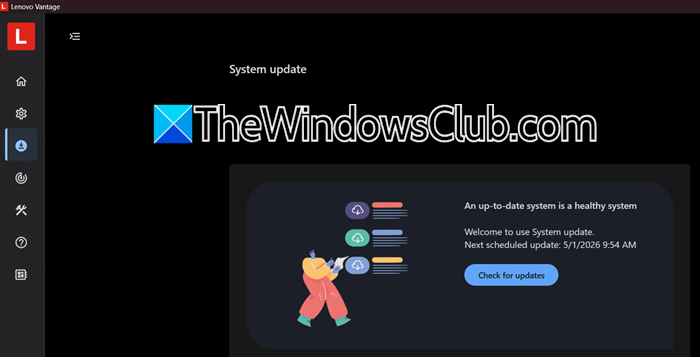
Once installed, updating your system is straightforward. Based on Lenovo’s official video guide, follow these steps.
- Open Lenovo Vantage from your Start menu or desktop shortcut.
- Select the Device > System Update tab. If you don’t see the Device option, click on the Hamburger icon (or three lines) and then click on System Update.
- Click Check for Updates.
- Review the list of available updates. You can choose to install all updates or only selected ones.
Lenovo Vantage automatically scans for the latest drivers, BIOS, and firmware updates tailored for your specific device model. It delivers these updates directly from Lenovo’s servers, ensuring authenticity and compatibility. You can even configure the app to install updates automatically when available, so your system always stays current without manual intervention.
Perform a hardware scan using Lenovo Vantage
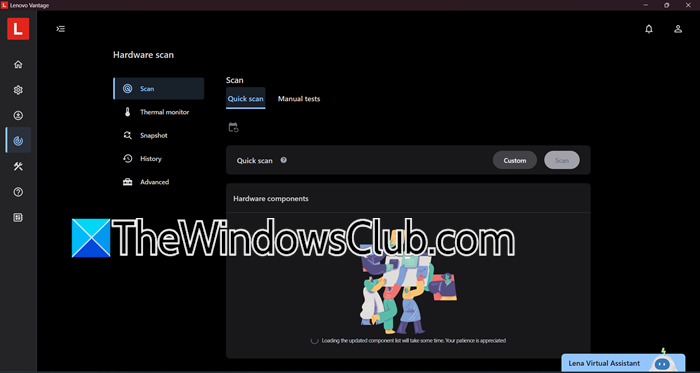
Lenovo Vantage allows you to scan your Lenovo computers and their hardware components to identify potential issues. To run a hardware scan, you need to navigate to the menu on the left, click on Help (the question mark icon) and then click on Hardware scan.
Now, you need to select either of the following two options.
- Quick Scan: It takes a few minutes to run and will test all the basic functionality of your computer.
- Manual Test: If you are experiencing problems with certain components, you need to click on Customize and select them.
Do not use your device when running a scan.
Once the scan is complete, you will see a result indicating whether it passed. Along with that, you will get a result code that you need to use if you intend to talk to a Lenovo Support agent. You can even click on the Export Log button if needed.
Read: Lenovo Vantage not showing Game Settings on Windows PC
Configure your Power and Battery Settings
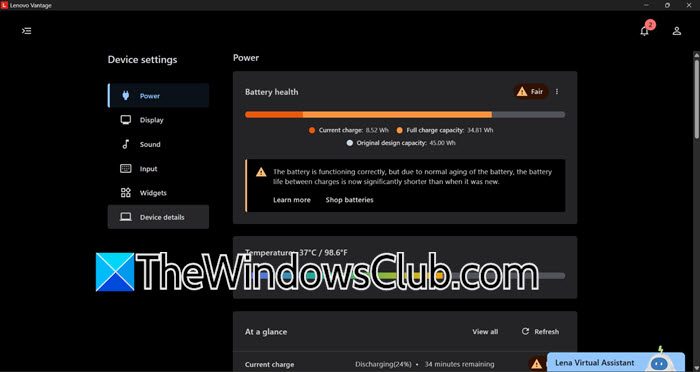
To adjust battery or power settings using Lenovo Vantage, click the Hamburger icon (three lines), then click Device Settings (cog icon).
Now you can see your battery health and percentage. If it says “The battery is in good condition,” we are good, but if it is not, you may need to replace your battery. To get more information, click on See Battery Details.
Go to Battery Settings option and enable or configure things such as Airplane Power Mode, Battery Change Threshold, Battery Gauge Reset, Always on USB, or Easy Resume. Make sure to read their description when doing so.
Then, you can go to the Other settings section, enable Lenovo Vantage Toolbar, as it will show you battery percentage on the Windows taskbar. If you left-click on the icon on your taskbar, you can access some useful quick settings.
Read: Lenovo Vantage not working or opening in Windows 11
Do you need to update Lenovo firmware?
Yes, updating your Lenovo firmware is essential for system stability, security, and performance. Firmware updates, including UEFI BIOS, fix bugs, patch vulnerabilities, and improve hardware compatibility. Lenovo Vantage automatically scans your specific model and delivers tested updates directly from Lenovo. You can install them manually or enable automatic updates to keep your device protected and running smoothly without any guesswork.
Read: Lenovo laptop continuously beeping when turned on
Does Lenovo Vantage update drivers?
Lenovo Vantage directly updates drivers by scanning your device for the latest Lenovo-tested versions tailored to your model. Under System Update, it lists available drivers, BIOS, and firmware updates. You can install them all at once or pick only the ones you need. Enabling automatic updates ensures your drivers are always up to date, helping your system remain stable and perform at its best.
