
This post explains what is ShellExperienceHost.exe or Windows Shell Experience Host in Windows 11/10. We also take a look at what you can do in the following scenarios:
- ShellExperienceHost.exe crashes or uses high CPU
- Windows Shell Experience Host suspended in Windows 11
- Windows Shell Experience Host stopped working
- ShellExperienceHost.exe stopped interacting with Windows and was closed.
What is ShellExperienceHost.exe (Windows Shell Experience Host)?
You may have seen the ShellExperienceHost.exe process in your Task Manager. This process is the Windows Shell Experience Host and part of the Microsoft Windows Operating System.
Shellexperiencehost.exe is usually located in the following location:
C:\Windows\SystemApps\ShellExperienceHost_cw5n1h2txyewy
This process handles graphical elements of the Windows interface, like the Start menu, Taskbar transparency, Visual effects and so on.
It is not malware if it is located in the folder mentioned above. If you find it in another folder, right-click on the file and check its Properties. It should be a Microsoft Windows OS file. You may also get it scanned with multiple antivirus programs.
To see the number of resources it is consuming, you may right-click on the taskbar and select Task Manager. Now, in the Task Manager, search for this process and see the resources being utilized.
Read: Microsoft.Windows.ShellExperienceHost need to be installed correctly
ShellExperienceHost.exe crashes, suspended or stopped working in Windows 11
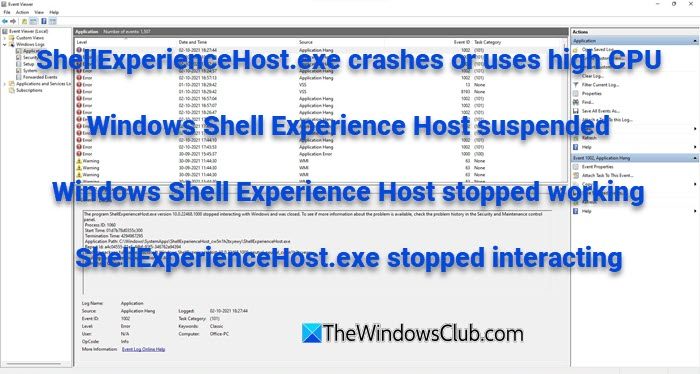
If ShellExperienceHost.exe (Windows Shell Experience Host) crashes, uses high CPU, is suspended, has stopped working or has stopped interacting and was closed in Windows 11/10, follow these suggestions to resolve the issue:
1] Restart Start Menu process
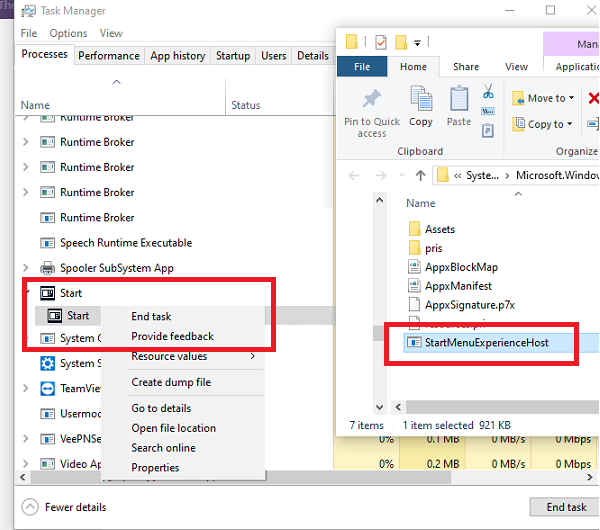
You can restart StartMenuExperienceHost.exe via Task Manager or using Command Prompt or PowerShell.
2] Check for Updates
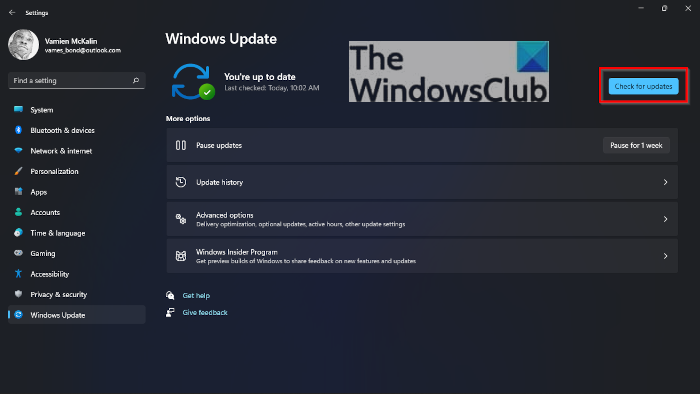
Ensure that you have installed the latest Windows Updates for Windows 11/10.
3] Run System File Checker
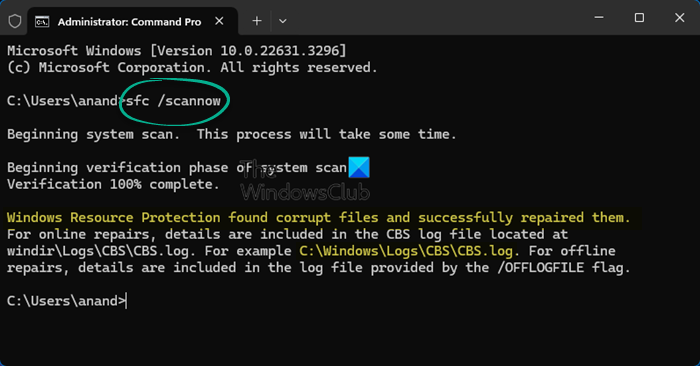
Run System File Checker and see.
4] Run System Maintenance Troubleshooter
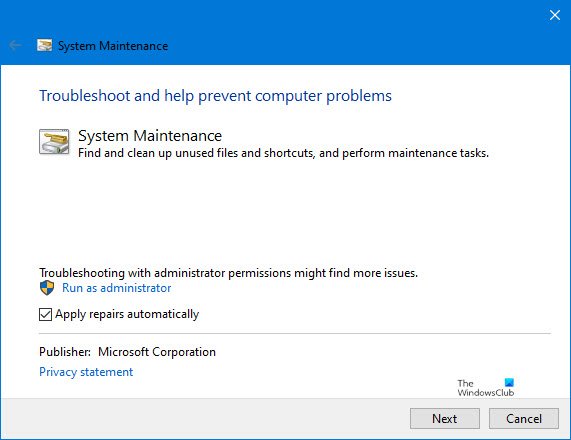
Run the built-in System Maintenance Troubleshooter and see if it helps.
5] Troubleshoot in in Clean Boot State
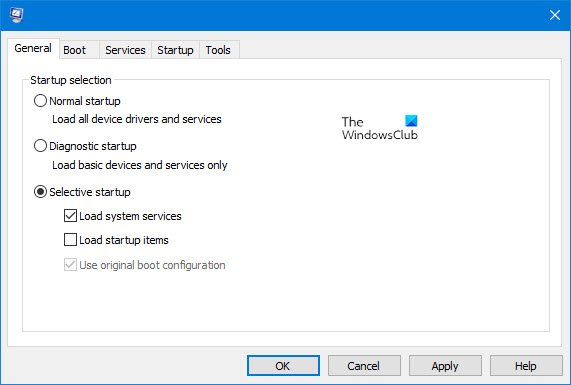
Boot your computer in Clean Boot State and try to identify the culprit.
6] Tweak Personalization settings
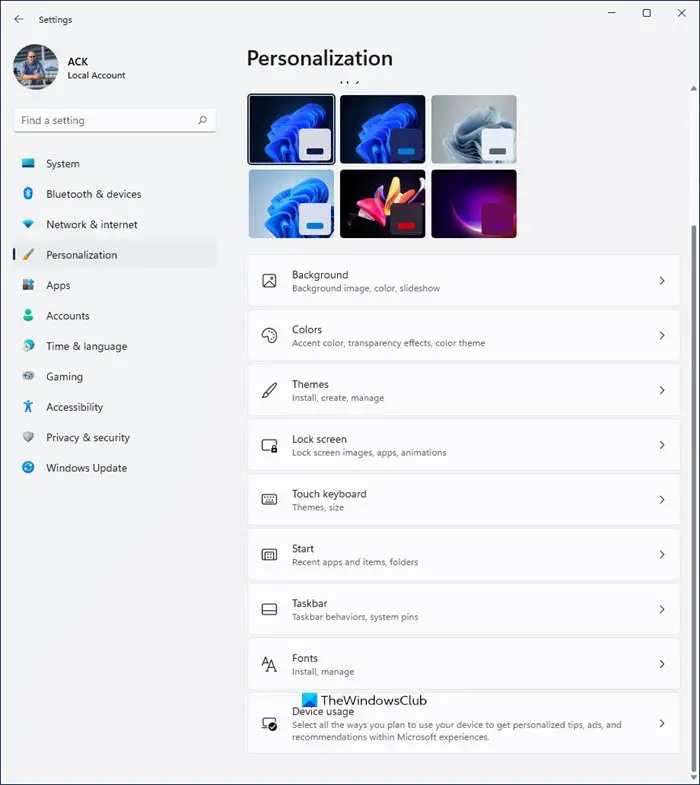
Open Settings > Personalization > Colors > Turn off Automatically pick an accent color from my background.
Also turn off Show color on Start, etc and Make Start, etc transparent settings. See if this works for you. If this does not help, you may revert these 3 settings.
If none of the suggestions help you, you should consider repairing your Windows installation.
Can you disable ShellExperienceHost.exe?
Since ShellExperienceHost.exe or Windows Shell Experience Host is an important Windows system process, you can not disable it.
Posts about processes using high resources:
- StartMenuExperienceHost.exe Error 1000, 1002
- WMI Provider Host High CPU Usage issues
- Explorer.exe High Memory & CPU usage
- Spooler SubSystem app high CPU usage
- Windows Modules Installer Worker High CPU & Disk Usage
- Windows Driver Foundation using high CPU
- OneDrive high CPU usage problem.
