
One of the common errors which Windows users face is caused due to missing DLL files. What do you do if you receive a .dll file is missing error message? We have already taken a look at what to do if you find the following DLL files missing – xlive.dll | MSVCR110.dll | MSVCR71.dll | d3compiler_43.dll | LogiLDA.dll | MSVCP140.dll | api-ms-win-crt-runtime-l1-1-0.dll | VCRUNTIME140.dll | xinput1_3.dll or d3dx9_43.dll. Now let’s take a look at the general steps you could take if you receive such error messages.
DLL stands for Dynamic Link Libraries and are external parts of applications that run on Windows 11/10 or any other operating systems. Most applications are not complete in themselves and store code in different files. If there is a need for the code, the related file is loaded into memory and used. If the OS or software cannot find the DLL file or if it is corrupted, you may receive a “DLL file is missing” message.
Fix Missing DLL files errors on Windows 11
If DLL files are missing on your Windows 11/10 computer, the best ways to fix such errors are as follows:
- Run the built-in System File Checker tool to replace missing or corrupted operating system files
- Run the DISM tool and repair the Windows system image and fix a corrupted Windows Component Store
- Repair or reinstall the software if some application throws up this error
- Download Windows OS files from Microsoft
- Copy the DLL file from another system and restore it on your PC, followed by re-registering the dll file
- Download dll files from a 3rd-party site – Is that advisable?
Let us take a look at these in detail.
How to fix DLL missing or not found errors in Windows 11?
1] Run System File Checker
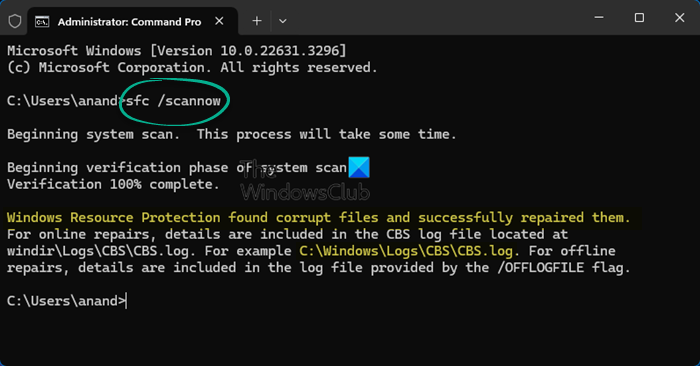
The safest way to fix DLL file missing or corrupted errors thrown up by your Windows operating system would be to run the built-in System File Checker, which will replace missing or corrupted system files.
To do this, on your Windows 11/10 computer, right-click on the Start button to open the WinX Menu and click on Command Prompt (Admin) link.
Now in the elevated CMD window, copy-paste the following command and hit Enter:
sfc /scannow
The scan may take 10 minutes, and once it completes successfully, you should restart your PC. Running sfc /scannow in Safe Mode or Boot Time could give better results.
This post will help you if you receive a Windows resource protection found corrupt files but was unable to fix them error message while running the scan.
2] Repair System Image
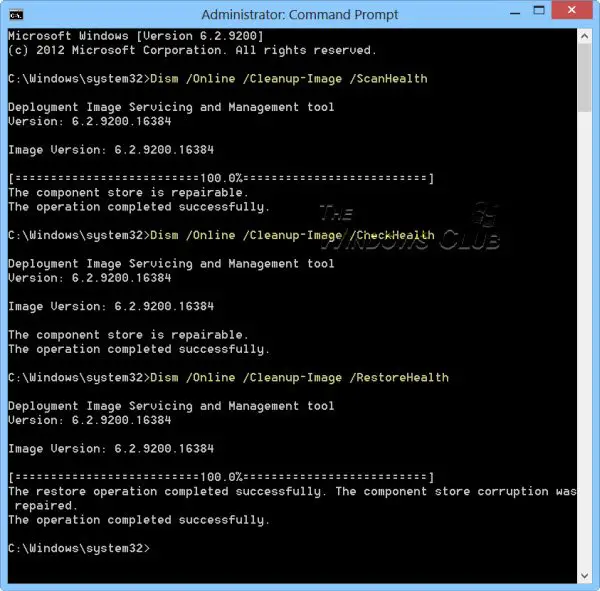
If the issue is resolved, great! Else the next thing to do would be to Run DISM to repair the System Image. Again, in an elevated command prompt window, copy-paste the following command and hit Enter:
Dism /Online /Cleanup-Image /RestoreHealth
This checks for corruption in the Windows component store and restores good health. The scan may take around 15 minutes; once it completes successfully, you should restart your PC.
This post will help you if DISM fails.
TIP: If you think this is too much, download and use our FixWin and run the above SFC and DISM scans with the click of a button.
3] Re-install the software
If some installed software or application is giving this error, all you need to do is re-install the software. To resolve the issue, uninstall the application causing the error from the Control Panel, restart your computer, and then visit its official download page to download the latest setup file. Having done this, install the software. The installer will place all the required files on your PC, including the DLL files. If the software offers an option to Repair the program, you may first opt to repair the installation and see if that helps.
4] Download Windows OS files from Microsoft
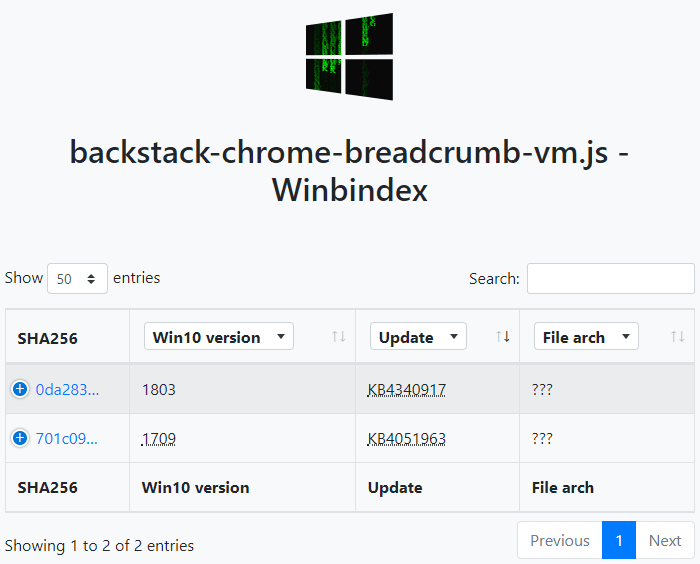
If it is an OS dll file that is giving errors, you can download Windows OS files from Microsoft. This is a safe option.
5] Copy DLL from another healthy system
Sometimes, software that was meant to run on an older version of Windows may require a specific version of a DLL file to run. If you encounter this issue, try copying the DLL file from another system and replacing it in the proper directory to see if it resolves the problem.
You may have to re-register the DLL file. At times, the developers of that software may offer various versions of DLL files on their sites for download – you could download these.
Also read: How to fix RunDll error in Windows 11?
6] Download DLL files?
Is there any good site from where you can download DLL files to restore them? There may be, but I would not advise using them really. The reason is simple. If you need to replace or restore DLL files, you can carry out any of the suggestions mentioned above. That will ensure that you get genuine files from genuine sources. Moreover, most DLL files are copyright-protected, and I am unsure whether any DLL download website has obtained the necessary permissions from the OS or software developers to host and distribute these files. And plus – how would you know the genuinity of the file? So that is a call you will have to take.
How do I resolve a DLL problem?
To resolve a DLL problem, reboot your PC and see and if that does not help, run a virus scan, as malware can cause DLL errors. If the issue persists, use a system restore to revert your computer to a previous state before the error started, or consider updating your Windows OS, which could be causing the issue. Running System File Checker and DISM Tool can also help.
Why do DLL files get corrupted?
DLL files can be corrupted due to improper software installations, updates, or malware infections. If the installation process encounters errors or if the update is interrupted, the DLL file may not be copied or registered correctly, resulting in corruption.
All the best!
