
Kaspersky uses a Whitelist Security Approach. It is a concept to make the functioning of the antivirus program much faster and better. A whitelist is basically a database that stores information about different programs and files. You can check whether a file is safe or not by simply entering its checksum or uploading the file itself.
How to check whether a file is safe or not
Once the information is stored in the global database, you don’t need to scan files again and again; the antivirus program automatically retrieves information from the Whitelist database. You can be sure about your files before installing or taking the risk of running them.
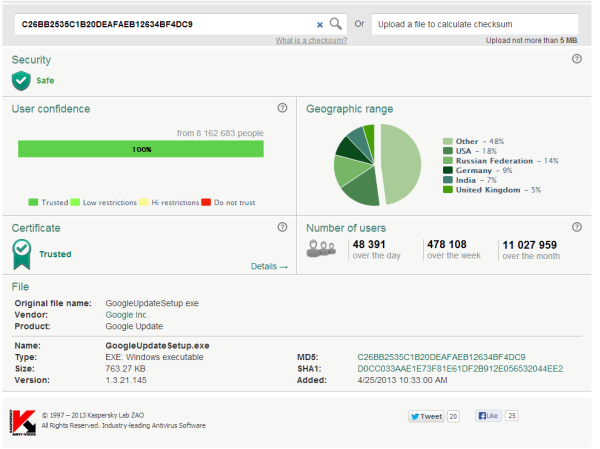
Whitelist is very helpful and informative. For a particular file, it can also tell you the Geographical Range (major areas of the world where it is run). Other than the geographical range, it also tells you the number of daily, weekly and monthly users of that file. Because of such great features, Whitelist can also be used to record usage statistics about a program or a file.
Whitelist also tells you about the security of the file, whether it is completely safe or contains some malware. User Confidence is also displayed. This basically tells you whether it is trusted by other users. Whitelist also scans the file for authorized certificates; if the file is certified, it shows the green ‘Trusted’ badge on the program page.
You can even view further details about the certificate, like serial number, validity, publisher, and vendor. Some basic information is displayed on the same page. I mean, the file name, vendor, size, and version. In addition to these, you can also check for MD5 and SHA1 checksums.
If you are a developer, you may want to submit your apps to Kaspersky Whitelist so your users can be assured of your application’s security, and it will also give you program usage data.
You can visit Kaspersky if you need to check the security of files.
How do I know if a file is safe or not on my Windows PC?
- Scan it with antivirus
- Trust files from reputable websites or verified senders.
- Beware of double extensions (e.g., file.pdf.exe) that disguise executables.
- If your system or browser flags the file, don’t ignore it.
- To be safe, open suspicious files in a virtual machine or isolated environment.
Hope this helps.
