
If Find and Replace options are not working in Word or Excel in Windows 11, here is what you can do to get rid of this error. Although these solutions are mainly for Microsoft 365 users, you can follow them even if you are using any other version of Microsoft Office.
Why does Find and Replace not work in Word and Excel?
If Find and Replace does not work in Word and Excel, these could be the reasons:
- You are using a complex search parameter.
- You have selected Sheet instead of Workbook, and that is why Excel is unable to find anything in the current sheet.
- Your file might be password-protected.
- You have selected an incorrect cell format.
- The template has some issues.
- There might be a conflict between formula and exact value.
Before getting started, make sure that your keyboard is working fine. Sometimes it might not be working properly, and you might have overlooked this.
Find and Replace not working in Word or Excel
If Find and Replace is not working in Word or Excel, follow these instructions:
- Check all the options multiple times
- Remove password
- Add Find and Replace to Ribbon
- Remove editing restrictions
- Unhide text and cell
- Other solutions
To learn more about these solutions, continue reading.
1] Check all the options multiple times
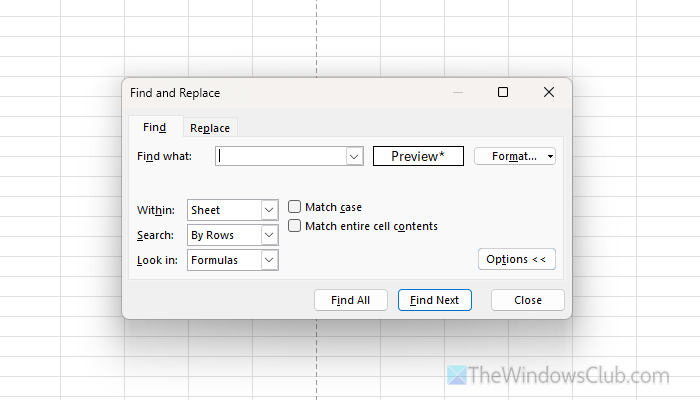
This is one of the most important things you must do, as both programs offer a huge number of options in the Find and Replace panel. Here is a brief overview of all the options.
Excel:
In the Find tab, there are three main things:
- Within: Choose an option between Sheet and Workbook.
- Search: By Rows and Columns
- Look in: What you want to search – Formula, Value, Comment, Notes.
- Match case
- Match entire cell contents: If you want to match a part of content, uncheck this option.
In the Replace, you will find the same options as above. However, it is very important to check the Match entire cell contents option.
Word:
It provides these options:
- Match case
- Find whole words only: If you select this option, it will show the results that match the entire entry.
- Use wildcards
- Sounds like: This option helps you find words that are not in the native language but sound like one.
- Find all word forms
- Match prefix and suffix: If you want to search for a particular word that has another specific word around it, use this option.
- Ignore punctuation characters
- Ignore white-space characters
Also, you can click on the Find In menu and choose where you want to make the search.
Read: Find and Replace Text in Multiple Files in Bulk on Windows PC
2] Remove password
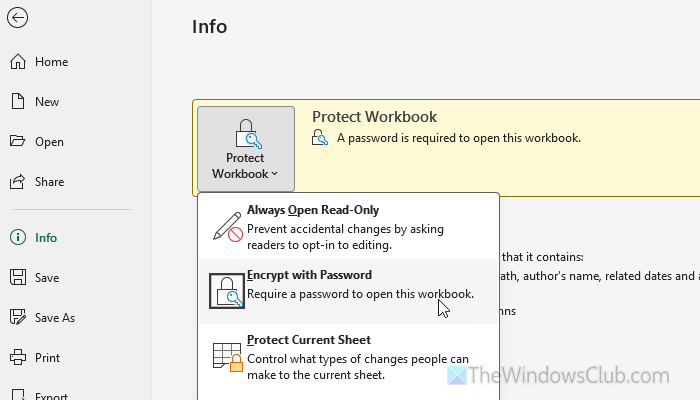
Although password protection doesn’t do much, you might find this problem at times. That is why it is suggested to remove the password from your file. For that, open Word or Excel, and go to File > Info. Click on Protect Document and select the Encrypt with Password option.
Next, enter nothing and hit the Enter button.
Read: How to lock a part of a Word document with a Password
3] Add Find and Replace to Ribbon
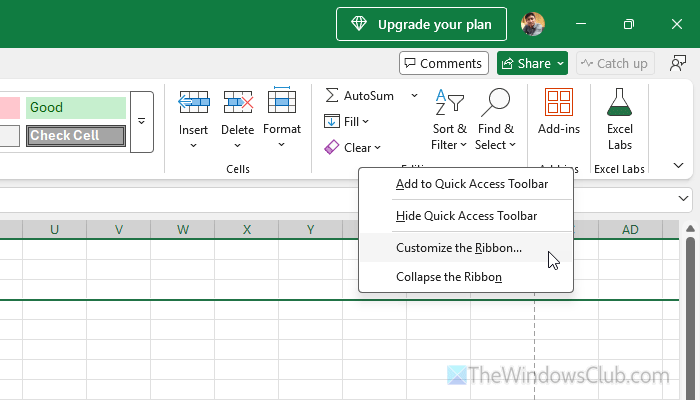
If you are unable to find the Find and Replace menu, it is located under Find & Select in Excel and Advanced Find in Word.
However, if you cannot find these menus, you need to add them to the Ribbon. For that, right-click on the Ribbon and select Customize the Ribbon option.
Next, find Find & Select on the left-hand side and click the Add button. Once done, click the OK button to save the change.
Read: How to reset Office Ribbon to default
4] Remove editing restrictions
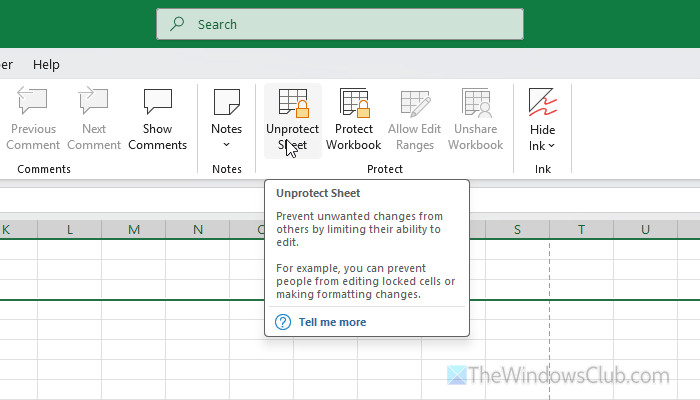
Both Word and Excel offer an option to prevent others from editing the document. Although these restrictions might not block Find and Replace directly, it is better to remove them and try again.
To remove editing restrictions from Word, open the file and go to the Review tab. Then, click on the Restrict Editing option and click the Stop Protection button.
Enter the password and click the OK button.
To remove Sheet and Workbook protection in Excel, go to the Review tab and click on the Protect Workbook option. Then, enter the password and click the OK button.
Next, click on the Unprotect Sheet menu, enter the password, and click the OK button.
Read: How to lock cells in Excel formula to protect them
5] Unhide text and cell
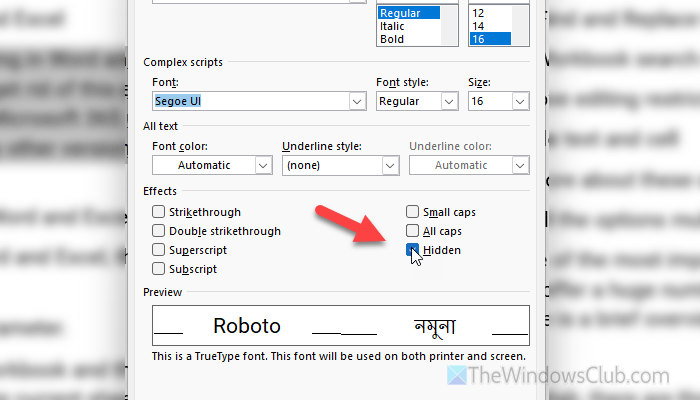
Both Word and Excel allow users to hide a particular word, paragraph, and cell so that it doesn’t appear when you print a document or apply any change. If your file has such things, it is suggested to unhide them.
If you use Word, try finding the text with a dotted underline. Select the entire text, right-click on it, and select the Font option. Next, untick the Hidden checkbox and click the OK button.
If you use Excel, try finding the rows and columns that are hidden. Then, use your mouse to expand them.
6] Other solutions:
- If you have an old file extension (XLS), try converting it to XLSX, which is compatible with Microsoft 365.
- Temporarily disable all add-ins. This problem may arise when multiple add-ins create a conflict.
- If the Word or Excel installation acts weird, try to repair it. You can do that from the Windows Settings panel.
- If your file is corrupt, you may find the same problem. That is why it is suggested to repair your file.
- Try using the default template instead of any custom one.
- Make sure that the Ctrl+F and Ctrl+H shortcuts are not occupied by some other programs.
Read: How to Find and Replace Text Color in Excel
Why is the Replace function not working in Excel?
What is Ctrl+K in Excel?
Ctrl+K is a universal keyboard shortcut to insert hyperlinks. You can use this keyboard shortcut to link any cell or word to anything else, including another file.
Read: Word cannot save or create this file Normal.dotm Error
