
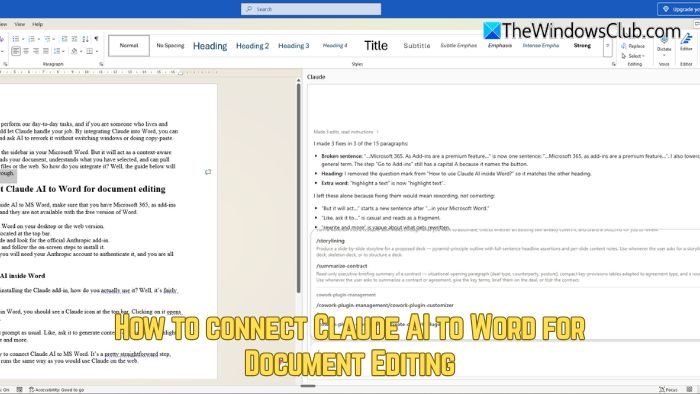
AI is changing how we perform our day-to-day tasks, and if you are someone who lives and breathes Word, you could let Claude handle your job. By integrating Claude into Word, you can highlight a paragraph and ask AI to rework it without switching windows or doing copy-paste.
Claude won’t just sit in the Microsoft Word sidebar. It acts as a context-aware writing assistant that reads your document, understands what you have selected, and can pull information from other files or the web. So how do you integrate it? The guide below will walk you through it.
How to connect Claude AI to Word for document editing
Before you connect Claude AI to MS Word, make sure you have Microsoft 365, since add-ins are a premium feature and aren’t available in the free version of Word.
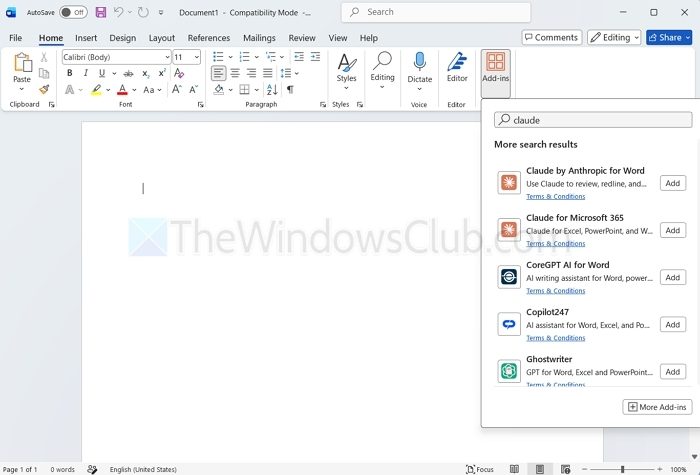
- Open Microsoft Word on your desktop or the web version.
- Go to Add-ins located at the top bar.
- Search for Claude and look for the official Anthropic add-in.
- Next, click Add and follow the on-screen steps to install it.
- Once installed, you will need your Anthropic account to authenticate it, and you are all set to use it.
How to use Claude AI inside Word
Now that you are done installing the Claude add-in, how do you actually use it? Well, it’s fairly easy. After installing Claude in Word, you should see a Claude icon at the top bar. Clicking on it opens up your Claude chatbot. From here, you can just prompt as usual. Like, ask it to generate content, or you could highlight text and ask it to rewrite and more.
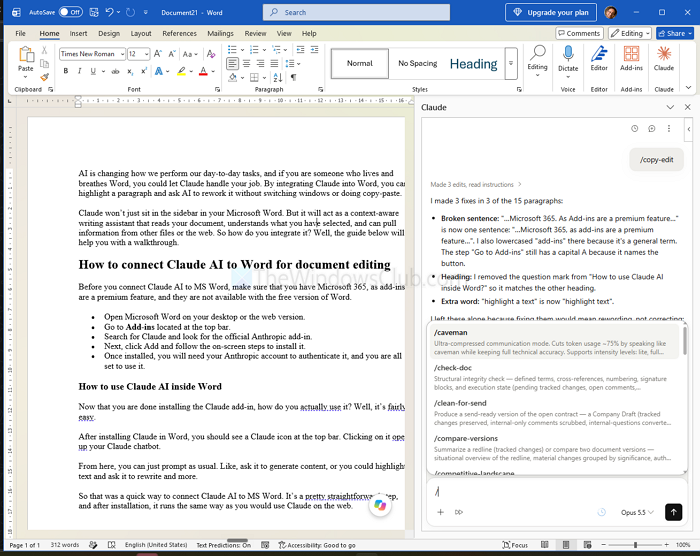
List of commands you can use with Claude on Word document
/check-doc: Reviews the document for structural integrity and consistency: references, numbering, signature blocks, tracked changes, comments, etc./clean-for-send: Prepares a polished external-facing copy: accepts/removes tracked changes, strips internal-only comments and other review residue./compare-versions: Compares two document versions and summarizes substantive differences while ignoring insignificant formatting/noise.
Apart from this, you can also invoke other skills that are connected to your account, as they will automatically show up here.
So that was a quick way to connect Claude AI to MS Word. It’s a pretty straightforward step, and after installation, it runs the same way as you would use Claude on the web.
Can Claude edit only selected text in Word?
Highlight the text you want to change, then ask Claude to rewrite, shorten, improve, or review that section without affecting the rest of the document. This is especially useful when you only want to polish a paragraph, simplify a complicated sentence, adjust the tone, or fix grammar without letting Claude rewrite the entire file. You can also give specific instructions, such as making the text more concise, professional, conversational, or easier to understand.
Can Claude check a Word document before I share it?
Claude can review the document for issues such as inconsistent formatting, comments, tracked changes, broken numbering, and other problems that you may want to fix before sending it. It can also flag unfinished sections, formatting that doesn’t match the rest of the document, or markup that should be removed. This makes it a useful final quality check before sharing a document with an editor, client, colleague, or anyone outside your organization.
