
Excel allows you to add a header and footer to your worksheet for displaying information such as the file name, sheet name, page number, date, or other details. However, some users have reported that the header or footer is not showing on their Excel worksheet. In this guide, we will explain what causes the header/footer to disappear in Excel and how to fix the issue on a Windows 11/10 PC.
Header and Footer not showing in Excel
If the header and footer are not showing in Excel on your Windows 11/10 PC, use these fixes:
- Switch View
- Check the Excel version
- Adjust the page margins
- Check whether the header or footer contains visible content
Let us see this in detail.
1] Switch View
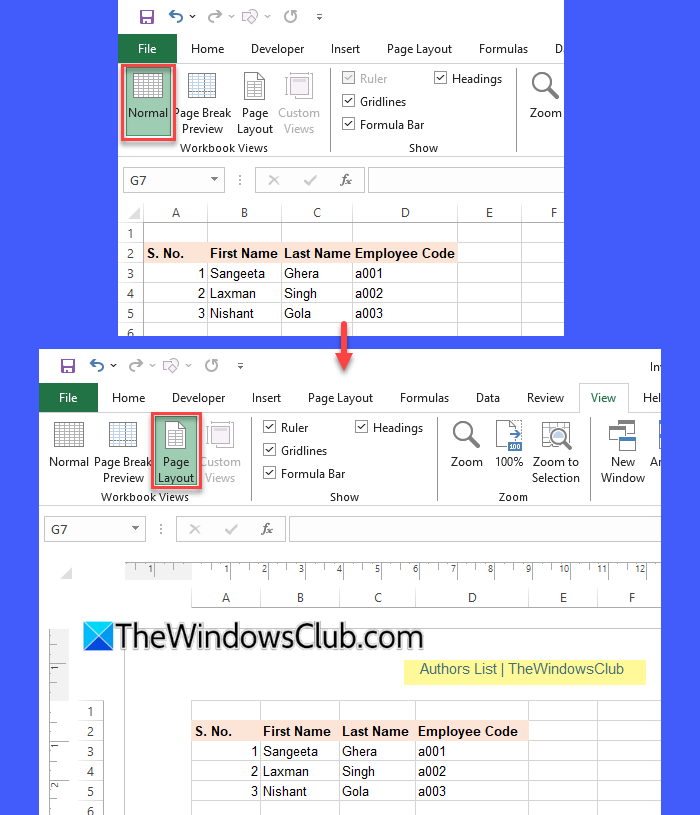
The most common reason why the header and footer are not visible in Excel is that the worksheet is currently using Normal view. Excel does not display headers and footers in the Normal worksheet view. To see them, switch to Page Layout view.
Open your Excel workbook. Click the View tab on the ribbon. Under the Workbook Views section, click Page Layout. You should now see the header area at the top and the footer area at the bottom of the worksheet.
You can also switch to Page Layout view using the view buttons at the bottom-right corner of the Excel window.
2] Check the Excel version
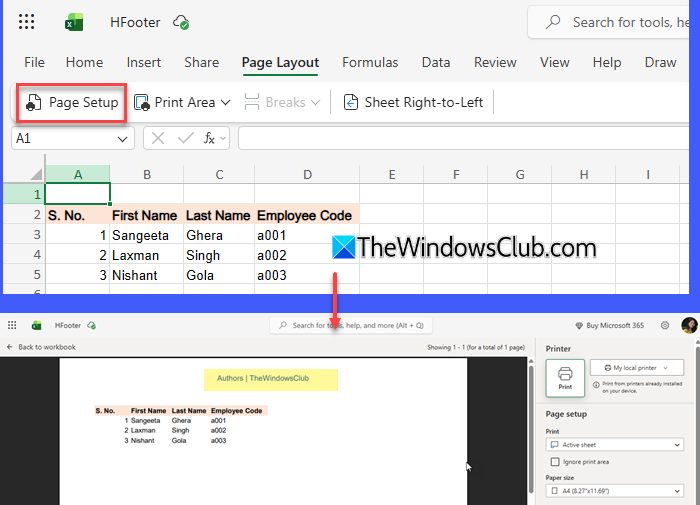
If you are using Microsoft Excel for the web, you cannot add or edit headers or footers because this version does not currently support that feature. However, if you are only viewing a worksheet in Excel for the web, you may still be able to see an existing header or footer.
To view an existing header or footer, go to Page Layout > Page Setup. The header and footer will appear in the worksheet.
To add or edit a header or footer, open the workbook in the desktop application. In Excel for the web, select Editing > Open in Desktop.
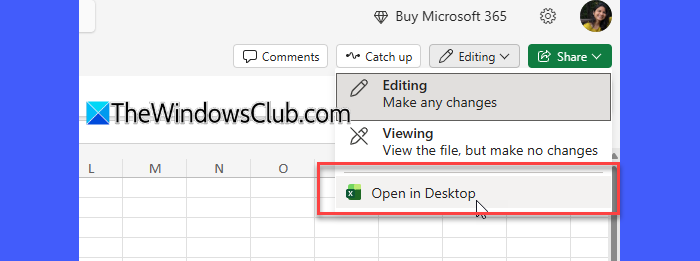
Then, in desktop Excel, go to Insert > Header & Footer and add or edit the header or footer. After making your changes, save the workbook and upload it back to Excel for the web.
3] Adjust the page margins
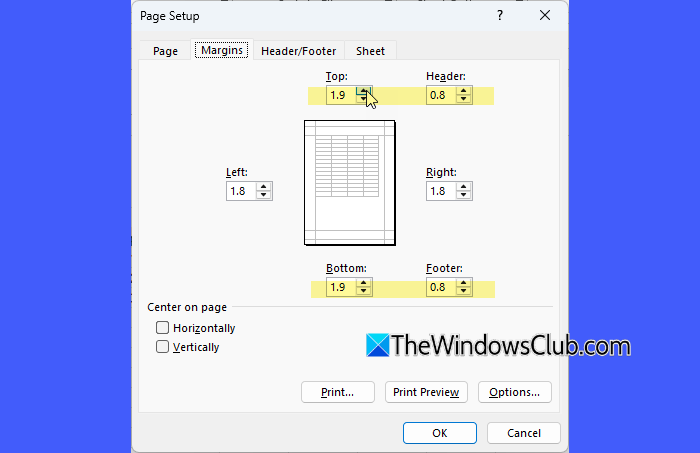
If the header or footer is still not showing, check the top and bottom page margins. If these margins are set too small, especially to 0, Excel may not have enough space to display the header or footer.
Open the worksheet and go to Page Layout > Margins > Custom Margins.
In the Page Setup dialog, check the Top, Bottom, Header, and Footer values. Make sure the Header value is smaller than the Top margin, and the Footer value is smaller than the Bottom margin.
You can also select Normal under Page Layout > Margins to restore the default margin settings.
4] Check whether the header or footer contains visible content
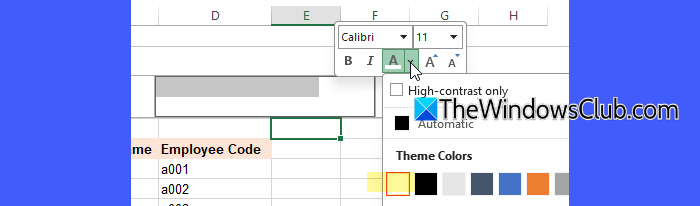
If you can see the header or footer area but it appears empty, check its contents. Click the header or footer area and look at the text or formatting applied to it. If the font color is the same as the page background, the content may appear invisible. Similarly, unusually small font size or formatting can make the header or footer difficult to see.
Select the header or footer text and apply a normal font size and visible font color. If you inserted a picture or logo, make sure the picture is properly positioned and available in the workbook.
Note:
- If the header appears but the footer does not, make sure that the footer has actually been added to the worksheet and that you are checking the correct page in Page Layout or Print Preview.
- If the footer works on one worksheet but not another, try creating a new worksheet and copying your data to it. You can also make a copy of your existing worksheet by right-clicking the sheet’s label at the bottom and selecting Move or Copy > Create a copy.
- If the header or footer still does not appear after changing the settings, close Excel and reopen the worksheet. This can help refresh the worksheet’s page layout and print settings and may resolve the issue.
I hope this helps.
Read: How to remove Watermark in Excel sheet.
Why is my header and footer not showing?
Whether your header and footer show depends on the application you are using, since different apps handle them differently. In Excel, the issue may be related to the Excel version, worksheet view, page margins, or print settings.
Why is my footer not showing on every page?
A footer may not appear on every page due to specific settings such as Different first page, unlinked Section Breaks, a specific Page Template hiding the footer, or hidden White Space views in your document. In Excel, however, footer visibility can also depend on the worksheet’s page setup, print area, and margin.
Read Next: How to insert Header and Footer into Word document.
