
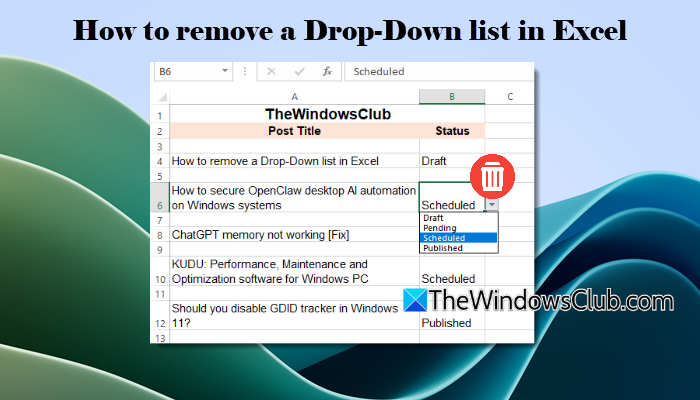
Drop-down lists are created using Excel’s Data Validation feature and are used when you want users to select a value from a predefined list. However, you may want to remove a drop-down list when the data no longer needs restricted input or when you want to allow users to enter values manually. In this guide, we will show you how to remove a drop-down list in Excel on a Windows 11/10 PC.
How to remove a Drop-Down list in Excel
You can remove a drop-down list in Excel from a single cell, a range of cells, or an entire worksheet. The process does not delete the existing value in the cell; it only removes the data validation rule that creates the drop-down menu.
To remove a drop-down list in Excel, follow these steps:
- Select the cell or range containing the drop-down list.
- Open the Data Validation settings.
- Clear the data validation rule.
- Save the changes.
Let us see these steps in detail.
Open the Excel worksheet containing the drop-down list. Click the cell from which you want to remove the drop-down list. If you want to remove drop-down lists from multiple cells, hold down the Ctrl key while clicking each cell. Alternatively, you can click and drag to select a range of cells.
With the cell or range selected, go to the Data tab on the Excel ribbon. Click Data Validation in the Data Tools group.
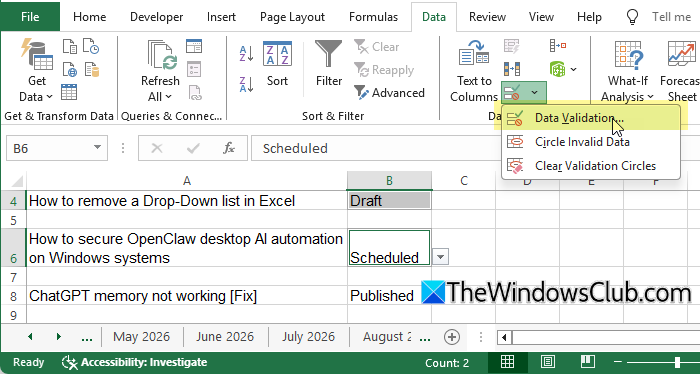
This will open the Data Validation dialog box. In the Data Validation dialog box, make sure you are on the Settings tab. Click Clear All. This removes the data validation rule from the selected cell or range. Click OK to apply the changes.
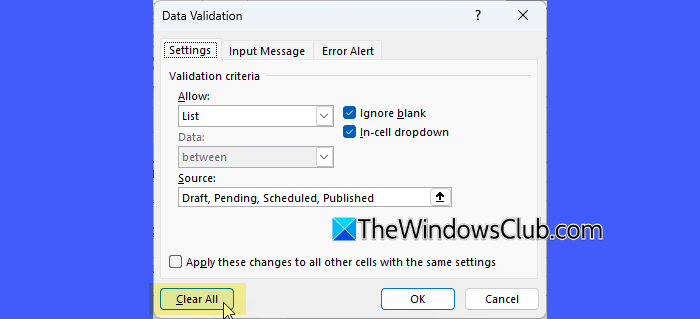
To verify that the drop-down list has been removed, click any cell where it was previously applied. The drop-down arrow should no longer appear. The existing value in the cell will remain unchanged, but you can now enter any value without being restricted to the previous list of options.
Remove all Drop-Down lists from an Excel Worksheet
If you want to remove all drop-down lists from an Excel worksheet but you don’t know where they appear, you may use Excel’s Go To Special feature. However, there’s a catch. Data Validation can be used for purposes other than creating drop-down lists. So, if your worksheet contains other Data Validation rules, this method will remove those rules as well.
Follow these steps:
Open the worksheet. Press Ctrl + G to open the Go To dialog box. Next, click Special.
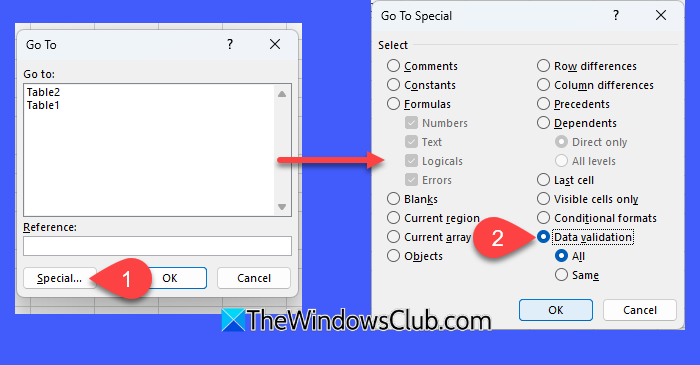
In the Go To Special dialog box, select Data validation. Then select All and click OK.
Excel will select the cells containing data validation. You can then go to Data > Data Validation, click Clear All, and select OK to remove the drop-down lists.
Note: If you are unsure whether the worksheet contains other Data Validation rules, or you know there are other rules but you want to keep them, avoid using this method. Instead, manually locate the cells containing only the drop-down lists, and then use the Clear All option.
Edit drop-down list in Excel
If, instead of deleting the drop-down list, you decide to change the options, you can edit the existing Data Validation rule and update the list. This is useful when you want to add new options, remove existing ones, or change the order of the items.
Select the cell containing the drop-down list. Go to Data > Data Validation.
In the Data Validation dialog box, make sure the Settings tab is selected. Check the Source field to see where the drop-down options are coming from:
- If the source is a comma-separated list: Edit the options directly in the Source field.
- If the source is a cell range: Modify the values in the referenced cells, or change the cell range in the Source field if you want to include a different range.
- If the source uses a named range: Edit the values in the cells referred to by the named range, or modify the named range to point to a different range.
- If the source is an Excel table: Add, remove, or edit the values in the table column used as the drop-down source. The drop-down list will reflect the changes in the source table.
- If the source uses a formula: Edit the formula in the Source field to change how the list is generated.
Click OK to save the changes. The updated options will now appear when you click the drop-down arrow in the cell.
That’s all! I hope you find this useful.
Read: How to create a drop-down list in Excel with color.
Why can’t I remove Data Validation in Excel?
If you cannot remove Data Validation in Excel, the selected cell or range may not have any data validation applied to it. Make sure you have selected the correct cell or range before opening Data > Data Validation. If the worksheet is protected, you may also need to unprotect it before changing or clearing Data Validation.
How do I clear a drop-down list in Sheets?
To clear a drop-down list that you’ve created in Google Sheets, go to Data > Data validation. In the Data validation rule pane on the right, hover over the rule you’ve created for the drop-down list you want to clear. Click Remove rule (bin icon) next to the rule.
Read Next: How to create a Drop-down List in Word.
