
Some users have reported that when they attempt to open a Word document, it fails to open. Instead, they see a Word cannot open the existing file (Normal.dotm) error and a path that points to the Normal.dotm file. In some other cases, users see a Word cannot open the existing global template. (Normal.dotm) error.
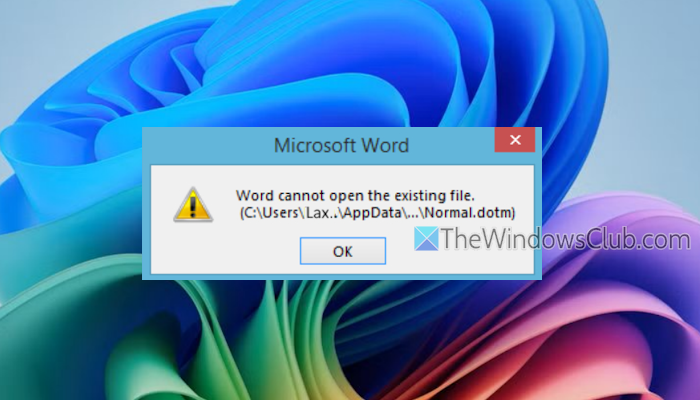
As the problem indicates, the problem is with the Normal template (Normal.dotm), which is the default Microsoft Word Macro-Enabled Template. Whenever we start Microsoft Word, the Normal.dotm template opens with the default original settings. If this template is corrupted or conflicts arise due to third-party add-ins, you may encounter issues opening a Word document or the Normal.dotm file. Thankfully, there are some working solutions to solve this problem.
Word cannot open the existing file. (C:\Users\…\AppData\…\Normal.dotm)
Before proceeding, first, update Microsoft Office or Word. Also, clear the temporary files to remove leftovers created using Word, and then open your Word document. If you still face this issue and you can’t open the default Normal template (Normal.dotm) or a Word document, use the fixes covered by us.
Word cannot open the existing file Normal.dotm error
To fix the Word cannot open the existing file Normal.dotm error on your PC, use these fixes:
- Rename the Normal.dotm Template or delete it
- Use the Open and Repair command
- Make Normal.dotm Template Read-only
- Use VBA in Office to open the Normal.dotm file
- Disable third-party Add-ins.
Let’s check these solutions.
1] Rename the Normal.dotm Template or delete it
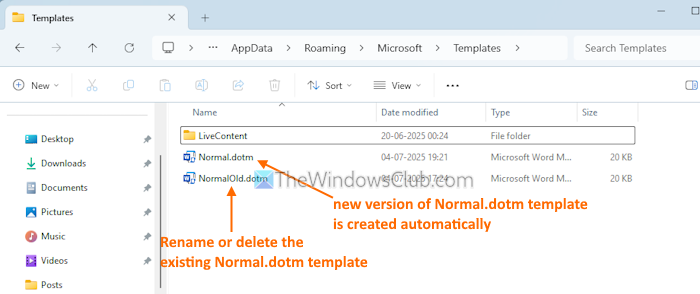
This is one of the best solutions to fix this solution. If the problem is with the template itself and it is corrupted somehow, you should rename the Normal.dotm template or delete it. This fix worked for some users as it restores or resets the default Normal template in Word. You must enable the Show hidden files and folders setting and Show file name extensions setting on your Windows 11/0 PC so that you can find the Normal.dotm template easily. Once done, follow these steps:
- Close Microsoft Word completely including any running processes of it
- Press the Win+E hotkey to open the File Explorer
- In the address bar of File Explorer, paste the following path to access the default location of the Templates folder and hit Enter:
C:\Users\%username%\AppData\Roaming\Microsoft\Templates
- The Templates folder will open. There you will see a Normal.dotm file and other files/folders
- Rename the Normal template to NormalOld.dotm or OldNormal.dotm, or another name. You can also delete the existing template
- If there are other templates like Normal1.dotm, Normal2.dotm, etc., and you don’t use or recognize them, then delete those abandoned templates
- Now start Microsoft Word and open a new or existing document
- When you close Microsoft Word, a new version of the Normal.dotm template will be created automatically (with the original default settings).
This should solve your problem.
Do note that if the Templates folder is not present in the default location and it is moved somewhere else and you don’t know the location, you need to find its location to use the solution given above.
For this, Open Word > File menu > More… > Options. In the Word Options window, select the Advanced category, and click on the File Locations… button (available in the General section). In the File Locations box, select User templates and click on the Modify… button.
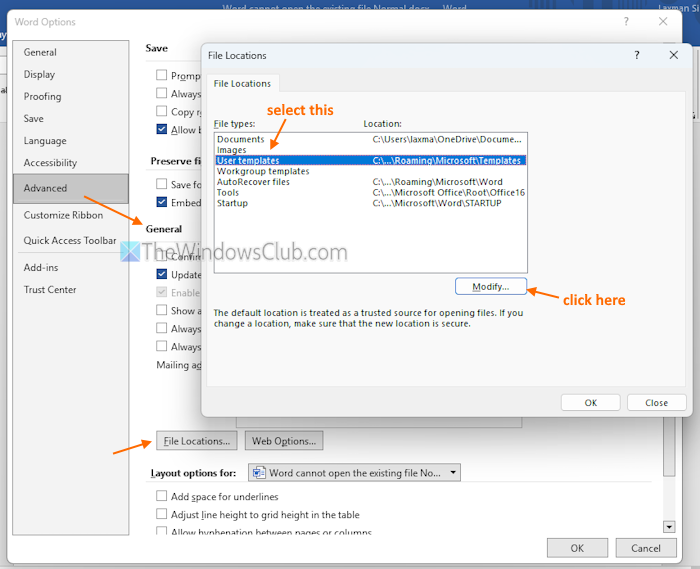
This will open the location where the Templates folder is stored. Now you can copy the location and access it to use the solution.
Related: Word cannot save or create this file Normal.dotm Error
2] Use the Open and Repair command
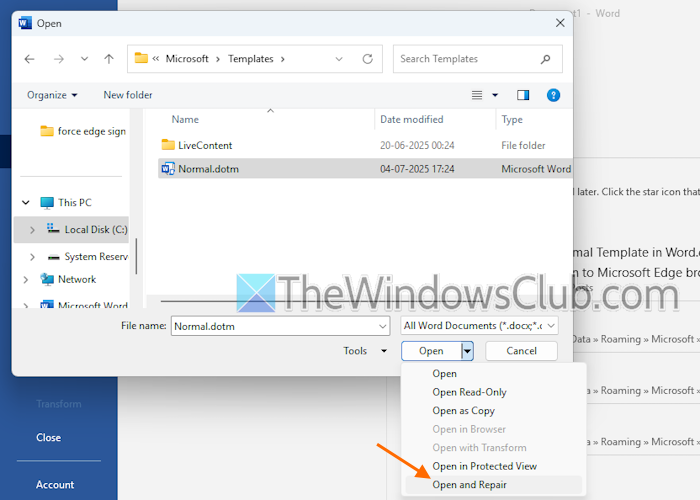
The Open and Repair command comes in handy when a Word file or template is corrupted in a way that it can’t be opened normally. If there are chances to recover the file, use this solution. Here are the steps:
- Start Microsoft Word on your PC
- Select File menu > Open > Browse
- In the Open dialog box, access your Word file, and select it. Do not open the file
- Click the arrow next to the Open button to open a drop-down menu
- Select the Open and Repair option.
Read: How to repair a corrupted Word file
3] Make Normal.dotm Template Read-only
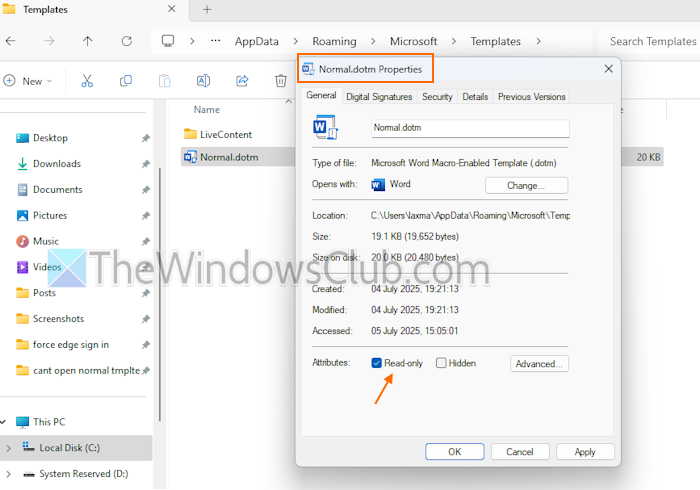
This fix worked for one of the users with the same problem. While using Microsoft.Office.Interop.Word for two printing processes running one at a time, the Word cannot open the existing file. (Normal.dotm) error occurred. And, making the Normal.dotm template read-only solved this issue.
We can easily make a file or folder hidden or read-only in Windows 11/10, including the default Normal template in Word. Access the Templates folder > right-click on Normal.dotm template > select Properties. In the Properties box, select the Read-only attribute, and press OK.
Read: How to use the Cross Reference feature in Word
4] Use VBA for Office to open Normal.dotm file
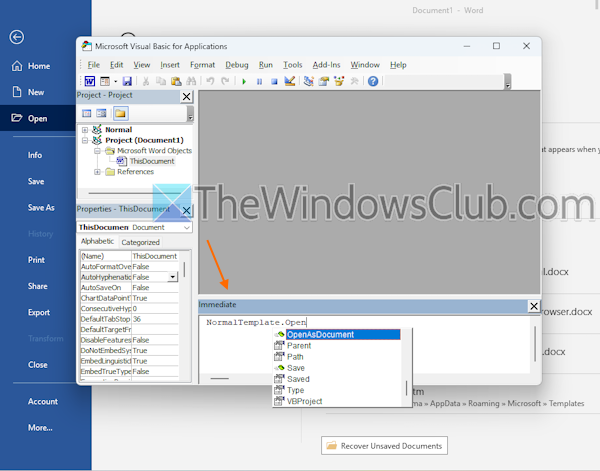
Microsoft Visual Basic for Applications (VBA) for Office is used to extend Office applications. You can use it to automate tasks, create custom functions in Excel, interact with two Office applications at the same time, and more. VBA is embedded in Office apps (including Word), and it also works if you can’t open the Normal.dotm template directly by double-clicking on it or using the Open option. Here are the steps:
- Launch the Word application
- Use the Alt+F11 hotkey to open the VBA window
- Click on the Immediate box on the bottom part
- Type OpenAsDocument and hit Enter.
Read: How to change Normal Template (Normal.dotm) in Word
5] Disable third-party Add-ins
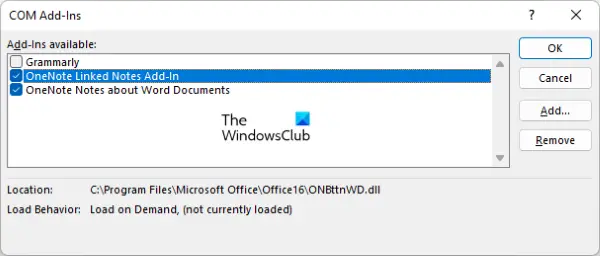
If the third-party add-ins are conflicting and causing this issue, you should disable those add-ins, find out the culprit add-in(s), and remove or uninstall add-ins from Word. For this:
- Open Microsoft Word in Safe Mode (winword /safe). If you can open the Normal.dotm template or other Word documents, then add-ins are causing the issue
- Close Word in Safe Mode and launch it in normal mode
- Select File menu > More… > Options
- In Word Options, select Add-ins > COM Add-ins > Go
- Disable an add-in and see if the problem is gone
- Repeat this process unless you find the problematic add-in.
When the culprit add-in is detected, uninstall or remove it.
If nothing works, you should repair Office or reinstall it.
That’s all. Hope this helps.
Now read: Microsoft Word stuck on Processing…ow to fix a can’t open file in Word?
If Word cannot open the file because the file format does not match the file extension, manually change the file name and extension. This issue can also occur if the file is locked (especially if the file is sent as an attachment). In that case, you need to unblock the file. Access the Properties window of that file or document, tick the Unblock option, and press OK to save the changes.
Read: Word could not create the work file, Check the temp environment variable
How to fix runtime error in MS Word?
If Microsoft Word is unable to start and you face Runtime Error – WINWORD.EXE, WINWORD.EXE – Application Error, etc., terminate the winword.exe process or other related processes in Task Manager, and relaunch the Word application. A full antivirus scan, running Word without add-ins and macros can also help you identify the problem and fix it. If the problem persists, Try Booting in Clean Boot state or repairing Microsoft Office.
Read next: Fix Microsoft Word is not responding error.
