
When you install Microsoft Office or other software on your PC, several add-ins are automatically installed and registered, but not all of them are useful enough to keep. Add-ins are the functionality tools installed on your PC to add custom commands to your programs. While most add-ins are useful and designed to increase your productivity, some are useless or outdated and may clutter your PC unnecessarily. These outdated add-ins may probably cause deadlocks and raise compatibility issues, too. In this post, we will learn how to enable, disable or remove Microsoft Outlook and Outlook (new) add-ins.
Enable or disable MS Outlook add-ins
To look for Outlook add-ins in Outlook, open your Outlook desktop client and click on the red Windows Store icon you see.
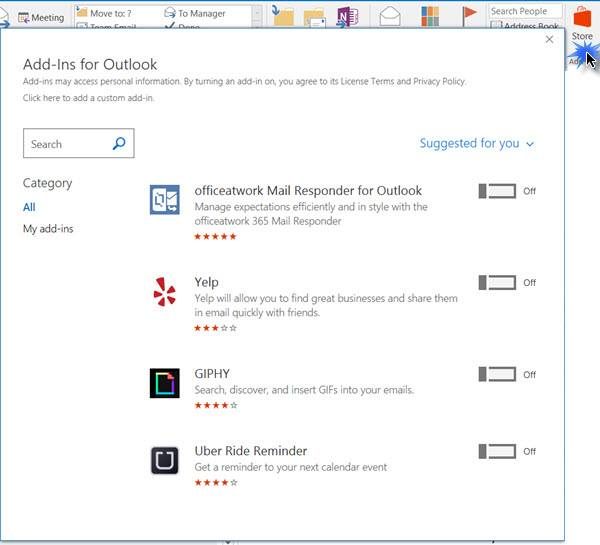
A popup will open offering you all the available add-ins for Outlook. To install them, simply move the slider to the On position and restart Microsoft Outlook. In some cases, you will see a Get it button instead of the slider. To install it click on this button to commence its installation. Restart Outlook to enable it.
Or in the New email window, you will see an Office add-ins link.
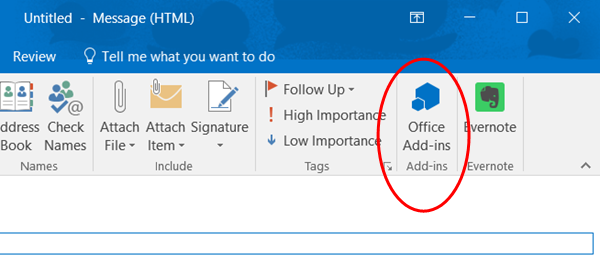
You may also use it to manage the add-ins.
Remove Outlook Add-ins
In your Outlook Desktop Client, select Add-ins in the left panel. This will open a new pop-up showing you all the add-ins where you can view and manage all your Add-ins installed.
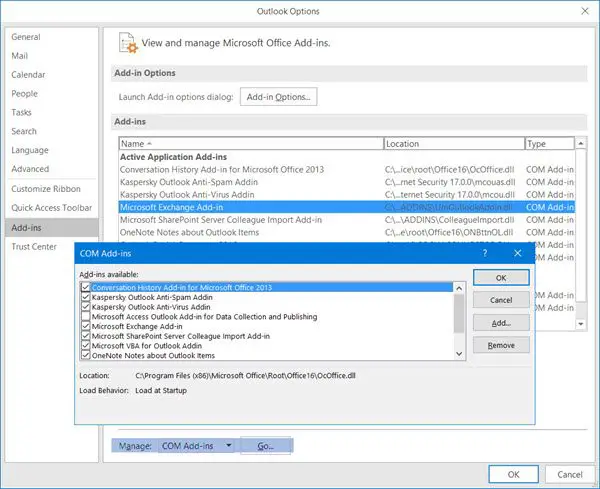
Click on the add-in you want to remove and another small window will pop-up. Click on Remove button if you don’t find it useful anymore.
Microsoft Outlook offers many add-ins to add functionality, and if you search for Outlook add-ins online, you will find hundreds, but not all are useful or productive. This post will guide you to using some of the best free add-ins for Outlook.
How to manage add-ins in new Outlook app?
In the new Outlook app, add-ins are managed a bit differently than in classic desktop MS Outlook. Here’s how you can do it:
- Click the gear icon in the top-right corner of Outlook (new).
- Scroll down and select View all Outlook settings.
- In the left-hand menu, choose General.
- Select Add-ins. This will open the add-ins management page.
- You’ll see a list of available add-ins from the Office Store.
- Click Add next to any add-in you want to install.
- Installed add-ins will appear in your list.
- You can toggle them on/off or remove them entirely.
- When composing or reading emails, look for the “…” (More actions) menu in the toolbar.
- Your installed add-ins will appear there for quick use.
That’s all.
How do you enable and disable add-ins in Outlook?
To enable or disable add-ins in Outlook, you can follow the above steps minutely. It is possible to turn any add-in on or off from the Options panel. Therefore, open the Outlook Options panel and switch to the Add-ins tab. Then find the add-in you want to remove and clear the tick from the checkbox. Finally, click the OK button.
