
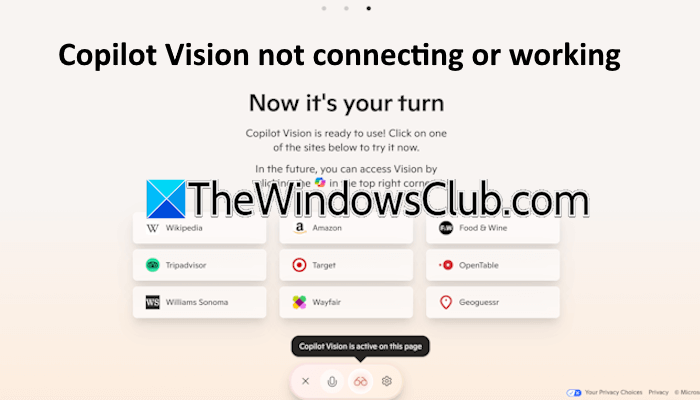
Copilot Vision is a new feature in Microsoft Copilot that makes it a more powerful AI assistant for Windows 11 devices. The Copilot Vision makes your work easier. You can search for files by typing a respective prompt. You can share your screen with Copilot Vision and receive help in real-time. However, for some reason, if the Copilot Vision is not connecting or working on your system, this article will help you.
Copilot Vision is not connecting or working
Use the following fixes if the Copilot Vision is not connecting or working on your Windows 11 device:
- Update Edge and Copilot app
- Disable VPN (if applicable)
- Try InPrivate Mode
- Check your language and region
- Run Copilot License Troubleshooter
- Repair, reset, or reinstall Copilot
- Reset Edge
All these fixes are explained below in detail:
1] Update Edge and Copilot app
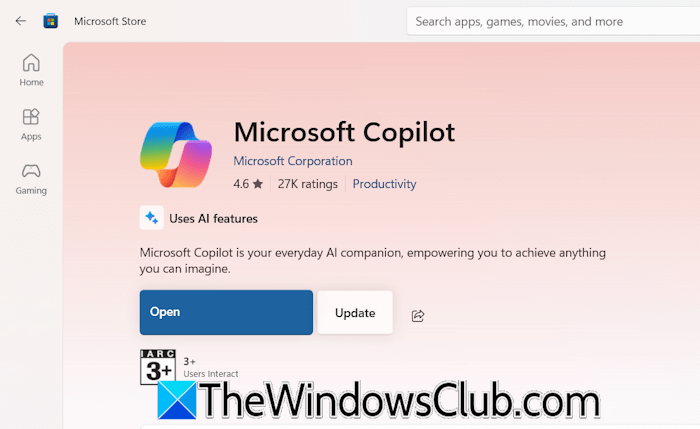
You can use Copilot Vision in the Copilot app and the Microsoft Edge web browser. Therefore, the first step is to update the Edge and the Copilot app to the latest version. To update the Copilot app, open the Microsoft Store and search for Copilot. If an update is available, it will be shown there. Install the update.
2] Disable VPN (if applicable)
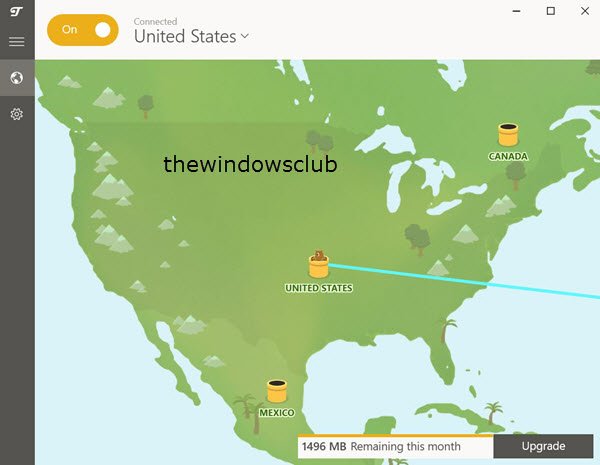
Your VPN might be blocking Copilot from accessing the internet, which is causing this issue. To check this, disable your VPN and check if you can use Copilot this time. If this works, contact your VPN support. They will assist you further. If you are using a free VPN, you can switch to another one.
3] Try InPrivate Mode
If you use Copilot Vision in Edge, launch InPrivate Mode and see if you encounter the connection error this time. If this resolves the issue, it may be due to a corrupted cache and cookies or one of the installed extensions. Close the InPrivate window and clear cache and cookies in Edge.
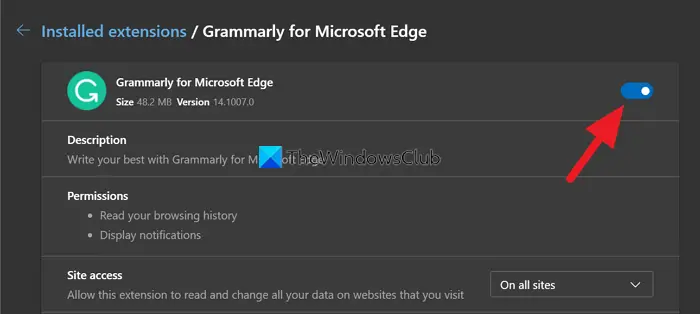
If the issue persists, disable extensions and reload Copilot in Edge. If this works, you need to identify the problematic extension. Enable the extensions one by one and reload Copilot every time you enable an extension. By doing this, you will be able to find the problematic extension.
4] Check your language and region
The next step is to check your language and region settings. Follow these steps:
- Open Windows 11 Settings.
- Go to Time & Language > Language & Region.
- Select the correct language and region.
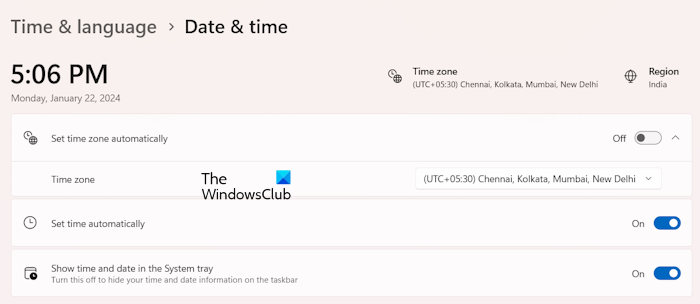
Also, check the Date & Time settings. Set the correct date and time. If you enable the Set time zone automatically and Set time automatically options, Windows 11 will automatically set the correct date and time based on your location.
5] Repair, reset, or reinstall Copilot
If the problem persists, you can uninstall the Copilot app and reinstall it from the Microsoft Store. Before uninstalling it, repair or reset it. Follow these steps:
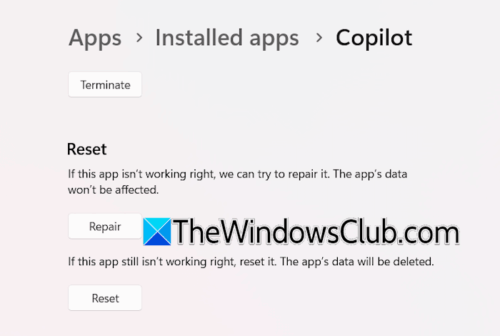
- Open Windows 11 Settings.
- Go to Apps > Installed Apps.
- Search for Copilot. Click on the three dots and select Advanced Options.
- Scroll down and click Repair. If this does not work, click Reset.
If the issue persists, uninstall Copilot. Restart your computer and open Microsoft Store. Search for the Copilot app and install it again.
6] Run Copilot License Troubleshooter
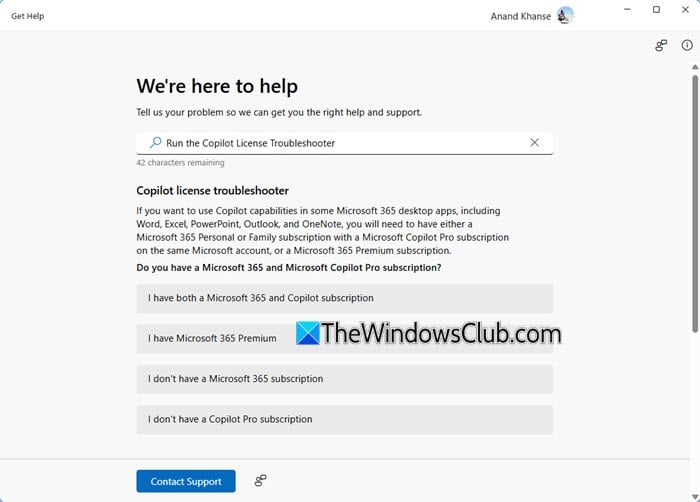
Run Copilot License Troubleshooter to fix licensing issues and see if that helps.
7] Reset Edge
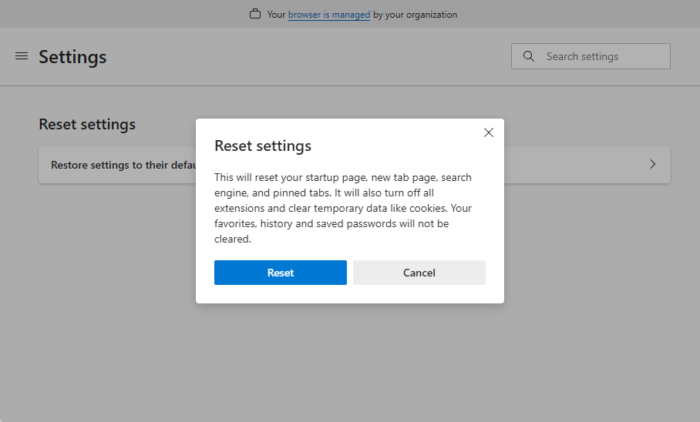
Resetting Edge to the factory default settings helps fix issues with Edge. Therefore, if you are encountering the connection error while using Copilot Vision in Edge, you can reset Edge.
That’s it. I hope this helps.
Why has Copilot suddenly stopped working?
If Copilot has suddenly stopped working on your system, check your internet connection. If possible, switch to another network connection. Sometimes, browser-specific issues stop the service from working as expected.
How do I reset the Copilot app?
To reset the Copilot app, open Windows 11 Settings and go to Apps > Installed apps. Now, search for the Copilot app. Once you find it, click on the three dots next to it and select the Advanced options. Scroll down and click Reset.
Read next: How to upscale Image using Copilot PC.
