
Artificial Intelligence has changed the way we work. Today, many AI agents are available for use in our daily tasks. Simply having access to an AI assistant does not make you productive. You can get the most out of it only if you know how to use it effectively. Microsoft Copilot is designed to help you with your everyday tasks, including summarizing documents, drafting emails, creating images, doing research, and finding information faster. In this article, we will talk about the best Copilot hacks for work and productivity.
Copilot hacks for work and productivity
Many users type only simple prompts when using Copilot or any other AI assistant. If you want to get the best from an AI assistant, you should know how to use the prompts. A well-crafted prompt and the ability to refine the responses through follow-up questions can make a noticeable difference in the quality of the results. In this guide, we will talk about the best Copilot hacks for work and productivity.
You can use Copilot for your routine tasks to save a significant amount of time. From writing emails to brainstorming ideas, you can do it with the help of Copilot and reduce the time spent on repetitive work.
Here, we will cover the following:
- Drafting a professional email
- Summarizing long documents
- Brainstorm ideas faster with Copilot
- Content hacks
- Productivity hacks for Microsoft Office apps
1] Drafting a professional email
Writing professional emails can be time-consuming, especially when dealing with foreign clients. Copilot can generate a well-structured email for you while maintaining a professional tone. You can review the draft and ask Copilot to modify it based on your requirements. Apart from drafting an email from scratch, you can also use Copilot to draft a professional reply to your emails.
Suppose you run a YouTube channel and a company reaches out to you for a paid product review. A poorly written response could cost you the sponsorship. You can use Copilot to draft a professional, well-structured email that makes a positive impression.
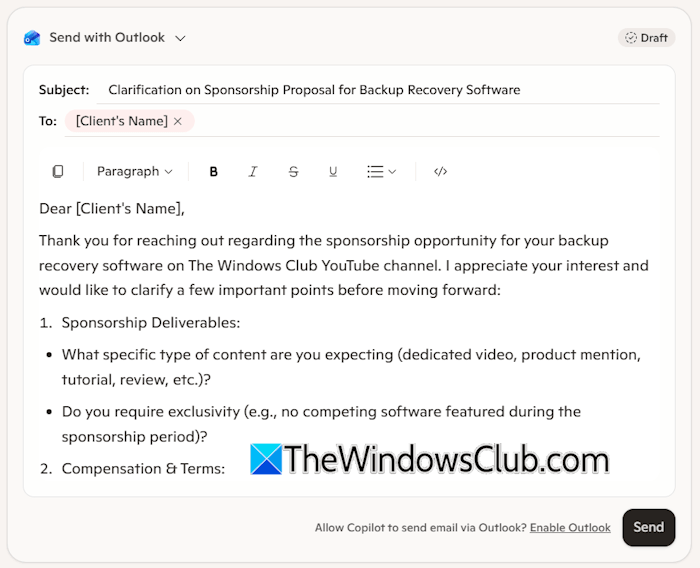
Have a look at the example prompt:
A client contacted me for a paid sponsorship for the Backup Recovery Software on the YouTube Channel: The Windows Club. I am confused and do not know what points I should ask. Please draft a professional email reply and highlight all the important points that I should consider before signing this deal.
The above screenshot shows the email reply drafted by Copilot.
2] Summarizing long documents
Sometimes, you do not have time to read lengthy reports and research papers. In such a case, you can use Copilot to summarize the reports and research papers. Copilot reads large documents quickly and generates a concise summary, helping you to understand key information easily. Simply upload a document to Copilot and write a prompt to summarize it.
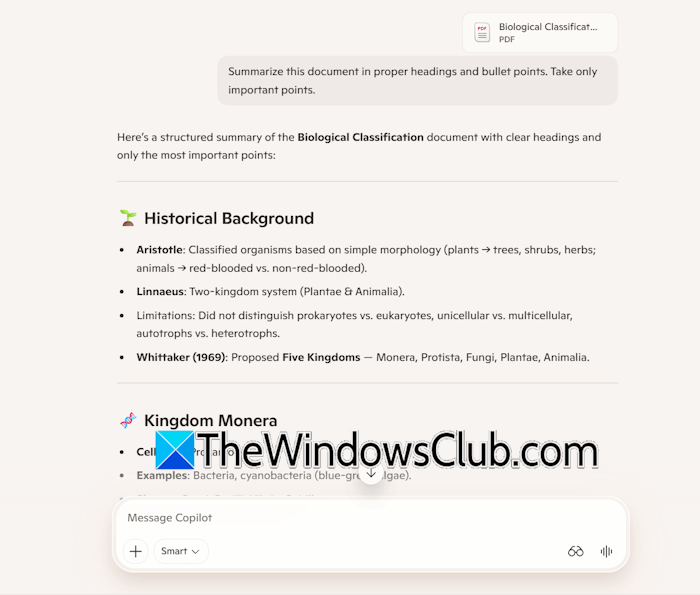
For example:
Summarize this document in proper headings and bullet points. Take only the important points.
3] Brainstorm ideas faster with Copilot
If you are a content creator, you can use Copilot to brainstorm ideas. You can ask Copilot about the topics for your next blog posts or YouTube videos, such as suggesting some evergreen topics for your niche, say, Windows OS.
Have a look at the following prompt:
Suggest some viral topics in Windows niche for youtube videos
After you read the prompt above, Copilot will show you some viral topics in the Windows niche. You can also ask Copilot for the topics that are currently trending, so your blog or YouTube channel gets a sudden boost.
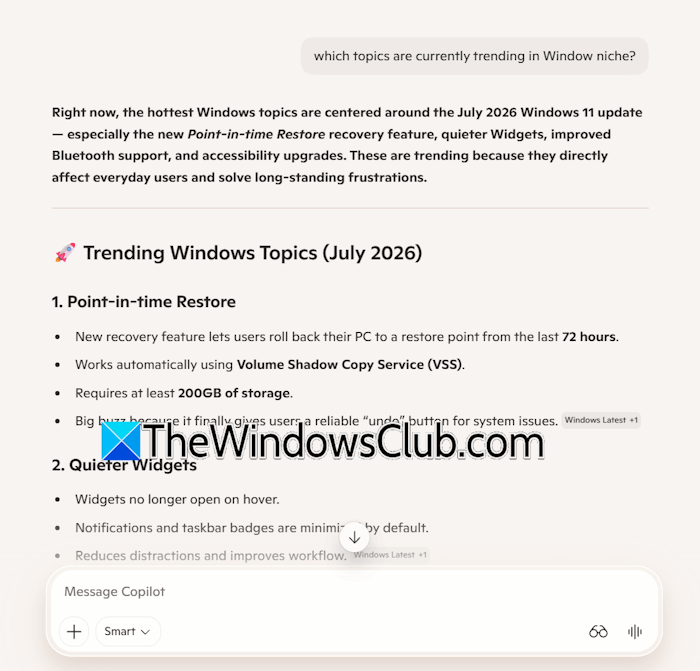
The following is an example prompt:
Which topics are currently trending in the Windows niche?
I gave Copilot the above query, and it showed me the trending topic: Point-in-time Restore recovery feature. Apart from that, you can also use Copilot for marketing campaigns, social media content generation, and more.
4] Content hacks
Content creators can use Copilot in several ways. If you write articles for your blog, you can use Copilot for research on your topic. Additionally, you can also ask Copilot to generate an outline for your blog post. YouTubers can use it to generate a script for their videos. The hook plays a crucial role in a video’s performance. An engaging hook grabs the viewer’s attention within the first few seconds and encourages them to keep watching.
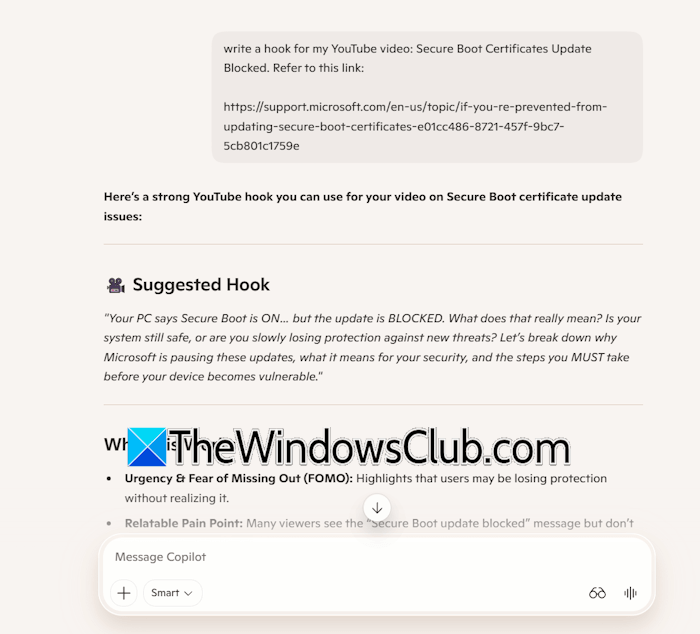
Copilot can also compare your product with competing products to identify missing benefits, unique selling points, or areas for improvement. This can help you refine your product and create more detailed product descriptions. You can also use Copilot to generate social media posts for your product promotion.
5] Productivity hacks for Microsoft Office apps
You can use Copilot in different Microsoft 365 apps, including Word, Excel, and PowerPoint. If you have subscribed to Microsoft 365, you can enable Microsoft Copilot within these apps. However, if you have not purchased a Microsoft 365 subscription, you can still use Copilot but in a different way. Suppose you want to create a presentation on a particular topic; open the Copilot app on your system and type the required prompt.
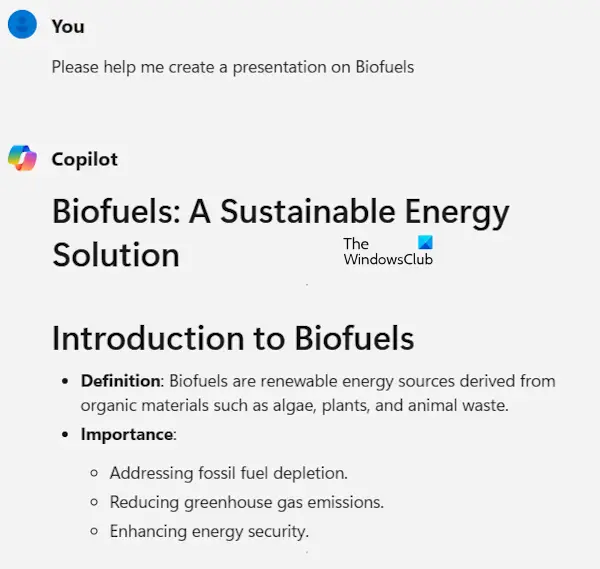
Copilot will create content for each slide of your presentation. Now, you can copy the text and paste it into every slide in your presentation. To create images for your presentation, you can use Microsoft Designer.
Understanding different Copilot modes
Copilot has the following four modes:
- Smart
- Think deeper
- Study and learn
- Search
While all four can answer your questions, each is optimized for a specific use case. Knowing when to use each mode can help you get faster and more relevant responses. Let’s see when you can use these modes.
The Smart mode is the default mode in Copilot. When enabled, Copilot thinks deeply or quickly, based on the task. In simple words, this mode automatically decides whether your request needs a quick response or deeper reasoning. You can use it for everyday tasks and general productivity, such as drafting an email, rewriting or summarizing text, brainstorming ideas, and generating reports.
The Think Deeper mode is better for more complex topics. You can choose this mode when your question requires detailed analysis rather than a quick answer, such as comparing multiple options, solving complex problems, analyzing business strategies, etc.
The Study and learn mode is good for learning new concepts and preparing for exams. This mode is designed to help you understand topics rather than simply provide answers.
The Search mode is used to find up-to-date information from the web.
That’s it. I hope this helps.
Copilot use cases for business
You can use Copilot in many ways for your business, such as drafting professional emails, creating business documents, summarizing meetings, analyzing business data, creating presentations, automating repetitive work, and more. Market research is the foundation of a successful business. Copilot can help you gather insights, analyze competitors, identify market trends, and understand customer needs more efficiently.
What are the best ways to use Copilot in Excel?
Copilot can write Excel formulae without requiring you to memorize them. Provide data to Copilot, and it will suggest the required formula. If you are a Microsoft 365 subscriber, you can integrate Copilot in Excel. Additionally, you can use it to explain complex formulae and generate charts and visualizations.
Read next: Copilot Cowork: Step-by-Step Guide for Beginners.
