
Copilot Cowork is now generally available for all Microsoft 365 Copilot users with a new interface and features. Copilot Cowork (powered by Work IQ) is an agentic system that brings enterprise-ready AI to automate complex tasks and streamline multi-step work across Microsoft 365. Instead of describing or suggesting what you can do, it does the work for you. In this post, we will show how to get started with Copilot Cowork with a step-by-step guide for beginners and all users. You will learn about the new interface, core setup process, and essential features to get started quickly.
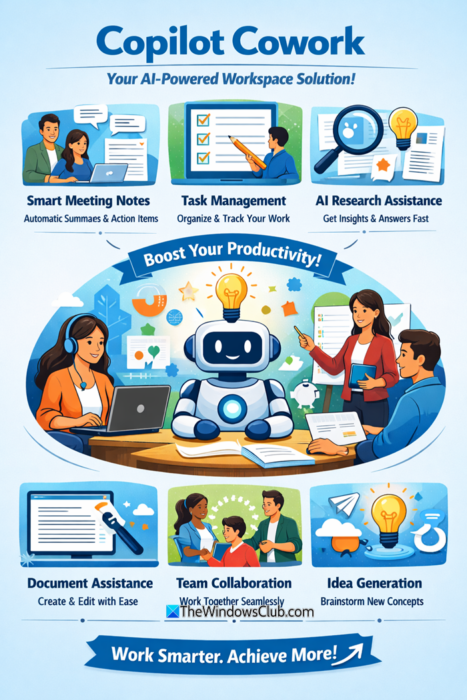
How is Cowork different from Copilot?
Unlike Copilot, which helps draft emails or find answers, Cowork performs tasks on your behalf. You can describe your need, and Cowork will do the work. For example, it can send emails through Outlook, create PowerPoint presentations, Word documents, send messages in Teams, manage files in OneDrive and SharePoint, schedule meetings, create calendar events, schedule prompts, and much more.
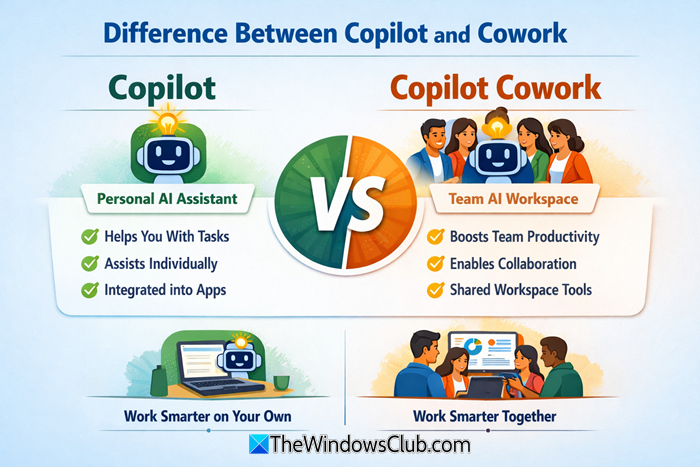
In simple words, it enables Copilot to take actions. You will approve an action before Copilot Cowork executes it. You can also pause, cancel, or resume a task at any time. Thus, you can control what Copilot Cowork does.
Prerequisites for Copilot Cowork
Copilot Cowork can be used in the Microsoft 365 Copilot desktop app (Mac and Windows), Microsoft 365 Copilot mobile app (Android and iPhone), and in a modern browser at m365.cloud.microsoft in Teams and Outlook. Before you can use Copilot Cowork, have a look at these prerequisites:
- Edge or Chrome browser is recommended
- An active Microsoft 365 Copilot license is required
- Cowork must be enabled in your Microsoft 365 Copilot environment
- Cowork billing and usage-based billing must be enabled
- Anthropic models are used as a subprocessor for Cowork. Therefore, Anthropic should be enabled in the tenant.
Beginner’s Guide to using Copilot Cowork
Here is a step-by-step guide to help you get started with Copilot Cowork:
- License and pricing
- New user interface
- Create a new task
- Use the Copilot Cowork side panel
- Create and manage scheduled tasks
- Generate images
- Build, Share, and Import Custom Copilot Cowork Skills
- Customize Copilot Cowork.
1] License and pricing
To use Copilot Cowork, a Microsoft 365 Copilot User Subscription License (USL) is required, and it uses a usage-based billing model. It is based on actual usage (or on a usage basis), measured in Copilot Credits. The price for each Cowork task depends on activities like tool and skill calls, model responses, browser tasks, image generation, etc.
There are two payment options to use Copilot Cowork: PayGo (pay-as-you-go) to set up billing and user access, and P3 (pre-purchase plan). As of now, the PayGo payment option is priced at $0.01 per Copilot Credit.
Tenant admins can manage the usage-based billing via the cost management dashboard in the Microsoft 365 admin center. They can see usage and set per-group or per-user limits.
Detailed read: Manage Copilot Cowork Costs – Guide to Usage-based Billing for Admins
2] New user interface
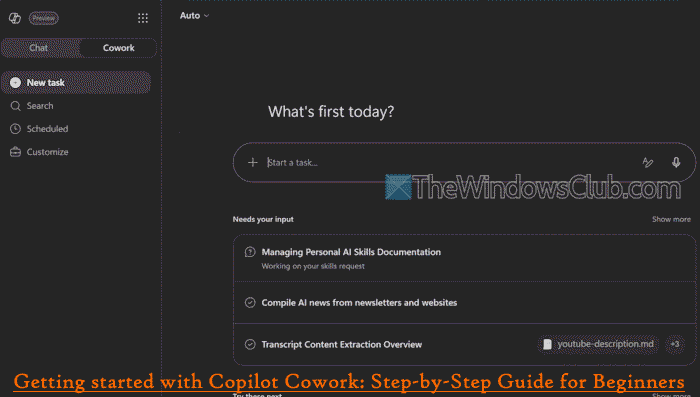
Copilot Cowork is no longer just an agent you can pick from the Agents list. Instead, it has its own homepage with a revamped interface. When you sign in to the Microsoft 365 Copilot app, you will see a toggle for Chat and Cowork on the top-left section, as visible in the image above. Thus, you can have a full and separate experience of Cowork.
Cowork’s new user interface includes a left section to create tasks, search for tasks by title name, access and manage scheduled tasks, and customize Copilot Cowork. A list of recent tasks is also present in the left section. And for each task, you can rename it or delete it there. The right section is where you can enter a prompt, start a conversation, create a new task and more.
A model picker (drop-down menu at the top left) is also there to switch to the AI model modes available to you through your organization to match your work. By default, Auto model mode is selected, which is suitable for most day-to-day work. However, you can use the other models, such as Claude Sonnet 4.6, Claude Opus 4.8, GPT 5.5, and Sonnet + Opus Advisor.
Read: How to optimize Workflow with Scheduled Copilot Cowork Tasks
3] Create a new task
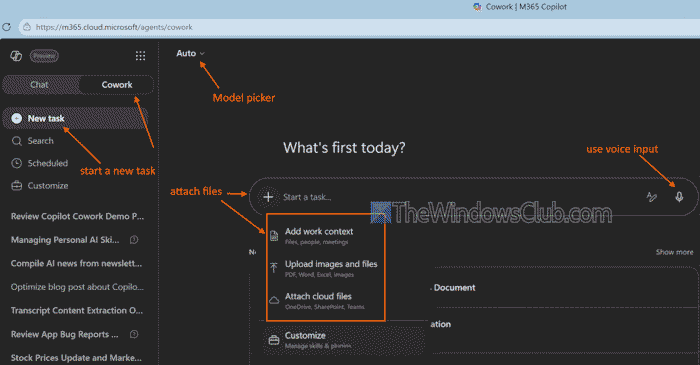
To start a new task in Cowork, select the New task option from the left section. There’s a chat input on the right section where you can enter a custom prompt or use the suggested prompts (like Organize my inbox, Prep for a meeting, etc.). You can also click on the Show more option to access Task ideas. A maximum of 250,000 characters can be entered for a prompt, which is sufficient.
You can also attach files using the Add attachments (+ icon) option. Clicking that icon will show you options like Attach cloud files (from Teams, OneDrive, or SharePoint), Add work content (people, meetings, files), and Upload images and files from your PC. Supported file formats are: DOCX, DOC, CSV, XLXM, XLS, TXT, JSON, PDF, WEBP, MP4, MOV, ZIP, RAR, DOTX, ODT, RFT, MD, MDX, MKV, WMV, WEBM, TAR, 7Z, LOG, PPTX, PPT, etc.
Apart from a text input, you can also use voice input using the microphone icon. Before sending your message, you should be more specific to get better results. If a prompt is incomplete or missing details, Cowork may ask for clarification. A task can also be paused, resumed, or canceled. Moreover, Cowork will ask for your permission before taking an action. For example, for sensitive actions, like scheduling a meeting, sending an email, etc., an approval dialog appears where you can use the Approval button to send or create a task, the Always allow button, and a Cancel button to stop the action.
Read: How to choose the right AI Model for your Copilot Cowork Tasks
4] Use the Copilot Cowork side panel
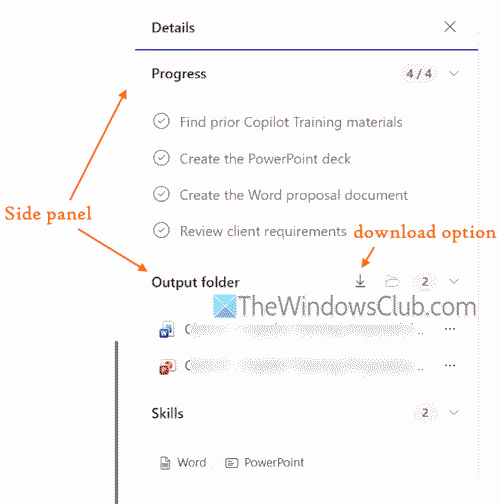
There’s a side panel (collapsible sidebar) on the right part of your conversation, which is one of the main parts of the Cowork interface. You can use the side panel toggle within the conversation to access:
- Output folder: It includes files created or uploaded by Cowork. You can download a single file or all files using the Download all option. A ZIP archive is generated to download all files (up to 50 files and 500 MB total)
- Input folder: It contains files that are shared by you for a conversation
- Preview documents: You can select a file from the side panel to preview it. File preview opens in a split view. Supported file types for preview include PDF, CSV, Microsoft 365 documents, Images, CSV, Email, Markdown, and Code files (JavaScript, Java, JSON, C++, Ruby, TypeScript, etc.) with syntax highlighting
- Progress bar: It shows a step-by-step log and the percentage of tasks completed
- Skills section: Shows the skills loaded by Cowork during the conversation.
Read: How to Build, Share, and Import Custom Skills in Copilot Cowork
5] Create and manage scheduled tasks
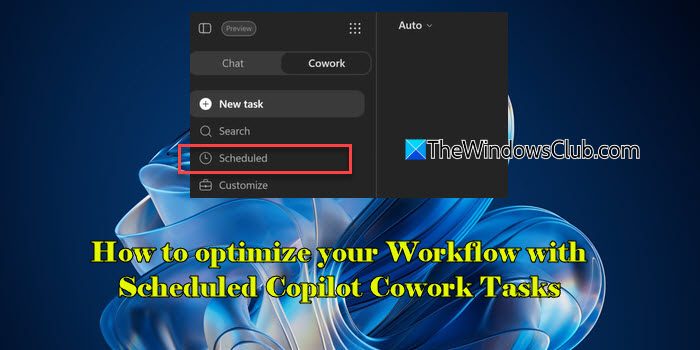
Just like you start a new task, you can create and manage scheduled Copilot Cowork tasks to optimize your workflow. You can set a task to run at a specific date and time. For this, provide a prompt describing what you want and when. For example, you can use a prompt like Send me a weekly briefing every evening at 7 PM and Cowork will set up the schedule accordingly.
All your scheduled tasks can be accessed from the Scheduled page using the left section.
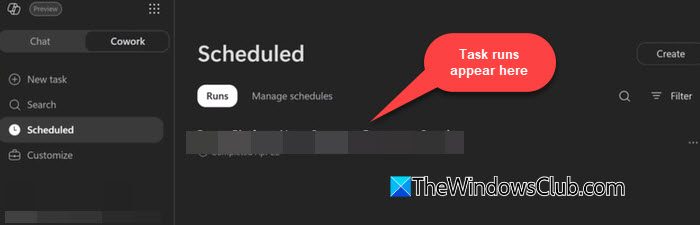
On that page, you will have a Runs tab to view upcoming and previous tasks, and a Manage Schedules tab to edit, pause, delete, or resume a scheduled task.
Read: How to master AI Triage in Copilot Cowork: Prompts that work
6] Generate images
Copilot Cowork can generate images for you using the Imagen 2 model via its built-in image generation skill. Ask Cowork to generate an image (with details), like creating a portrait image of a mountain lake at sunrise, and it will do the work. You can also ask it to refine the output and save the image to your OneDrive output folder.
Read: Microsoft Scout vs. Copilot vs. Cowork: Which AI Tool Do You Need?
7] Build, Share, and Import Custom Copilot Cowork skills
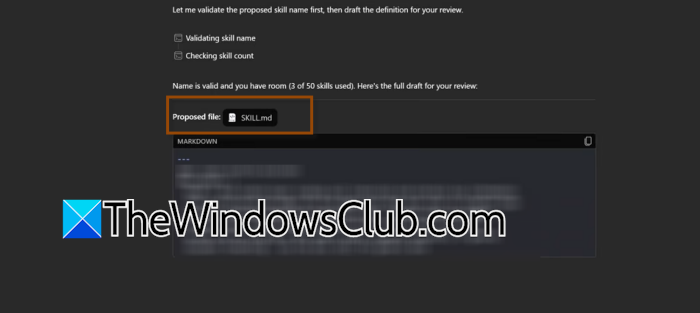
A skill is a set of instructions to teach Copilot Cowork how to perform a particular task. Copilot Cowork supports and uses built-in skills and loads them during a conversation based on your conversation context. Creating and editing Word documents, Excel spreadsheets, PowerPoint presentations, generating interactive card-based responses, preparing your daily briefing, working with PDF files, composing and sending emails, scheduling meetings, etc., are some skills available for Cowork. Skills that are used or loaded during a conversation are visible in the side panel in the Skills section.
Apart from built-in skills, you can also create or build, share, and import custom skills in Copilot Cowork. You can build a skill from chat, using the Customize page, or upload a SKILL.md file in your OneDrive folder. Up to 50 custom skills can be created, with each skill file up to 1 MB in size.
In addition, it also supports plugin skills that appear alongside the built-in skills in your conversations. Plugin skills are supported from the Microsoft 365 App Store.
This post will show you how to use Plugins in Copilot Cowork.
8] Customize Copilot Cowork
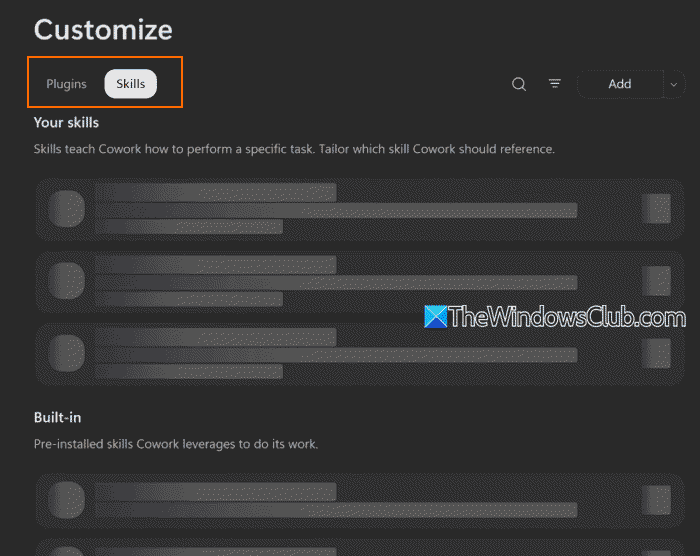
There’s a Customize page in the left section, which is one of the important features of Copilot Cowork. It includes two tabs:
- Plugins tab: Use this tab to manage your plugins. You can see a list of installed plugins, turn on/off plugins, discover plugins, view plugins shared with you, and add a plugin. You need to access the detail page of a plugin and select Add to add a plugin to the installed list
- Skills tab: This tab helps to manage your skills that Copilot Cowork can use. It has a Built-in list for skills that come pre-installed with Cowork and a Your skills list for those skills that are added through plugins or created by you. Here, you can also upload a skill and create a new skill using the Add drop-down menu.
That’s all.
Now read: Which Microsoft AI Copilot version is best for me?
How to create a Copilot Cowork skill?
To create a Copilot Cowork custom skill, you can access the Customize page on the Copilot Cowork interface. There, switch to the Skills tab, and use Add > Create new option. This will open a new conversation where you can reply to prompts for defining the skill description, instructions, name, etc. Cowork will draft a SKILL.md file, and you can confirm it to save the skill in OneDrive (under the skills folder).
Read next: How to make money using Microsoft Copilot.
