
Modern workplaces generate massive amounts of information every day. Inboxes are flooded with hundreds of emails, support tickets waiting for your response, and more. This unsorted data is the biggest challenge for organizations, as it consumes time in sorting and labeling the emails every day. This is where the AI Triage in Microsoft Copilot Cowork comes in. Instead of manually sorting your email messages, you can use AI Triage to identify priorities, summarize important updates, and highlight urgent action items. This article shows how to master AI Triage in Copilot Cowork.

How to master AI Triage in Copilot Cowork
Email Triage is the process of manually reviewing and sorting emails by urgency and type. AI Triage allows you to use Artificial Intelligence to analyze, organize, and prioritize information in your Inbox based on urgency, importance, and context. Rather than manually scanning dozens of emails daily, Copilot Cowork helps you determine which emails need your attention first. This helps you save time and increase productivity. To master AI Triage in Copilot Cowork, you need to craft prompts that clearly define the task, provide relevant context, specify priorities, and describe the desired output. The more precise your prompt, the more accurate and actionable Copilot’s response will be.
A vague prompt often yields a generic response, whereas a well-crafted prompt enables Copilot to provide precise, actionable recommendations. If you know how to frame your prompts, you can transform Copilot from a basic AI assistant into a powerful one.
Why does the quality of Copilot Cowork prompts matter?
Prompts play an important role when using an AI agent for your tasks. Copilot works on the prompts you give. The output depends heavily on the quality of your prompt. Let’s understand it with the following example prompts:
- Summarize my emails
- Summarize today’s emails and show me only those messages that require my response before the end of the day.
The first prompt is too broad. It does not provide enough instructions to the Copilot, usually resulting in a long, overwhelming response that takes just as long to read as the original emails. Additionally, Copilot may take longer to generate a response because it does not know which emails you want it to summarize. Hence, it will scan all your emails. On the other hand, the second prompt will yield better, faster results because it includes specific instructions for Copilot. Therefore, the more specific your instructions, the better Copilot can assist you.
How to write Cowork prompts that work
To master AI Triage in Copilot Cowork, you should learn to write effective prompts. Effective prompts should start with a clear goal, include relevant context, and specify the tone or format you want in your output. We have talked about two different examples of the same prompt and which one is more effective earlier in this article.
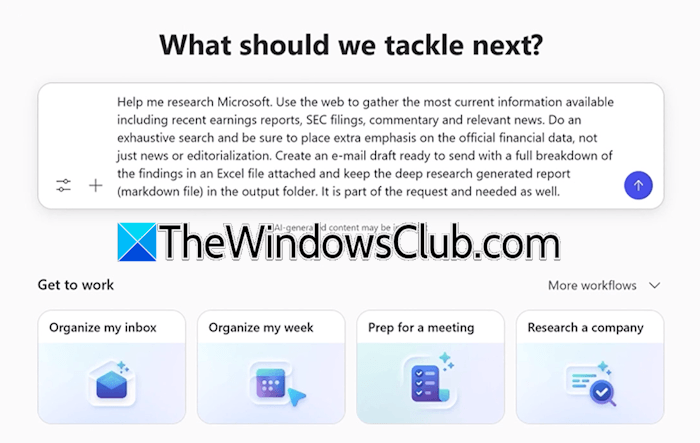
The following tips will help you write more effective prompts:
- Use a specific date or time to enhance precision rather than generic time references.
- Mention precise criteria when applicable.
- Always proofread your prompt after writing it to confirm whether it contains all the instructions or needs further improvement.
- Experiment with different words and see what yields the best results for you.
Let’s understand it with the help of some examples.
1] Be specific and include a timeframe
To write an effective prompt, the instructions should not be generic. Add specific instructions and also include a timeframe, such as today, this week, last 24 hours, since Monday, etc. Look at the following example prompt:
Summarize today’s Outlook emails and identify the three messages that require my immediate response.
2] Mention the data source
Copilot Cowork can work across different apps, including Outlook, Teams, and Calendars. Therefore, specifying the correct source will help it focus on the right information. Have a look at the following prompt:
Review my Microsoft Teams chats from 9th july 2026 to 11th July 2026 and summarize all important project updates.
3] Specify the output format
A structured output is often easier to review than an unstructured output. When using Copilot Cowork, you must include the output format in your prompt. The following example prompt will help you understand it better:
Review today’s emails in Outlook inbox and present the output in a tabular format containing two columns: Priority and Recommended Action.
4] Use follow-up prompts
If you cannot include everything in a single prompt, you can ask follow-up questions based on the previous responses. Read the following example prompts:
Initial prompt: Summarize today’s customer support emails.
Follow-up prompt: From those emails, highlight the issues that are reported by more than one customer. Also, sort them from highest to lowest priority.
Use cases
Let’s see some examples of prompts that you can use to get a structured output.
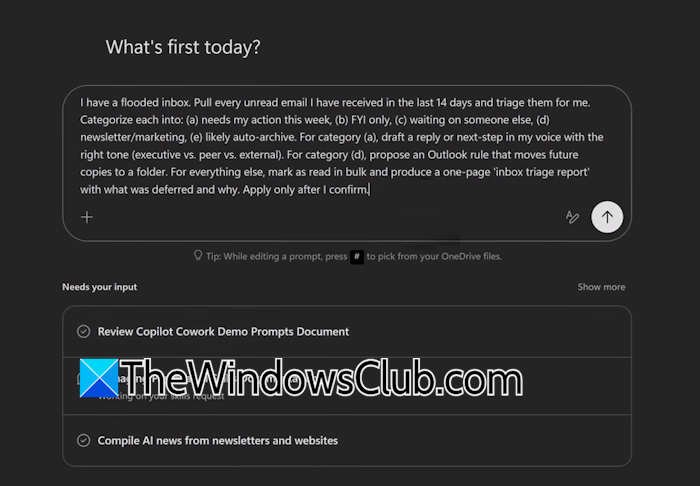
1] Customer support ticket prompt example
You can ask Copilot to sort customer support emails by sentiment and severity level. Have a look at the following prompt:
Analyze the customer support tickets received from 10th July 2026 to 11th July 2026. Generate an output containing the following information:
- User sentiment: Identify the user’s emotional state (Frustrated, Calm, Confused, or Urgent).
- Severity level: Assign a severity score from 1 to 5 (1 = Minor bug/Inconvenience, 5 = Critical issue).
The output should be in a tabular format: [Customer support ticket | User sentiment/state | Severity of the issue]
2] Post-meeting actions
You can ask Copilot to generate a response based on the post-meeting transcript. The following example prompt will help you understand better:
Analyze today’s meeting and generate a tabular response including the following information:
- Task owner: Who is responsible?
- Action item: What needs to be done?
- Deadline: Project deadline (if any).
Present the output table in the following format: [Task owner | Action item | Deadline]
Common mistakes to avoid
Some common mistakes to be avoided are as follows:
- Being too vague: Instead of writing “Help me organize my emails,” your prompt should contain enough information for Copilot.
- Asking too many questions at once: Avoid asking too many questions in a single prompt. The prompt should be informative instead of being lengthy. In such a case, you can apply the “follow-up questions” approach.
- Ignoring output format: Don’t forget to describe the output format. For example, if you want Copilot to generate the response in a tabular format, include it in your prompt.
That’s it. I hope this helps.
Read: How to use Copilot Cowork effectively.
Is Copilot AI free?
Yes, Copilot AI is free. It is available as an app on all Windows 11 computers. You need a Microsoft account to use it. Like ChatGPT and Gemini, its free version also allows you to summarize documents, generate images, and brainstorm ideas. However, note that this free tier is not integrated into Microsoft Office desktop applications. To access Copilot features inside Word, Excel, or PowerPoint, a paid Microsoft 365 Copilot subscription is required.
Read: How to use Plugins in Copilot Cowork
Does Copilot Cowork have skills?
Yes, Copilot Cowork has built-in skills, including Word, Excel, PowerPoint, PDF, Email, Scheduling, Calendar Management, Meeting, Enterprise Search, Deep Research, and more. An option to create customized skills is also available in Copilot Cowork.
