
Copilot Cowork is an agentic AI available to Microsoft 365 Copilot users (with a valid license and usage-based billing enabled). It comes with a revamped interface, new features, and plugins. In this post, we will cover a beginner’s guide on using plugins in Copilot Cowork. You will understand Cowork plugins, available plugins, and learn to discover and install plugins to extend Copilot Cowork’s capabilities and customize your experience.
What are Cowork plugins?
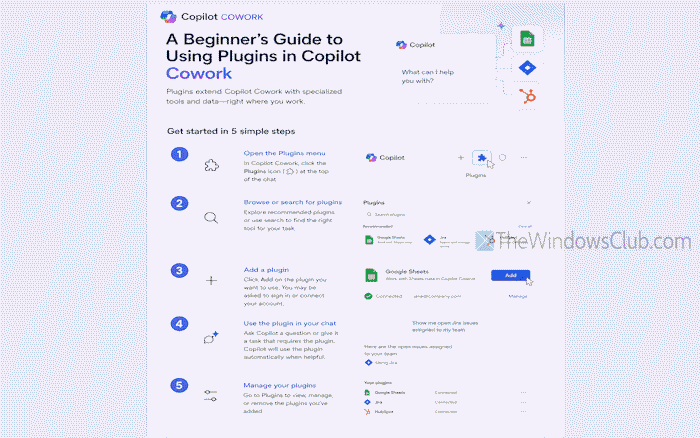
A Cowork plugin is a package that includes skills and connectors to extend Cowork’s capabilities by connecting to bundled skills, services, and external tools. Here, skills are specialized capabilities that help Cowork teach new domain expertise, and connectors are links to external services and data sources used by Cowork during a conversation. Cowork plugins are available through the Microsoft 365 App Store (or Microsoft 365 plugin marketplace), and both native plugins and third-party plugins are supported.
You can enable/disable and install plugins for your account. However, an admin of your organization with access to the Microsoft 365 admin center can also deploy plugins for you and control them. You can’t uninstall or remove admin-deployed plugins from your account, but you can enable/disable them for your sessions. You must have a valid Microsoft 365 Copilot license assigned to you to use Cowork plugins that an admin has deployed.
Read: Getting started with Copilot Cowork: Step-by-Step Guide for Beginners
What plugins are available in Cowork?
Copilot supports a wide range of plugins across GitHub Copilot and Microsoft 365 Copilot ecosystems. These include curated developer-focused plugins (such as AI team orchestration, architecture modernization, and observability tools) as well as business-oriented integrations (such as Dynamics 365, Power BI, and third-party partner services).
Copilot Cowork supports Microsoft plugins and Partner plugins. Microsoft plugins are built-in integrations to provide Microsoft services directly into Cowork.
Available Microsoft plugins in Cowork include Fabric IQ, Dynamics 365 Sales, Dynamics 365 ERP apps, and Dynamics 365 Customer Service.
Partner plugins in Copilot Cowork connect it to popular third-party services. Partner plugins include Canva, Box, AI Meeting Notes TeamsMaestro, Monday.com, Harvey, Miro, LSEG Copilot Cowork, S&P Global Energy, enosix arnold for Copilot Cowork, Morningstar, etc.
How to use Plugins in Copilot Cowork
Here’s a beginner’s guide with step-by-step instructions for using plugins in Copilot Cowork:
- Sign in to the Microsoft 365 Copilot app
- Switch to the Cowork tab
- Access the Customize page
- View and manage installed plugins
- Discover and install plugins
- Use plugins in a conversation or task.
Let’s check these steps in detail.
At first, open the Microsoft 365 Copilot desktop app or access m.365.cloud.microsoft on a supported browser, and sign in with your work account with a valid and active license. You will see a new interface with Chat and Cowork tabs on the top-left section. Switch to the Cowork tab to access its homepage. Now select the Customize page from the left section.
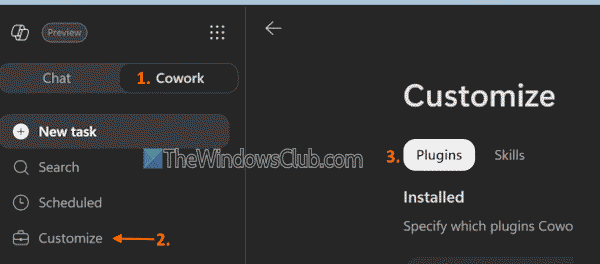
This page includes a Plugins tab at the top, as shown in the image above, where you can install, browse, and manage your Cowork plugins. It has two main sections:
- Installed section, and
- Discover section.
1] Installed section
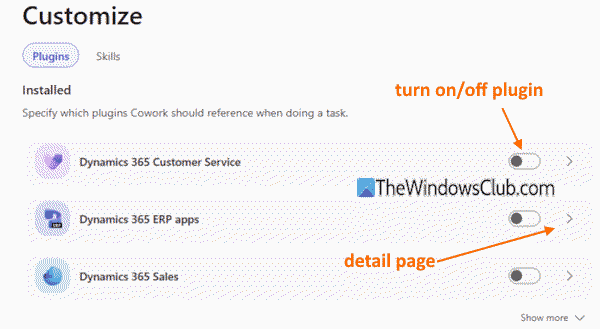
In the Installed section, you will see a list of all Cowork plugins that you have installed or your admin has deployed. Plugins deployed by an admin show a Managed by your organization label in the detail view of that particular plugin. There’s a toggle for each plugin that lets you turn it on/off. Only the active or enabled plugins can be used for a conversation or task.
You can also click on a plugin card to access its detail page. The detail page shows plugin skills and/or connectors, plugin details, published by or created by (say Microsoft), etc.
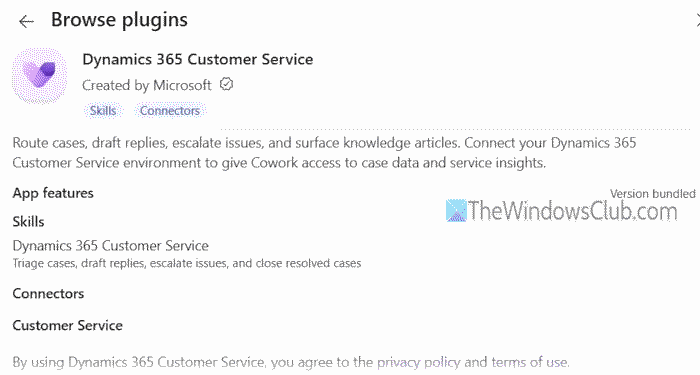
If you need to remove a plugin (acquired by yourself), use the Remove from Cowork option.
2] Discover section
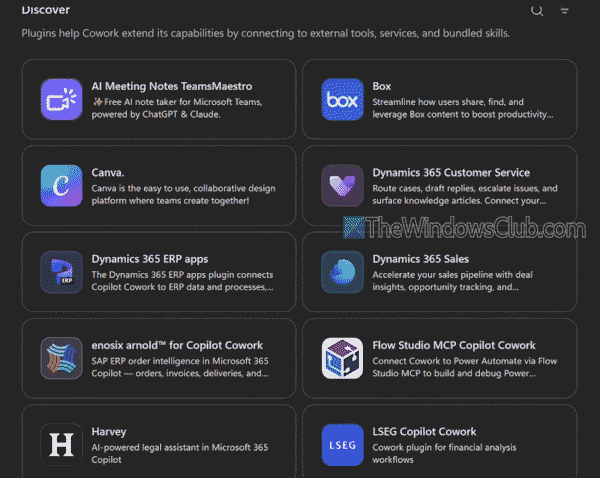
The Discover section shows all the available Cowork plugins (native plugins created by Microsoft and third-party plugins). For each plugin card, the plugin name and a brief description are given. You can also select a card to access its detail page for more information and to install a plugin.
As of now, a limited number of native plugins are available, but the partner plugins catalog is growing continuously.
Related: How to Build, Share, and Import Custom Skills in Copilot Cowork
Once you have set up everything, you can start a task or conversation using the chat box with active plugins. Copilot Cowork works on your behalf using the skills and connectors of active/enabled plugins, built-in skills from Work IQ, custom skills, etc.
Here is an example. If you have enabled the Dynamics 365 Customer Service plugin, you can ask a service-related prompt, say Generate a summary that lists all open cases blocked on customer reply for more than 24 hours. You should use natural language and keep your prompt more specific to get better output. Cowork will start its work and break the request into steps. It will find the open cases to get the results.
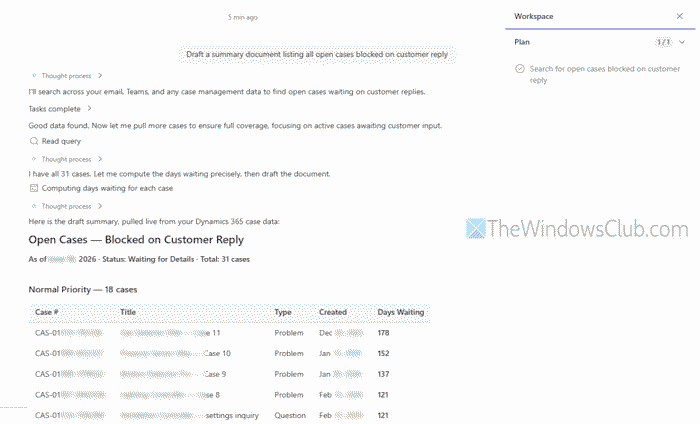
You can see the progress and other details in the side panel of Cowork on the right. It will present the results with fields, such as case title, days waiting, case type (problem or question), case number, etc.
Similarly, you can use other prompts and plugins, and Cowork will get the work done for you accordingly.
That’s all.
Now read: How to optimize Workflow with Scheduled Copilot Cowork Tasks
How do I manage Cowork plugins?
To manage Cowork plugins of your organization or all/specific users, you must be an admin with Microsoft 365 admin center access. You can also manage how to deploy plugins (to specific groups or users or the entire organization), control plugin availability, block access to specific plugins, and enable or disable plugins. For this, sign in to the Microsoft 365 admin center, and then select Agent > Tools. There, you can find a plugin to deploy it and select it to open its detail page. There, select the Installed for option, and select Specific users/groups or All users.
Read next: How to choose the right AI Model for your Copilot Cowork Tasks
