
Microsoft Copilot Cowork includes new features that help teams tackle complex and repetitive tasks more effectively. One of the most useful features is the ability to create, manage, and share Custom Skills. While Copilot includes about 13 standard skills from Microsoft and Anthropic, its true power comes from training the AI to follow your unique processes, standards, and formats. In this guide, we will see how to build, share, and import Custom Skills in Copilot Cowork.
What is a Custom Skill in Copilot Cowork?
A custom skill is a specific set of instructions that guides the AI in performing a particular task. It allows you to train Copilot to follow your unique professional processes, voice, and formatting standards rather than relying on general responses.
Read: Beginner’s guide to using Copilot Cowork.
Build, Share, and Import Custom Skills in Copilot Cowork
Before diving into the guide, it is essential to understand what a skill actually is. In the context of Copilot Cowork, a skill is a custom instruction set that dictates exactly how the AI should think, act, and respond for a specific task. While the system automatically invokes out-of-the-box skills when necessary, custom skills allow you to replicate your unique professional voice and methodology. For instance, a realtor might create a skill to turn messy scoping call notes into a structured one-pager for clients.
To build, share, and import Custom Skills in Copilot Cowork, follow the steps mentioned below.
- Design your Skill Framework
- Initiating the Creation Process
- Reviewing the Markdown Definition
- Quality Reports and Validation
- Validate and Distribute your Custom Skills Login
Let us talk about them in detail.
1] Design Your Skill Framework
The most successful custom skills start with a structured design. You shouldn’t just wing it when giving instructions to Copilot. Instead, follow a template that includes.
- Skill Name: A clear title for the task.
- Trigger Phrases: Specific words or sentences that will activate the skill.
- Task Description: A one-sentence summary of the goal.
- Inputs: A list of the data you will provide (e.g., transcripts, spreadsheets).
- Steps: A chronological list of actions the AI must perform.
- Output Format: Defining how the final result should look (e.g., a Word doc or Markdown summary).
- Rules and Exceptions: Any “do’s and don’ts” the AI needs to follow.
After keeping the template in mind, let’s go ahead and start working on Custom Skills.
2] Initiating the Creation Process
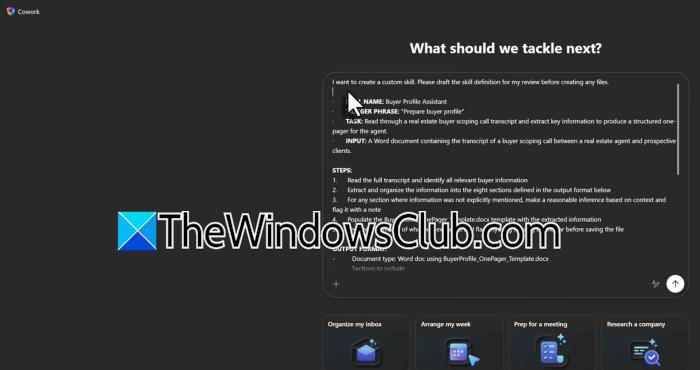
Once your framework is ready, you can build the skill using the Cowork interface. Click the Customize tab on the left sidebar or tap the + icon at the bottom of a new task. Then, paste your detailed instructions into the chat box. When you send these instructions, Cowork will activate a feature called Skills Management to process your request. The AI will generate a proposed skill definition in a .md (Markdown) file format. Markdown files are simple text files with formatting that helps store skill logic.
Read: How to choose the right AI Model for your Copilot Cowork Tasks
3] Reviewing the Markdown Definition
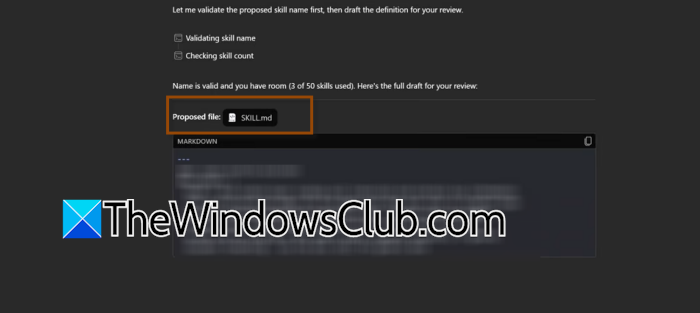
After you submit your instructions, Copilot Cowork will present a preview of the skill.md file. This preview includes:
- An Overview section.
- “When to Use” and “When Not to Use” guidelines.
- Quick Start instructions.
- The Core Logic based on your provided steps.
At this stage, you can also bundle templates with the skill. For example, if your skill extracts data into a specific document format, you can upload a sample Word template and tell Copilot to use that specific layout every time the skill runs.
4] Quality Reports and Validation
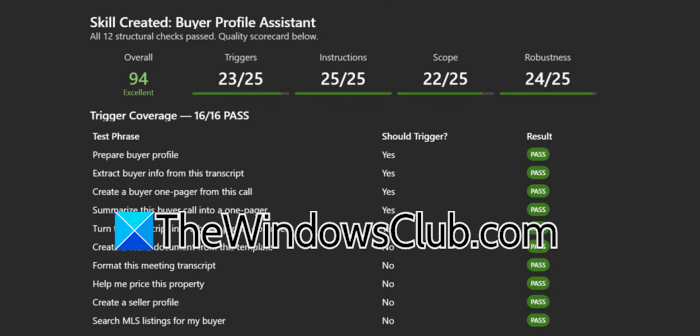
One of the most critical steps in the GA version of Cowork is the Quality Report. Before the skill is finalized, the AI runs a series of background validation checks to ensure robustness. The report evaluates the following parameters.
- Trigger Coverage: It creates a series of potential statements that might trigger the skill to ensure it doesn’t miss your intent.
- Instruction Scope: Ensuring the steps are clear and executable.
- Robustness: Checking if the skill can handle variations in input.
Once done, let’s go ahead and create your skills.
Read: How to make money using Microsoft CoPilot AI
5] Validate and Distribute your Custom Skill Logic
After your custom skill has passed its internal quality checks, the final stage is to move it from the lab into your daily production workflow and, eventually, into your colleagues’ hands. This process is now more integrated than ever, allowing you to verify your logic and share it with a few clicks.
Before sharing a skill with your team, ensure it performs consistently. Copilot Cowork provides two primary ways to initiate a test run: you can directly trigger the skill by typing your predefined phrase, such as Run the Buyer Profile Assistant, into the chat box, or you can use the Skill Picker by clicking the + icon, selecting Add work context, and navigating to the Skills tab. While Microsoft’s built-in skills appear at the top of the list, your custom skills will be pinned conveniently at the bottom. As the skill executes, it is highly recommended to expand the Thinking Menu, which allows you to monitor how Copilot is reasoning through your instructions and confirms that your custom logic has been activated rather than defaulting to a general response.
Once you have confirmed that the skill produces the exact output format you need, sharing the refined logic with your team becomes straightforward. In earlier versions of Frontier, this process required users to manually navigate complex OneDrive folder structures, which often posed obstacles for non-technical staff. With the General Availability update, however, sharing has been streamlined into a simple download-and-upload workflow, making it far easier to distribute your skill across the team.
- Open the Customize interface.
- Click the ellipses (…) next to your validated skill and select Download.
- This generates a .md (Markdown) file, essentially the “DNA” of your skill, which you can send to teammates via email or Teams.
For the recipient, the import process is just as smooth. They simply open their Skills menu, click Add, and choose Upload a skill. From there, Copilot Cowork automatically handles the setup by creating the required folder and file structures in their OneDrive, enabling them to start using your custom methodology right away without any manual configuration.
Read: Best Free Artificial Intelligence software for Windows
How do teams share custom skills with each other?
You can download your validated skill as an .md file from the Customize interface and send it to your team. Recipients can immediately upload this file into their own Skills menu without needing any manual folder setup.
Also Read: Best AI tools for Developers.
