
Some users encounter the “It’s not you, it’s me” error when trying to use Microsoft Copilot. This error usually appears when launching Copilot or submitting a prompt, preventing users from using it to get help with their tasks. This error occurs due to several causes, such as internet connectivity issues, corrupted browser cache and cookies, or corrupted files. If you encounter the “It’s not you, it’s me” error with Copilot, use the fixes provided in this article.
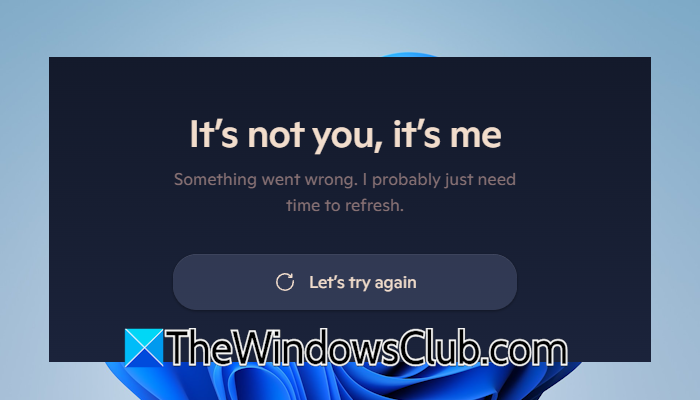
The complete error message is:
It’s not you, it’s me
Something went wrong. I probably just need time to refresh.
It’s not you, it’s me error in Copilot
Use the following fixes if you cannot use Copilot because of the “It’s not you, it’s me” error. Before proceeding, check for Windows updates and install them (if available). If this works, you will save time in further troubleshooting. Also try signing out of Copilot and signing back in. Click your profile icon, select Sign Out, then relaunch Copilot, and sign back in.
- Update Copilot
- Run Copilot Troubleshooter
- Switch to another network connection
- Disconnect from the VPN
- Clear your browser cache and cookies
- Reset your network
- Repair or reinstall Copilot
All these fixes are explained in detail below.
1] Update Copilot
An outdated version of Copilot can cause several issues. Therefore, the first step is to check for updates. If an update is available, install it. Follow these steps:
- Launch Microsoft Store.
- Search for Copilot.
- Select Microsoft Copilot from the search results.
- If an update is available, you will see an Update button. Click on it to install the update.
2] Run Copilot Troubleshooter
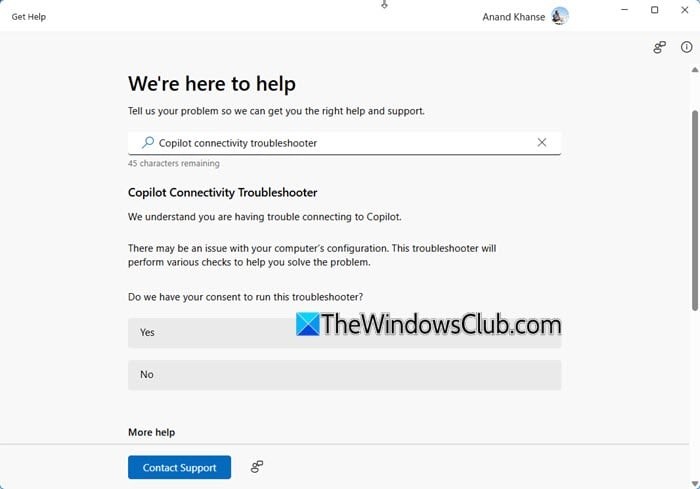
The Copilot Troubleshooter helps you fix Copilot license and connectivity issues. You can run it through the Get Help app. Launch the Get Help app and expand the Copilot troubleshooters branch on the left side. Since you are experiencing connectivity issues with Copilot, click Copilot connectivity. Give Windows 11 permission to run this troubleshooter by clicking Yes and then follow the on-screen instructions.
After running automated tests, the troubleshooter will show you the cause of the problem. Now, apply the required fix to resolve the issue.
3] Switch to another network connection
If the Copilot Troubleshooter cannot fix the issue, you can try switching to another network. Network issues are the most common cause of this error. If another network connection is unavailable, you can use your mobile data and connect your system to the internet through a mobile hotspot. If this works, the issue is with your network. In this case, power cycling the WiFi router can help.
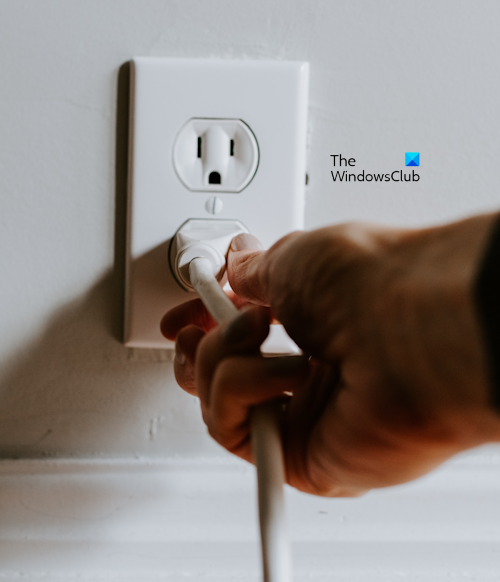
Follow the instructions provided below:
- Turn off your WiFi router.
- Unplug its adapter from the wall socket.
- Wait for a few minutes.
- Plug the adapter back into the wall socket and turn on the router.
Now, check if the issue persists.
4] Disconnect from the VPN
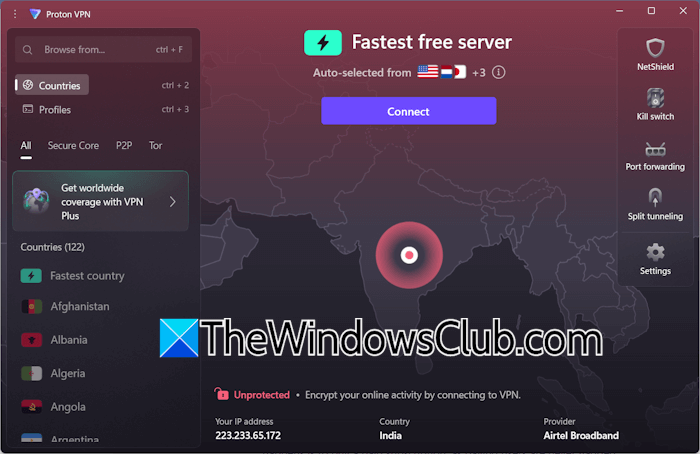
A VPN connection makes a network more secure but slows down the internet speed. That’s why a VPN can sometimes cause network issues with certain applications. This might be the case with you if you are connected to a VPN. Disconnect from the VPN and see if the problem is fixed.
5] Clear your browser cache and cookies
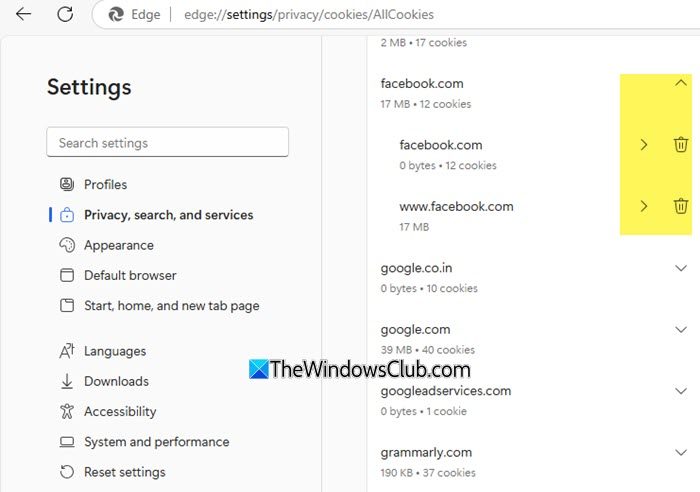
If the issue occurs in your web browser, the browser might have corrupt cache and cookies. To confirm this, launch the Incognito or Private mode on your browser and sign in to Copilot. If the error does not occur in private or incognito mode, clear your browser cache and cookies. Web browsers also have an option to clear cache and cookies for a specific site. You can also use this option for Copilot.
6] Reset your network
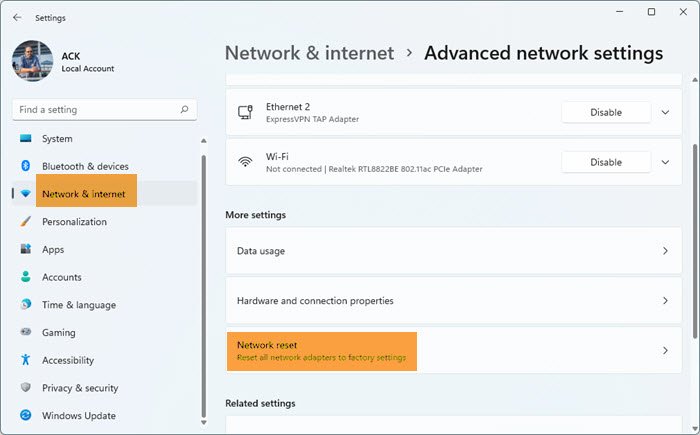
The Network Reset in Windows 11 helps fix network-related issues. When you perform this action, Windows restores all the networking components and network adapters to their default state. It takes 5 minutes for Windows to reset your network. After 5 minutes, your system restarts automatically. Therefore, save all your pending work before proceeding.
7] Repair or reinstall Copilot
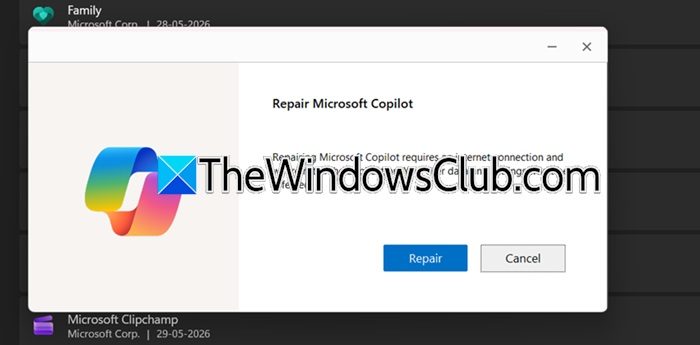
If the issue persists, repair Copilot. For this, follow the steps provided below:
- Launch Windows 11 Settings.
- Navigate to Apps > Installed Apps.
- Search for Copilot.
- Click on the three dots next to Copilot and select Advanced options.
- Click Yes in the UAC prompt.
- The Repair Copilot window will appear. Click Repair.
If repairing Copilot does not help, uninstall and reinstall it. After uninstalling Copilot, restart your computer. Now, install it from the Microsoft Store.
That’s it. I hope this helps.
Why is Copilot not working for me?
There could be many reasons Copilot isn’t working for you. Your internet connection might be unstable. To confirm, power-cycle your WiFi router or switch to another network connection. Also, make sure Windows Defender Firewall allows Copilot. If you use a third-party Firewall, check its settings. You can also run the Copilot Troubleshooter to identify the cause.
How do I fix my Copilot app?
If you are having issues with the Copilot app, try repairing it. You can do so via Windows 11 Settings. If repairing Copilot does not help, try uninstalling and reinstalling it. Copilot is available on the Microsoft Store. You can install it from there.
Read next: How to make money using Copilot.
