
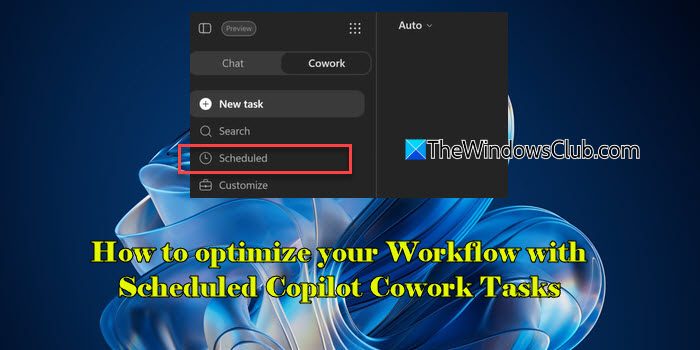
Microsoft 365 Copilot Cowork is now generally available. It introduces several changes over the preview version, including a refreshed interface and an improved task management experience. One of the key capabilities of Copilot Cowork is scheduling tasks to automate recurring work. In this guide, we will show you how to create and schedule tasks in Copilot Cowork to optimize your workflow on a Windows 11/10 PC.
Can Copilot schedule my tasks?
Yes, Microsoft 365 Copilot Cowork can schedule tasks to run automatically at a specified time or on a recurring schedule. This allows you to automate repetitive tasks, such as generating email summaries, preparing meeting briefs, or creating regular reports, without having to start them manually each time.
Read: Beginner’s guide to using Copilot Cowork.
How to optimize your workflow with Scheduled Copilot Cowork Tasks
To create and schedule tasks in Microsoft 365 Copilot Cowork, follow these steps:
- Open Microsoft 365 Copilot and switch to Cowork.
- Click New task.
- Describe the task and include the schedule.
- Review the generated schedule.
- Activate the scheduled task.
Let us see these steps in detail.
Launch Microsoft 365 Copilot and sign in with your work or school account. You can access Copilot Cowork from the Microsoft 365 Copilot desktop app or by visiting m365.cloud.microsoft.
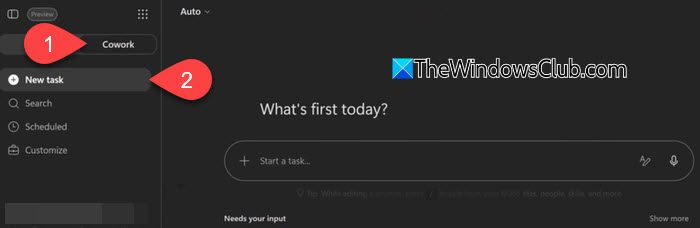
Select Cowork from the toggle at the top to switch from the Chat experience. Click New task from the left pane to start a new task.
Before creating the task, select the AI model from the drop-down list at the top of the page. By default, Auto is selected, which automatically chooses the most suitable model for your task. You can also manually select a model, such as Claude Sonnet 4.6, Claude Opus 4.8, GPT 5.5, or Claude Sonnet + Opus Advisor, depending on your requirements.
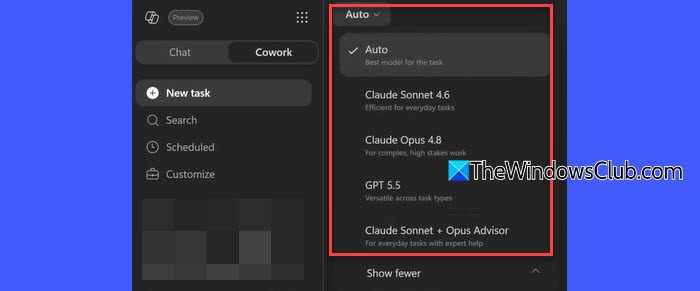
Note: If you’re unsure which model to use, leave the selection set to Auto. Since task cost depends on factors such as the AI model, context retrieval, tool calls, and runtime, choose a specific model only if you have a particular requirement (we discuss Copilot Cowork pricing later in this post).
Next, enter your request in natural language and include the schedule in the same prompt. A prompt can contain up to 16,000 characters. For example:
“Send me a daily briefing every morning at 9 AM summarizing my emails and calendar.”
“Create a weekly status report every Friday at 5 PM.”
You can also use the microphone button to describe your task using voice input.
After you submit the task, Cowork starts processing your request and displays its progress through status updates and the task timeline. It detects the schedule in your prompt and prepares the task accordingly.
Verify that the task description and schedule are correct. If required, modify the prompt before activating the schedule.
Note: If the task involves sending emails, posting in Teams, scheduling meetings, or performing sensitive actions, Cowork will ask for approval before taking an action on your behalf. Review the details carefully before allowing the action to proceed.
To activate the scheduled task, choose one of the following options:
- Activate and run now: Starts the task immediately so you can monitor its first run.
- Activate: Saves the schedule and runs the task at the next scheduled time.
You can create up to five scheduled tasks.
Manage scheduled tasks in Microsoft 365 Copilot Cowork
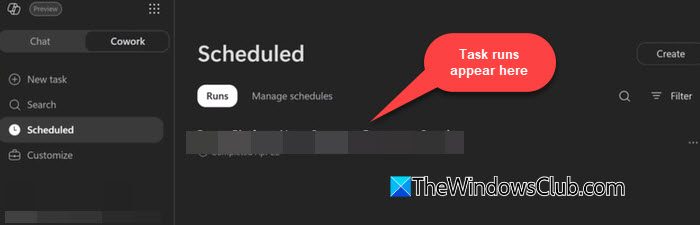
After you schedule a task, it appears under the Scheduled section in the left navigation pane. Here, you can view and manage all scheduled tasks.
The Scheduled page contains two tabs:
- Runs: Displays previous and upcoming task runs.
- Manage schedules: Lets you edit, pause, resume, or delete scheduled tasks.
- Edit: Modify the task prompt, schedule, or recurrence settings.
- Pause: Temporarily stop the scheduled task without deleting it.
- Resume: Restart a paused scheduled task using the existing schedule.
- Delete: Permanently remove the scheduled task so it no longer runs automatically.
You can also click Create in the upper-right corner to create a new scheduled task directly from this page.
Read: How to choose the right AI Model for your Copilot Cowork Tasks
Monitor scheduled tasks as an administrator
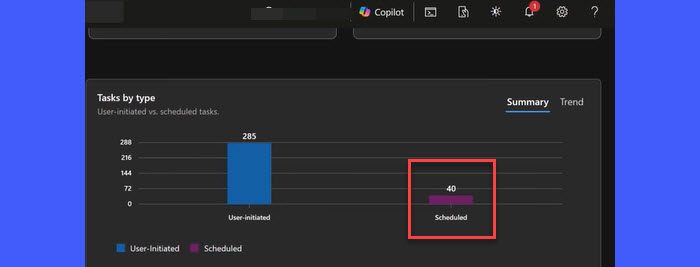
If you are a Microsoft 365 administrator, you can also monitor Copilot Cowork usage from the Microsoft 365 admin center.
- Open the Microsoft 365 admin center.
- Navigate to Copilot > Cowork. On the Overview tab, view key metrics such as Active Cowork users, Total Cowork tasks, and Pending requests.
- Switch to the Usage tab.
- Review the Tasks by type chart to see the total number of User-initiated and Scheduled tasks.
- Scroll down to Cowork usage details to view task statistics for individual users, including the total number of tasks, scheduled tasks, user-initiated tasks, active days, and the last activity date.
Read: How to Build, Share, and Import Custom Skills in Copilot Cowork
Copilot Cowork Pricing and licensing
- Copilot Cowork requires a Microsoft 365 Copilot User Subscription License (USL).
- Copilot Cowork uses usage-based billing. The cost of each task depends on factors such as the AI model used, context retrieval, tool calls, and runtime.
- Microsoft measures usage in Copilot Credits. Customers can choose either Pay-as-you-go (PayGo) or P3, a prepaid usage plan with discounted rates. At the time of writing, PayGo is priced at $0.01 per Copilot Credit.
That’s all! I hope you find this useful.
Read: Use Copilot Tasks to turn the AI Chatbot into a Personal Assistant.
What is Microsoft Copilot Cowork?
Microsoft Copilot Cowork is an AI-powered workspace in Microsoft 365 that helps you automate complex and long-running tasks. It can perform multi-step tasks using your organization’s data and Microsoft 365 apps, allowing you to save time and improve productivity.
Read Next: How to enable, disable, use Copilot Actions in Windows.
