
This tutorial demonstrates how to perform a Point-in-Time restore on a Windows 11 PC. It’s a new feature in Windows 11 that introduces a modern approach to restoring your PC to the exact state it was in at an earlier point in time. Unlike the traditional System Restore, the restore points are comprehensive (targets full system state, which includes system settings, certificates, user passwords, OS, user data, and local files) and are captured automatically at a selected frequency. You can easily enable and configure Point-in-time restore using Windows Settings and then use any of the available restore points whenever needed.
For now, the feature is in preview and available to insiders. But it will also be available in the stable release in the future.
Before performing a system restore using this feature, you should also have a look at these key points:
- A restore can only be started locally in Windows Recovery Environment (WinRE)
- If the system drive is encrypted by Device Encryption and BitLocker, you must provide the recovery key at the time of restore. So, keep the encryption key ready
- EFS-encrypted files may affect the reliability of Point-in-time restore
- Only the MainOS volume can be restored
- If the Windows edition is changed (Home to Pro or Enterprise), Point-in-time restore shouldn’t be used, as it can cause unsupported configurations or system instability
- Make sure there’s sufficient free space for an uninterrupted and smooth restore process. If not, you should free up and increase the hard disk space first
- You can’t export or mount restore points as independent images.
How to perform Point-in-time restore in Windows 11
The steps to perform a Point-in-time restore in Windows 11 are as follows:
- Open the Windows 11 Settings app (Win+I)
- Navigate to System > Recovery
- Press the Restart now button for Advanced startup (in Recovery options)
- Again, press the Restart now button in the confirmation pop-up to boot Windows directly to the Advanced startup settings screen. You can also use WinX menu, Lock Screen, and other ways to access Advanced startup options, though
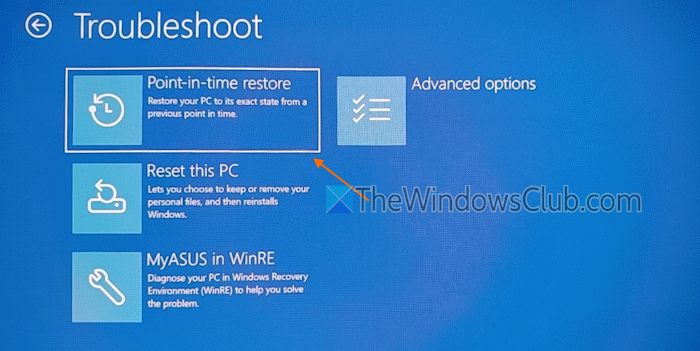
- Select the Troubleshoot option
- Click on the Point-in-time restore option. You won’t see this option if there are no restore points
- Enter the recovery key if the system drive is encrypted. Press the Continue button. You won’t see this step if the drive is not encrypted
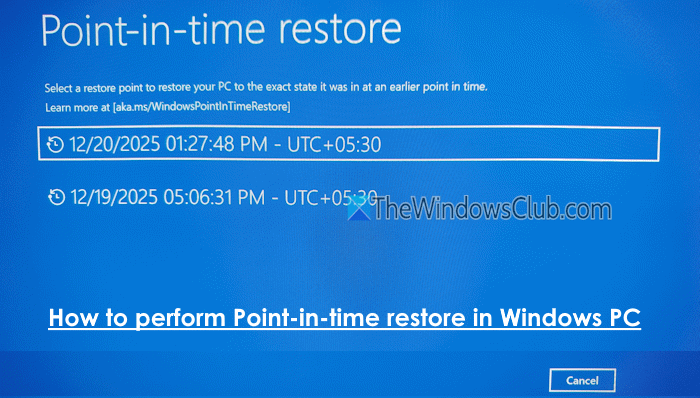
- A list of restore points will be visible (if multiple restore points are available). For each restore point, there’s a timestamp to help you decide
- Select a restore point from that list
- You will see a list of risks and limitations associated with it
- Confirm and acknowledge by pressing the Continue button
- Review the selected restore point, warning of data loss, and OS version
- Press the Restore button to begin the restore process
- Once the process is completed successfully, you can log in to your device and start using it.

That’s all.
Now read: How to configure Quick Machine Recovery Settings in Windows PC
How to schedule automatic restore points on Windows 11?
To schedule restore points in Windows 11, first, enable the System Restore feature (if not already). After that, create a new task in Task Scheduler, where you can set the task frequency (daily, weekly, etc.), and add the following command in the Actions tab:
Checkpoint-Computer -Description "TWC-RestorePoint" -RestorePointType MODIFY_SETTINGS
This will automatically trigger the creation of a restore point at the defined frequency. You may also need to set conditions for the task to be successfully created and the action to be executed.
Read: How to use Cloud Rebuild in Windows 11
How long does a System Restore point take in Windows 11?
The system restoration process can take from 30 minutes to hours, depending on the apps, system files, user data, etc. The traditional System Restore feature could be slower than the new Point-in-time restore feature because the latter one focuses on fast recovery. In both cases, you should wait and let the process complete. If you interrupt System Restore or reset, it would leave the device in a corrupt state.
Now read: System Restore stuck or hung up in Windows PC.
