
Is Copilot not working in PowerPoint? Fortunately, you have come to the right place, as we will explore the variables causing the issue and find ways to resolve it.
Why is MS Copilot not working?
MS Copilot not working in PowerPoint can be due to a handful of reasons. The most common ones include a slow network connection, an invalid or missing license, or being signed into the wrong account. To pinpoint and solve the issue, follow the step-by-step troubleshooting guide given below.
Copilot not working in PowerPoint
If Copilot is not working in PowerPoint, execute the solutions mentioned below.
- Verify your license
- Check the MS 365 account in PowerPoint
- Enable Connected Experiences
- Check the network connection and add-ins
- Perform an Online repair of Office
Let’s get started with the troubleshooting guide.
1] Verify your license
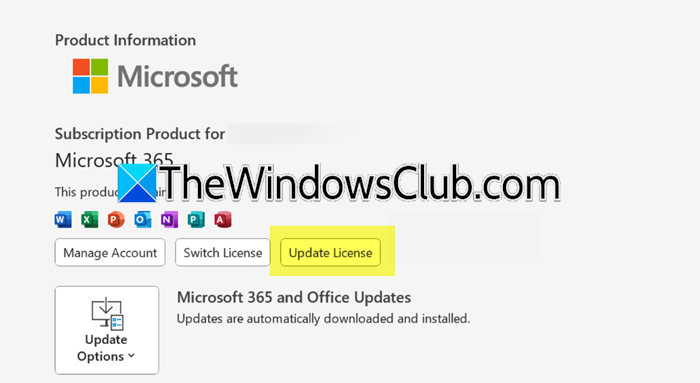
It’s necessary to have an active MS 365 Copilot Pro subscription for individuals or a specific enterprise license for businesses to use Copilot AI in PowerPoint. If one doesn’t have it, the Copilot button will be missing or greyed out. To verify this, follow the steps as given below.
- Navigate to the Microsoft Account Services page or the organisation’s 365 admin centre.
- Now, sign in with the same Microsoft account used in PowerPoint, and look for S 365 Copilot Pro on the Services and Subscriptions page.
- For Business/Enterprise users, contact the IT administrator and ask them whether the MS 365 Copilot license or add-on has been added to the account.
- You can also try refreshing your license directly in PowerPoint by going to File > Account and clicking Update License.
If it says active, one has it, and the issue lies elsewhere. To identify it, see the next solution.
Read: Copilot not working in Word
2] Check the MS 365 account in PowerPoint
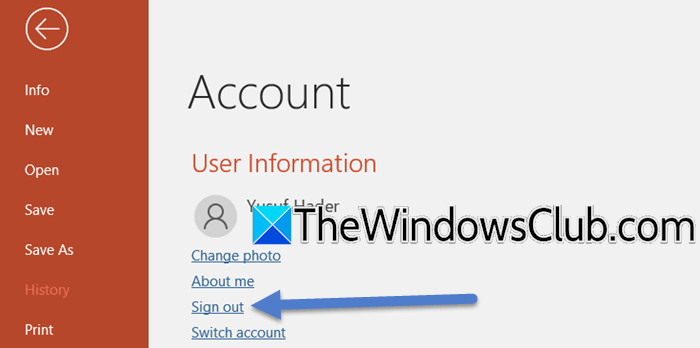
It’s common to have personal and work MS accounts on one device, and accidentally sign in with the wrong one within PowerPoint. To eliminate this factor, we recommend ensuring that the account that is signed in is a work or school account with the Copilot license.
To do so, follow the steps outlined below.
- Launch PowerPoint, go to the File tab, and click on the Account option.
- Now, check the User Information section, and check the email address.
- If the wrong account is listed, click on the Sign out link and close PowerPoint completely. Signing out completely clears out the cache and forces a fresh, correct login.
- Now, sign back in with the correct account and verify that Copilot is functioning properly.
3] Enable Connected Experience
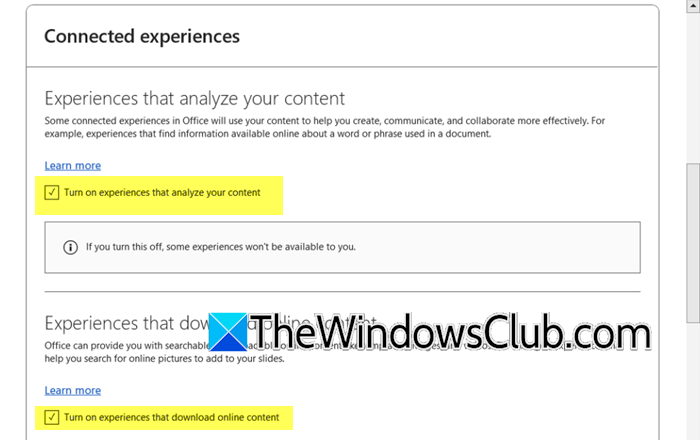
Copilot is an online cloud-based service that communicates with PowerPoint via Microsoft’s servers. This connection is managed by a setting called Connected Experience, and if it is disabled, Copilot will not be available. Execute the solutions given below to verify the status of the setting.
- Launch PowerPoint/Outlook/Word/Excel and go to the File tab.
- Select Account, and click on the Manage Settings button under the Account Privacy section.
- The Privacy settings window will open. Look for the Turn on experiences that analyze your content and Turn on experiences that download online content, and check the box if it is unchecked. Hit OK to apply the changes and restart the app.
See the next solution if Copilot is still not working or the option is greyed out.
4] Check the network connection and add-ins
Copilot requires a stable Internet connection and a clean software environment to function. Let us go ahead and do some quick checks.
- For connectivity, you can run the official Copilot connectivity troubleshooter in the Get Help app (type “Get Help” in the Windows search bar) for an automated diagnosis.
- If your connection is stable, the issue could be a conflicting add-in. To check this, run PowerPoint in Safe Mode (Win + R, type powerpoint /safe). If Copilot works in Safe Mode, a problematic add-in is the cause.
- To identify it, open PowerPoint normally, go to File > Options > Add-Ins. At the bottom, next to Manage, select COM Add-ins and hit Go.
- Uncheck the box for one add-in, click OK, and then test Copilot.
Repeat this process until the conflicting one is identified.
Read: Copilot not working in Windows 11
5] Perform an Online repair of Office
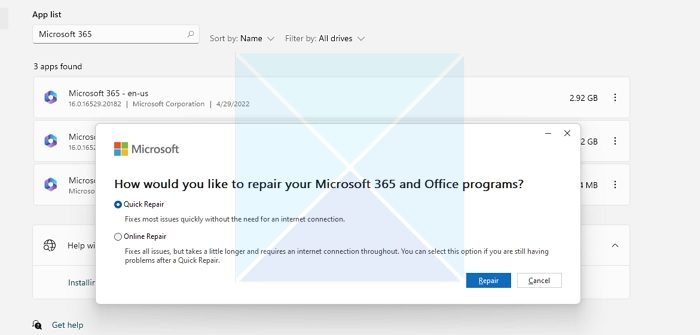
Over time, MS Office’s essential files can become corrupted, go missing, or get altered by other software. We will be performing an Online repair to completely refresh the MS Office installation and restore it.
- Close all Office apps, and open Settings by clicking Win + I.
- Go to Apps, and in the Installed apps window, look for the Microsoft 365 app.
- Click on it, select “Modify,” and click “Yes” when prompted. Next, select Online Repair and click the Repair button to begin.
Wait for the process to complete, and once it does, reboot the PC, and check if Copilot is now working. Hopefully, there will be no further issues with Copilot in PowerPoint.
That’s it!
Read: Copilot not working in Teams
How do I enable Copilot in my PowerPoint?
To enable Copilot in PowerPoint, you must have a valid Copilot Pro or enterprise license and be signed in to PowerPoint with that account. The next step is to save the presentation to OneDrive or SharePoint. This will make the Copilot button appear on the Home tab, ready to assist the users.
Also Read: GitHub Copilot not working in Visual Studio.
