
If you are unable to duplicate slides in PowerPoint, this article will help you fix the issue within moments. These solutions work best if you use a Windows 11 computer and Microsoft 365. However, you can also try some of the solutions if you use another version of Microsoft Office on your Windows 11 computer.
How to duplicate slides in PowerPoint?
There are two ways to duplicate slides in PowerPoint if you are using a Windows 11 computer.
Using keyboard shortcut:
This is the easiest method to duplicate a slide. Whether you want to duplicate only one or multiple slides, you can do that with the help of this keyboard shortcut.
To get started, select the slide from the left-hand side of PowerPoint and press Ctrl+D.
If you want to duplicate only one slide, press Ctrl+D after clicking that slide. However, if you want to duplicate more than one slide, select them all holding the Ctrl key and then press the Ctrl+D shortcut.
Using the built-in menu:
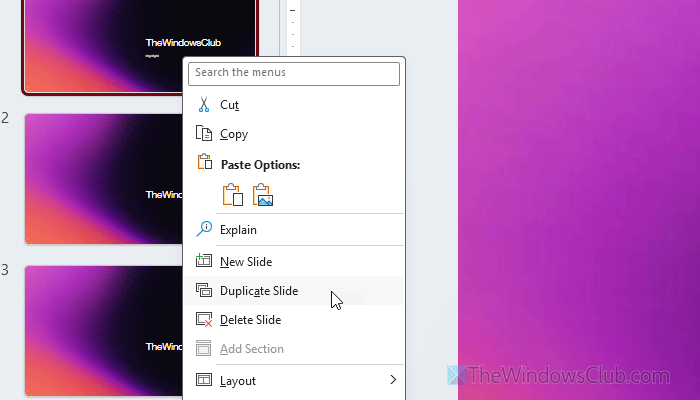
PowerPoint offers another option to duplicate the slides as per your requirements. Like the keyboard shortcut, you can duplicate more than one slide. In this case, you need to right-click on the selected slide/s, and select the Duplicate Slide option from the right-click context menu.
Why are you unable to duplicate slides in PowerPoint?
If you are unable to duplicate slides in PowerPoint, these could be the reasons:
- Slide Master has some issues.
- You might be using an older version of PowerPoint, which uses PPT instead of PPTX.
- There are some issues with the theme you are using.
- The installation of PowerPoint might be corrupt.
Unable to duplicate slides in PowerPoint
If you are unable to duplicate slides in PowerPoint, follow these solutions:
- Check the file format and change it if needed
- Don’t use Slide Master
- Disable recently installed add-ins
- Enable editing feature for your presentation
- Try duplicating with another layout
- Update PowerPoint
To learn more about these solutions, continue reading.
1] Check the file format and change it if needed
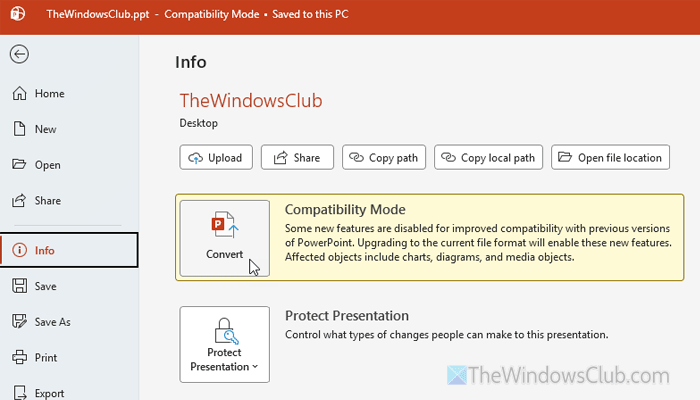
It is the very first thing you need to check. As mentioned earlier, you may not be able to duplicate slides if you have the presentation in PPT format. Although PPT is a PowerPoint file format, it used to be common a long time ago. That is why, if you have the latest version of PowerPoint and you want to duplicate slides, it is better to change the file format.
To check the existing file format, right-click on the file and select Properties. If it is PPT, you can follow this guide to convert it to PPTX.
First, open cloudconvert.com and upload your file. Then, select PPTX format from the drop-down menu and click on the Convert button.
Once done, you will be able to download the file. After downloading, open it and check if you can duplicate slides or not.
However, if you do not want to use a third-party tool to make the conversion happen, you can use PowerPoint to get the job done. For that, open the presentation and go to File > Info. Here you can find an option named Convert. Click on this option and make sure that the PPTX format is enabled.
If so, select a path where you want to save the file, give it a name, and click the Save button.
Read: Batch Convert PowerPoint (PPT or PPTX) to PDF on PC
2] Don’t use Slide Master
If you use Slide Master in PowerPoint, you might find this problem at times. Although Slide Master doesn’t interfere with such options, some incorrect settings might drop you into such positions.
As Slide Master lets you choose the theme, font, layout, color combination, etc., for your slides, it might block you from creating a duplicate slide if it is from another source.
That is why it is suggested to ditch Slide Master for the current presentation and check if it resolves the issue or not.
3] Disable recently installed add-ins
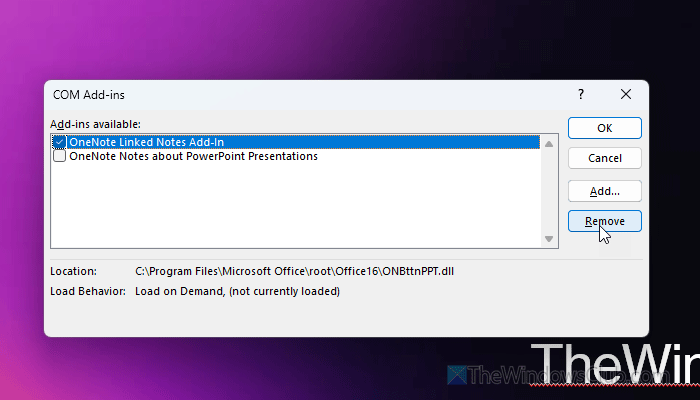
If you use third-party add-ins in PowerPoint, there is a chance of getting such an error while duplicating a slide. Also, if you install another Office substitute on your computer, you may encounter the same issue. That is why it is suggested to disable or remove all the recently installed add-ins.
For that, open PowerPoint and go to File > Options > Add-ins. Select COM Add-ins and click the Go button. Tick the unnecessary add-ins and click the Remove button.
Once done, it is suggested to restart PowerPoint even though it is not mandatory.
4] Enable editing feature for your presentation
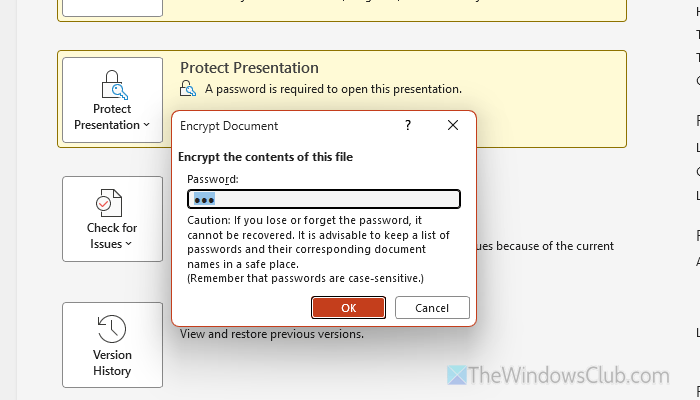
If you use a password to protect your presentation, you will find this problem while saving the file after duplication. In other words, you will have to remove the password first. For that, go to File > Info.
Then, click on the Protect Presentation option and select the Encrypt with Password option. Remove the password from the box and click the OK button.
5] Try duplicating with another layout
At times, the current layout might not support the duplication. Although it is not very common, it may happen if you download a presentation from the internet. That is why it is suggested to create a new slide with another layout and try to duplicate it accordingly.
Read: How to add and remove Slide Layout in PowerPoint
6] Update PowerPoint
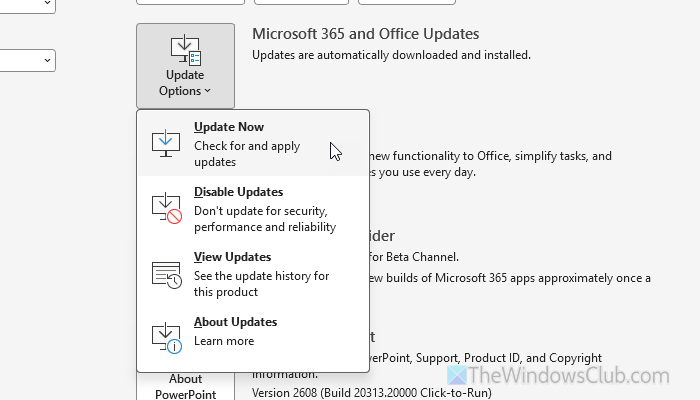
To update PowerPoint, go to File > Account. Click on Update Options > Update Now.
For your information, it may take several minutes if you haven’t updated Office for a very long time. Once done, you will be able to duplicate slides in the latest version of PowerPoint.
Read: How to update Microsoft Office manually in Windows 11
Why is PowerPoint not letting me reuse slides?
If you are trying to find the Reuse Slides option, unfortunately, that is gone. In exchange, you can use the Duplicate Slides option as mentioned in this article.
What does Ctrl+K do in PowerPoint?
Ctrl+K is a universal keyboard shortcut for inserting hyperlinks. You can do the same in PowerPoint slides with the help of this keyboard shortcut in Windows 11.
Read: How to add, duplicate and delete slides in Google Slides.
