
If Copilot is not working in Outlook on your Windows 11/10 PC, read this post to learn how to fix the issue. Copilot in Outlook is an AI assistant that helps users manage emails, schedule meetings, and streamline their daily workflow. However, a few users have reported that Copilot either doesn’t appear or fails to function within Outlook.
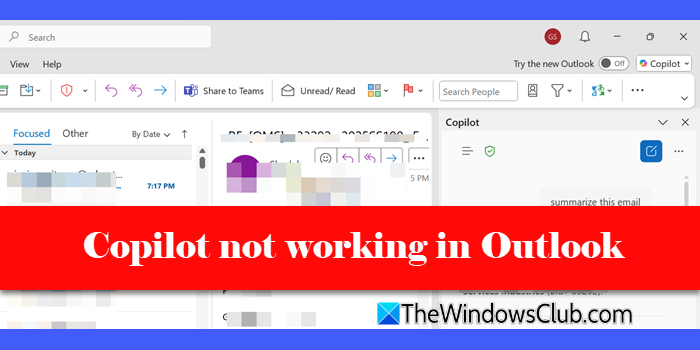
According to users, the Copilot icon is completely missing (or is greyed out) in both the web and desktop versions, despite working fine in Word, Excel, or Teams. Sometimes, the issue is accompanied by the following error message when trying to launch Outlook from the Copilot interface:
Something went wrong.
We can’t get that information right now. Please try again later.
If you’re experiencing a similar issue, the solutions provided in this article will help you.
Copilot not working in Outlook
To fix Copilot if it is not working in Outlook on your Windows 11/10 PC, use these solutions:
- Verify your Microsoft 365 subscription includes Copilot
- Update Outlook to the latest version
- Switch between classic and new Outlook
- Sign out of Outlook and sign back in
- Verify Copilot license and settings for your account
Let us see this in detail.
1] Verify your Microsoft 365 subscription includes Copilot
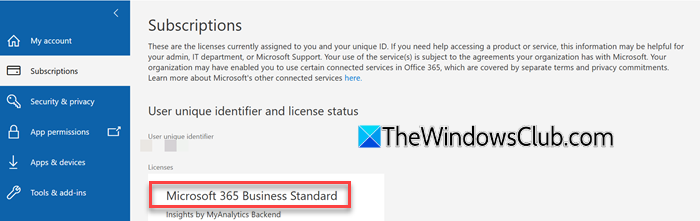
Copilot in Outlook only works with accounts that meet Microsoft’s eligibility requirements. So before trying other fixes, ensure your account is supported.
Supported accounts:
- Work or school accounts (Microsoft 365 / Entra ID)
- Microsoft accounts using outlook.com, hotmail.com, live.com, or msn.com
Unsupported accounts:
- Third-party email accounts like Gmail, Yahoo, or iCloud — these can use Outlook, but Copilot features will not appear.
Also, go to your Microsoft account’s Subscriptions page and verify your subscription type. Ensure it includes the desktop Office apps — Copilot is only available if your subscription covers these apps.
2] Update Outlook to the latest version

Multiple users have reported that after updating New Outlook, the Copilot icon reappeared, and previously failing features started working. This is because Copilot relies on the latest Office build to function correctly. Installing the newest version ensures you get the most stable and fully supported build.
Type ‘Microsoft Store’ in the Windows Search bar and press Enter. Go to Library in the Microsoft Store. Search for Outlook for Windows. Click Get updates to download the latest Outlook update.
For Classic Outlook (the desktop client), make sure to update the app through File > Office Account > Update Options > Update Now.
Once updated, restart Outlook and see if the issue is gone.
3] Switch between classic and new Outlook
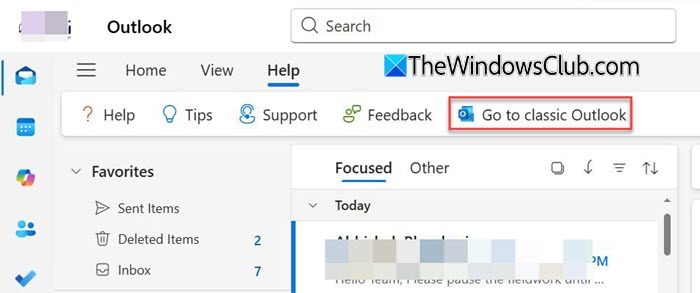
Toggling between versions often restores the Copilot icon when it was previously missing or greyed out. This is because switching forces Outlook to refresh its UI and session, which can resolve display issues with Copilot.
In New Outlook, click the Help tab in the ribbon. Select Go to Classic Outlook.
Note: In older versions of New Outlook, a top-right toggle may be visible for switching.
Wait for Outlook to reload completely. Check if the Copilot icon now appears in the ribbon or sidebar.
If needed, restart Outlook to ensure all updates take effect. You can then switch back to New Outlook once the Copilot icon appears.
4] Sign out of Outlook and sign back in

Sometimes, Copilot doesn’t appear because Outlook fails to refresh your account or subscription status. Signing out and back in forces Outlook to recheck your license and reload eligible features.
Classic Outlook:
Open any Office app. Go to File > Office Account. Select Sign out under your account name.
Close the app, reopen it, and sign in again with your Microsoft 365 subscription account that has a Copilot license.
New Outlook for Windows:
In the New Outlook, it’s no longer possible to sign out of your work or school account. Instead, you need to remove the account from Windows Settings > Accounts > Email & accounts, and then re-add it.
For personal Microsoft accounts (Outlook.com, Hotmail, Live, MSN), you can sign out directly in the Outlook app by going to your account settings.
Outlook on the web:
Click your profile picture > Sign out, then log back in. This refreshes your session and can resolve missing Copilot issues.
Note: If you have ever tried a free trial of Copilot Pro and canceled it, and now Copilot in Outlook isn’t working even with a valid Microsoft 365 subscription, you need to contact Microsoft Support to fix the account/license status from the backend. Some users have reported that doing this resolved the issue for them.
5] Verify Copilot license and settings for your account
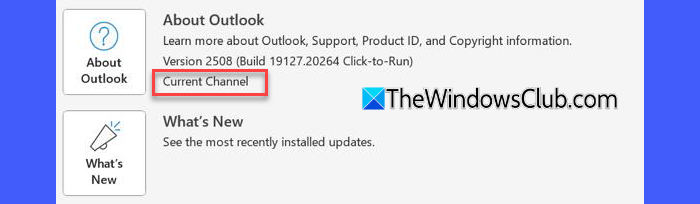
Even if your Microsoft 365 subscription includes Copilot, the feature may not appear in Outlook unless:
- Your account has a Copilot license assigned (in enterprise/business setups, admins can choose which users get which features).
- Your Office apps are on the correct update channel. Copilot features are not available on the Semi-Annual Enterprise Channel. You need to be on the Current Channel or the Monthly Enterprise Channel.
Additionally, if your organization manages your Microsoft 365 account, you’ll need to check with your IT admin for the following privacy settings:
- Experiences that analyze your content
- All connected experiences
The above two settings can cause Copilot to not appear in your Microsoft 365 apps. So make sure these are tuned on.
If the problem persists, contact Microsoft Support for further assistance.
I hope this helps.
Read: How to use Copilot in Outlook.
How do I activate Copilot in Outlook?
To activate Copilot, make sure you’re using a supported Microsoft 365 subscription. Then install the classic or new Outlook app and create an account using the same email address as your Copilot for Microsoft 365 subscription. Alternatively, sign in to Outlook on the web using the same Microsoft account. The Copilot icon should appear in the ribbon or sidebar. If it doesn’t, ensure you meet the license and privacy requirements as mentioned in this post.
How to use Copilot to respond to an email?
Open the email you want to respond to and click the Copilot icon in Outlook. In the Copilot panel, type a prompt like “Draft a reply” or “Summarize this email and respond politely”. Copilot will generate a suggested response, which you can review, edit, and send directly from the panel.
Read Next: Copilot not working in Windows.
