
Outlook handles email attachments seamlessly; however, there are times when PDF and Office documents become corrupted when they are downloaded, opened, or forwarded through the Outlook desktop app. Users may encounter errors stating that the file is damaged, cannot be opened, or is in an unsupported format. In this article, we will discuss all the plausible reasons and find solutions to fix it.
Why are my PDF files getting corrupted?
PDF files or Office documents can become corrupted due to problems with Outlook’s attachment handling, a damaged Outlook profile, or a corrupted OST cache. Antivirus interference, attachment preview issues, or bugs introduced by Windows or Office updates can be other factors playing a role. Continue to the next section to learn about it in detail.
Office and PDF files getting corrupted in Outlook
If you encounter a blank screen, an error message indicating that the file is corrupted and in need of repair, or it fails to open altogether, execute the solutions given below.
- Save the attachment locally and test it
- Clear the SecureTemp folder using the Registry Fix
- Start Outlook in Safe Mode and temporarily disable antivirus
- Turn off Cached Exchange Mode and rebuild the OST file
- Create a new Outlook profile
- Uninstall recently installed Windows updates
Let’s get started with the troubleshooting guide.
1] Save the attachment locally and test it
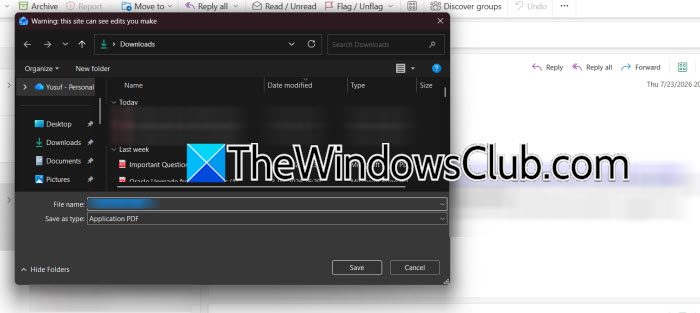
First and foremost, we will determine whether the attachment is actually corrupted by Outlook or if the original file was already damaged. Outlook on the web helps isolate the issue because it bypasses the local Outlook client, its cache, and its add-ins. If the file opens normally, the issue lies within the Outlook desktop application.
- Launch Outlook, locate the affected email, and right-click on the attachment.
- Select Save As, save the file to the Desktop or Downloads folder, and then try opening the saved file.
- If the file still appears corrupted, sign in to Outlook on the web using the browser and open the same email.
- Download the attachment again and try opening the file.
If both the local save and OWA test confirm the file is healthy, move on to the next fix.
2] Clear the SecureTemp folder using the Registry Fix
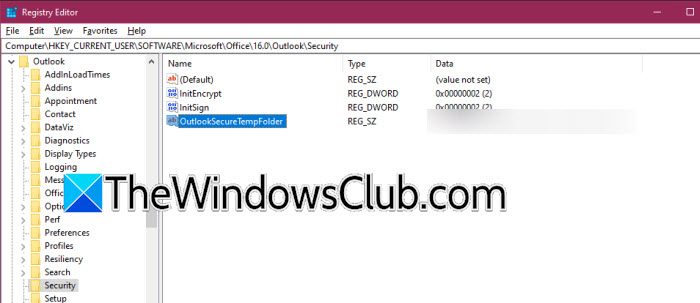
Outlook stores copies of opened attachments in a hidden temporary folder known as the SecureTemp folder. It tends to become overcrowded or corrupted. Outlook can open damaged copies of an attachment or fail to process them correctly, leading to the issue at hand. In such situations, clearing the SecureTemp folder is the best way to force Outlook to create fresh copies.
- Completely close Outlook, then click Win + R to open the Run dialog box, and type regedit.
- Press Enter and navigate to the following location.
HKEY_CURRENT_USER\Software\Microsoft\Office\16.0\Outlook\Security
- There, locate the OutlookSecureTempFolder entry, double-click it, and copy the folder path.
- Open File Explorer, paste the copied path into the address bar, and press Enter.
- Delete all the files inside the folder, close the app, and restart Outlook.
Test the attachment again, and if the issue persists, see the next solution.
3] Start Outlook in Safe Mode and temporarily disable antivirus
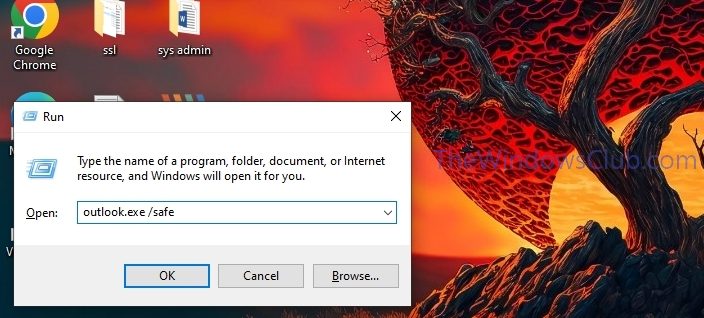
Third-party Outlook add-ins and antivirus email scanning modules can interfere with attachment processing. Running Outlook in Safe Mode loads Outlook without custom add-ins, while temporarily disabling antivirus scanning helps determine the culprit interfering with the Outlook attachment process.
- Close Outlook, open the Run dialog box, and type outlook.exe /safe.
- Hit Enter and open the email containing the problematic attachment. Save and open the attachment.
- If the file opens correctly, close Outlook, open it normally, and navigate to the Files tab.
- Click on Options, select Add-ins, and disable non-essential add-ins. Also, temporarily disable email scanning within the antivirus software, restart Outlook and try again.
An Outlook add-in or antivirus software is responsible if the attachment is working correctly in Safe Mode. To narrow down the culprit, enable one component at a time until the problem appears. Then you can either disable it or uninstall it completely. However, if the issue remains the same, go to the next solution.
4] Turn off Cached Exchange Mode and rebuild the OST file
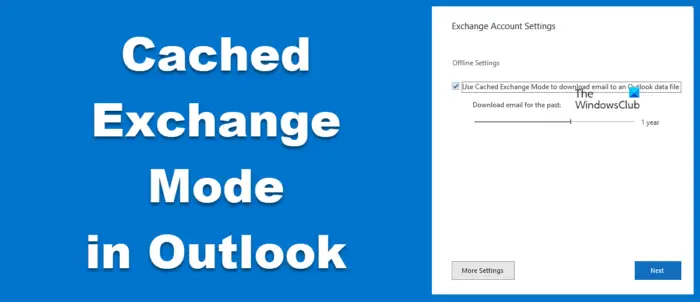
Cached Exchange Mode stores mailbox data locally in an OST file to improve performance and offline access. If the OST file becomes damaged, Outlook may download or handle attachments incorrectly. Therefore, we are going to turn off Cached Exchange Mode and rebuild the OST file to generate a fresh local mailbox cache. Follow the steps mentioned below to do the same.
- Launch Control Panel, select Mail, click on Email Accounts, and select the Exchange or Microsoft 365 account.
- Click the Change option, and untick the Use Cached Exchange Mode button. Click Next, close the window, and navigate to the following location:
C:\Users\%username%\AppData\Local\Microsoft\Outlook
- Locate the OST file associated with the mailbox and rename the file.
- Once done, launch Outlook to create a new OST file automatically and test the affected attachment.
See the next solution if attachments continue to fail.
5] Create a new Outlook profile
If the Outlook profile, which contains all the credentials, becomes corrupted, Outlook will mishandle attachments, synchronization, or file downloads. In this case, creating a new profile will provide Outlook with a clean configuration and eliminate profile-related corruption.
- Properly close Outlook and launch Control Panel.
- Select Mail, click on the Show Profiles option, and then click the Add button.
- Enter a name for the new profile, configure the email account and complete the setup wizard.
- Now, go to the Always use this profile option, select the newly created profile, and click the Apply and OK buttons.
Once done, start Outlook using the new profile and check if the issue is resolved. If not, go to the next solution.
6] Uninstall recently installed Windows updates
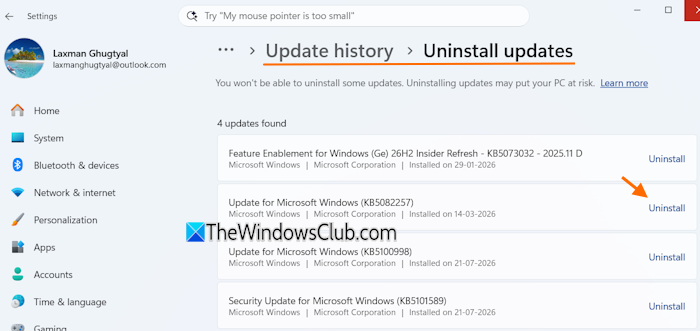
A Windows update can introduce compatibility issues that affect Outlook. If the problem began immediately after installing the update, rolling back the most recent update can help resolve the issue.
- Open Windows Settings and go to the Windows Update tab.
- Click Update History, select the Uninstall Updates option, and review recently installed updates.
- Identify updates installed shortly before the issue started, select the suspected update, and click the Uninstall button.
After the procedure is done, reboot the device, open Outlook, and test the PDF or Office files for corruption. Hopefully, there won’t be any issues with the attachment.
Read: Outlook crashes when printing on Windows 11
How do I repair a corrupted PDF file?
To repair a corrupted PDF, first use Adobe Acrobat/Reader to automatically attempt recovery when opening the file. If that fails, try a free online repair tool or dedicated software like Stellar. Moreover, users can also restore a previous version by right-clicking it > Properties > Previous Versions, or by opening the PDF in a different viewer and saving it again.
Also Read: Outlook stuck on Loading Profile or Processing screen.
